> For the complete documentation index, see [llms.txt](https://help.aikido.dev/llms.txt). Markdown versions of documentation pages are available by appending `.md` to page URLs; this page is available as [Markdown](https://help.aikido.dev/aikido-agent/secrets-autotriage.md).
# Secrets AutoTriage
Secrets AutoTriage is how [Aikido Agent](/aikido-agent/aikido-agent.md) reduces noise from secrets scanning so you can focus on exposed secrets that are actually dangerous. It first tries to rule out false positives, then (when a finding is real) ranks it by how risky the exposed secret is.
{% hint style="info" %}
Secrets AutoTriage works on the secrets Aikido detects in your code. It doesn't change what gets scanned, only how findings are filtered and prioritized. This functionality is **only available for Pro and Advanced Plans**.
{% endhint %}
## Enabling Secrets AutoTriage
Secrets AutoTriage is **not enabled by default**. Only workspace admins can turns it on from the workspace settings.
{% stepper %}
{% step %}
### Open the Triage settings
Go to **Settings** → **Triage**.
{% endstep %}
{% step %}
### Enable Secrets AutoTriage
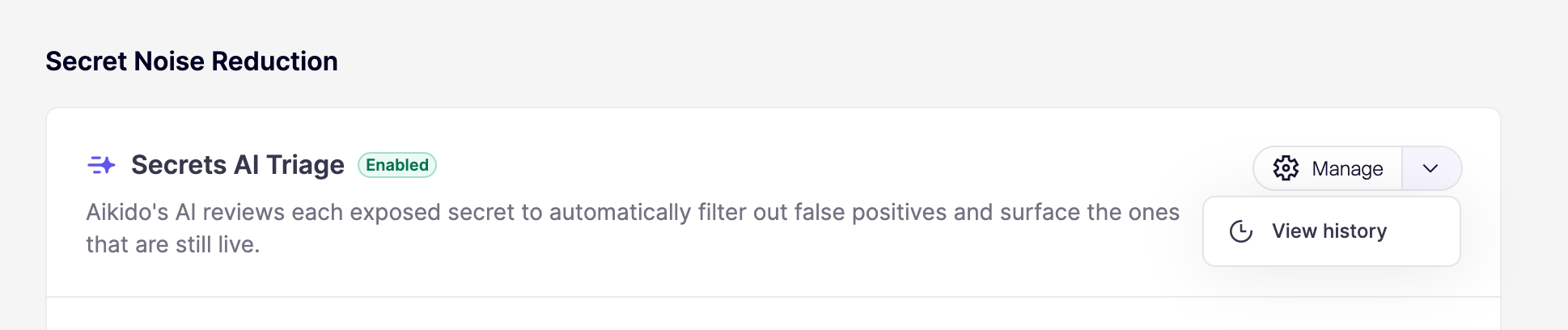
Under **Secret Noise Reduction**, toggle on **Secrets AI Triage**. Once enabled, Aikido applies AutoTriage to secret findings on your next scan.
{% endstep %}
{% endstepper %}
## What Secrets AutoTriage is (and isn't)
Secrets AutoTriage isn't itself a scanner. It sits downstream of your secrets scans and makes determinations about whether a match is a ***real, exposed secret*** and, if so, how ***risky*** that exposure is.
For the majority of findings, Aikido triages based on Aikido-defined rules and validity checks. For more ambiguous cases, Aikido uses the surrounding code context to decide whether a match is a genuine secret or a placeholder, example, or test value.
## How Secrets AutoTriage works
### False positive filtering before triage
Before a secret reaches your feed, Aikido filters out matches that look like secrets but aren't. That may include:
* Skipping test files, mock data, and example configurations
* Recognizing placeholder and example values that share the format of a real secret
* Applying your workspace [Secret Keyword Filter](/code-scanning/scanning-practices/denoise-via-secret-keyword-filter.md) to drop lines with known-safe keywords
* Honoring [code comment exclusions](/code-scanning/scanning-practices/ignoring-secrets-via-code-comments.md) and [`.aikido` file exclusions](/code-scanning/scanning-practices/ignore-via-code-with-aikido-files.md)
These steps alone suppress a significant portion of secret alerts.
{% hint style="warning" %}
Some legitimate-looking secrets can't be distinguished from real ones by pattern alone. When in doubt, Aikido keeps the finding so you can review it rather than hiding a real exposure.
{% endhint %}
### Validity and permission checks
When a match looks like a real secret, Aikido's [Live Secret Detection](/code-scanning/scanning-practices/live-secret-detection.md) verifies whether the secret is still active and inspects the scope of access it grants. AutoTriage uses these signals to adjust priority:
* **Expired or rotated secrets** are downgraded, since they no longer pose a risk
* **Read-only scopes** are prioritized lower than write or delete access
* **Active secrets with write/delete scopes** are upgraded for immediate action
### Signals Secrets AutoTriage considers
Secrets AutoTriage is **context-hungry** by design. In practice, it considers things like:
* Whether the match is active, expired, or already rotated
* The scope of permissions an active secret grants
* Whether the file is a test, mock, example, or documentation file versus production code
* Whether the value is a placeholder or example rather than a real credential
* The sensitivity of the systems the secret unlocks
## Review analysis history
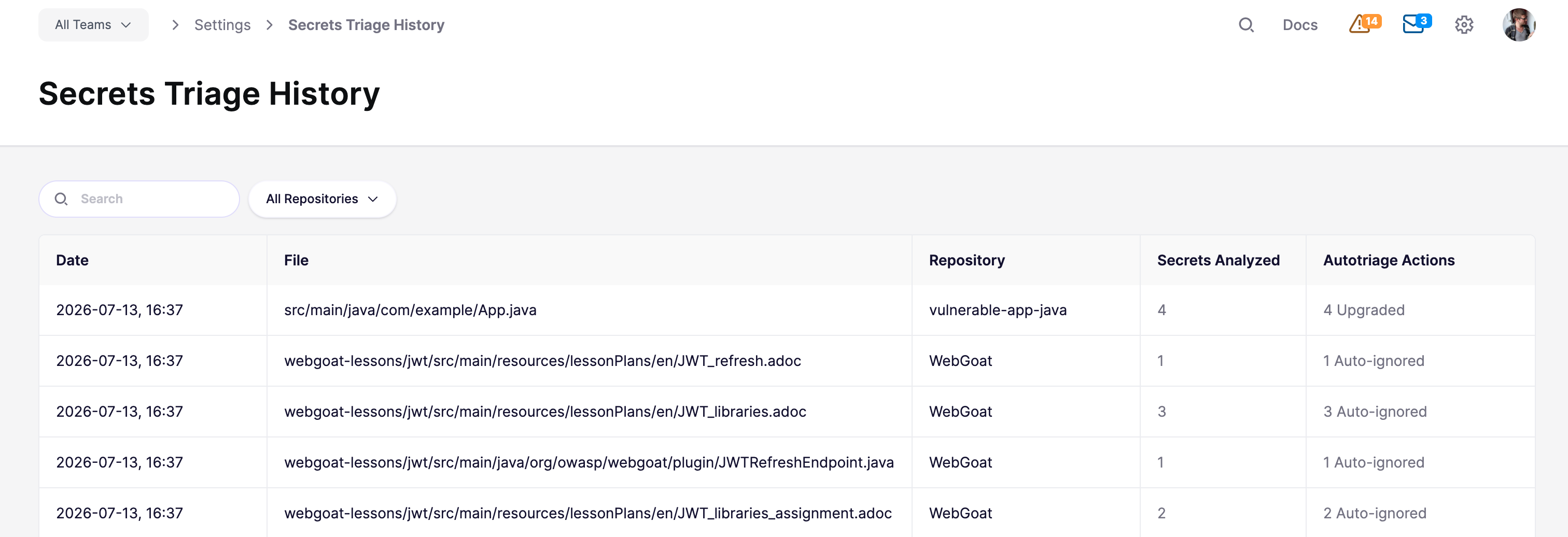
Every AutoTriage verdict change is recorded so you can see what Aikido analyzed and what it did. In [Triage settings](https://app.aikido.dev/settings/advanced), open the **Manage** dropdown, click **View History** to go to the [**Secrets Triage History**](https://app.aikido.dev/settings/advanced/secrets-triage-history) page.
The history table groups related assessments by file, repository, and time. Each row shows the date, file path, repository, number of secrets analyzed, and a summary of the triage actions taken. Use the search and repository filters to narrow the list.
Actions you'll see:
* **Upgraded**: Priority raised because the secret looks more exploitable or higher risk
* **Downgraded**: Priority lowered because the secret looks less risky (for example, a placeholder, test value, or low-impact scope)
* **Auto-ignored**: Finding removed from your feed as a false positive
* **Neutral**: Assessment ran without changing priority
## Resolving triaged secrets
Once a secret is confirmed as a real exposure, rotate it as soon as possible. Removing the secret from your code isn't enough on its own, since it remains in your git history. For guidance on cleaning up and rotating exposed secrets, see [Resolving Malware and Leaked Secret Issues](/getting-started/core-functionalities/resolving-malware-and-leaked-secret-issues.md).
If AutoTriage flags something you believe is a false positive, you can [ignore the issue in the UI](/getting-started/core-functionalities/ignore-issues-to-remove-issues-from-main-feed.md), [ignore it via a code comment](/code-scanning/scanning-practices/ignoring-secrets-via-code-comments.md), or add a workspace-wide [Secret Keyword Filter](/code-scanning/scanning-practices/denoise-via-secret-keyword-filter.md).
---
# Agent Instructions
This documentation is published with GitBook. GitBook is the documentation platform designed so that both humans and AI agents can read, navigate, and reason over technical content effectively. Learn more at gitbook.com.
## Querying This Documentation
If you need additional information that is not directly available in this page, you can query the documentation by asking a question.
Perform an HTTP GET request on the following URL with the `ask` and `goal` query parameters:
```
GET https://help.aikido.dev/aikido-agent/secrets-autotriage.md?ask=&goal=
```
`ask` is the immediate question: it should be specific, self-contained, and written in natural language.
`goal` is what the user is ultimately trying to achieve, the reason they need the answer. Sharing it helps GitBook give you a better, more relevant answer. A goal is most helpful when it describes the outcome the user wants rather than restating the question. For example, with `ask=how do I create an API token`, a goal like `automate deployments from our CI pipeline` lets GitBook tailor the answer to that use case.
The response will contain a direct answer to the question and relevant excerpts and sources from the documentation.
Use this mechanism when the answer is not explicitly present in the current page, you need clarification or additional context, or you want to retrieve related documentation sections.