> For the complete documentation index, see [llms.txt](https://help.aikido.dev/llms.txt). Markdown versions of documentation pages are available by appending `.md` to page URLs; this page is available as [Markdown](https://help.aikido.dev/autofix-and-remediation/configure/signed-commits.md).
# Signed Commits
Aikido supports signed commits for both **GitHub** and **GitLab** to ensure the authenticity of code changes. While GitHub requires no configuration, GitLab users must add a specific Aikido-provided SSH key to their profile.
## Why use signed commits?
Signed commits provide a layer of cryptographic assurance, proving that code changes originated from Aikido and haven't been altered. This is essential for:
* **Identity Verification:** Guarantees that the commit was actually made by the authorized service.
* **Trust & Security:** Prevents "commit spoofing" where a malicious actor pretends to be a trusted contributor.
* **Audit Readiness:** Helps satisfy security compliance frameworks like **SOC2**, **ISO 27001**, and **HIPAA**.
## Setup
### GitHub
**No configuration required.** GitHub automatically recognizes and signs commits made via the Aikido integration. These will appear with a **"Verified"** badge in your commit history immediately.
### GitLab
To enable signed commits on GitLab, you must use **Personal Access Token (PAT)** authentication; this feature is not available via OAuth.
**Important Note on Users:** GitLab only supports signed commits for **real user accounts**, not service accounts. The PAT used in Aikido must belong to a real user.
Setup steps:
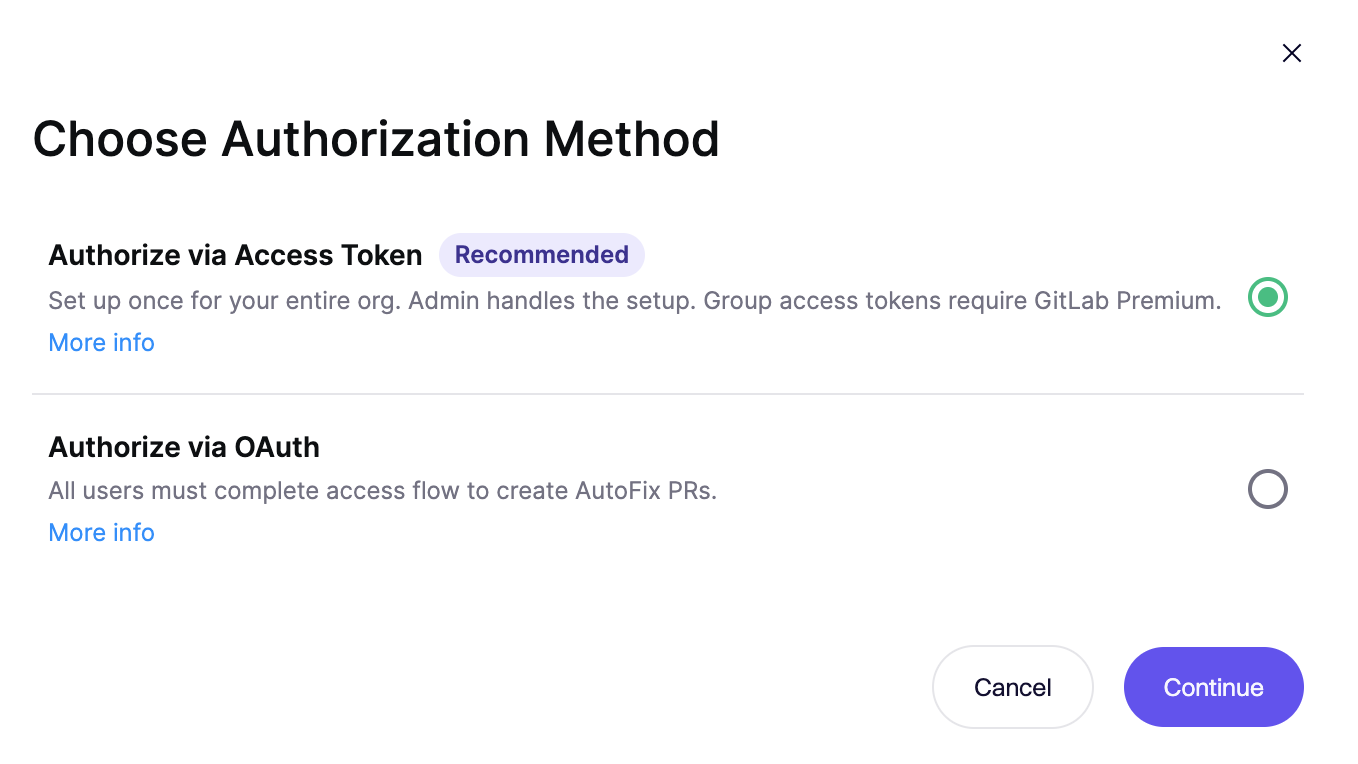
1. **Navigate to Settings:** In Aikido, go to the [**AutoFix settings** page](https://app.aikido.dev/issues/fix/settings) and click **Authorize** (on initial setup) or **Manage Personal Access Token** (when a token is already set).
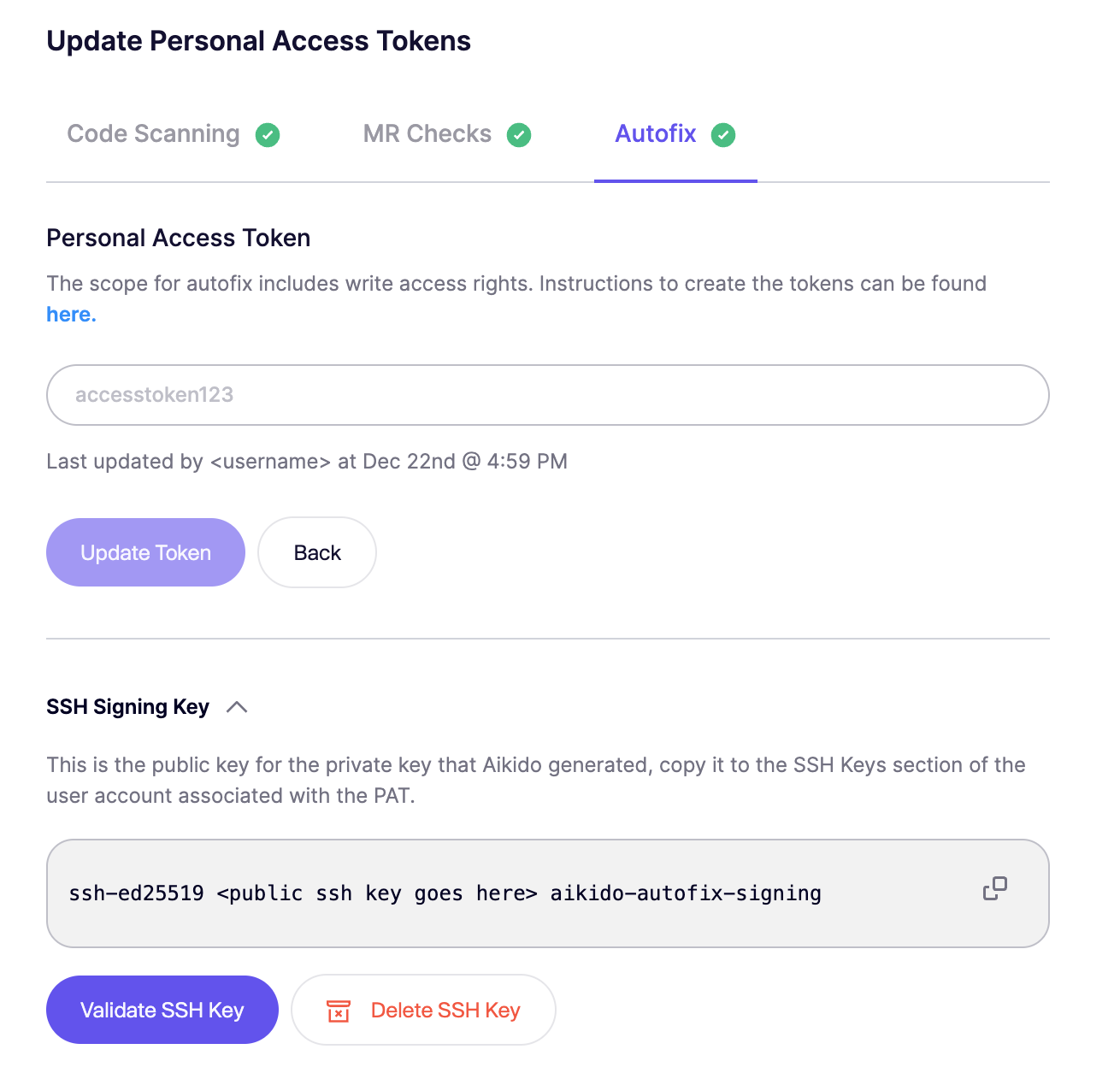
2. **Configure the PAT:** Enter the Personal Access Token you generated in GitLab's User Settings in Aikido.
3. **Generate SSH Key:** Click **Generate SSH key** within Aikido to create your unique signing key.
4. **Add to GitLab:**
* Copy the public key provided by Aikido.
* In GitLab, click the **User icon** on the top right **> Edit profile > SSH Keys > Add new key**
* Paste the key and ensure the **Usage type** is set to **"Authentication & Signing"**.
5. **Validate:** Return to Aikido and click **Validate SSH key** to confirm the connection is active.
You will now see the `Verified` badge on the commits from Aikido:
Aikido creates a unique SSH key for each account, this SSH key can be recreated by clicking `Delete SSH Key` and creating a new key.
---
# Agent Instructions
This documentation is published with GitBook. GitBook is the documentation platform designed so that both humans and AI agents can read, navigate, and reason over technical content effectively. Learn more at gitbook.com.
## Querying This Documentation
If you need additional information that is not directly available in this page, you can query the documentation dynamically by asking a question.
Perform an HTTP GET request on the current page URL with the `ask` query parameter, and the optional `goal` query parameter:
```
GET https://help.aikido.dev/autofix-and-remediation/configure/signed-commits.md?ask=&goal=
```
`ask` is the immediate question: it should be specific, self-contained, and written in natural language.
`goal` is optional and describes the broader end goal you are ultimately trying to accomplish on behalf of the user. GitBook uses it to tailor the answer towards what is most useful for that goal.
The response will contain a direct answer to the question and relevant excerpts and sources from the documentation.
Use this mechanism when the answer is not explicitly present in the current page, you need clarification or additional context, or you want to retrieve related documentation sections.