
AutoShip Overview
AutoShip ships security fixes so you can focus on shipping features.
Although AutoFix optimizes to create non-breaking pull requests, it is still required to test the changes in a live environment to ensure there are no unwanted runtime effects. Shipping pull requests created by AutoFix thus can take significant time. You need to:
- Check the CI/CD results
- Deploy to a test environment
- Ensure there are no new errors / regressions in the test environment
- Perform a test to see nothing is broken
Once these tests are done, the pull request can safely be shipped to production.
AutoShip integrates with all your runtime systems in order to automate this process. AutoShip starts based on a label on the pull request. Once the label is added, AutoShip starts the process of shipping the pull request.
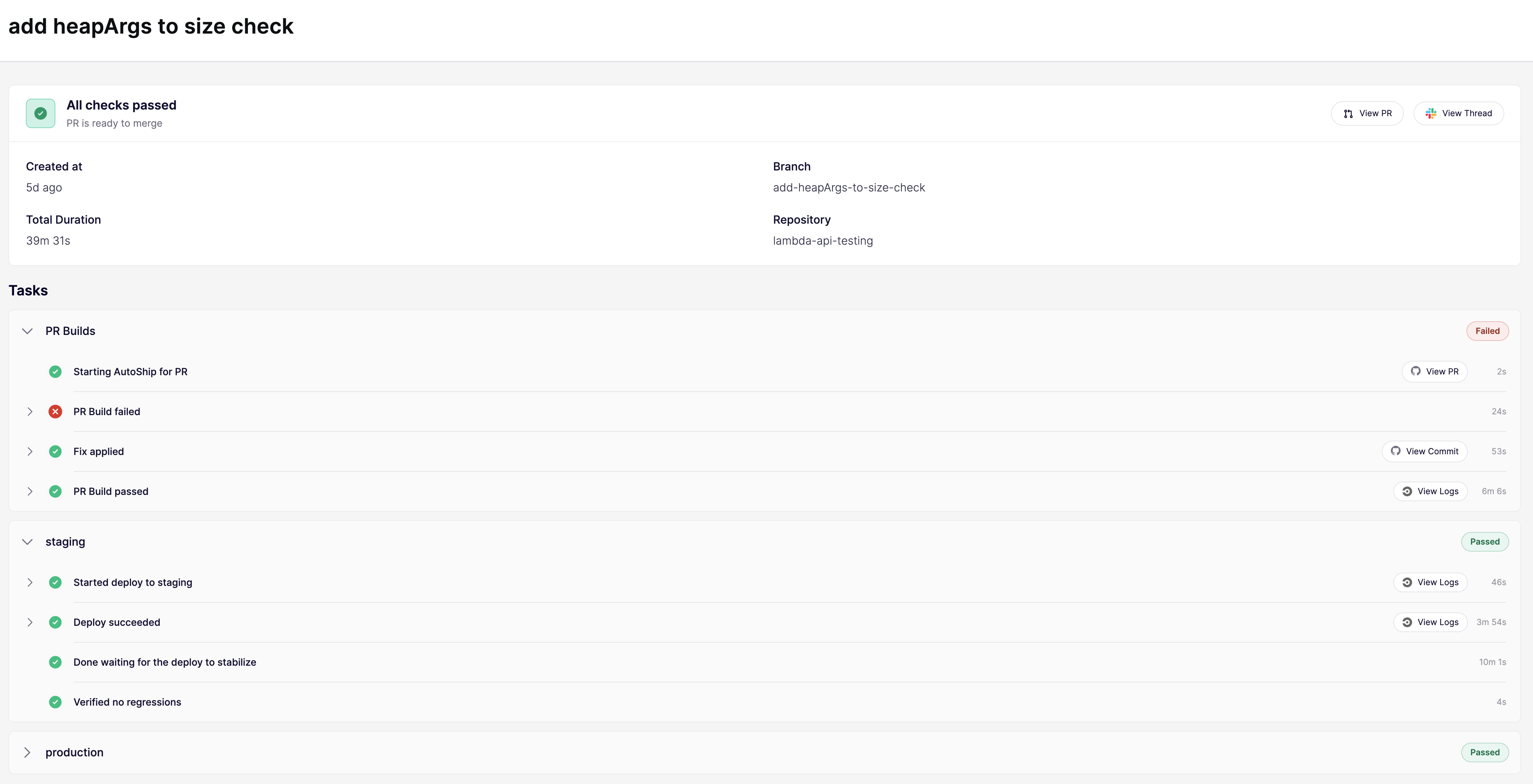
#Getting started
Go to AutoShip in the Aikido UI and first configure the global settings: provide write access, the label to trigger on and your environments to deploy to. After connecting the CI/CD, Monitoring and Alerting integrations, you can start enabling AutoShip on your repositories. For each repository you need to configure which CI/CD they use and what environments AutoShip should deploy to. For each environment you can specify where the monitoring information can be found to detect regressions and how to smoke test that environment.
#Global Configuration
On the AutoShip > Integrations page you can setup the integrations used by AutoShip:
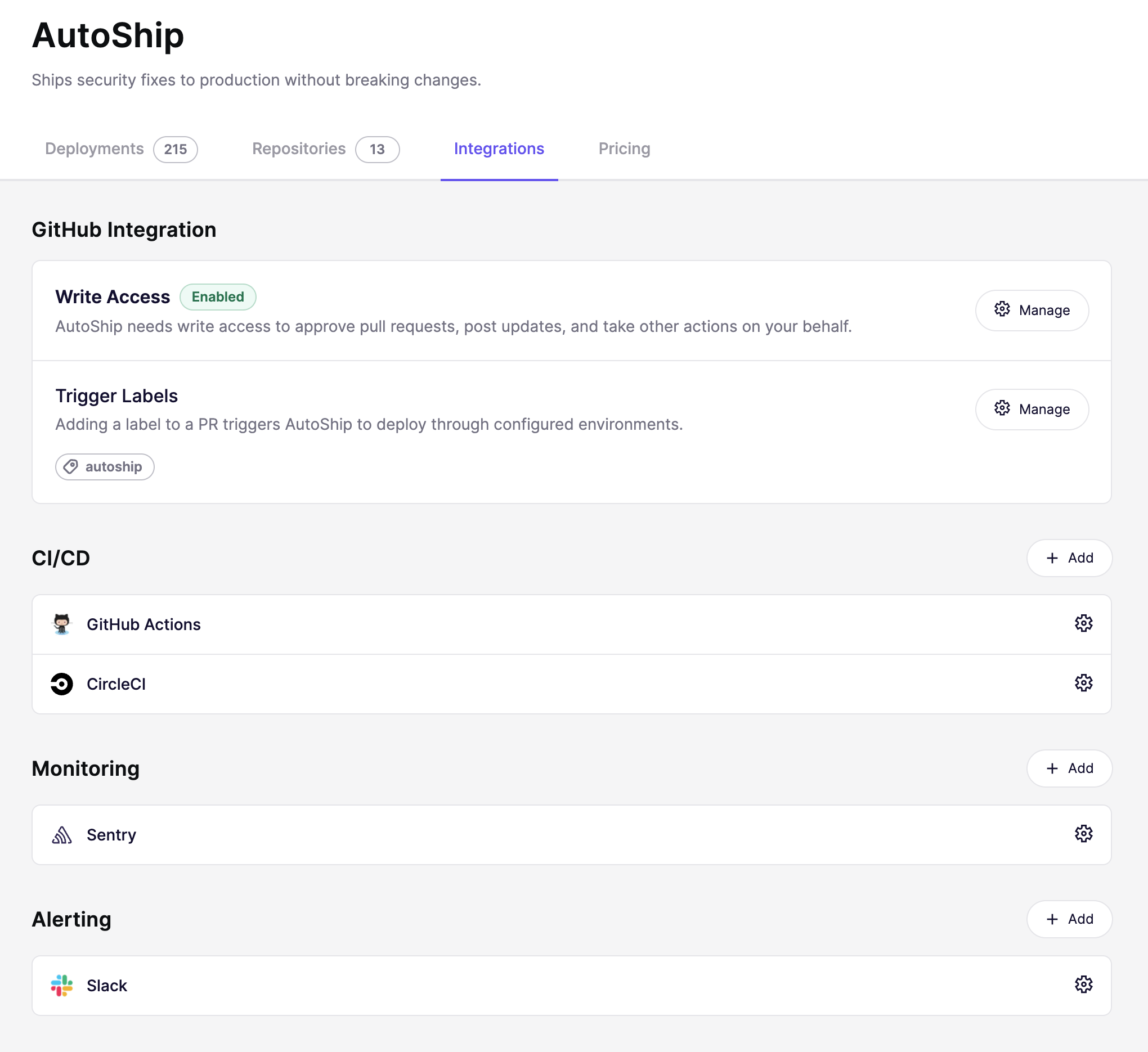
#Write Access for AutoShip
Supports GitHub, GitLab, BitBucket and Azure Devops.
For GitHub, write access is provided through the Aikido AutoShip GitHub app. This app is separate from the Aikdio AutoFix GitHub app. You can configure independently on which repos AutoFix is enabled and on which repos AutoShip is enabled.
For GitLab, BitBucket and Azure Devops, AutoShip requires a personal access token, service account token or equivalent to access the repositories.
#Trigger label
AutoShip triggers on pull requests that have a designated label, the default label is autoship.
Since BitBucket does not support labels, by default AutoShip will pick up pull requests that have @autoship in the PR description. If the label is changed, AutoShip will trigger on @<label> .
#CI/CD
AutoShip connects to your CI/CD system to check whether the build is passing. When build problems arise, AutoShip will fix them and push the fix on the pull request branch.
In the global configuration you connect your CI/CD system. In most cases this requires an API key, see the CI/CD page for details per system. We current support:
- GitHub Actions
- GitLab CI
- BitBucket Pipelines
- Azure Pipelines
- CircleCI
Additional configuration per repository can be provided when configuring the repository.
#Monitoring
Once the deploy to an environment succeeded, AutoShip will look at the data from your monitoring system to verify there are no new errors. If a regression is detected, AutoShip will roll back the changes.
In the global configuration you connect your monitoring systems. In most case this requires an API key, see the Monitoring page for details per system. We currently support:
- Sentry
- CloudWatch
Additional configuration per repository can be provided when configuring the repository.
#Alerting
AutoShip keeps you informed about its progress. This can be done through Slack. AutoShip creates a thread per deployment and posts progress messages:
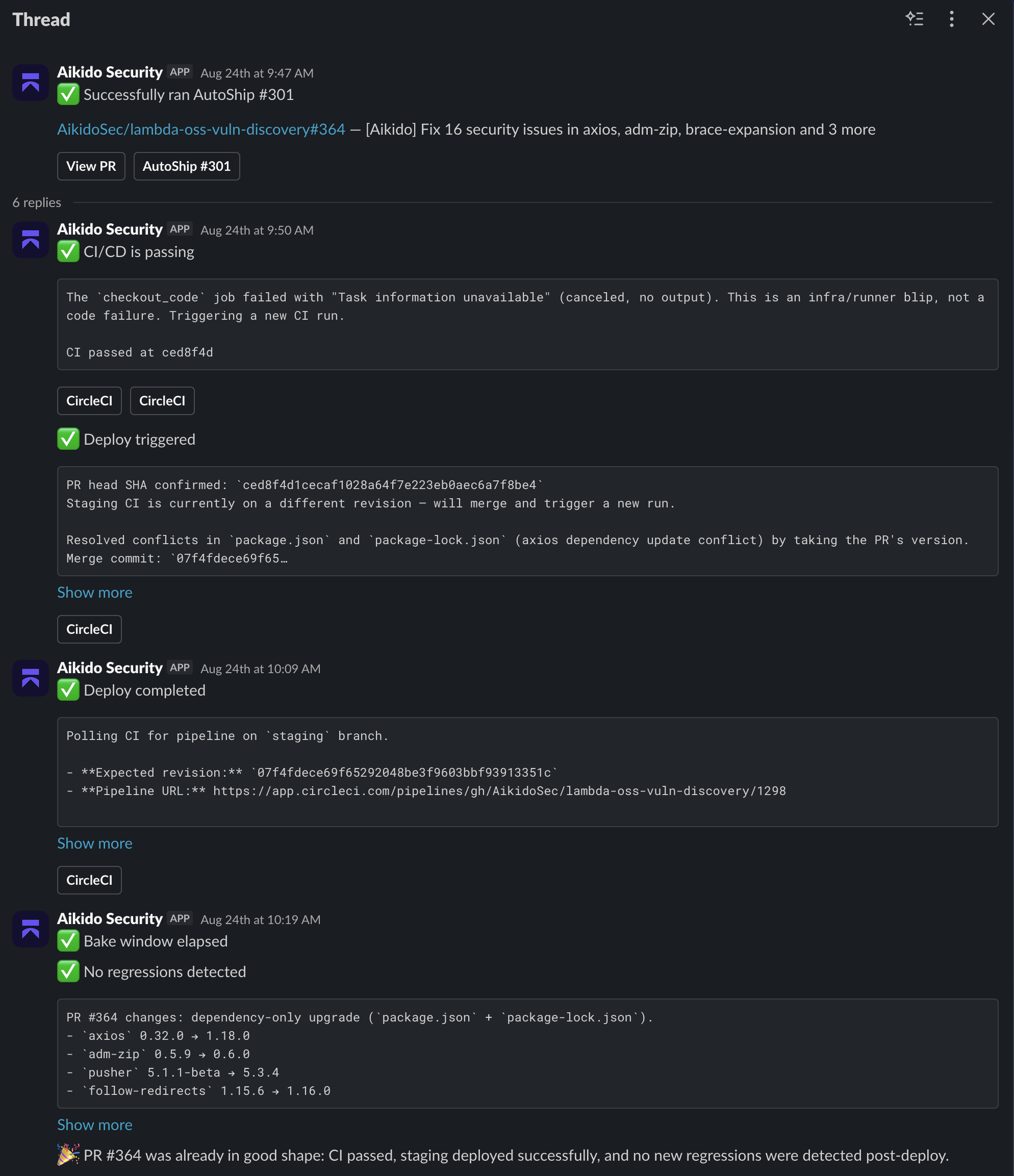
#Repository Settings
Once the integrations are configured, you need to enable them for your repositories.
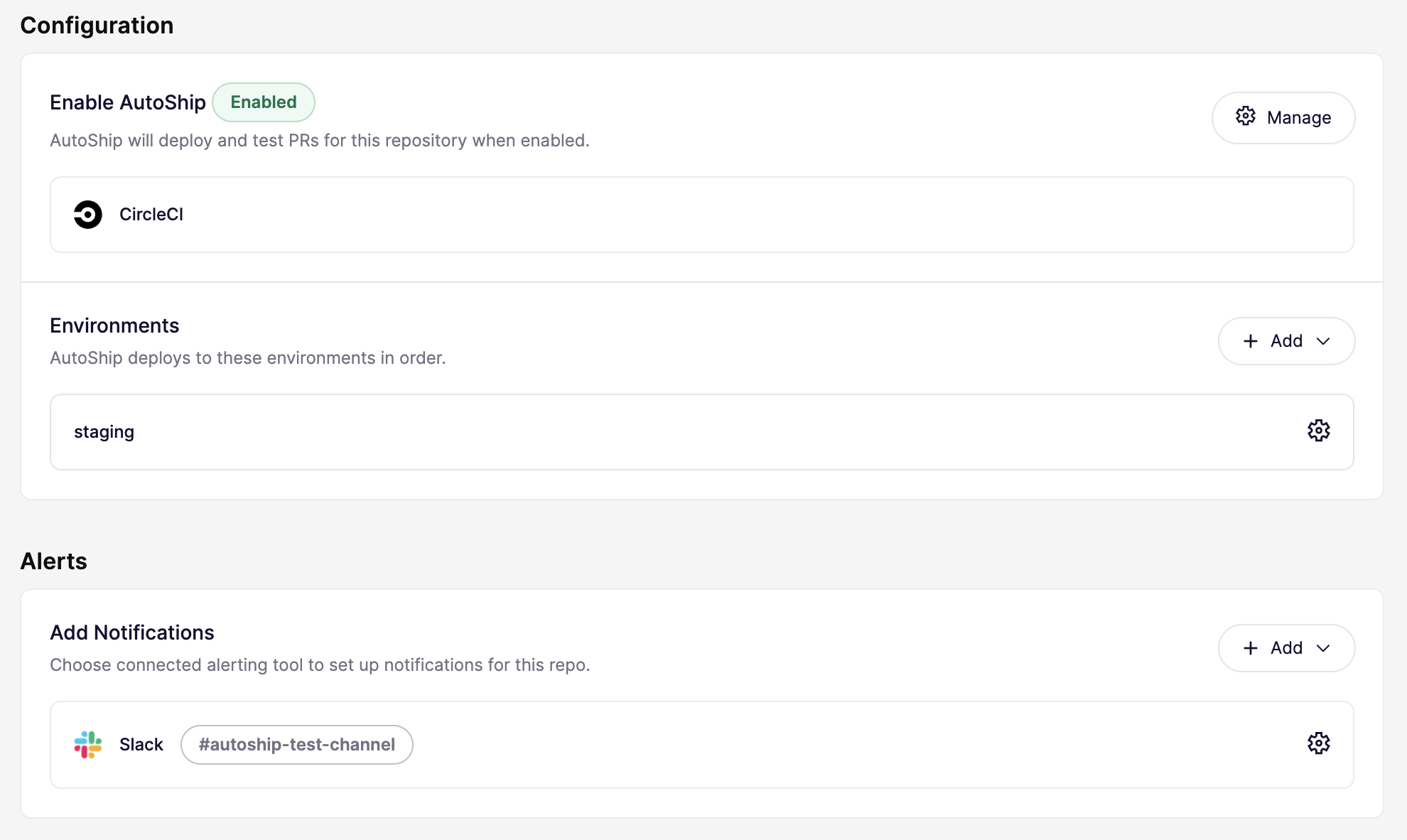
#CI/CD
Choose the CI/CD system that is used for this particular repository. No further configuration required.
#Environments
Define the environments for AutoShip to deploy. You can deploy to multiple environments in sequence, for example first deploying and testing to a staging environment before deploying and testing to a production environment.
This can be configured per repository, for critical repositories you probably want to deploy to a staging enviroment and perform a manual verifcation before deploying to production.
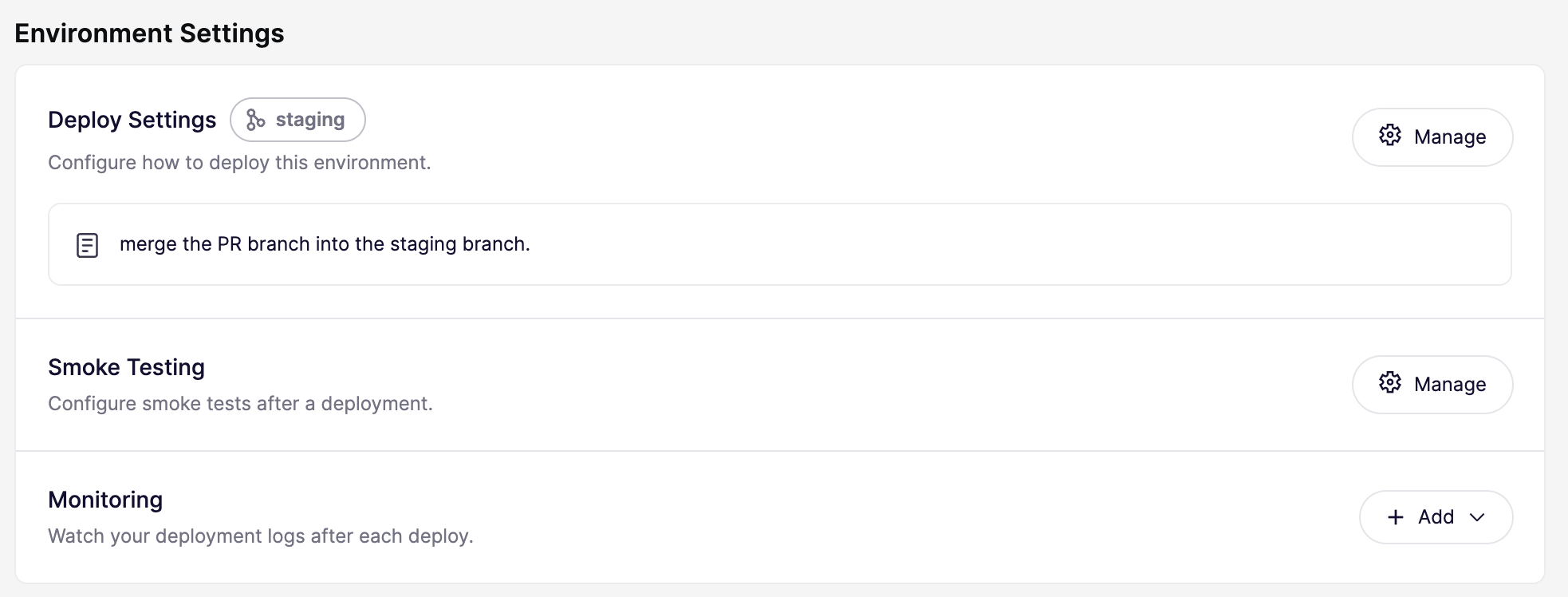
In the environment configuration you can specify:
- How AutoShip should deploy to this environment. These are a free-text instructions, eg.
merge the PR branch into the staging branch. - How AutoShip should test the functionality. Here you configure which domain should be tested, how to authenticate to the domain and provide free-text instructions on how to test, eg.
add a product to the basket and check it is present on the checkout page. More information about smoke testing. - How AutoShip should detect regressions. Point AutoShip to the monitoring system used for this particular repository & environment. Eg. where to find the Cloudwatch logs for the service in staging.
#Alerting
Specify on which Slack channel you want to be notified about the AutoShip progress.
#IP addresses for AutoShip
Make sure your CI/CD and monitoring tools allow access from these IP addresses:
-
18.200.42.253 -
52.51.229.214 -
52.214.244.18 -
18.202.209.180 -
52.50.198.227 -
52.51.98.186
The IP addresses for Smoke Testing can be found here.
#Try it!
Add the label you specified (eg. autoship) on a pull request.
- The Aikido AutoShip app will show up in the GitHub checks
- A Slack message will be posted