
Get Required Values + Set Up Configuration to Connect Azure Cloud via Public API
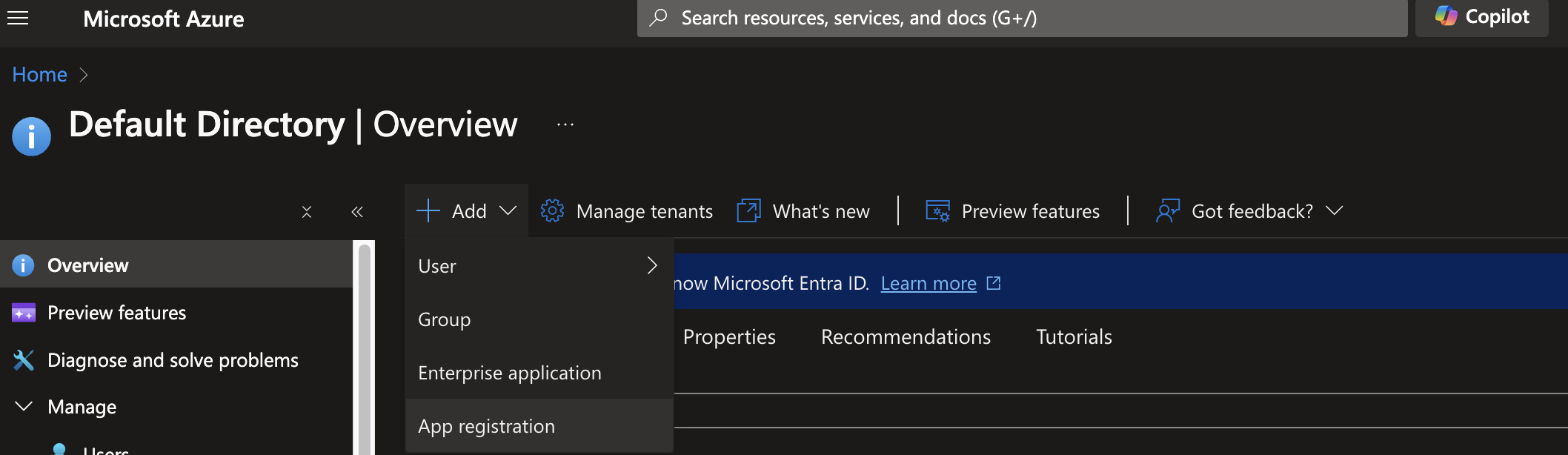
Log into your Azure Portal and navigate to the Microsoft Entra ID service (Formerly known as Azure Active Directory).
Select App registration
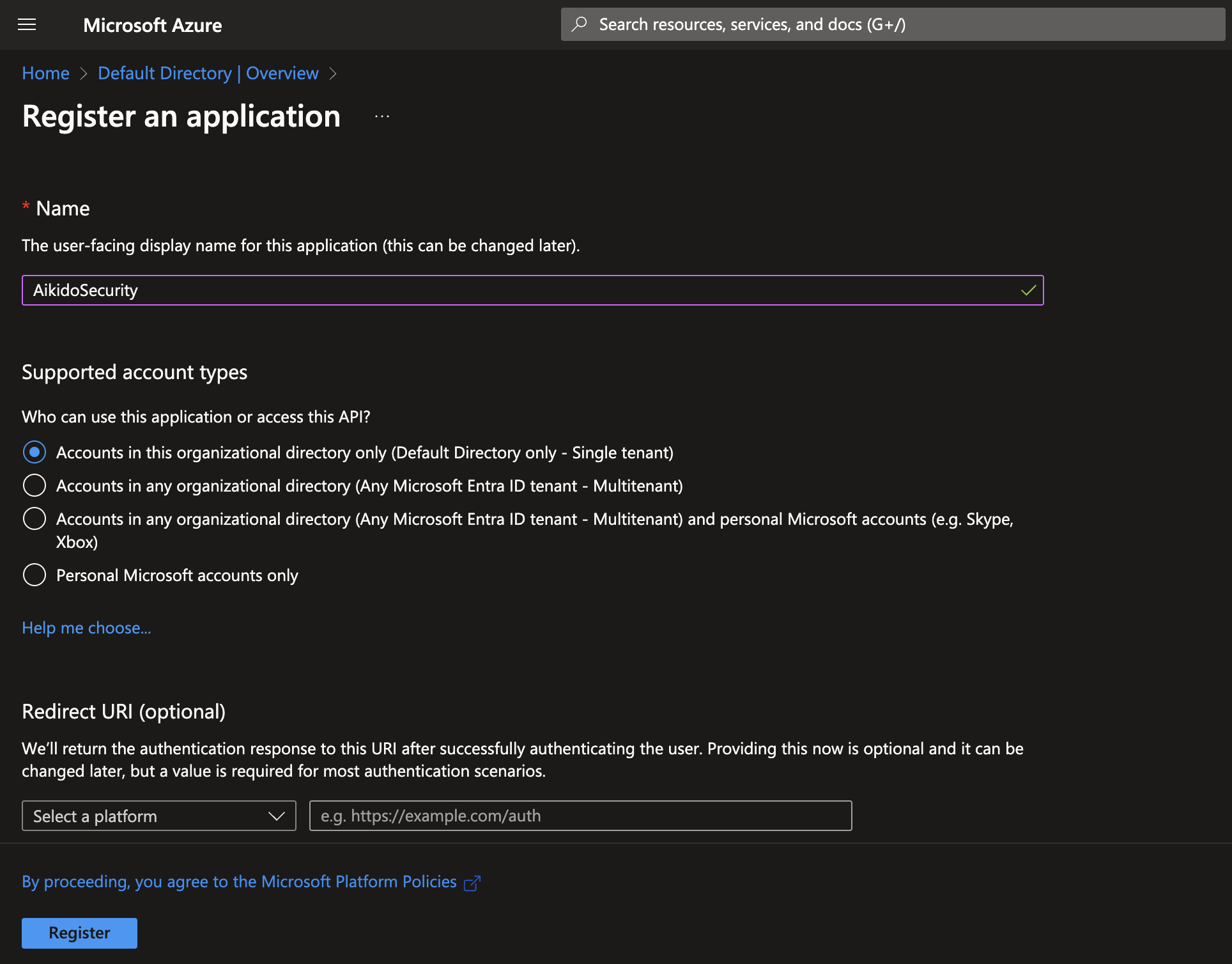
Give the application a meaningful name, we need this name later.
Leave the "Supported account types" default: "Accounts in this organizational directory only".
Click "Register"
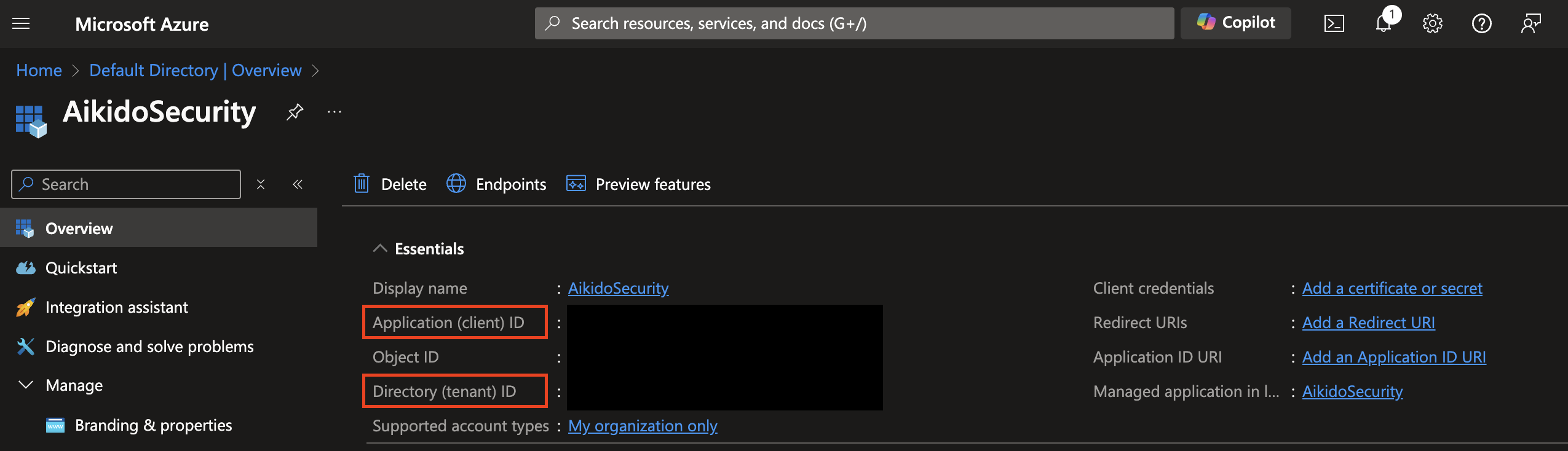
You get redirected to the detail page of the newly created application. Here you can find and copy the Application (client) ID and the Directory (tenant) ID
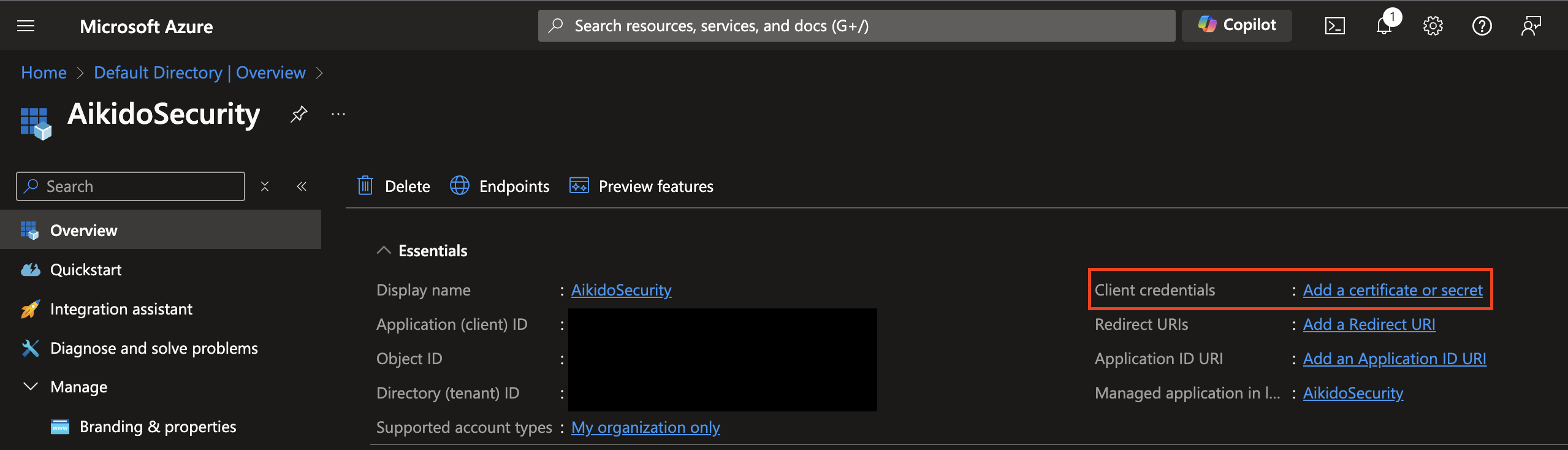
At the client credentials field, click "Add a certificate or secret"
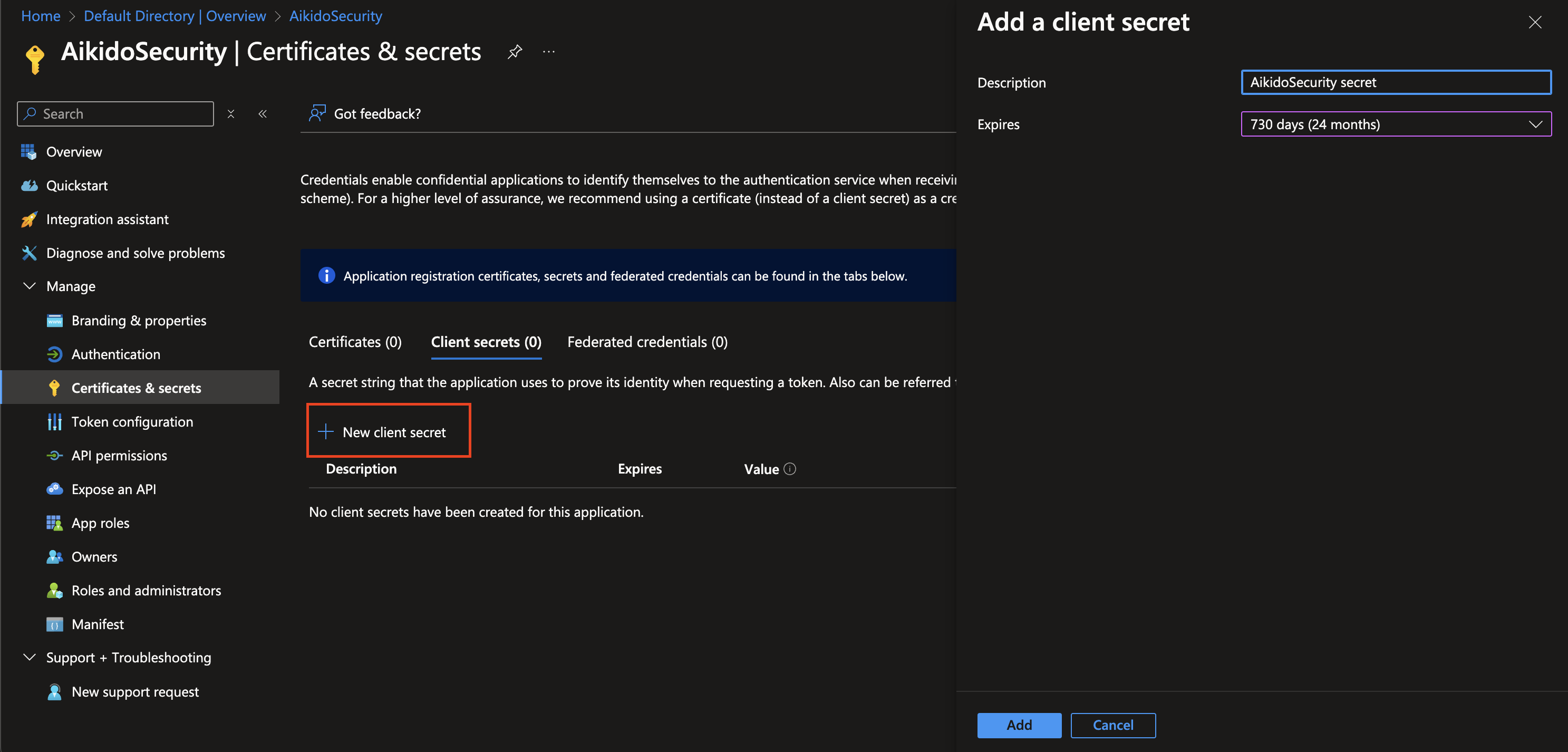
Click the "New client secret"-button, give a description for the secret and set the expiration date to 2 years (730 days / 24 months)
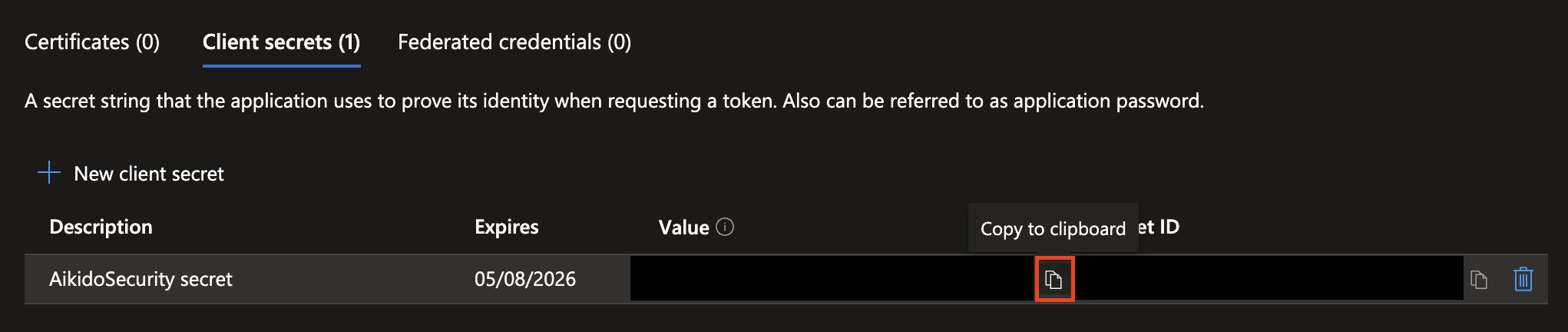
Copy the Secret's Value
Navigate to Subscriptions, Copy the Subscription ID of the relevant subscription.
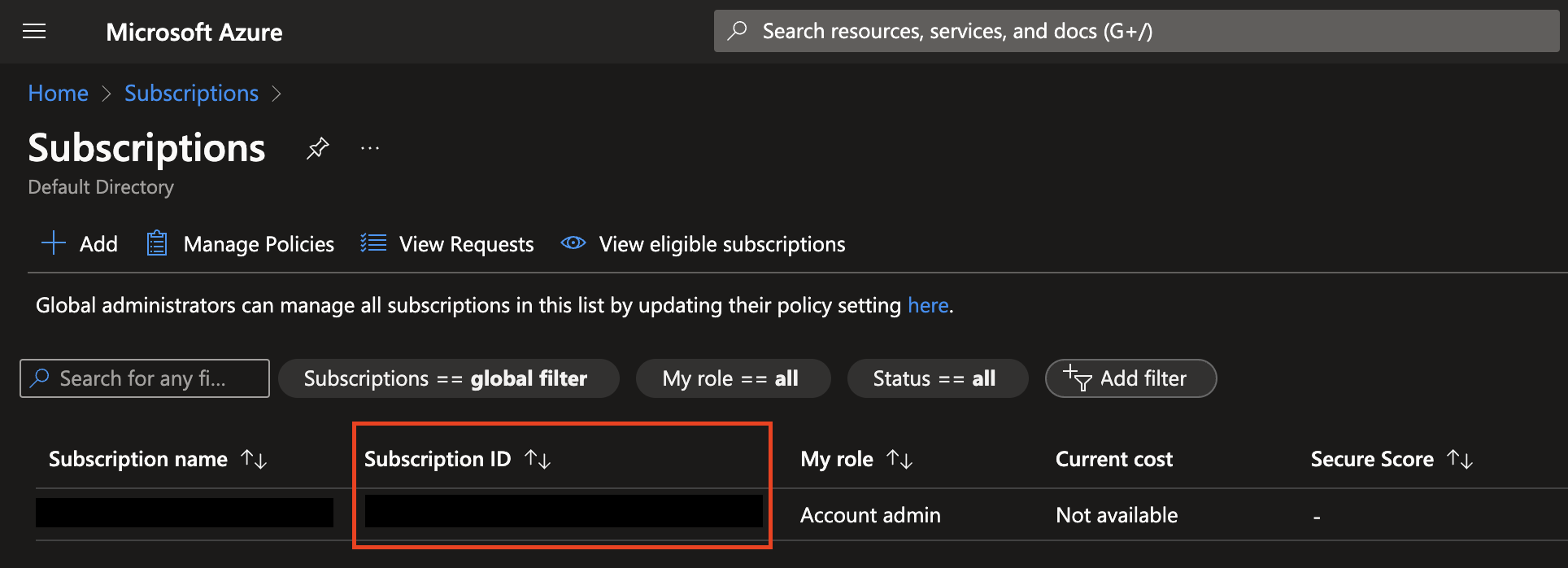
You now have all the required values to add the Azure Cloud via the Public API once the application setup is complete in Azure Portal.
Go to the subscription detail page. Now we need to make sure we grant access to the roles we need.
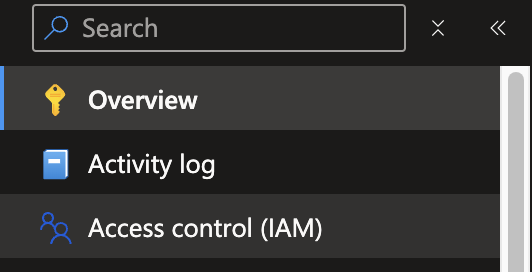
Click on "Access Control (IAM)".
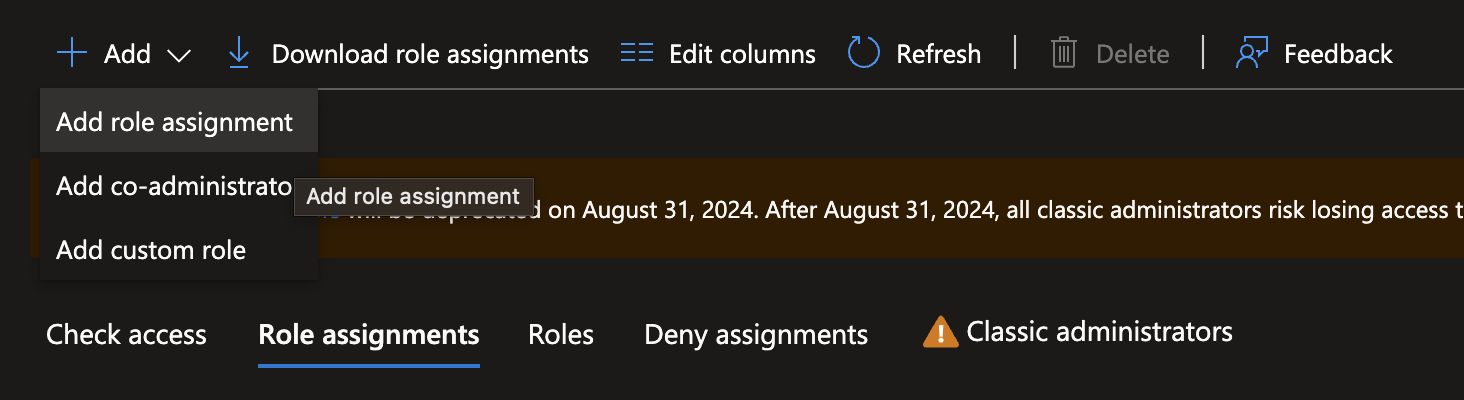
Go to the Role assignments tab & Click on "Add", then "Add role assignment".
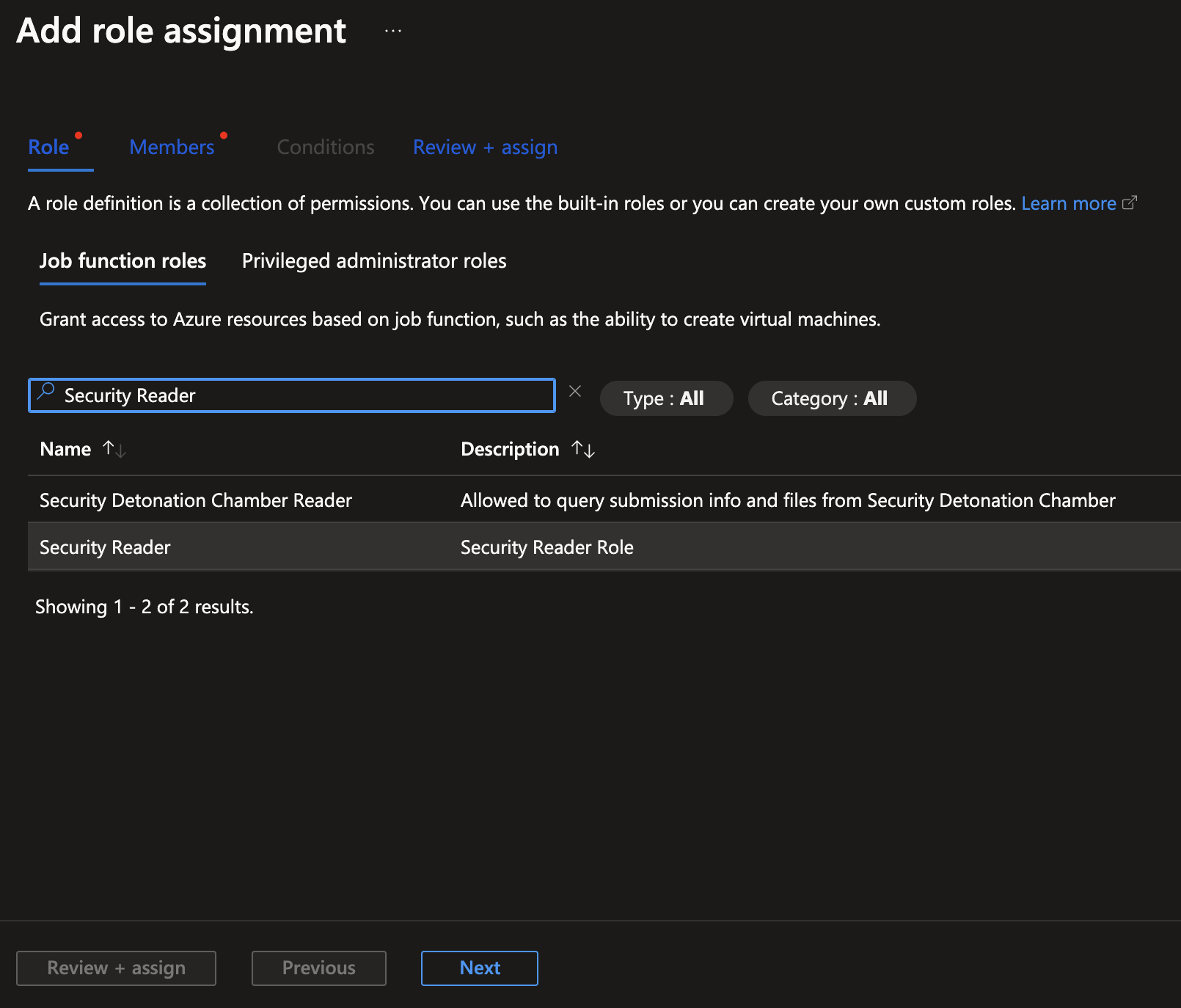
In the "Role"-list, search and select "Security Reader" & Click "Next".
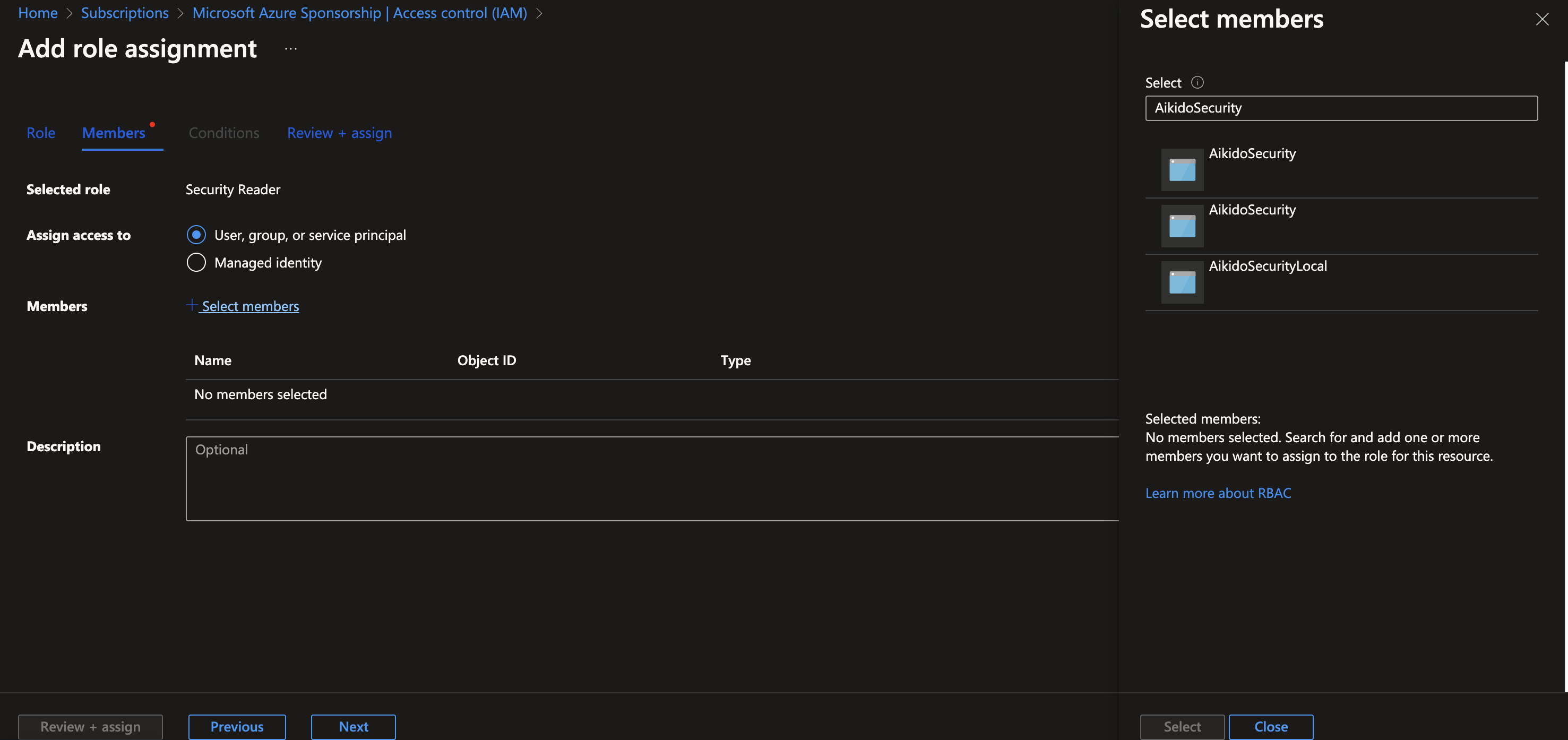
Leave the "Assign access to" default value.
Click on "Select Members", search for the name of the app registration (e.g. "AikidoSecurity") you created and select it.
Click "Select"
Click "Review + assign" twice
Repeat the role assignment process for the role "Log Analytics Reader".
Now the application has the required roles to do the security scanning. You can now add this cloud using the public API.