> For the complete documentation index, see [llms.txt](https://help.aikido.dev/llms.txt). Markdown versions of documentation pages are available by appending `.md` to page URLs; this page is available as [Markdown](https://help.aikido.dev/cloud-scanning/connect-your-cloud/connect-alibaba-account.md).
# Connect Alibaba Cloud
### Why connect my Alibaba Cloud?
Securing your cloud infrastructure is crucial to protecting your user data. You can leverage Aikido's security checks to detect and address any misconfigurations in your Alibaba Cloud environment.
#### **Main use cases**
* Aikido surfaces critical cloud misconfigurations that allow attackers to get into your Alibaba Cloud environment. We focus on the risks that have real business impact and cut the noise. All configuration checks can be found [here.](https://app.aikido.dev/clouds/checks)
* Aikido continuously monitors your Alibaba Cloud environment for new risks as your setup evolves.
* Container image scanning for Alibaba Cloud Container Registry (ACR).
* Virtual machine scanning via the Local VM Scanner on Alibaba Cloud instances.
Aikido performs daily compliance scans on the above.
### Getting started
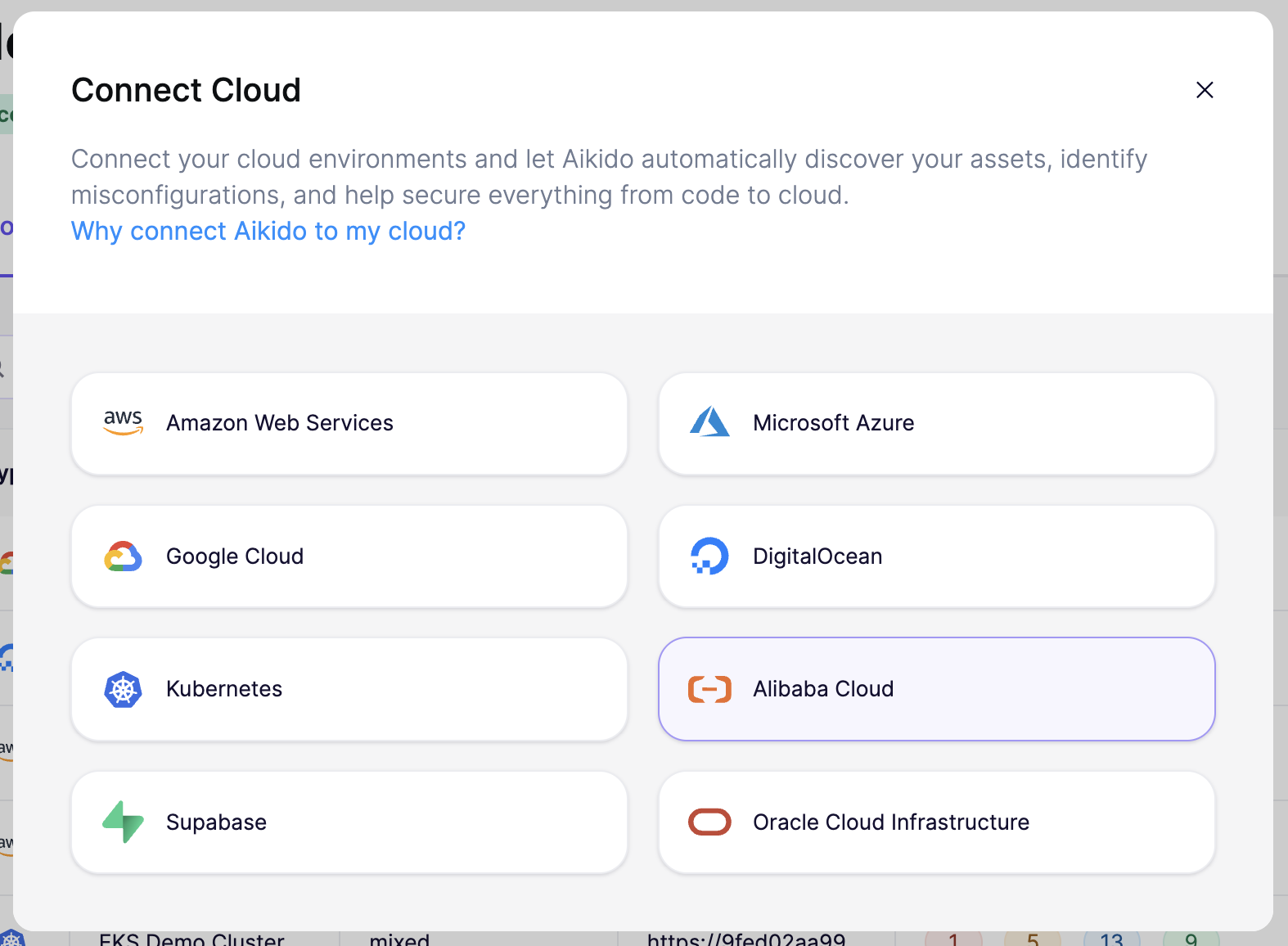
Head to the [cloud overview page](https://app.aikido.dev/clouds) on Aikido, click **"Connect Cloud"**, and select **Alibaba Cloud** from the list.
{% stepper %}
{% step %}
**Log into Alibaba Cloud and configure your onboarding**
You can connect to Alibaba Cloud in two ways:
* **Single Alibaba Account:** Connect one Alibaba Cloud account at a time. Best if you only have a few accounts or want to start small.
* **Full Alibaba Resource Directory:** Connect your entire Alibaba organization in one go. Aikido automatically picks up every account in your Resource Directory, including new accounts added later. Best for teams managing multiple accounts at scale.
{% tabs %}
{% tab title="Full Alibaba Resource Directory" %}
**Full Alibaba Resource Directory**
1. Sign into the [Alibaba Cloud Console](https://www.alibabacloud.com/) using the **management account** of your Resource Directory.
2. Make sure [trusted access for Stack Groups](https://www.alibabacloud.com/help/en/ros/user-guide/use-stack-groups-to-deploy-resources-across-accounts-and-regions) is enabled on your Resource Directory.
3. In the Aikido wizard, fill in:
* **Resource Directory ID** (e.g. `rd-XXXXXX`)
* **Root Directory ID or Folder IDs** (e.g. `r-abcdef` or `fd-abcdefghij, fd-jihgfedcba`). Use the root ID to scan everything, or list specific folder IDs to scope down.
* **Excluded Accounts IDs** *(optional)*: any accounts you want Aikido to skip.
* **Enable ACR Scanning** if you want Aikido to scan Alibaba Cloud Container Registry images alongside your infrastructure.
You can find these values in the Alibaba console under **Resource Directory**.
{% endtab %}
{% tab title="Single Alibaba Account" %}
**Single Alibaba Account**
Go to the [Alibaba Cloud Console](https://www.alibabacloud.com/) and sign in with the account you want to connect.
{% endtab %}
{% endtabs %}
{% endstep %}
{% step %}
**Create the RAM Role and Policy**
In the Aikido wizard, click **"Create RAM Role & Policy"**. This opens Alibaba Cloud ROS with the template prefilled. The role gives Aikido read-only audit permissions and never lets Aikido edit your infrastructure.
*No AccessKey pairs or passwords are shared with Aikido.*
* Provide the value shown in the wizard for the `ExternalId` parameter (e.g. `aikido-3377`).
* (Resource Directory setup only) Provide the same values for `ResourceDirectoryFolderIds` and `EnableAcrScanning` as you did in Aikido.
* Tick **"I confirm that Alibaba Cloud ROS may create RAM resources"**.
* Click **Create**.
To inspect the exact ROS template, [click here](https://aikido-cspm-templates.s3.eu-west-1.amazonaws.com/alibaba-ros-template-production.json). The wizard can also generate an equivalent Terraform template if you'd rather provision the role that way.
{% endstep %}
{% step %}
**Copy the AikidoRoleARN and paste it into Aikido**
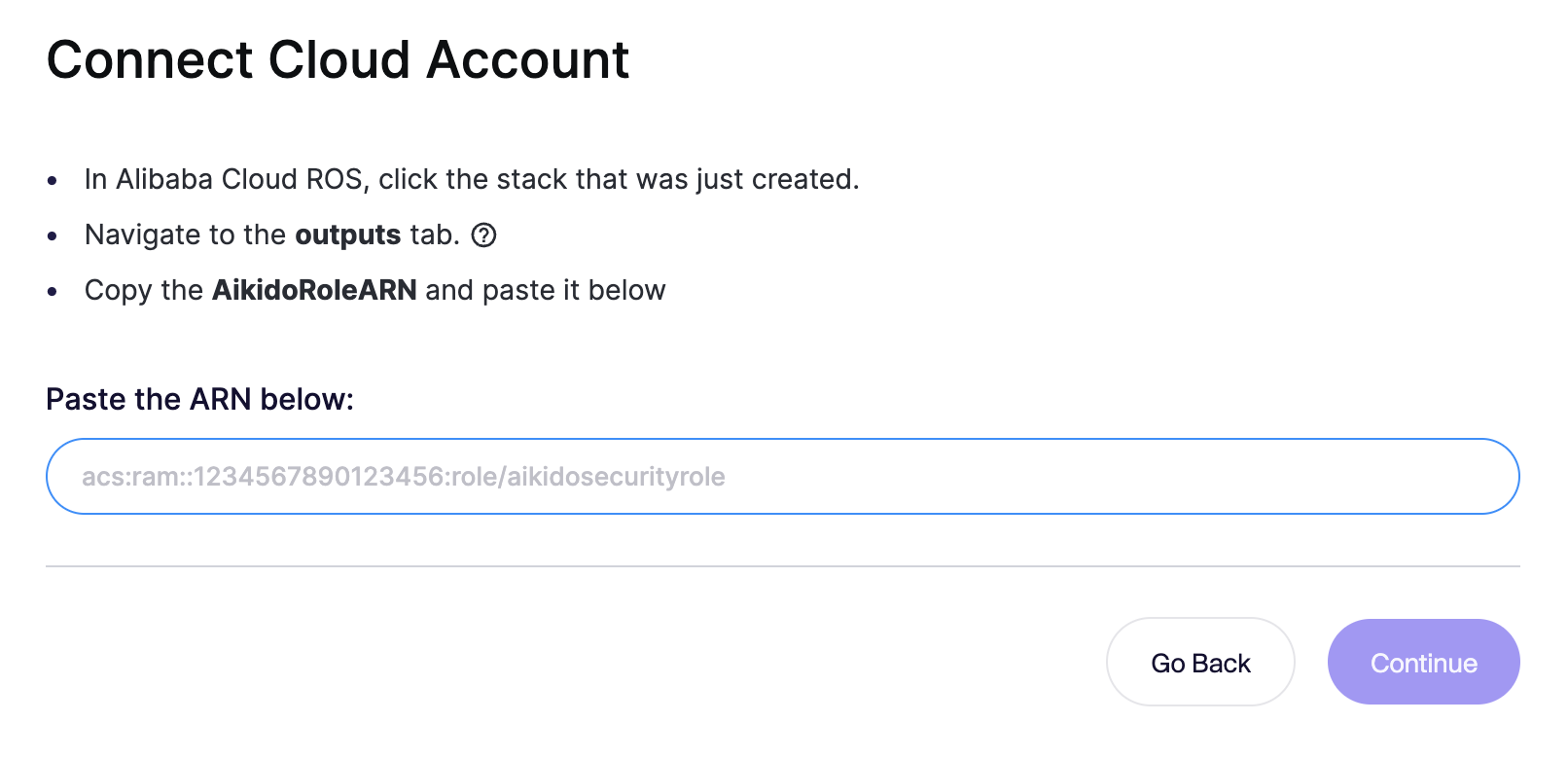
In Alibaba Cloud ROS, open the stack you just created and navigate to the **Outputs** tab. Copy the **AikidoRoleARN** value, paste it into the input field in the Aikido wizard, and click **Continue**.
{% endstep %}
{% step %}
**Name your cloud connection**
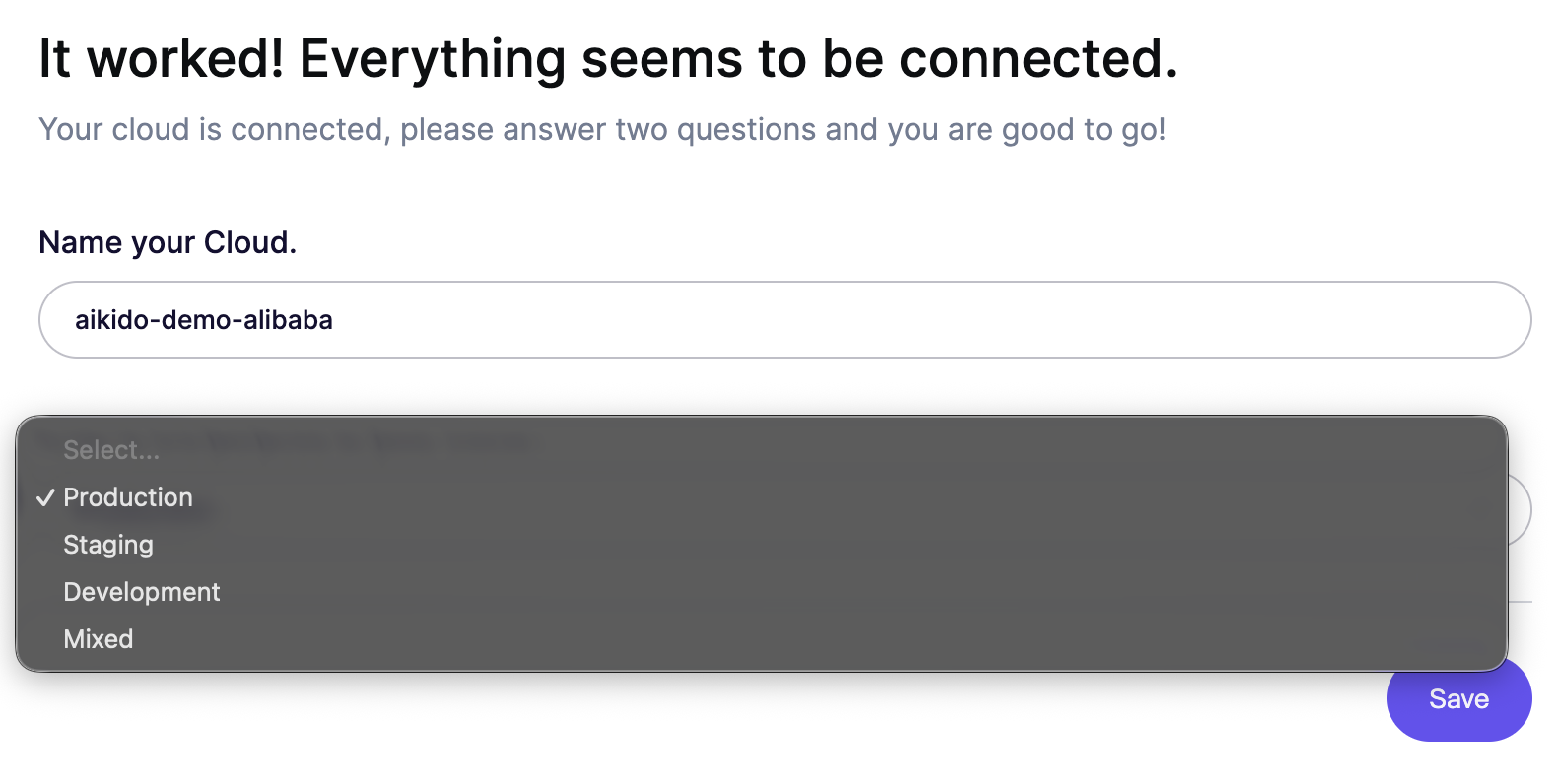
Give your connected cloud a name in Aikido and pick the environment it operates in (Production, Staging, Development, or Mixed). This helps Aikido prioritize findings based on severity and business impact. Click **Save** to finish.
{% endstep %}
{% endstepper %}
Within a few minutes after connecting your account, Aikido will report misconfigurations that could pose a threat.
### Container image scanning
{% hint style="info" %}
If you connect your Alibaba Cloud Resource Directory, container images will be scanned through the RAM roles and you don't need to take any additional action. This section is relevant only for individual ACR connections.
{% endhint %}
Alibaba Cloud Container Registry (ACR) and most third-party registries you use from Alibaba Cloud are OCI-compatible, so Aikido can scan them.
Create a read-only or pull-only user in Alibaba Cloud Container Registry:
Then follow the OCI guide below to configure container image scanning:
{% content-ref url="/pages/WbT1GJFncHssApSoIXH7" %}
[Generic OCI-Compatible Registry](/container-image-scanning/standalone-registries/generic-oci-compatible-registry.md)
{% endcontent-ref %}
### Virtual Machine scanning
To scan virtual machines on Alibaba Cloud, use the Local VM Scanner. It inspects packages, system dependencies, and configuration directly on the instance.
{% content-ref url="/pages/07U0LWsYijoM6UzZxn2i" %}
[Local VM Scanning](/virtual-machine-scanning/local-vm-scanning.md)
{% endcontent-ref %}
ECS instances can get the Local VM Scanner by [configuring the user data](https://www.alibabacloud.com/help/en/ecs/user-guide/customize-the-initialization-configuration-for-an-instance) to download and install the necessary binary. You can also roll this out centrally using your usual automation tooling (Ansible, Terraform-provisioned scripts, cloud-init) so new Alibaba Cloud instances are automatically enrolled.
---
# Agent Instructions
This documentation is published with GitBook. GitBook is the documentation platform designed so that both humans and AI agents can read, navigate, and reason over technical content effectively. Learn more at gitbook.com.
## Querying This Documentation
If you need additional information that is not directly available in this page, you can query the documentation dynamically by asking a question.
Perform an HTTP GET request on the current page URL with the `ask` query parameter, and the optional `goal` query parameter:
```
GET https://help.aikido.dev/cloud-scanning/connect-your-cloud/connect-alibaba-account.md?ask=&goal=
```
`ask` is the immediate question: it should be specific, self-contained, and written in natural language.
`goal` is optional and describes the broader end goal you are ultimately trying to accomplish on behalf of the user. GitBook uses it to tailor the answer towards what is most useful for that goal.
The response will contain a direct answer to the question and relevant excerpts and sources from the documentation.
Use this mechanism when the answer is not explicitly present in the current page, you need clarification or additional context, or you want to retrieve related documentation sections.