> For the complete documentation index, see [llms.txt](https://help.aikido.dev/llms.txt). Markdown versions of documentation pages are available by appending `.md` to page URLs; this page is available as [Markdown](https://help.aikido.dev/cloud-scanning/connect-your-cloud/connect-oracle-cloud.md).
# Connect Oracle Cloud
### Why connect my Oracle Cloud account?
Securing your cloud infrastructure is crucial to protecting your user data. You can leverage Aikido's security checks to detect and address any misconfigurations in your Oracle Cloud Infrastructure (OCI) tenancy.
#### **Main use cases**
* Aikido surfaces IAM misconfigurations that could expose your OCI tenancy to attackers, like console users without MFA, stale API keys older than 90 days, and users with multiple active API keys. All configuration checks can be found [here.](https://app.aikido.dev/clouds/checks)
* Aikido continuously monitors your Oracle Cloud tenancy for new risks as your setup evolves.
Aikido performs daily compliance scans on the above.
### Getting started
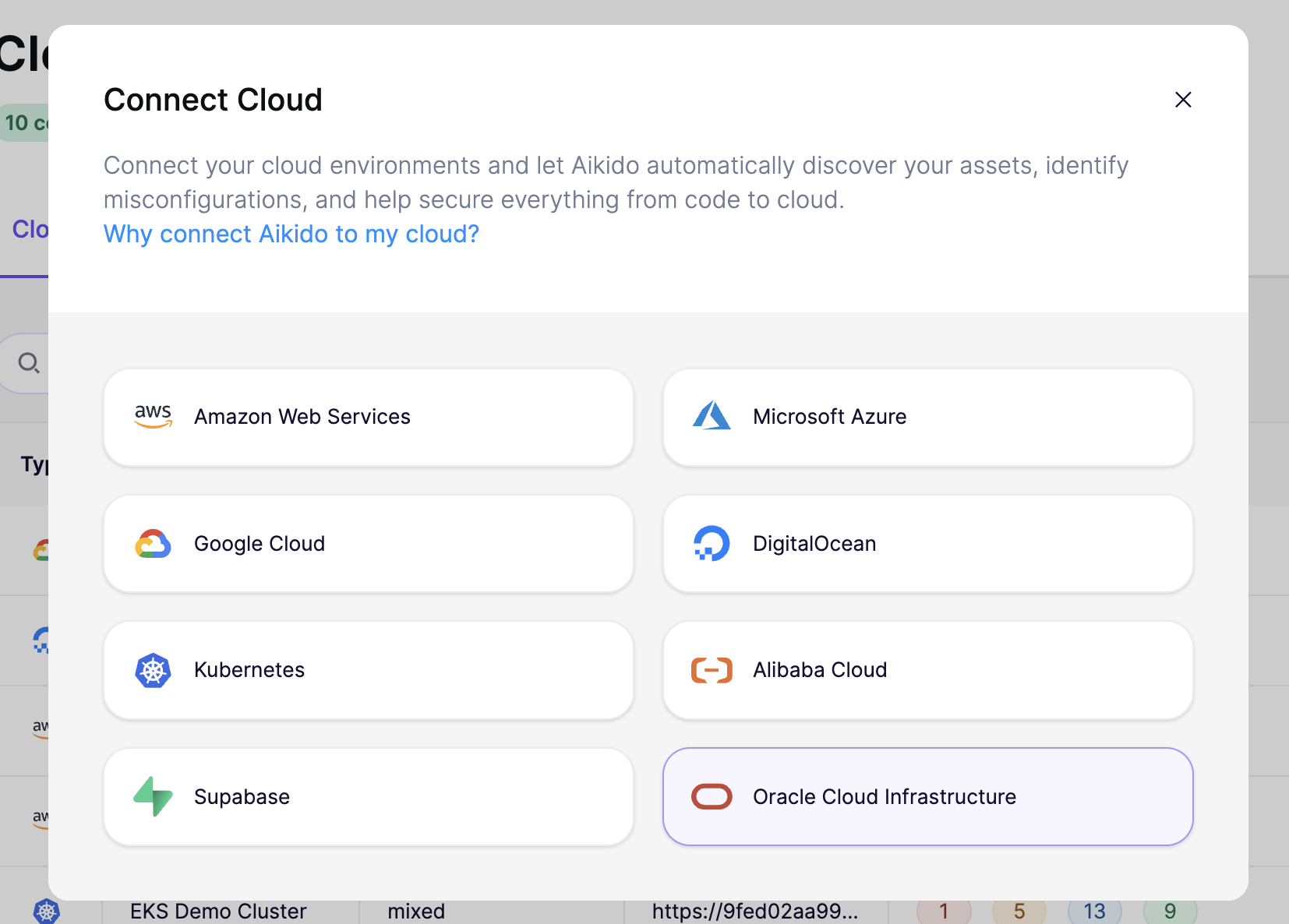
To get started, head to the [cloud overview page](https://app.aikido.dev/clouds) on Aikido and click **"Connect Cloud"**. Select **Oracle Cloud Infrastructure** from the list and follow the step-by-step setup wizard.
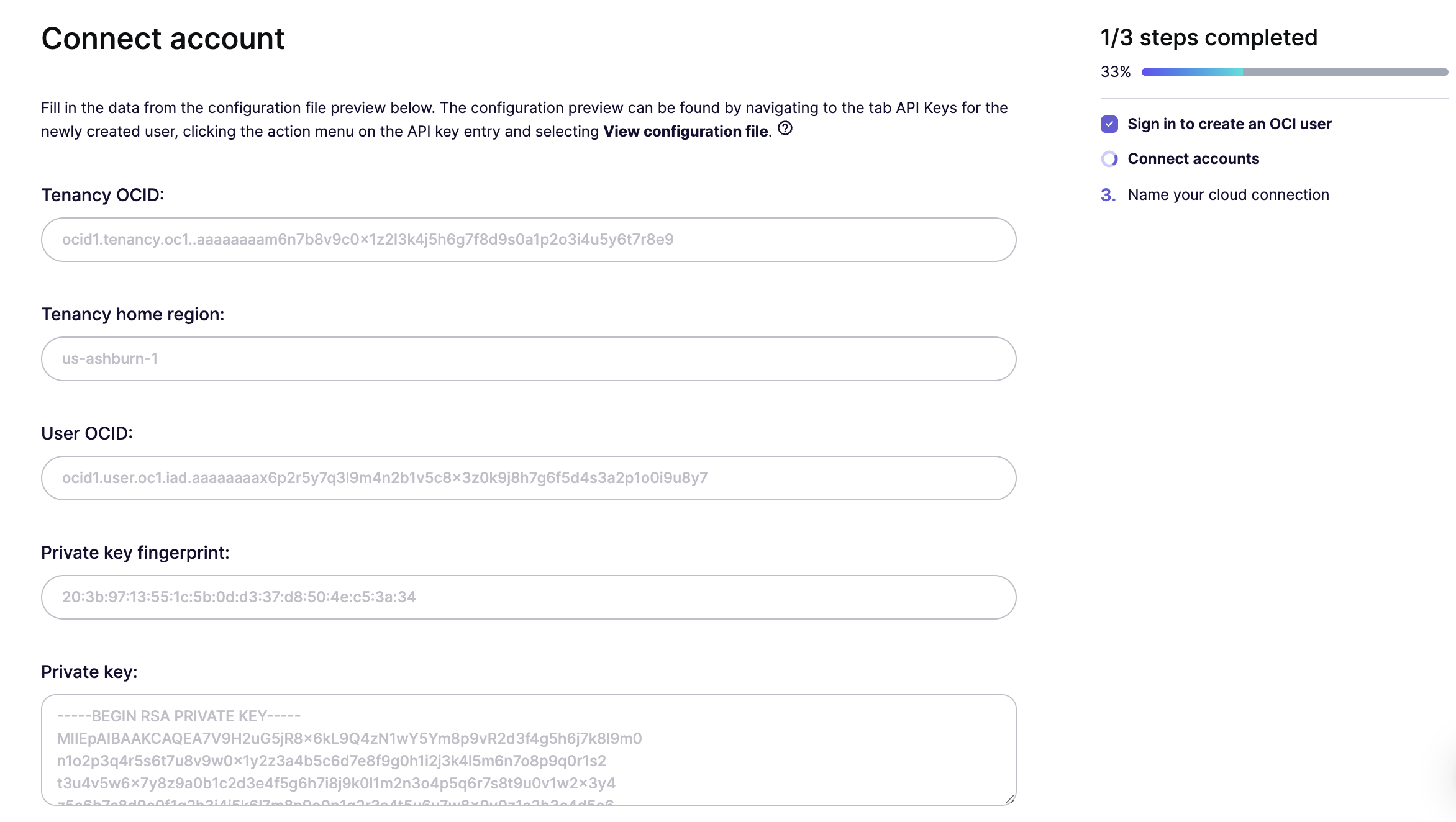
To connect your account, you'll need a few values from your OCI configuration file: your **Tenancy OCID**, **home region**, **User OCID**, **private key fingerprint**, and **private key**. The steps below walk you through creating a dedicated read-only user in OCI and grabbing those values.
{% stepper %}
{% step %}
**Log into your Oracle Cloud account**
Go to the [Oracle Cloud Console](https://cloud.oracle.com/) and sign in. Navigate to the **IAM domain** where you want to manage the Aikido Security user.
{% endstep %}
{% step %}
**Create a dedicated user**
Under **User Management**, click **Create User**. Fill in the details (e.g. `aikido-security`) and click **Create**.
*We recommend creating a dedicated user so it's easy to audit Aikido's access later.*
{% endstep %}
{% step %}
**Create a group and add the user**
Go back to **User Management** and select **Create Group**. Name it something descriptive like `aikido-security-readonly`, assign the user you just created, and click **Create**.
{% endstep %}
{% step %}
**Create a read-only policy**
Navigate to **Policies** and create a new policy that grants read-only access to your group. You have two options:
**Option 1: Use the Policy Builder template (recommended)**
In the Policy Builder, set **Policy use cases** to **Audit** and select the **"Let auditors inspect your resources"** template. Then pick your **Identity domain**, choose **Groups**, and select the group you just created (e.g. `aikido-security-readonly`).\
\
**Option 2: Add the statements manually**
Click **Show manual editor** and paste the statements below. If you used a different group name, update it in the statements.
```
Allow group aikido-security-readonly to inspect all-resources in tenancy
Allow group aikido-security-readonly to read all-resources in tenancy
Allow group aikido-security-readonly to read audit-events in tenancy
```
{% endstep %}
{% step %}
**Add API keys to the user**
On the user's profile, click **Add API keys**. You can either upload your own public key or have OCI generate a keypair for you. After the keys are created, OCI will display a **configuration file preview**. Keep this open, you'll need the values in the next step.
{% endstep %}
{% step %}
**Fill in the configuration values in Aikido**
Click **Continue** in the Aikido wizard and paste the following values from your OCI configuration file preview:
* **Tenancy OCID**
* **Tenancy home region** (e.g. `us-ashburn-1`)
* **User OCID**
* **Private key fingerprint**
* **Private key** (the full contents, including the `-----BEGIN RSA PRIVATE KEY-----` and `-----END RSA PRIVATE KEY-----` lines)
Then click **Continue**.
{% endstep %}
{% step %}
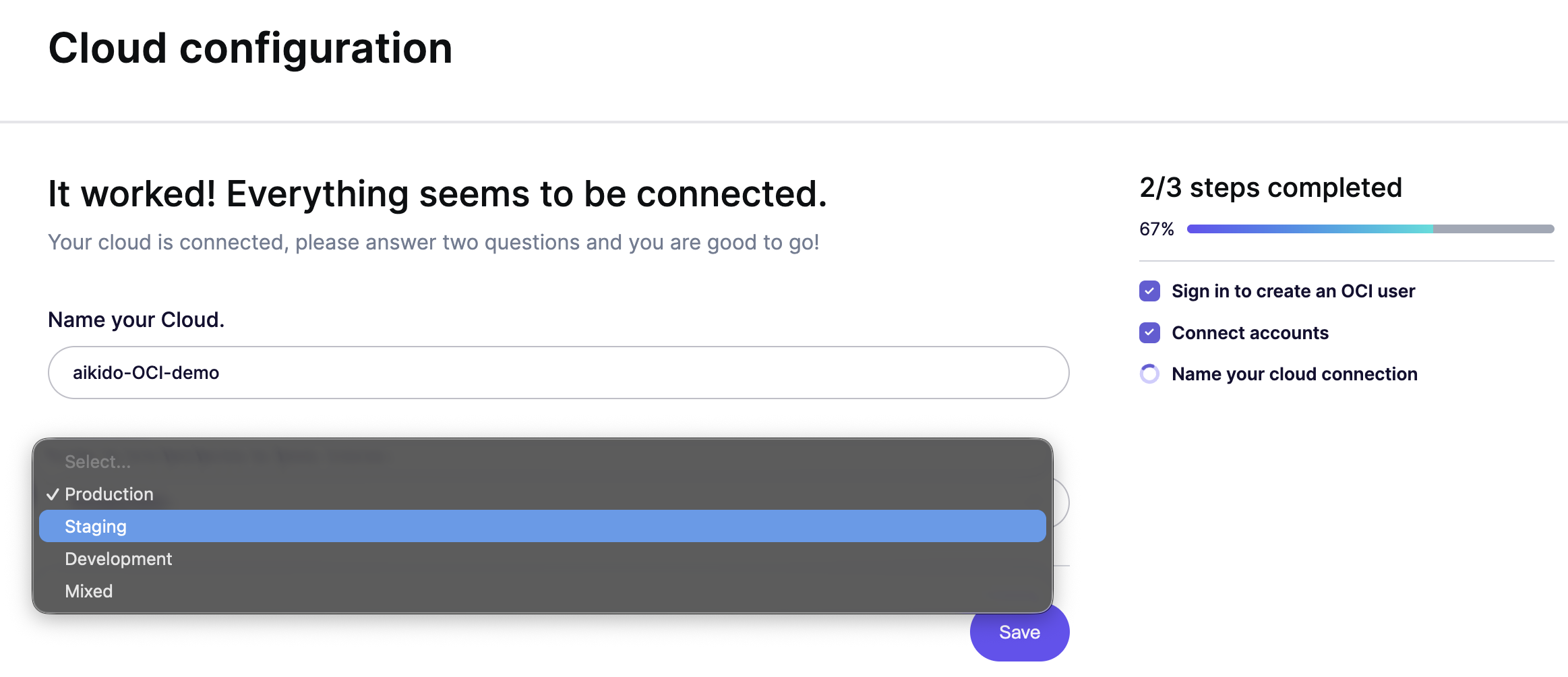
**Name your cloud configuration**
Give your connected tenancy a name in Aikido and specify the environment it operates in (production, staging, development). This helps Aikido prioritize findings based on severity and business impact. Click **Save** to finish.
{% endstep %}
{% endstepper %}
Within 1-2 minutes after connecting your account, Aikido will report misconfigurations that could pose a threat.
---
# Agent Instructions
This documentation is published with GitBook. GitBook is the documentation platform designed so that both humans and AI agents can read, navigate, and reason over technical content effectively. Learn more at gitbook.com.
## Querying This Documentation
If you need additional information that is not directly available in this page, you can query the documentation by asking a question.
Perform an HTTP GET request on the following URL with the `ask` and `goal` query parameters:
```
GET https://help.aikido.dev/cloud-scanning/connect-your-cloud/connect-oracle-cloud.md?ask=&goal=
```
`ask` is the immediate question: it should be specific, self-contained, and written in natural language.
`goal` is what the user is ultimately trying to achieve, the reason they need the answer. Sharing it helps GitBook give you a better, more relevant answer. A goal is most helpful when it describes the outcome the user wants rather than restating the question. For example, with `ask=how do I create an API token`, a goal like `automate deployments from our CI pipeline` lets GitBook tailor the answer to that use case.
The response will contain a direct answer to the question and relevant excerpts and sources from the documentation.
Use this mechanism when the answer is not explicitly present in the current page, you need clarification or additional context, or you want to retrieve related documentation sections.