> For the complete documentation index, see [llms.txt](https://help.aikido.dev/llms.txt). Markdown versions of documentation pages are available by appending `.md` to page URLs; this page is available as [Markdown](https://help.aikido.dev/code-quality/code-coverage.md).
# Code Coverage
Upload test coverage from GitHub Actions or GitLab CI and track it in Aikido.
Code Coverage shows how much of your code your tests actually exercise. Run your test suite in CI, upload the report, and review coverage per repository, file, and line in Aikido.
{% hint style="info" %}
PR gating on coverage is coming soon. Today Aikido reports coverage in the dashboard. It does not fail pull requests or merge requests when coverage drops.
{% endhint %}
## How it works
1. Your CI job runs tests with coverage enabled and writes one or more coverage reports.
2. The [Aikido Code Coverage GitHub Action](https://github.com/AikidoSec/code-coverage-github-action) or [GitLab CI component](https://gitlab.com/aikido-security/code-coverage-gitlab-action) uploads the report to Aikido.
3. Aikido stores the report against the repository, commit SHA, and branch.
4. The **Code Coverage** tab shows the latest upload for each repository, using only the files in that report.
## What Aikido measures
Aikido does not compare the uploaded report against every file in the repository. It only scores and lists the files that appear in the LCOV report your CI uploaded.
That means:
* The **Code Tree** and **File List** show files from `lcov.info`, not a full inventory of the repo.
* The repository coverage percentage is covered lines divided by total lines **in that report**.
* Files your test runner never instrumented do not appear as 0% uncovered. They are simply absent.
Aikido uses the connected repository to attach the upload to the right repo and to fetch source for line-level preview of files that are already in the report. It does not walk the repo to fill in files the report omitted.
{% hint style="info" %}
If the dashboard only shows `/src` (or another folder), the uploaded report only contains those files. That is expected. Aikido is not hiding the rest of the repo.
{% endhint %}
### Why you often only see `/src`
Coverage tools only include the files you configure them to collect. Common defaults, such as Jest `collectCoverageFrom`, pytest `--cov=src`, or Istanbul `include`, instrument `src/` and skip tests, generated files, and everything else.
If your report only lists paths under `src/`, Aikido will only show `src/`.
To include more of the repo, expand the collect or include paths in your test runner so those files appear in `lcov.info`, then upload that report.
If coverage is split across packages or CI jobs, each can emit its own `lcov.info`. Pass every path so they are merged into one upload. See uploading multiple reports for [GitHub](https://github.com/AikidoSec/code-coverage-github-action#uploading-multiple-reports) or [GitLab](https://gitlab.com/aikido-security/code-coverage-gitlab-action#uploading-multiple-reports).
## Use cases
* **See which repositories are under-tested:** compare overall coverage across the repos connected to Aikido.
* **Find gaps in a codebase:** open a repository and browse uncovered files in the code tree or file list.
* **Inspect a file before you change it:** open line-level coverage against the source so you know what tests already cover.
* **Track whether coverage is improving:** use coverage over time as you add tests or clean up dead code.
* **Pair coverage with quality work:** when a [repository scan](/code-quality/repository-scans.md) or [PR check](/code-quality/code-quality-setup.md) flags a file, check whether that file is tested.
## Prerequisites
Before you start, make sure:
* You're on a **Basic**, **Pro**, **Advanced**, or **Enterprise** plan. Code Coverage isn't available on the Developer plan.
* The repository is [connected to Aikido](/code-scanning/connect-your-source-code.md).
* Your tests produce a coverage report. Aikido currently accepts [LCOV](https://github.com/linux-test-project/lcov) (`lcov.info`). Jest and pytest-cov can write this natively. Other runners work if they can export LCOV.
{% hint style="info" %}
Code Coverage uploads are currently available for GitHub and GitLab. Support for other SCMs, including Azure DevOps and Bitbucket, is coming soon.
{% endhint %}
## Set up coverage upload
Both integrations authenticate with OIDC (keyless). No API token or repository secret is required.
{% tabs %}
{% tab title="GitHub Actions" %}
Use the [Aikido Code Coverage GitHub Action](https://github.com/AikidoSec/code-coverage-github-action). After your tests write a coverage report, add a step like this:
```yaml
- name: Upload coverage to Aikido
uses: AikidoSec/code-coverage-github-action@v1.1.0
with:
lcov-file-paths: coverage/lcov.info
```
The job that runs the action must grant `id-token: write`.
To upload more than one report (separate packages or CI shards), pass every path. The action merges them into a single upload:
```yaml
- name: Upload coverage to Aikido
uses: AikidoSec/code-coverage-github-action@v1.1.0
with:
lcov-file-paths: |
packages/a/coverage/lcov.info
packages/b/coverage/lcov.info
```
For the full workflow, monorepos, matrix jobs, and all inputs, follow the [GitHub Action README](https://github.com/AikidoSec/code-coverage-github-action).
{% endtab %}
{% tab title="GitLab CI" %}
Use the [Aikido Code Coverage GitLab CI component](https://gitlab.com/aikido-security/code-coverage-gitlab-action). After your tests write a coverage report, include the component like this:
```yaml
include:
- component: gitlab.com/aikido-security/code-coverage-gitlab-action/upload-coverage@1.0.0
inputs:
lcov_file_paths: coverage/lcov.info
```
The component configures GitLab OIDC for you (`id_tokens.AIKIDO_OIDC_TOKEN`).
To upload more than one report (separate packages or CI shards), pass every path. The component merges them into a single upload:
```yaml
include:
- component: gitlab.com/aikido-security/code-coverage-gitlab-action/upload-coverage@1.0.0
inputs:
lcov_file_paths: |
packages/a/coverage/lcov.info
packages/b/coverage/lcov.info
```
For the full pipeline, parallel matrix jobs, and all inputs, follow the [GitLab CI component README](https://gitlab.com/aikido-security/code-coverage-gitlab-action).
{% endtab %}
{% endtabs %}
## View coverage in Aikido
After the next successful upload:
1. Open [**Code Quality** > **Code Coverage**](https://app.aikido.dev/code-quality/code-coverage).
2. Search the repository list. Each row shows overall coverage and when it was last updated.
3. Open a repository to see:
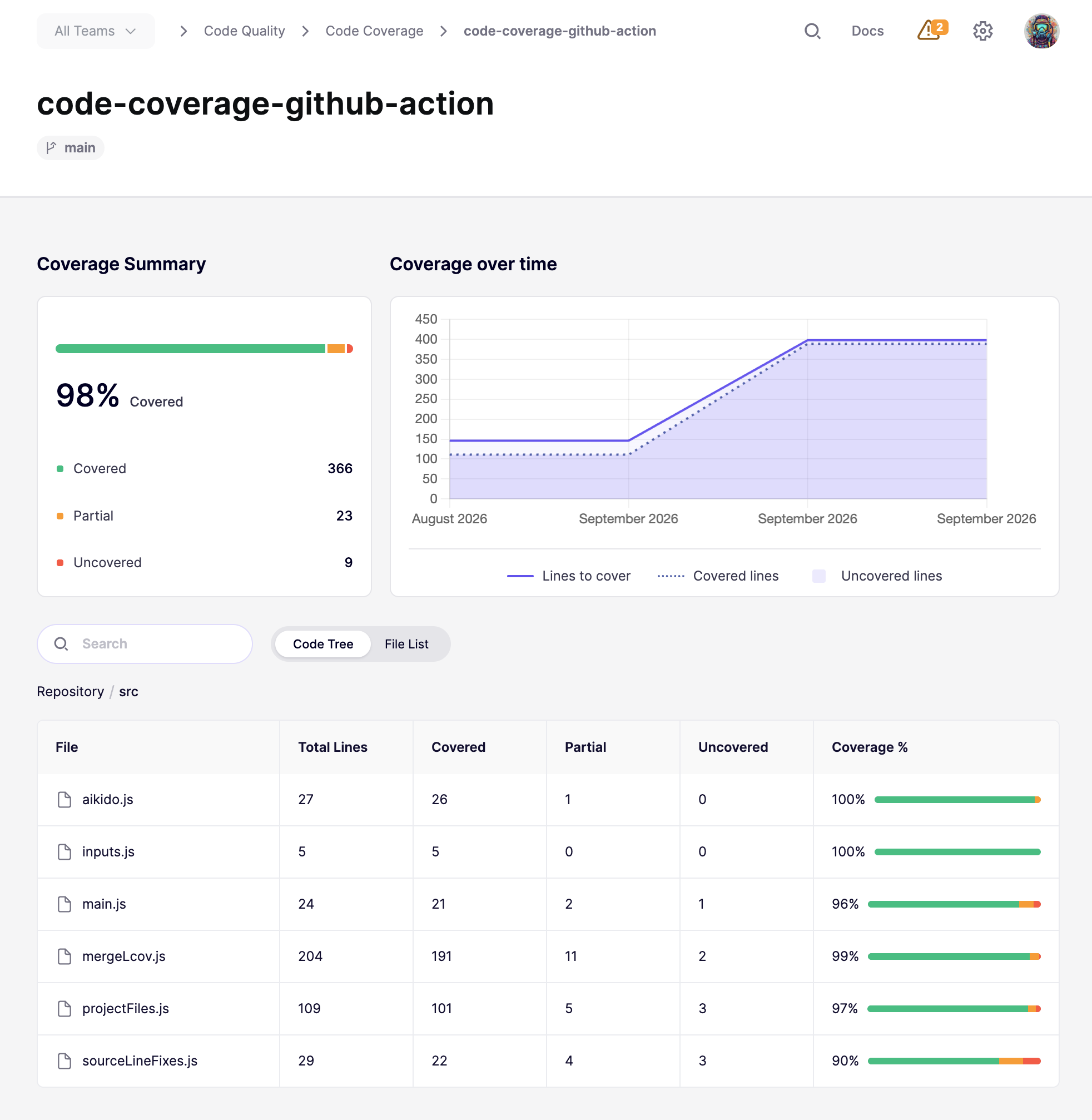
* **Coverage summary**: covered, partial, and uncovered line counts
* **Coverage over time**: how the percentage changes across uploads
* **Files**: browse as a **Code Tree** or a flat **File List**
4. Open a file to inspect line-level coverage against the source.
Source preview depends on Aikido having imported the file. If the source isn't available yet, coverage percentages still show in the file list.
Code Coverage shows repository-level trends and file-by-file coverage in one view.
## Troubleshooting
* **Nothing appears in Aikido**: confirm the repository is connected to Aikido, the coverage report contains at least one parseable source file, and the upload step ran.
* **You only see `/src` (or another folder)**: Aikido shows the files in the uploaded report. It does not compare that report against the rest of the repo. See [What Aikido measures](#what-aikido-measures).
* **Coverage looks incomplete**: if you shard tests or use a matrix, merge every report into one upload per commit. Pass multiple paths as shown in uploading multiple reports for [GitHub](https://github.com/AikidoSec/code-coverage-github-action#uploading-multiple-reports) or [GitLab](https://gitlab.com/aikido-security/code-coverage-gitlab-action#uploading-multiple-reports), or collect artifacts first in a [GitHub monorepo with matrix jobs](https://github.com/AikidoSec/code-coverage-github-action#monorepo-with-matrix-jobs) or [GitLab parallel matrix jobs](https://gitlab.com/aikido-security/code-coverage-gitlab-action#parallel-matrix-jobs).
* **The report is rejected as too large**: Aikido accepts coverage payloads up to 10 MB. Narrow the coverage output or exclude generated files before upload.
* **The upload step fails**: check the [GitHub Action README](https://github.com/AikidoSec/code-coverage-github-action) or [GitLab CI component README](https://gitlab.com/aikido-security/code-coverage-gitlab-action) for required permissions and inputs.
## Need help?
Open the **Intercom chat** in the bottom right corner. Our team is here to help.
---
# Agent Instructions
This documentation is published with GitBook. GitBook is the documentation platform designed so that both humans and AI agents can read, navigate, and reason over technical content effectively. Learn more at gitbook.com.
## Querying This Documentation
If you need additional information that is not directly available in this page, you can query the documentation dynamically by asking a question.
Perform an HTTP GET request on the current page URL with the `ask` query parameter, and the optional `goal` query parameter:
```
GET https://help.aikido.dev/code-quality/code-coverage.md?ask=&goal=
```
`ask` is the immediate question: it should be specific, self-contained, and written in natural language.
`goal` is optional and describes the broader end goal you are ultimately trying to accomplish on behalf of the user. GitBook uses it to tailor the answer towards what is most useful for that goal.
The response will contain a direct answer to the question and relevant excerpts and sources from the documentation.
Use this mechanism when the answer is not explicitly present in the current page, you need clarification or additional context, or you want to retrieve related documentation sections.