> For the complete documentation index, see [llms.txt](https://help.aikido.dev/llms.txt). Markdown versions of documentation pages are available by appending `.md` to page URLs; this page is available as [Markdown](https://help.aikido.dev/code-scanning/local-code-scanning/account-creation-for-local-scanning-on-aikido.md).
# Account Creation for Local Scanning
{% hint style="warning" %}
Aikido Local Scan accounts DO NOT have access to AutoFix within the UI. If you want to use AutoFix locally, install our IDE plugins (Visual Studio Code, Jetbrains etc) where AutoFix is available too.
{% endhint %}
### Introduction
This article explains the basic steps to take when you want to run Aikido's Local Scanner on your machine. Before you can install the Local Scanner, you need to make sure you have created the correct account type.
### System Requirements
Aikido recommends running the local scanner on a machine with 2-4 core CPUs with 8-16GB of RAM. Outbound traffic over HTTPS (443) should be allowed.
## How to Create a Local Scanning Account
> There are 2 ways of setting up a Local Scanning Account. The setup is different for users that have already authenticated with Google/O365.
### Local Scanning for Users Authenticated with Git (GitHub, GitLab, Bitbucket or Azure)
**Step 1:** Ensure you are **logged out** of any existing Aikido accounts to start fresh for Local Scanning setup.
**Step 2:** Navigate to the [Login Screen](https://app.aikido.dev/login) website and select 'Other Options'. Select your preferred login method (Microsoft or Google).
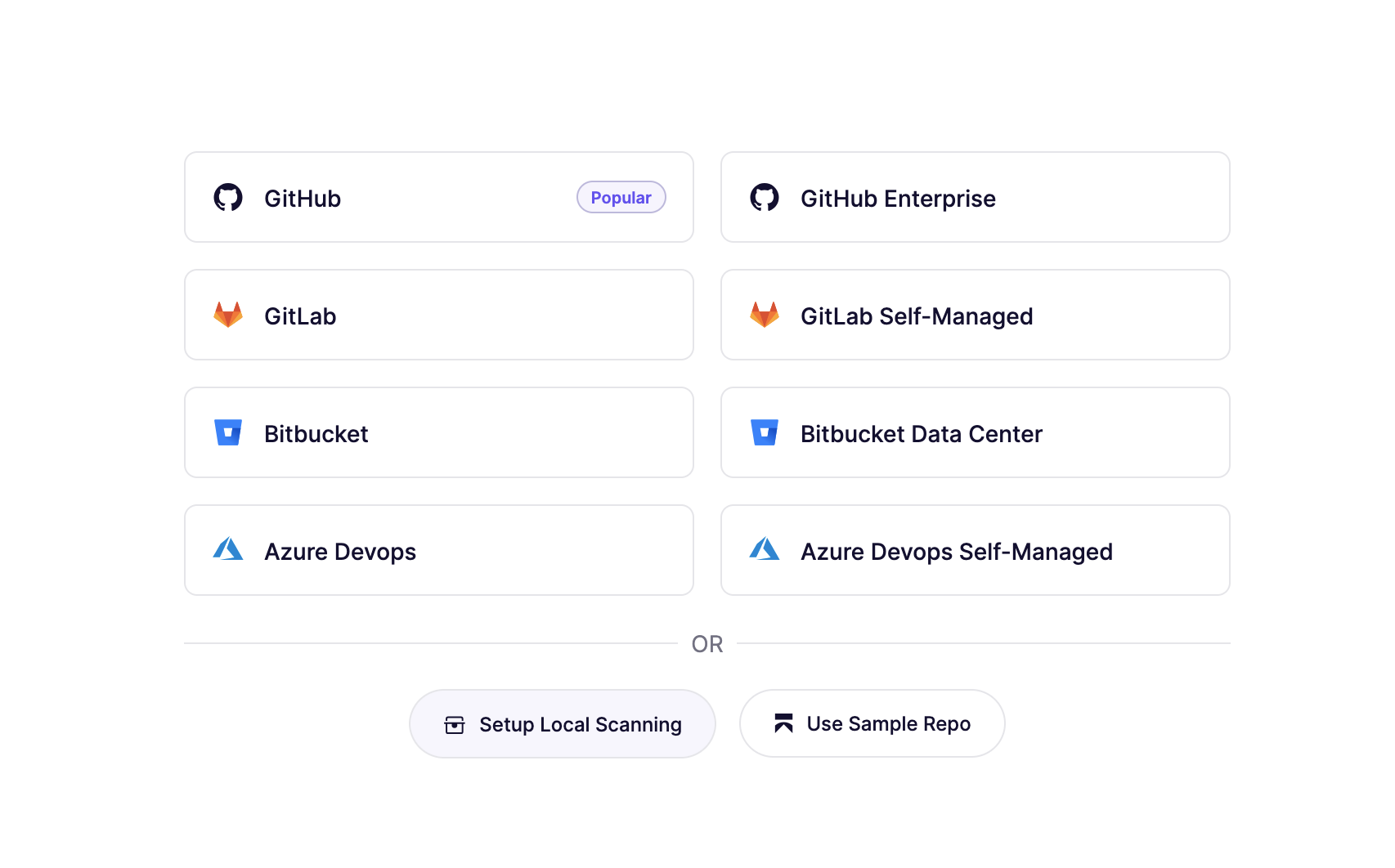
**Step 3:** Select Setup Local Scan on the Workspace Selection Page
**Step 4:** Go through the flow and enter the necessary information. Once the T\&Cs are also accepted, you will land on an empty screen that will guide you to setup.\

### Local Scanning for Users Already Authenticated with Gmail/O365.
If you have already created a workspace with Gmail/O365 (e.g. GitLab Self Managed, Azure DevOps or another Local Scnner), the steps for setup slightly differ.
**Step 1.** When logged in with Gmail/O365, click the profile icon in the top right and select **Add Another Workspace**

**Step 2.** Select **Setup Local Scanning** on the setup page
**Step 4:** Go through the flow and enter the necessary information. Once the T\&Cs are also accepted, you will land on an empty screen that will guide you to setup.\
### Installing Local Scanner on your Machine
Once the setup is complete, you're all set to install Aikido's Local Scanner on your machine. Follow one of the links provided to access additional help articles for installation and setup.
* [**Aikido Local Scanning for Mac**](https://help.aikido.dev/en/articles/9061845-setting-up-local-scanner-on-your-mac)
* [**Aikido Local Scanning for Windows**](https://help.aikido.dev/en/articles/9065418-setting-up-local-scanner-on-windows)
* [**Aikido Local Scanning for Linux**](/code-scanning/local-code-scanning/linux-setup-for-local-code-scanning.md)
* [**Aikido Local Scanning in a Self-Managed GitLab Project**](https://help.aikido.dev/en/articles/9061700-setting-up-local-scanner-in-self-managed-gitlab-project)
* [**Aikido Local Scanning in Azure DevOps Server**](/code-scanning/local-code-scanning/azure-devops-server-setup-for-local-code-scanning.md)
* [**Aikido Local Scanning for Jenkins**](https://help.aikido.dev/en/articles/9027146-setting-up-local-scanner-in-jenkins-project)
* [**Aikido Local Scanning for Circle CI**](/code-scanning/local-code-scanning/circleci-setup-for-local-code-scanning.md)
* [**Aikido Local Scanning for GitHub Actions**](/code-scanning/local-code-scanning/github-action-setup-for-local-code-scanning.md)
* [**Aikido Local Scanning for Bitbucket Pipelines**](/code-scanning/local-code-scanning/bitbucket-pipeline-setup-for-local-code-scanning.md)
---
# Agent Instructions
This documentation is published with GitBook. GitBook is the documentation platform designed so that both humans and AI agents can read, navigate, and reason over technical content effectively. Learn more at gitbook.com.
## Querying This Documentation
If you need additional information that is not directly available in this page, you can query the documentation by asking a question.
Perform an HTTP GET request on the following URL with the `ask` and `goal` query parameters:
```
GET https://help.aikido.dev/code-scanning/local-code-scanning/account-creation-for-local-scanning-on-aikido.md?ask=&goal=
```
`ask` is the immediate question: it should be specific, self-contained, and written in natural language.
`goal` is what the user is ultimately trying to achieve, the reason they need the answer. Sharing it helps GitBook give you a better, more relevant answer. A goal is most helpful when it describes the outcome the user wants rather than restating the question. For example, with `ask=how do I create an API token`, a goal like `automate deployments from our CI pipeline` lets GitBook tailor the answer to that use case.
The response will contain a direct answer to the question and relevant excerpts and sources from the documentation.
Use this mechanism when the answer is not explicitly present in the current page, you need clarification or additional context, or you want to retrieve related documentation sections.