
Jenkins Setup for Local Code Scanning
Table of contents:
Jenkins Setup for Local Code Scanning
The Aikido Security Local Scanner is a tool that enables you to perform Aikido Security scans within your environment, ensuring your code never leaves your premises. The scans take place locally, and the results are then uploaded to the Aikido Security platform. This setup allows easy integration of the Local Scanner into your Jenkins project for reporting purposes.
Requirements
Your Jenkins Node must meet certain requirements to run the Local Scanner. We currently support the Linux, macOS ARM64 and Windows operating system architecture. Running our docker image directly is also possible as an alternative to installing the binary.
Ensure your Node has sufficient resources. We've tested on machines equipped with 4GB RAM, a 2 Core CPU, and 14GB of storage.
If you are using a Linux Node, the version of glibc is also crucial for running our binary. You'll need version 2.27 or higher, which was released in 2018. Consequently, most newer Linux operating systems have this version or higher. Operating systems that support this include:
- CentOS 8 or higher
- Ubuntu 18.04 or higher
- Debian 10 or higher
- Fedora 28 or higher
To verify the version of glibc on your operating system, you can run
$ ldd --version ldd
(Ubuntu GLIBC 2.30-0ubuntu2.1) 2.30
If using Docker, your Jenkins Node only needs Docker installed. No glibc or OS architecture requirements apply because the scanner runs inside the container.
Temporary folder
The scanner creates a temporary local folder (default .aikidotmp) to perform certain actions:
- Copy certain lockfiles to run efficient scanning.
- Write the results of the scanners.
This folder is cleaned up after the scanning is finished.
In addition, some files are copied to the temporary operating directory. Ensure that enough space is available; we recommend a minimum of 2GB.
How to set up Local Scanning
Prerequisite: make sure to have created an account that allows for Local Scanning.More information on creating a Local Scanning Account.
1. Get your authentication token
-
Go to the Local Scanner setup page
-
Generate an authentication token and copy. Note that you will only be able to view this token once.
-
Add this token as argument
--apikeywhen running the Local Scanner in your project. -
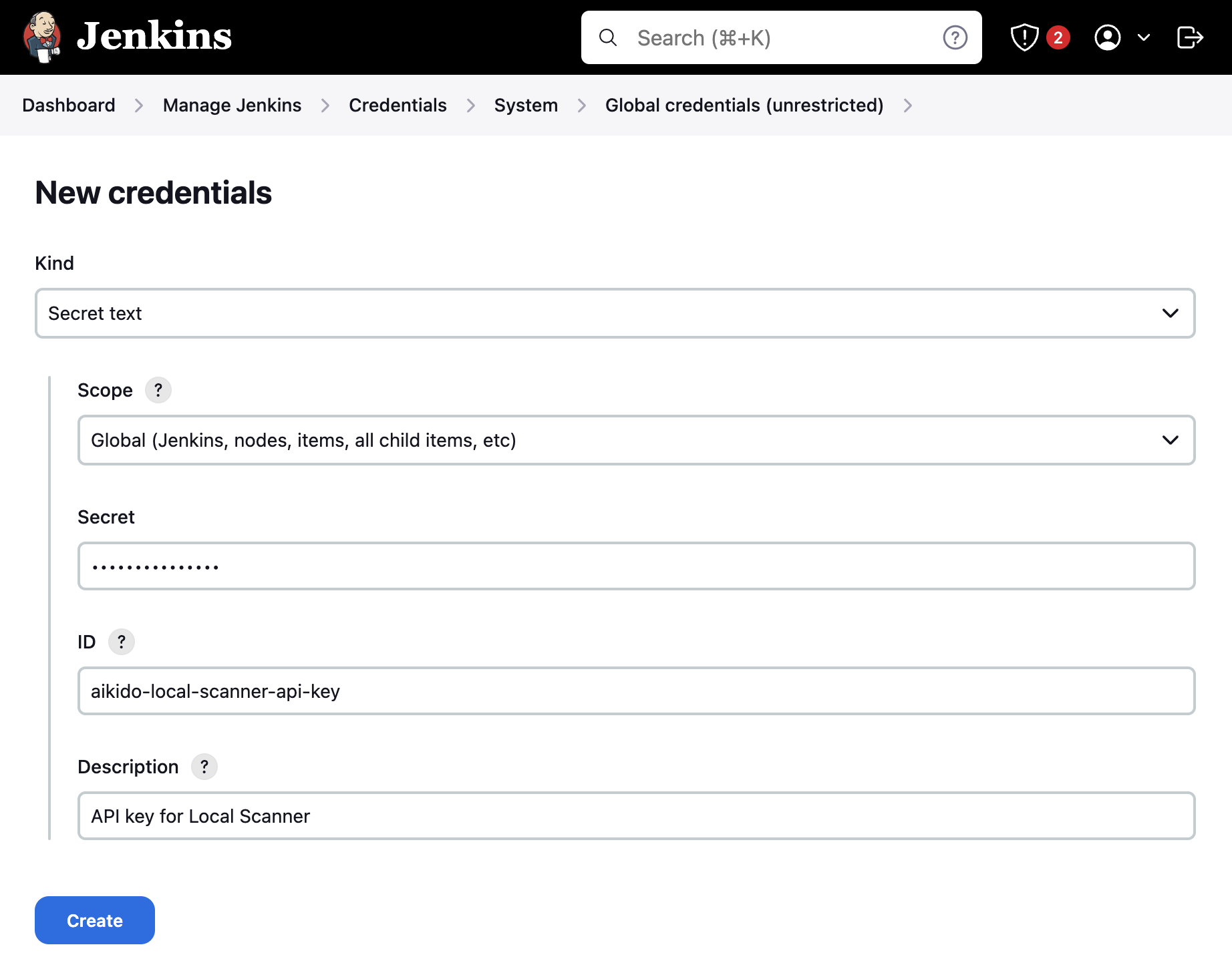
Store this token in your Jenkins. To do this, navigate to the "Credentials" page in the Jenkins settings.
2. Adding the Local Scanner to your project
Option A (Binary): Download the local scanner binary from the Aikido UI. In Jenkins, add it on your build node and add it to /usr/local/bin to access it by name. Make sure the binary is executable (example: chmod +x -R aikido-local-scanner).
Option B (Docker): Ensure Docker is installed on your Jenkins Node. No binary download is needed, the scanner image is pulled from Docker Hub automatically. The image is available at:
- Docker Hub:
aikidosecurity/local-scanner - AWS ECR:
public.ecr.aws/z1o3v2w5/aikidosecurity/local-scanner
3. Running the Local Scanner
Now all that is left to run the scanner on your repository.
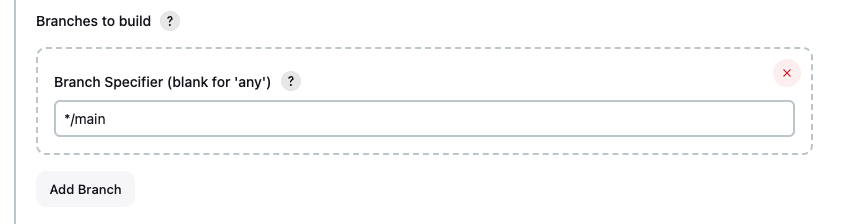
Make sure that the local scanner is only triggered for your default branch. By default, Aikido supports scanning one branch in your repository for dependency and code issues, typically the main or master branch. Therefore, we recommend running the local scanner exclusively on that branch to avoid mixing scan results on the Aikido platform. If you use git, you can specify this in the Branches to build section.
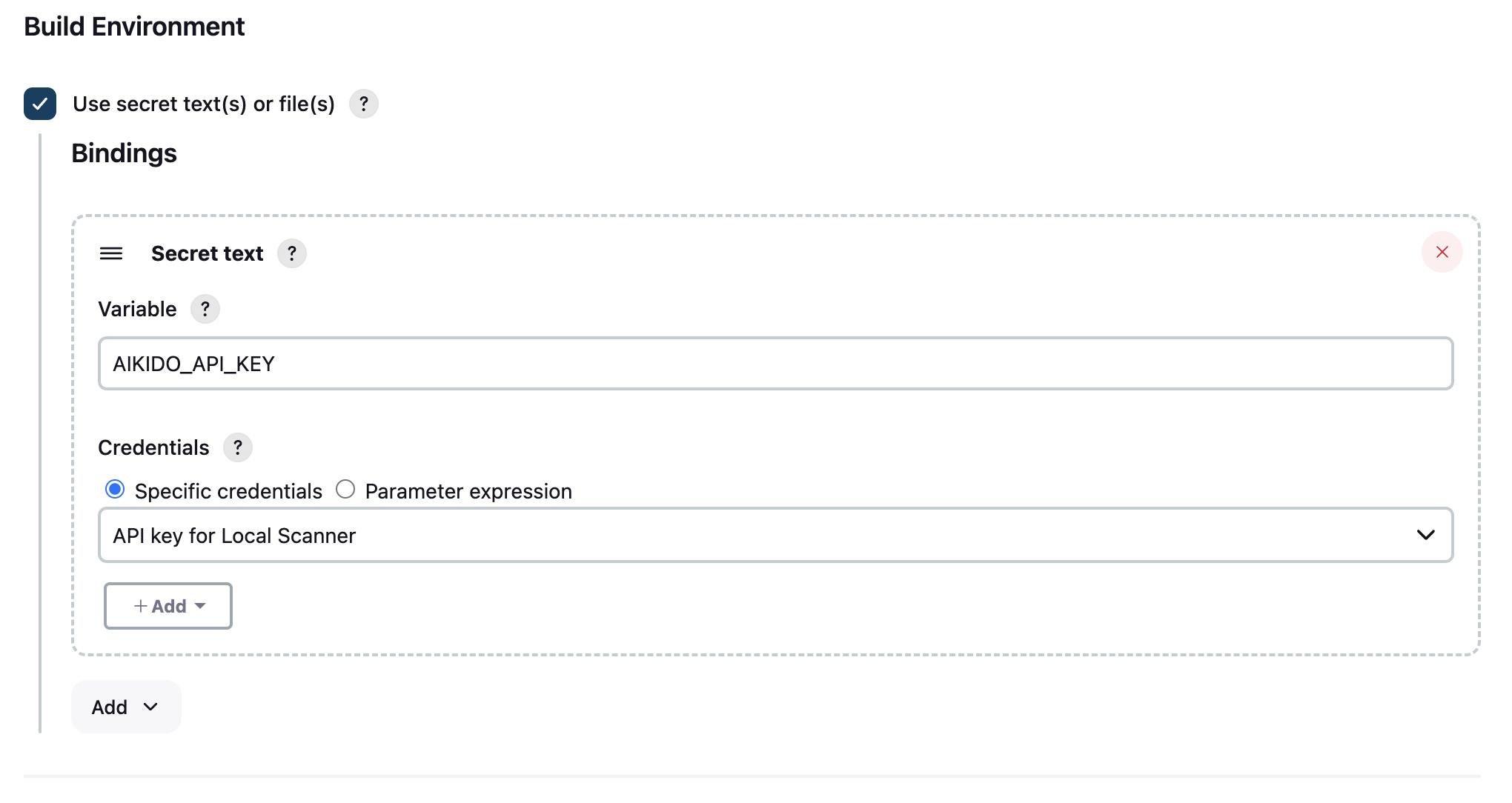
Now, make the API key available to use in the project by adding it to your build environment.
Add an Execute shell step to your project with one of the following commands:
Option A: Binary
Specify your preferred branch using the --branchname option:
aikido-local-scanner scan ./ --apikey $AIKIDO_API_KEY --repositoryname DemoApp --branchname mainSpecify your preferred branch using the --branchname option when executing the command.
Option B: Docker
Navigate into your repository directory and run the scanner using the Docker image. The -v flag mounts your source code into the container:
docker run --rm \
  -v "$(pwd):/scan-target" \
  aikidosecurity/local-scanner \
  scan /scan-target \
  --apikey $AIKIDO_API_KEY \
  --repositoryname DemoApp \
  --branchname main
Note: If your Jenkins workspace path contains spaces, wrap it in quotes. The
--rmflag automatically removes the container after the scan completes.
If this is the first scan for this repository, Aikido will create a repository with the name you specified, containing all the scanning results. Subsequent scan results will be collected under this repository name in Aikido.
More information on CLI options can be found here.
You can also run the scanner in release gating mode by using the --fail-on <severity> flag. This feature is helpful when scanning your repository prior to releasing, as it ensures there are no open issues before a potential release. When running in release gating mode, the scanner process will fail when there are any open issues of the chosen severity or higher after the scan is finished.
Example release gating command:
aikido-local-scanner scan ./ --apikey $AIKIDO_API_KEY --repositoryname DemoApp --branchname main --fail-on critical4. Check your scanning results
After your first scan is done, you can go to the Aikido Feed to check out your results. A repository with the name you specified will have been created, containing all results from the scanning.