
Performing Nightly Scans Using Local Scanner
When implementing the Aikido Local Scanner in your CI, it is recommended to perform scans on changes in your default branch. You might also consider performing scheduled scan at fixed intervals on some repositories, particularly those that do not regularly receive updates. This article will focus on setting up these recurring scans. If you need more details on setting up the Local Scanner for a specific CI/CD tool, please refer to the respective guides for these tools.
Setting up a nightly scan in GitHub Actions
The example below creates a GitHub Action that will perform a scan on a push to the main branch and nightly at midnight.
on:
  push:
    branches:
      - main
  schedule:
    - cron: '0 0 * * *'

name: Aikido Scan
jobs:
  aikido-local-scan-repo:
    runs-on: ubuntu-latest
    container:
      image: aikidosecurity/local-scanner:latest
    steps:
      - uses: actions/checkout@v4
        with:
          token: ${{ secrets.GITHUB_TOKEN }}
          path: my-repo
      - name: Run scan
        run: aikido-local-scanner scan my-repo --apikey ${{ secrets.AIKIDO_API_KEY }} --repositoryname MyRepo --branchname main
Detailed info on how to setup a scan using GitHub Actions can be found here.
Detailed info on how to use the schedule option in a GitHub Action can be found here.
Setting up a nightly scan in GitLab
You will already need to have setup a pipeline in your GitLab project, refer to this article for more info.
After you have setup a pipeline for nightly scan, you'll need to schedule it.
On the left side bar, select Build > Pipeline schedules.
Fill in the form with your desired interval, timezone and your default branch. Click 'Create pipeline schedule'. After this, you will see your scheduled pipeline appear in the overview.
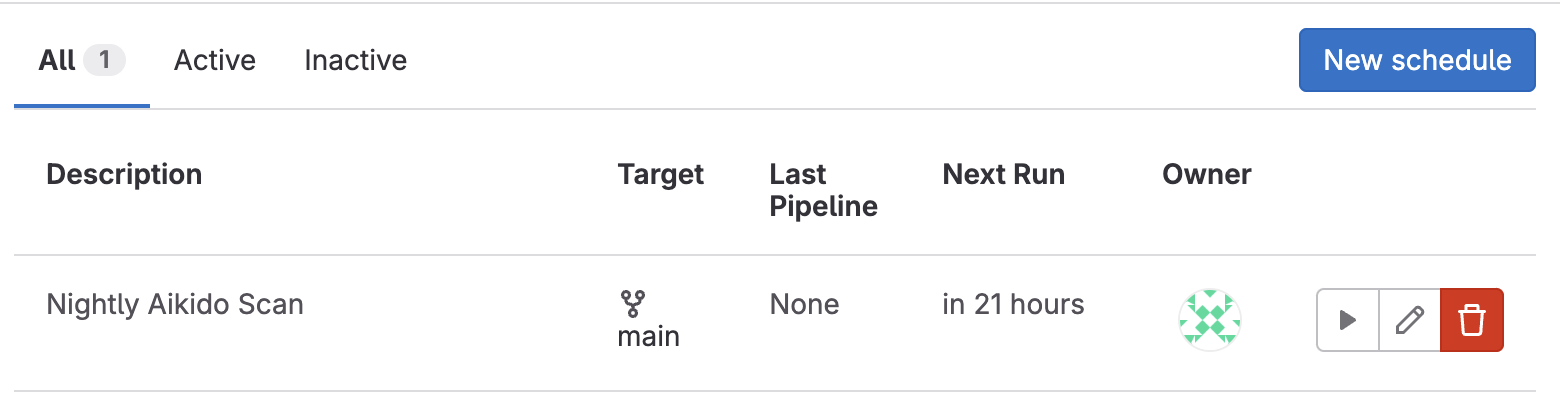
More info on schedule pipelines can be found here.
Setting up a nightly scan in Jenkins
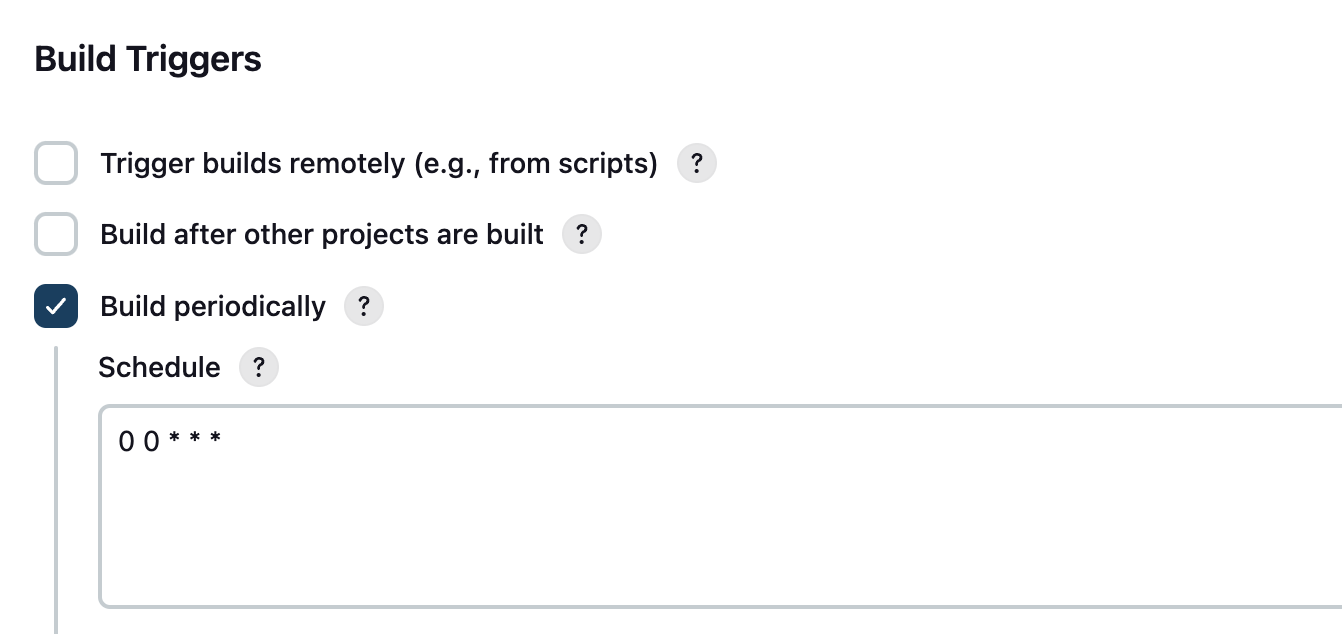
To set up a scheduled scan in Jenkins, select Build Periodically as the Build Trigger.
The example below will schedule a scan, every night at midnight
More info on setting up the Local Scanner in Jenkins can be found here.
Setting up a nightly scan in Azure Devops
The example below creates a Azure DevOps pipeline that will perform a nightly scan at midnight on the main branch.
trigger: none

schedules:
- cron: "0 0 * * *"
  displayName: Nightly Aikido scan
  branches:
    include:
    - main
  always: true

pool:
  vmImage: 'ubuntu-latest'

container:
  image: aikidosecurity/local-scanner:latest
  options: --entrypoint=""

steps:
- script: aikido-local-scanner scan $BUILD_SOURCESDIRECTORY --apikey $(AIKIDO_API_KEY) --repositoryname $BUILD_REPOSITORY_NAME --branchname main
  displayName: 'Run Aikido security scan'
More info on setting up schedules pipelines in Azure Devops can be found here.