> For the complete documentation index, see [llms.txt](https://help.aikido.dev/llms.txt). Markdown versions of documentation pages are available by appending `.md` to page URLs; this page is available as [Markdown](https://help.aikido.dev/container-image-scanning/cloud-provider-registries/configuring-registry-scan-scope.md).
# Configuring Registry Scan Scope
Configure wildcard patterns to control which container images are scanned in your connected registries.
Use wildcard patterns to control which container images Aikido scans in your connected registries. This helps you focus on relevant containers and avoid clutter when working with registries containing hundreds of images across multiple projects.
#### How Scan Scope Works
You can configure scan scope in two ways:
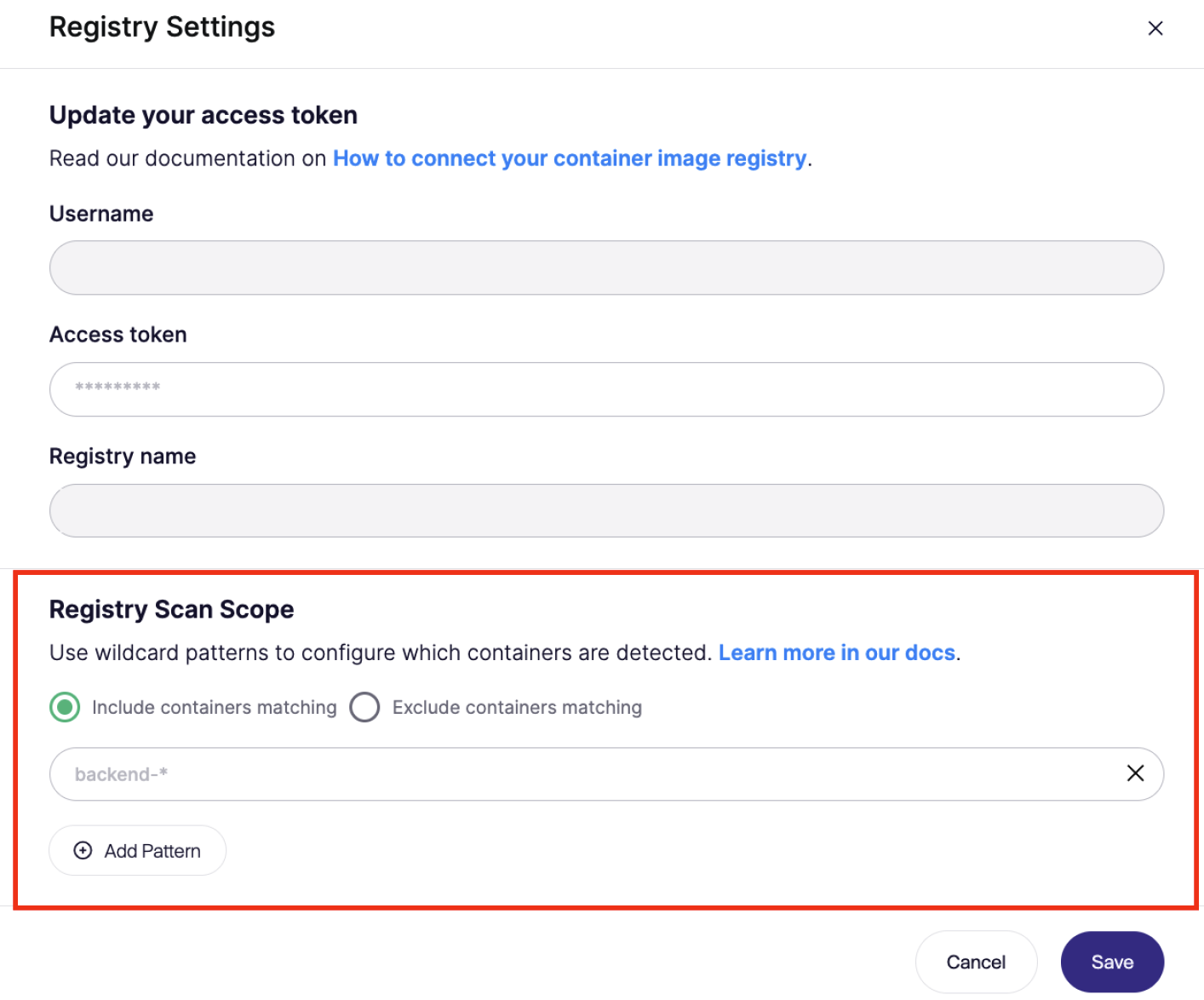
* **Include containers matching**: Aikido will exclusively scan containers that match your specified patterns. All other containers will be ignored.
* **Exclude containers matching**: Aikido will scan all containers except those matching your patterns.
{% hint style="info" %}
**Wildcard patterns match against container names only.** Tags, image IDs, and other metadata are not considered when evaluating scope rules.
{% endhint %}
#### Setting Up Scan Scope
1. Navigate to [**Settings** > **Containers**](https://app.aikido.dev/settings/container-image-registry)
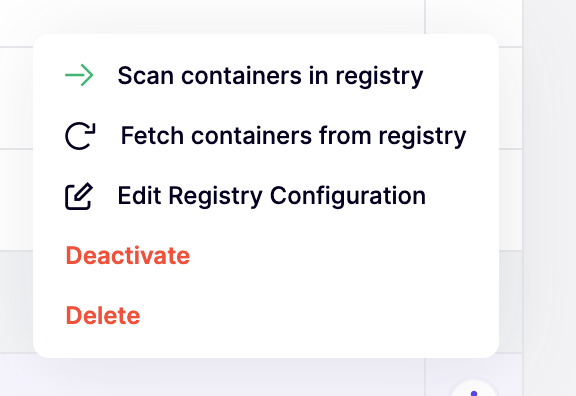
2. Click the triple dots on the registry you want to configure, and click '**Edit Registry Configuration**'
3. In the **Registry Settings** modal, scroll to the **Registry Scan Scope** section
4. Select your scan mode:
* **Include containers matching** to create an allowlist
* **Exclude containers matching** to create a blocklist
5. Enter your wildcard pattern (e.g., `backend-*`)
6. Click **Add Pattern** to add additional patterns
7. Click **Save**
After saving, Aikido applies your scan scope rules **during the next scheduled scan**. Only containers matching your criteria will be added to your Aikido workspace and scanned.
#### Wildcard Pattern Examples
Wildcard patterns use the `*` character to match multiple container names:
* `frontend-*` - Matches all containers starting with "frontend-" (e.g., `frontend-web`, `frontend-api`)
* `*-prod` - Matches all containers ending with "-prod"
* `production/*` - Matches all containers in the production project or namespace
* `*test*` - Matches any container with "test" in the name
---
# Agent Instructions
This documentation is published with GitBook. GitBook is the documentation platform designed so that both humans and AI agents can read, navigate, and reason over technical content effectively. Learn more at gitbook.com.
## Querying This Documentation
If you need additional information that is not directly available in this page, you can query the documentation dynamically by asking a question.
Perform an HTTP GET request on the current page URL with the `ask` query parameter, and the optional `goal` query parameter:
```
GET https://help.aikido.dev/container-image-scanning/cloud-provider-registries/configuring-registry-scan-scope.md?ask=&goal=
```
`ask` is the immediate question: it should be specific, self-contained, and written in natural language.
`goal` is optional and describes the broader end goal you are ultimately trying to accomplish on behalf of the user. GitBook uses it to tailor the answer towards what is most useful for that goal.
The response will contain a direct answer to the question and relevant excerpts and sources from the documentation.
Use this mechanism when the answer is not explicitly present in the current page, you need clarification or additional context, or you want to retrieve related documentation sections.