
CircleCI Setup for Local Image Scanning
The Aikido Security Local Scanner is a tool that enables you to perform Aikido Security scans within your environment, ensuring your data never leaves your premises. The scans take place locally, and the results are then uploaded to the Aikido Security platform. This setup allows you to scan any images locally on your own machine or in your CI/CD pipeline before they get sent to the registry.
#How to set up Local Scanning for images
#1. Get your authentication token
-
Go to the Local Scanner Image setup page
-
Generate an authentication token and copy. Note that you will only be able to view this token once.
-
Add this token as argument
--apikeywhen running the Local Scanner in your project . -
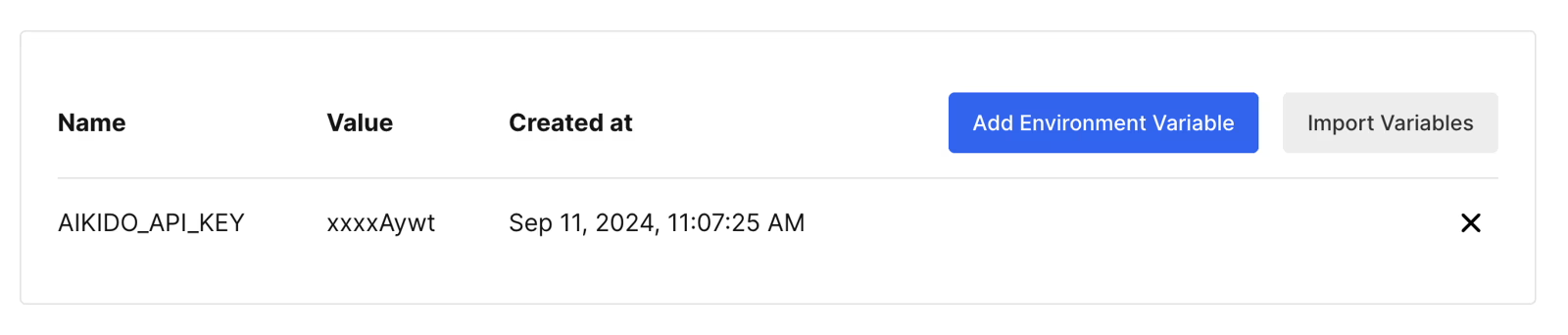
Save this token as an environment variable by going to Project Settings > Environment Variables > Add Environment Variable in CircleCI.
#2. Running the Local Scanner
Now all that is left to run the scanner on your image.
version: 2.1

jobs:
  run-aikido-scan:
    machine:
      image: ubuntu-2204:current

    steps:
      - run:
          name: "Your build step here"
          command: docker build .
      - run:
          name: "Run Aikido scan"
          command: docker run --rm -v /var/run/docker.sock:/var/run/docker.sock aikidosecurity/local-scanner image-scan your-local-image-name --apikey "$AIKIDO_API_KEY"
  my-workflow:
    jobs:
      - run-aikido-scan:
          filters:
            branches:
              only:
                - master
If you are running this in your CI, be careful to not run scan on images that are based on feature branches, to prevent production and feature results being mixed together in Aikido.
To run a release gated scan before pushing to your registry, you can run a Pipeline like:
version: 2.1

jobs:
  run-aikido-scan:
    machine:
      image: ubuntu-2204:current

    steps:
      - run:
          name: "Your build step here"
          command: docker build .
      - run:
          name: "Run Aikido scan"
          command: docker run --rm -v /var/run/docker.sock:/var/run/docker.sock aikidosecurity/local-scanner image-scan your-local-image-name --apikey "$AIKIDO_API_KEY" --fail-on critical
      - run:
          name: "Your push step here"
          command: docker image push ...
  my-workflow:
    jobs:
      - run-aikido-scan:
          filters:
            branches:
              only:
                - master
Adjust the severity specified in --fail-on to match your needs.
#4. Check your scanning results
After your first scan is done, you can go to the Aikido Feed to check out your results. An image with the name you specified will have been created in the Aikido UI, containing all results from the scanning.