> For the complete documentation index, see [llms.txt](https://help.aikido.dev/llms.txt). Markdown versions of documentation pages are available by appending `.md` to page URLs; this page is available as [Markdown](https://help.aikido.dev/docs/docs-ja/aikido-agent/secrets-autotriage.md).
# シークレット自動トリアージ
Secrets AutoTriageは、 [Aikido Agent](/docs/docs-ja/aikido-agent/aikido-agent.md) シークレットスキャンのノイズを減らし、本当に危険な露出シークレットに集中できるようにする仕組みです。まず誤検知を除外し、次に(検出結果が実際のものなら)露出したシークレットの危険度に応じて優先順位を付けます。
{% hint style="info" %}
Secrets AutoTriageは、Aikidoがコード内で検出したシークレットに対して機能します。スキャン対象は変えず、検出結果の絞り込みと優先順位付けの方法だけを変えます。この機能は **ProおよびAdvancedプランでのみ利用できます**.
{% endhint %}
## Secrets AutoTriageを有効にする
Secrets AutoTriageは **デフォルトでは有効になっていません**。ワークスペース管理者のみがワークスペース設定から有効にできます。
{% stepper %}
{% step %}
### トリアージ設定を開く
次へ移動します: **設定** → **トリアージ**.
{% endstep %}
{% step %}
### Secrets AutoTriageを有効にする
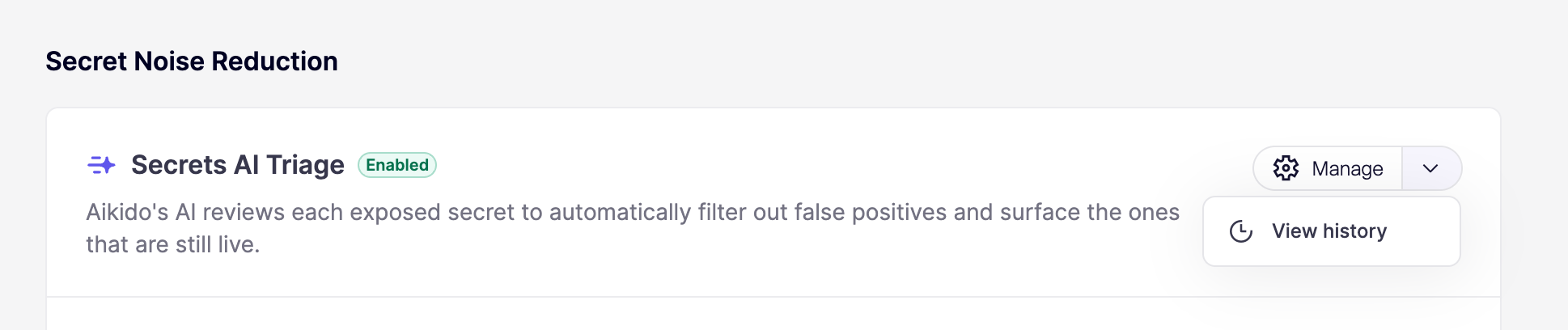
次の項目の下で **シークレットのノイズ削減**をオンにする **Secrets AIトリアージ**。有効にすると、Aikidoは次回のスキャンでシークレットの検出結果にAutoTriageを適用します。
{% endstep %}
{% endstepper %}
## Secrets AutoTriageでできること(できないこと)
Secrets AutoTriage自体はスキャナーではありません。シークレットスキャンの後段で動作し、一致したものが ***実際に露出したシークレット*** であるかどうか、またそうなら ***どれだけ危険か*** を判断します。
ほとんどの検出結果については、Aikidoが定義したルールと妥当性チェックに基づいてトリアージします。より曖昧なケースでは、周囲のコードコンテキストを使って、一致したものが本物のシークレットなのか、それともプレースホルダー、例、テスト値なのかを判断します。
## Secrets AutoTriageの仕組み
### トリアージ前の誤検知フィルタリング
シークレットがフィードに届く前に、Aikidoはシークレットに見えるが実際にはそうではない一致を除外します。たとえば以下が含まれます。
* テストファイル、モックデータ、サンプル設定を除外する
* 本物のシークレットと同じ形式を持つプレースホルダー値やサンプル値を識別する
* ワークスペースに適用して [シークレットキーワードフィルター](/docs/docs-ja/kdosukyan/scanning-practices/denoise-via-secret-keyword-filter.md) 既知の安全なキーワードを含む行を除外する
* を尊重し [コードコメントによる除外](/docs/docs-ja/kdosukyan/scanning-practices/ignoring-secrets-via-code-comments.md) と [`.aikido` ファイル除外](/docs/docs-ja/kdosukyan/scanning-practices/ignore-via-code-with-aikido-files.md)
これらの手順だけでも、シークレットアラートのかなりの部分を抑制できます。
{% hint style="warning" %}
本物らしく見えるシークレットの中には、パターンだけでは本物と区別できないものがあります。判断が難しい場合、Aikidoは本当の露出を隠してしまうよりも、確認できるように検出結果を残します。
{% endhint %}
### 有効性と権限のチェック
一致したものが本物のシークレットに見える場合、Aikidoの [リアルタイムシークレット検出](/docs/docs-ja/kdosukyan/scanning-practices/live-secret-detection.md) が、そのシークレットがまだ有効かどうかを確認し、付与されるアクセス範囲を調べます。AutoTriageはこれらのシグナルを使って優先度を調整します。
* **期限切れまたはローテーション済みのシークレット** は優先度が下げられます。もはやリスクをもたらさないためです
* **読み取り専用スコープ** は、書き込みまたは削除権限よりも低く優先されます
* **書き込み/削除スコープを持つ有効なシークレット** は、すぐに対応すべきものとして優先度が引き上げられます
### Secrets AutoTriageが考慮するシグナル
Secrets AutoTriageは **コンテキストを強く必要とする** ように設計されています。実際には、次のような点を考慮します。
* 一致したものが有効か、期限切れか、すでにローテーション済みか
* 有効なシークレットが付与する権限の範囲
* そのファイルがテスト、モック、サンプル、ドキュメントのどれか、あるいは本番コードかどうか
* その値が本物の認証情報ではなく、プレースホルダーやサンプルかどうか
* そのシークレットでアクセスできるシステムの機密性
## 分析履歴を確認する
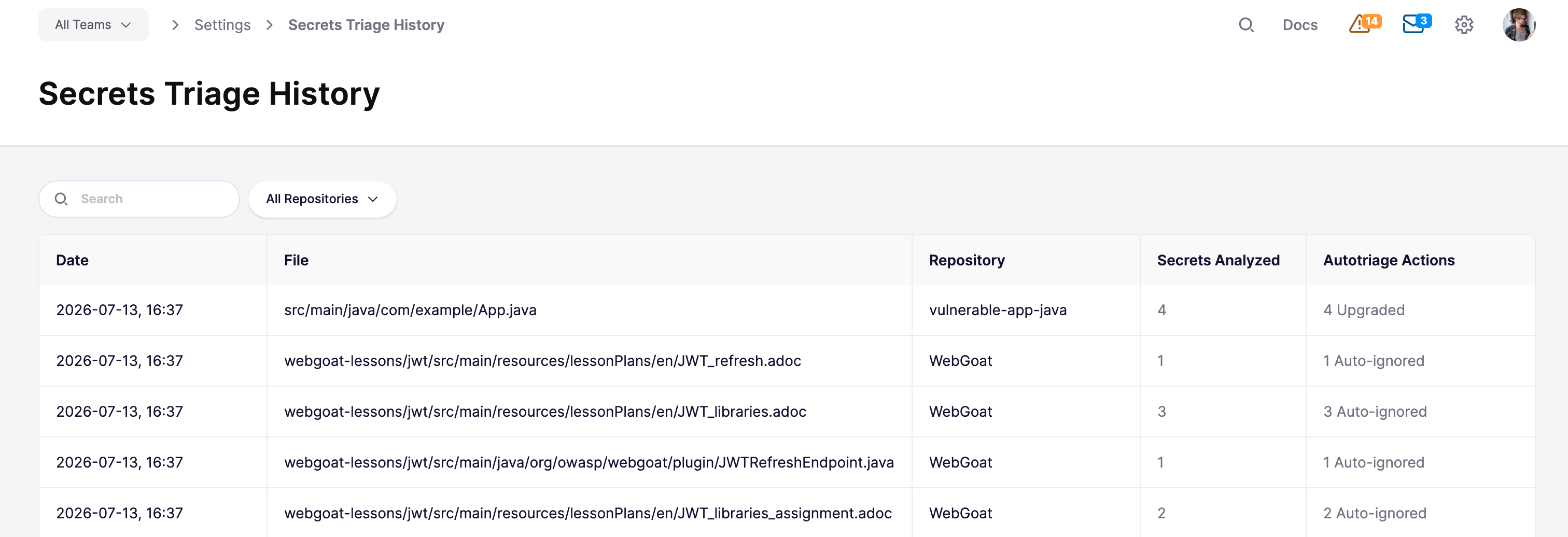
AutoTriageの判定変更はすべて記録されるため、Aikidoが何を分析し、何を行ったかを確認できます。In [トリアージ設定](https://app.aikido.dev/settings/advanced)で、 **管理** ドロップダウンを開き、 **履歴を表示** をクリックして [**Secretsトリアージ履歴**](https://app.aikido.dev/settings/advanced/secrets-triage-history) ページ上で使用します。
履歴テーブルでは、関連する評価をファイル、リポジトリ、時刻ごとにグループ化します。各行には、日付、ファイルパス、リポジトリ、分析したシークレット数、実行されたトリアージ操作の要約が表示されます。検索フィルターとリポジトリフィルターを使って一覧を絞り込んでください。
表示されるアクション:
* **優先度を上げた**:シークレットがより悪用しやすい、またはリスクが高いように見えるため、優先度が上がりました
* **優先度を下げた**:シークレットがそれほど危険でないように見えるため、優先度が下がりました(たとえば、プレースホルダー、テスト値、または影響の小さいスコープ)
* **自動的に無視**:誤検知としてフィードから削除されました
* **中立**:優先度を変更せずに評価が実行されました
## トリアージ済みシークレットの解決
シークレットが実際に露出していると確認されたら、できるだけ早くローテーションしてください。コードから削除するだけでは不十分で、git履歴には残り続けます。露出したシークレットの整理とローテーションの手順については、こちらをご覧ください [マルウェアと漏えいしたシークレットの問題を解決する](/docs/docs-ja/hajimeni/core-functionalities/resolving-malware-and-leaked-secret-issues.md).
AutoTriageが誤検知だとフラグを立てたものが実際には誤検知だと思う場合は、 [UIで問題を無視する](/docs/docs-ja/hajimeni/core-functionalities/ignore-issues-to-remove-issues-from-main-feed.md), [コードコメントで無視する](/docs/docs-ja/kdosukyan/scanning-practices/ignoring-secrets-via-code-comments.md)、またはワークスペース全体に適用される [シークレットキーワードフィルター](/docs/docs-ja/kdosukyan/scanning-practices/denoise-via-secret-keyword-filter.md).
---
# Agent Instructions
This documentation is published with GitBook. GitBook is the documentation platform designed so that both humans and AI agents can read, navigate, and reason over technical content effectively. Learn more at gitbook.com.
## Querying This Documentation
If you need additional information that is not directly available in this page, you can query the documentation by asking a question.
Perform an HTTP GET request on the following URL with the `ask` and `goal` query parameters:
```
GET https://help.aikido.dev/docs/docs-ja/aikido-agent/secrets-autotriage.md?ask=&goal=
```
`ask` is the immediate question: it should be specific, self-contained, and written in natural language.
`goal` is what the user is ultimately trying to achieve, the reason they need the answer. Sharing it helps GitBook give you a better, more relevant answer. A goal is most helpful when it describes the outcome the user wants rather than restating the question. For example, with `ask=how do I create an API token`, a goal like `automate deployments from our CI pipeline` lets GitBook tailor the answer to that use case.
The response will contain a direct answer to the question and relevant excerpts and sources from the documentation.
Use this mechanism when the answer is not explicitly present in the current page, you need clarification or additional context, or you want to retrieve related documentation sections.