> For the complete documentation index, see [llms.txt](https://help.aikido.dev/llms.txt). Markdown versions of documentation pages are available by appending `.md` to page URLs; this page is available as [Markdown](https://help.aikido.dev/docs/docs-ja/autofix-to/aikido-images/autofix-for-containers-using-aikido-images.md).
# コンテナ向けAutoFix: Aikido Images
ベースイメージを最新バージョンに更新するのは、アプリケーションに変更が必要になる場合があるため、難しいことがあります。より新しいベースイメージへの更新が現実的でない場合は、次を使用することで安全性を維持できます **Aikido Images**.
Aikido Images は、ゼロCVEのベースイメージのレジストリです。報告済みのライブラリのパッチ適用版を含む、すぐに置き換え可能な代替イメージです **重大** または **高** 深刻度の高いセキュリティ問題。Aikido Image を使用するという AutoFix の提案を受け入れると、Aikido レジストリのイメージが Dockerfile 内の既存のベースイメージに置き換わります。
{% hint style="info" %}
Aikido Images は、OSレベルのCVEを定義された [パッチ作成SLA](/docs/docs-ja/autofix-to/aikido-libraries-overview/patch-creation-sla.md)の下でカバーします。アプリケーションレベルのパッケージ脆弱性(Python、npm、Java、Go など)も修正されますが、SLA の保証はなく、ベストエフォートで対応します。アプリケーションレベルの保証されたカバレッジについては、次を参照してください [Aikido Libraries](/docs/docs-ja/autofix-to/aikido-libraries-overview.md).
{% endhint %}
例えば、 [CVE-2025-4373](https://security-tracker.debian.org/tracker/CVE-2025-4373) は Debian により Trixie と Sid では修正されていますが、Bookworm では修正されていません。Aikido Images の `debian:bookworm` には、修正済みバージョンの `glib2.0` が含まれており、この脆弱性を修正しています。このイメージを使用することで、破壊的変更を避けつつ、良好なセキュリティ体制を維持できます。
新しい CVE が報告されるたびに Aikido Images は継続的に再ビルドされるため、依存しているベースイメージは最新の状態に保たれ、AutoFix が必要に応じて更新を表示します。
## AutoFix で Aikido Images を使う
1. Aikido で、次へ移動します **コンテナ**。セキュリティ問題のあるコンテナでは、その項目のケバブメニューを選択し、次をクリックします **AutoFix をプレビュー** (その問題で AutoFix が利用可能な場合)。
1. **注:** 代わりに次へ移動することもできます **AutoFix > コンテナ** に移動し、 **修正を表示** の下の **ステータス** その問題の列で。
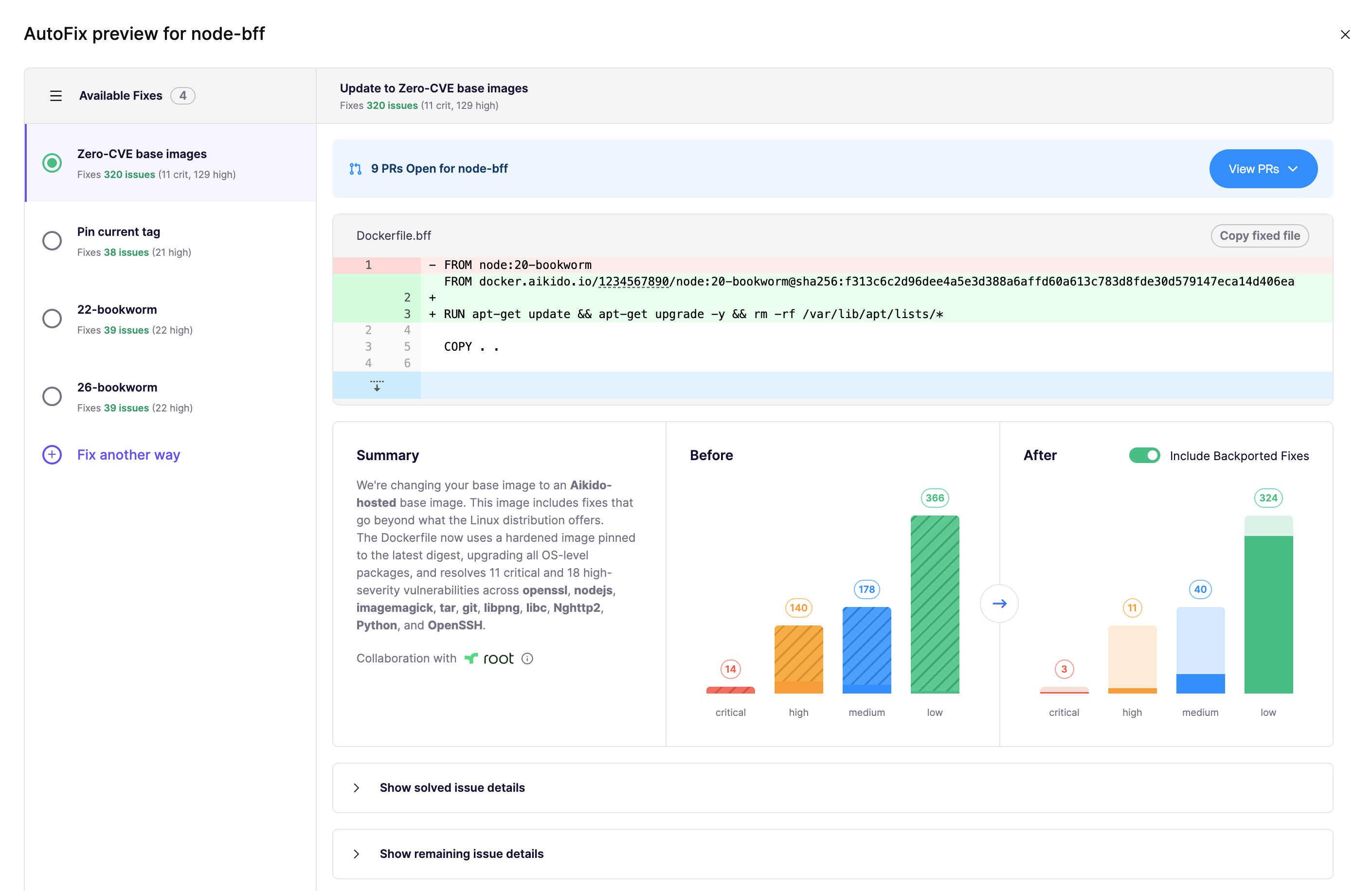
2. コンテナ向けの AutoFix では、利用可能な場合に Aikido Image が自動的に提案されます。そのイメージは次でホストされています `docker.aikido.io`.
この例では、Dockerfile が次のものを使用しているのがわかります `node:20-bookworm` ベースイメージ。Aikido Images 版に切り替えることで、そのベースイメージに存在する 322 件の問題が解決されます。
3. 選択します **PR を作成** 修正を適用するために、SCM でプルリクエストを開きます。
### ローカルスキャナーで Aikido Images を使う
イメージを次でスキャンする場合にも Aikido Images を利用できます [Aikido Local Scanner](/docs/docs-ja/kontenaimjisukyan/local-image-scanning/setting-up-image-scanning-with-local-scanner.md)。Aikido がソースコードにアクセスできない場合はローカルスキャナーが使用されるため、AutoFix は Dockerfile に対してプルリクエストを開くことができません。代わりに、Aikido は提案された Aikido Image を UI に表示し、あなたは次の手順に従って自分で変更を適用します [ベースイメージを手動で変更する](#manually-changing-the-base-image) 以下の手順。
## Aikido Images の提供状況
Aikido では、利用可能なベースイメージを次で確認できます [**AutoFix** > **クラウド** > **コンテナ** > **Aikido Images**](https://app.aikido.dev/issues/aikido-images).
すべてのイメージは次の両方の `amd64` と `arm64` アーキテクチャで利用できます。
### ベースイメージを手動で変更する
クリックします `パスを表示` ベースイメージの完全なパスを表示します。次のようになります:
```
docker.aikido.io//:
```
トークンは、あなたの Aikido アカウント専用の読み取り専用トークンです。例として、Debian Bookworm から対応する Aikido Image に切り替える方法は次のとおりです。Dockerfile では、次のように変更します
```
FROM debian:bookworm
```
を
```
FROM docker.aikido.io//debian:bookworm
```
次の置き換えを忘れないでください `` Aikido UI に表示されているトークンと置き換えてください。
---
# Agent Instructions
This documentation is published with GitBook. GitBook is the documentation platform designed so that both humans and AI agents can read, navigate, and reason over technical content effectively. Learn more at gitbook.com.
## Querying This Documentation
If you need additional information that is not directly available in this page, you can query the documentation by asking a question.
Perform an HTTP GET request on the following URL with the `ask` and `goal` query parameters:
```
GET https://help.aikido.dev/docs/docs-ja/autofix-to/aikido-images/autofix-for-containers-using-aikido-images.md?ask=&goal=
```
`ask` is the immediate question: it should be specific, self-contained, and written in natural language.
`goal` is what the user is ultimately trying to achieve, the reason they need the answer. Sharing it helps GitBook give you a better, more relevant answer. A goal is most helpful when it describes the outcome the user wants rather than restating the question. For example, with `ask=how do I create an API token`, a goal like `automate deployments from our CI pipeline` lets GitBook tailor the answer to that use case.
The response will contain a direct answer to the question and relevant excerpts and sources from the documentation.
Use this mechanism when the answer is not explicitly present in the current page, you need clarification or additional context, or you want to retrieve related documentation sections.