> For the complete documentation index, see [llms.txt](https://help.aikido.dev/llms.txt). Markdown versions of documentation pages are available by appending `.md` to page URLs; this page is available as [Markdown](https://help.aikido.dev/docs/docs-ja/autofix-to/connect-private-packages/poetry-private-packages.md).
# Poetry - プライベートパッケージ
Aikido がプライベートパッケージを含む依存関係を更新するには、正確なロックファイル更新を生成できるように、プライベートレジストリへのアクセスが必要です。Poetry では、 **Google Artifact Registry** 設定サービスキーを提供するか、 **環境変数** Aikidoで。
## 環境変数を使って認証情報を追加する
プライベートレジストリに接続するための認証情報が固定の場合は、環境変数として指定できます。環境変数は次の形式で作成してください:
* `POETRY_HTTP_BASIC_[SOURCE_NAME]_USERNAME`
* `POETRY_HTTP_BASIC_[SOURCE_NAME]_PASSWORD`
ここで `[SOURCE_NAME]` は、 `pyproject.toml` ファイル内で指定したデータソース名を大文字にしたものです。たとえば、次を設定します: `POETRY_HTTP_BASIC_ARTIFACT_USERNAME` と `POETRY_HTTP_BASIC_ARTIFACT_PASSWORD` 次のプロジェクトファイルに対して:
```
[[tool.poetry.source]]
name = "artifact"
url = "https://repo-1234567890.d.codeartifact.eu-west-1.amazonaws.com/pypi/poetry/simple/"
```
以下の手順に従って、Aikido で Poetry の環境変数を設定できます:
1. Aikido の AutoFix のアカウント設定ページに移動し、 [こちら](https://app.aikido.dev/settings/integrations/autofix).
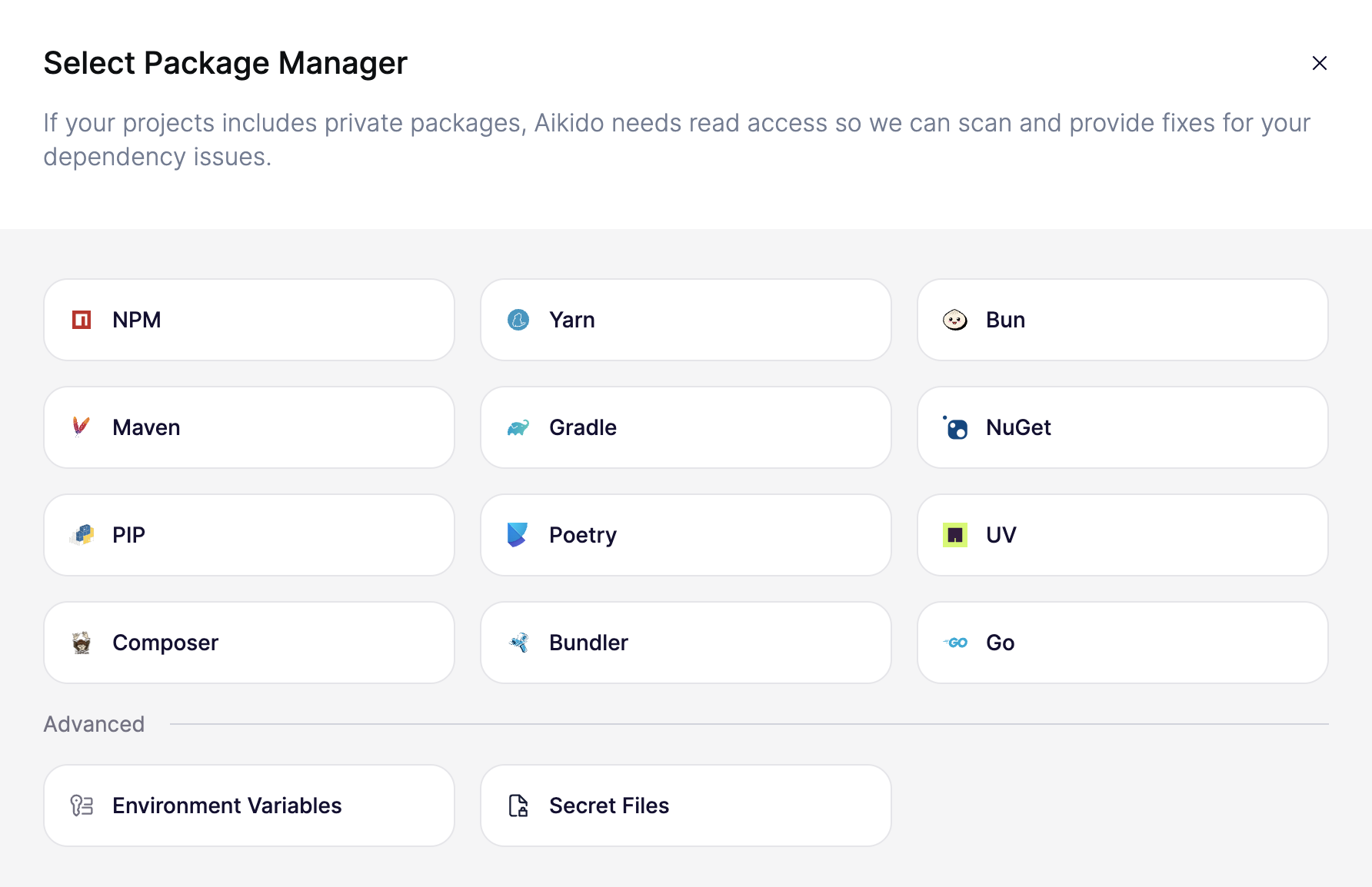
2. 「Connect Registry」をクリックすると、構成モーダルが表示されます
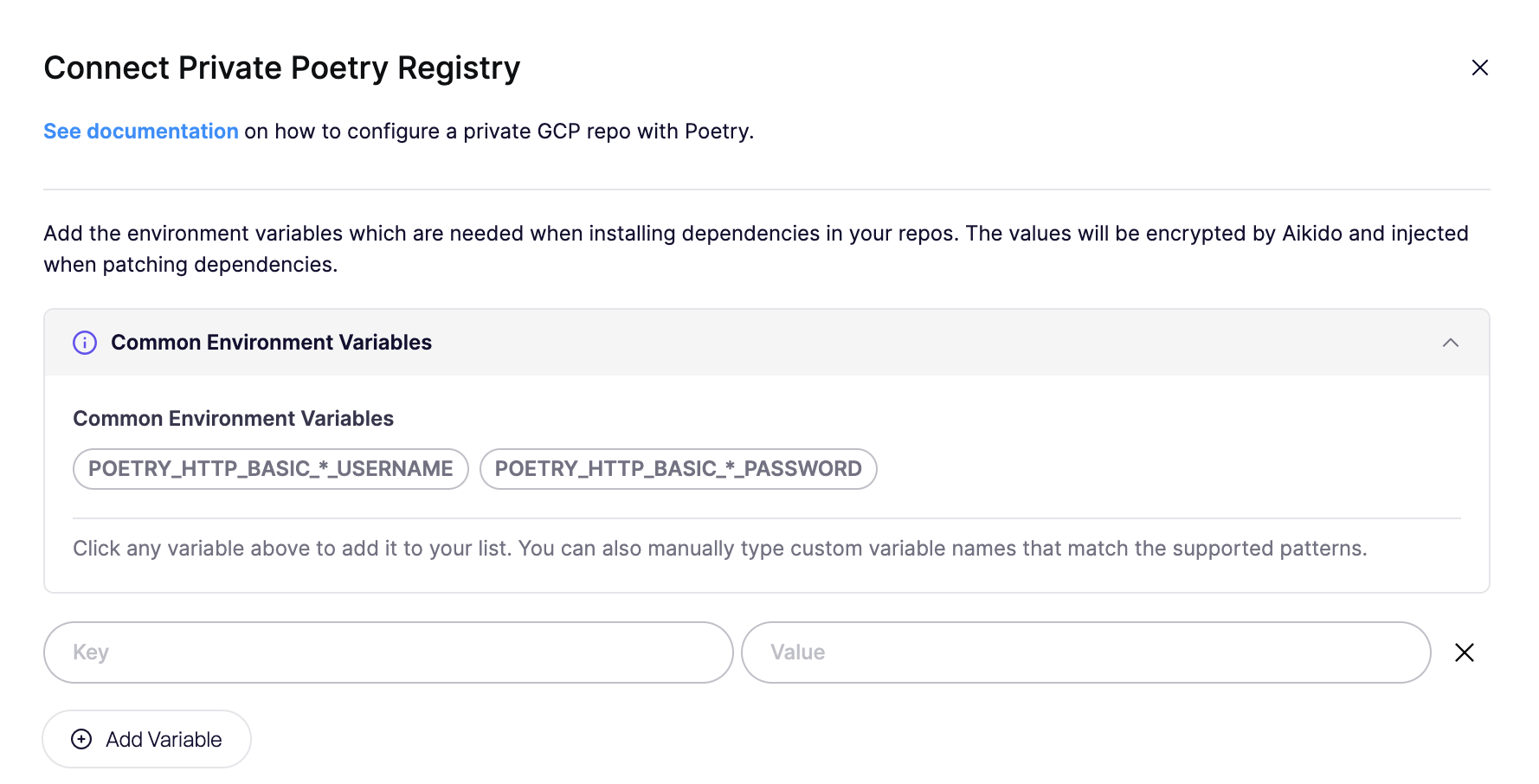
3. Poetry を選択すると、次の `POETRY_HTTP_BASIC_[SOURCE_NAME]_USERNAME` と `POETRY_HTTP_BASIC_[SOURCE_NAME]_PASSWORD` 環境変数を追加できるようになります:
4. [Connect Registry]をクリックして、環境変数を保存します。
Poetry と AWS CodeArtifact を併用している場合、パスワードはその場で生成する必要があります。詳しくは、こちらを参照してください: [ページ](/docs/docs-ja/autofix-to/connect-private-packages/aws-codeartifact-private-packages.md) Poetry を AWS CodeArtifact とともに設定する方法について。
Autofix を介して PR を作成すると、Aikido は Poetry コマンドの実行時にこれらの環境変数を含めます。
## GCP Artifact Registry の認証情報を追加する
GCP Artifact Registry では、認証情報を静的に生成することはできません。この場合は、以下の手順に従ってください。
### 1. GCP でサービス アカウントを作成する
まず、Google Cloud プロジェクトにサービス アカウントを作成します:
1. Google Cloud Console に移動します。
2. 次へ移動します: **IAM & Admin** > **サービス アカウント**.
3. クリックします **サービス アカウントを作成**.
4. 次の内容を入力します **サービス アカウント名** たとえば `Aikido Artifact Registry Reader` に移動し、 **作成して続行**.
5. サービス アカウントに次の権限を付与します **Artifact Registry Reader** ロールが割り当てられている必要があります。

6. クリックします **続行** と **完了**.
### 2. GCP でサービス アカウント用のキーを作成する
1. On the **サービス アカウント** ページで、先ほど作成したサービス アカウントを見つけます。
2. 右側の 3 つの点をクリックし、 **キーを管理**.
3. クリックします **キーを追加** > **新しいキーを作成**.
4. 選択 **JSON** に移動し、 **作成**.
5. JSON キーファイルを安全な場所に保存します。
### 3. Aikido での設定
前提条件を満たしたら、以下の手順に従って、依存関係を更新する際に Aikido がプライベートレジストリで認証できるように設定できます:
1. Aikido の autofixer のアカウント設定ページに移動し、 [こちら](https://app.aikido.dev/issues/fix/settings).
2. 「Connect Registry」をクリックすると、構成モーダルが表示されます
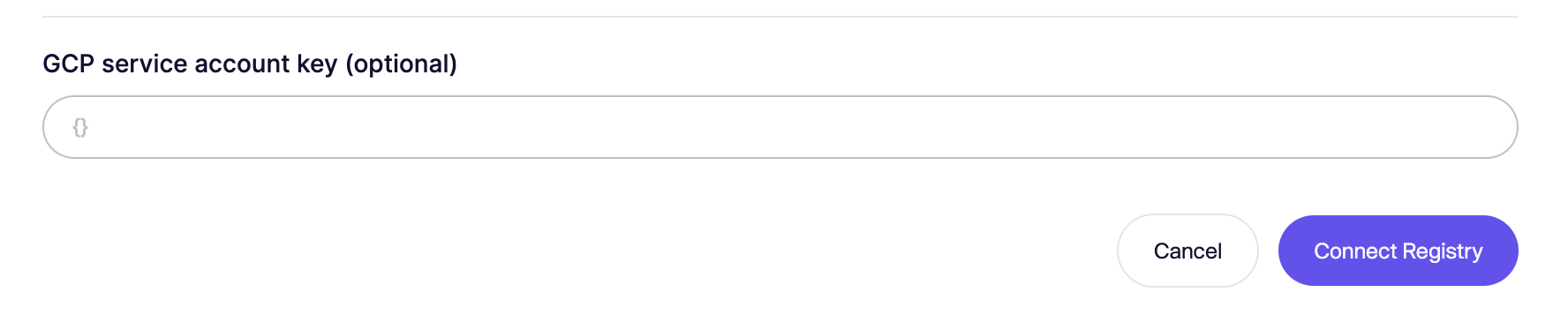
3. Poetry を選択して、 `GCP サービス アカウントキー` セクションをモーダルの下部で見つけてください:
4. 保存した **JSON キー** の内容を **プライベートレジストリのサービス アカウント キー** 欄に貼り付け
5. クリックします **レジストリを接続** て設定を保存します。
---
# Agent Instructions
This documentation is published with GitBook. GitBook is the documentation platform designed so that both humans and AI agents can read, navigate, and reason over technical content effectively. Learn more at gitbook.com.
## Querying This Documentation
If you need additional information that is not directly available in this page, you can query the documentation by asking a question.
Perform an HTTP GET request on the following URL with the `ask` and `goal` query parameters:
```
GET https://help.aikido.dev/docs/docs-ja/autofix-to/connect-private-packages/poetry-private-packages.md?ask=&goal=
```
`ask` is the immediate question: it should be specific, self-contained, and written in natural language.
`goal` is what the user is ultimately trying to achieve, the reason they need the answer. Sharing it helps GitBook give you a better, more relevant answer. A goal is most helpful when it describes the outcome the user wants rather than restating the question. For example, with `ask=how do I create an API token`, a goal like `automate deployments from our CI pipeline` lets GitBook tailor the answer to that use case.
The response will contain a direct answer to the question and relevant excerpts and sources from the documentation.
Use this mechanism when the answer is not explicitly present in the current page, you need clarification or additional context, or you want to retrieve related documentation sections.