# Local Scannerを使用した夜間スキャンの実行
Aikido Local ScannerをCIに導入する際は、デフォルトブランチへの変更に対してスキャンを実行することをお勧めします。また、特に定期的に更新されないリポジトリについては、一定の間隔でスケジュールスキャンを実行することも検討するとよいでしょう。この記事では、こうした定期スキャンの設定に焦点を当てます。特定のCI/CDツールでLocal Scannerを設定する方法の詳細については、各ツールのガイドを参照してください。
## GitHub Actionsでの夜間スキャンの設定
以下の例では、mainブランチへのプッシュ時と、毎晩深夜0時にスキャンを実行するGitHub Actionを作成します。
```yaml
on:
push:
branches:
- main
schedule:
- cron: '0 0 * * *'
name: Aikido Scan
jobs:
aikido-local-scan-repo:
runs-on: ubuntu-latest
container:
image: aikidosecurity/local-scanner:latest
steps:
- uses: actions/checkout@v4
with:
token: ${{ secrets.GITHUB_TOKEN }}
path: my-repo
- name: Run scan
run: aikido-local-scanner scan my-repo --apikey ${{ secrets.AIKIDO_API_KEY }} --repositoryname MyRepo --branchname main
```
GitHub Actionsを使用したスキャンの設定方法の詳細は[こちら](https://help.aikido.dev/docs/docs-ja/code-scanning/local-code-scanning/github-action-setup-for-local-code-scanning)をご覧ください。\
GitHub Actionでscheduleオプションを使用する方法の詳細は[こちら](https://docs.github.com/en/actions/using-workflows/events-that-trigger-workflows#schedule)をご覧ください。
## GitLabでの夜間スキャンの設定
事前にGitLabプロジェクトでパイプラインを設定しておく必要があります。詳細は[こちらの記事](https://help.aikido.dev/docs/docs-ja/code-scanning/local-code-scanning/gitlab-self-managed-setup-for-local-code-scanning)を参照してください。\
夜間スキャン用のパイプラインを設定したら、それをスケジュールする必要があります。\
左側のサイドバーで、**Build > Pipeline schedules**を選択します。\
希望する間隔、タイムゾーン、デフォルトブランチをフォームに入力し、「Create pipeline schedule」をクリックします。これにより、スケジュールされたパイプラインが概要に表示されます。
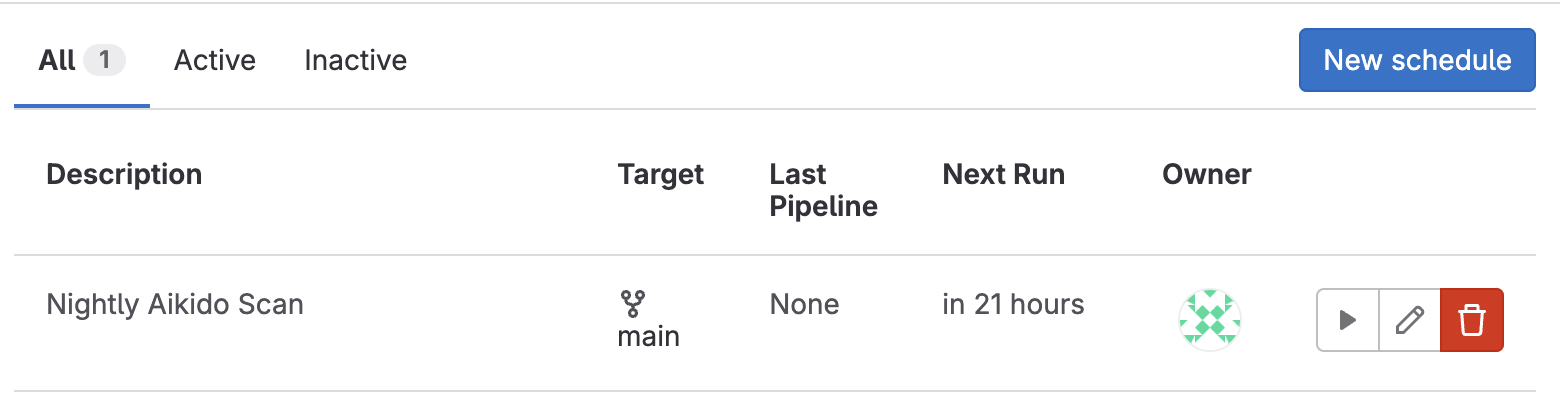
パイプラインのスケジュールに関する詳細は[こちら](https://archives.docs.gitlab.com/16.6/ee/ci/pipelines/schedules.html)をご覧ください。
## Jenkinsでの夜間スキャンの設定
Jenkinsでスケジュールスキャンを設定するには、Build Triggerとして**Build Periodically**を選択します。\
以下の例では、毎晩深夜0時にスキャンをスケジュールします。
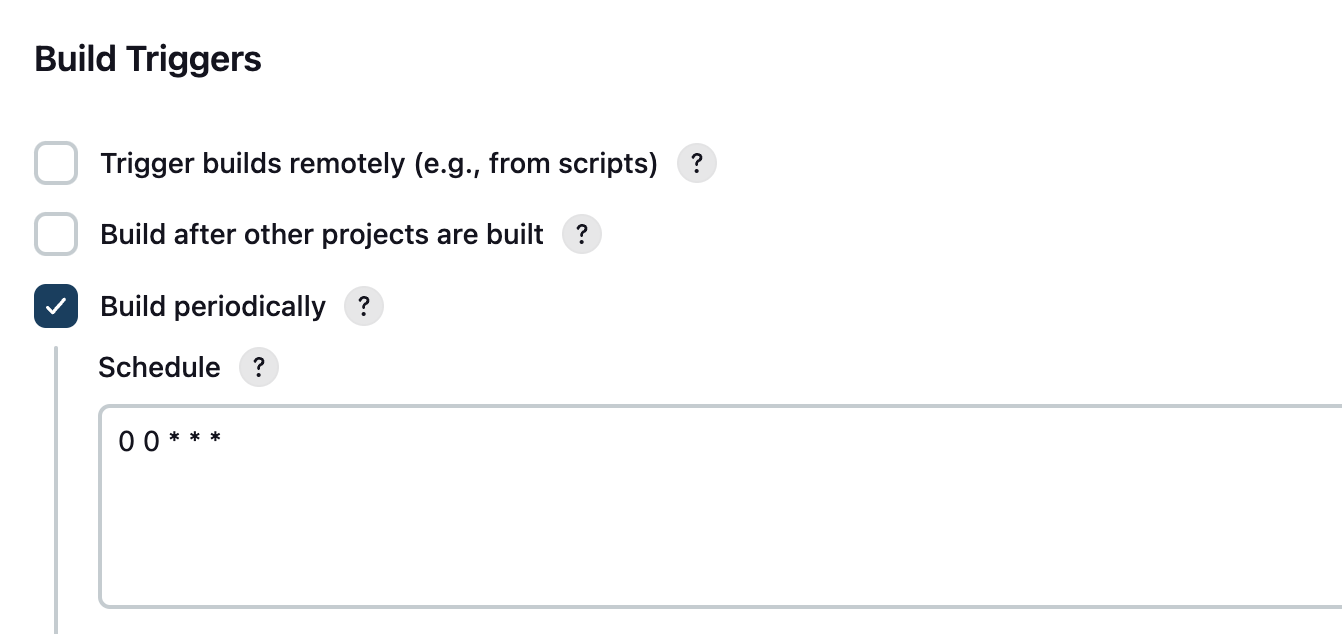
JenkinsでLocal Scannerを設定する方法の詳細は[こちら](https://help.aikido.dev/docs/docs-ja/code-scanning/local-code-scanning/jenkins-setup-for-local-code-scanning)をご覧ください。
### Azure DevOpsでの夜間スキャンの設定
以下の例では、mainブランチで毎晩深夜0時に夜間スキャンを実行するAzure DevOpsパイプラインを作成します。
```yaml
trigger: none
schedules:
- cron: "0 0 * * *"
displayName: Nightly Aikido scan
branches:
include:
- main
always: true
pool:
vmImage: 'ubuntu-latest'
container:
image: aikidosecurity/local-scanner:latest
options: --entrypoint=""
steps:
- script: aikido-local-scanner scan $BUILD_SOURCESDIRECTORY --apikey $(AIKIDO_API_KEY) --repositoryname $BUILD_REPOSITORY_NAME --branchname main
displayName: 'Run Aikido security scan'
```
Azure DevOpsでパイプラインのスケジュールを設定する方法の詳細は[こちら](https://learn.microsoft.com/en-us/azure/devops/pipelines/process/scheduled-triggers)をご覧ください。