> For the complete documentation index, see [llms.txt](https://help.aikido.dev/llms.txt). Markdown versions of documentation pages are available by appending `.md` to page URLs; this page is available as [Markdown](https://help.aikido.dev/docs/docs-ja/hajimeni/automated-user-management/saml-login/okta-login-with-saml.md).
# Okta: SAMLでログイン
{% hint style="info" %}
この機能は、 **有料** プランでのみ利用でき、デフォルトでは有効になっていません。 **Proプラン以上** でSAMLを有効化できます [このリンクから](https://app.aikido.dev/settings/saml/enable).
{% endhint %}
> Gitプロバイダー経由の自動オンボーディングではなくSAMLログインに切り替えると、GitHub、Bitbucket、Azure DevOpsからのチームのインポートは使えなくなります。今後は、AikidoのUIまたは [アクセスプロファイルを通じて、チームを手動で管理する必要があります。](/docs/docs-ja/hajimeni/automated-user-management/saml-login/saml-user-rights-access-profiles-recommended.md)
## アカウントでのSAML設定
**手順 1.** 次へ移動します: [**一般設定**](https://app.aikido.dev/settings/account) をクリックし、**SAML認証を有効化'**

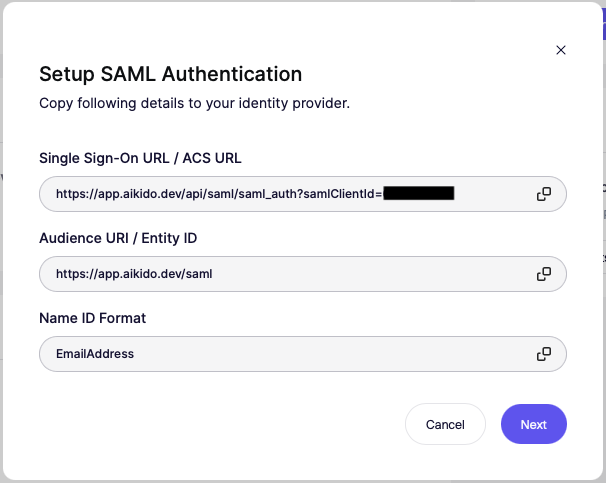
**手順 2.** コピー **すべての詳細** をアイデンティティプロバイダーにコピーしてください。以下の手順を参照してください。
### Oktaで続行
**手順 1.** 次へ移動します: **アプリケーション** > **アプリケーション** Admin Consoleで。
**手順 2.** クリックします **アプリ統合を作成**、次を選択します **SAML 2.0** に移動し、 **次に**.
**手順 3.** 1つ選択 **アプリ名** に移動し、 **次に**.
**手順 4.** フィールドに入力 **シングルサインオンURL**, **オーディエンスURI** と **Name ID 形式** Aikido に表示されているフィールド(上記参照)を入力し、クリック **次に**.
**手順 5.** これで、タブを開いているはずです **サインオン** そして、次のものが表示されるはずです **メタデータの詳細**を見つけます。 **詳細**.
### Aikidoに戻る
* 次を入力してください **Entity ID / 発行者**, **シングル サインオン URL** と **X.509 証明書** Oktaに表示されているとおりです。
* また、 **Company Domain** も入力して、シングルサインオンURLがなくても人がログインできるようにしてください。

> 成功しました!OktaのSAMLアプリにアクセスできるユーザーは、これからAikidoワークスペースに自動参加できるようになります。
### SAMLクライアントを使ってユーザーがログインするための2つのオプション
**オプション1. SSOリンクを直接使用**
ログインリンクをコピーして、他のユーザーに社内で共有してください。

**オプション2.** Aikidoのログイン画面に移動し、 **SSOでログイン** を選択して、メールアドレスを入力する **重要**:メールアドレスには、設定済みの会社ドメインが含まれている必要があります。


---
# Agent Instructions
This documentation is published with GitBook. GitBook is the documentation platform designed so that both humans and AI agents can read, navigate, and reason over technical content effectively. Learn more at gitbook.com.
## Querying This Documentation
If you need additional information that is not directly available in this page, you can query the documentation by asking a question.
Perform an HTTP GET request on the following URL with the `ask` and `goal` query parameters:
```
GET https://help.aikido.dev/docs/docs-ja/hajimeni/automated-user-management/saml-login/okta-login-with-saml.md?ask=&goal=
```
`ask` is the immediate question: it should be specific, self-contained, and written in natural language.
`goal` is what the user is ultimately trying to achieve, the reason they need the answer. Sharing it helps GitBook give you a better, more relevant answer. A goal is most helpful when it describes the outcome the user wants rather than restating the question. For example, with `ask=how do I create an API token`, a goal like `automate deployments from our CI pipeline` lets GitBook tailor the answer to that use case.
The response will contain a direct answer to the question and relevant excerpts and sources from the documentation.
Use this mechanism when the answer is not explicitly present in the current page, you need clarification or additional context, or you want to retrieve related documentation sections.