> For the complete documentation index, see [llms.txt](https://help.aikido.dev/llms.txt). Markdown versions of documentation pages are available by appending `.md` to page URLs; this page is available as [Markdown](https://help.aikido.dev/docs/docs-ja/hajimeni/task-management-systems/all-supported-task-trackers/asana.md).
# Asana
この1回限りの設定 *ワークスペースごとに* Aikido 組織の全員が Asana で直接課題を作成できるようにします。
以下のユースケースがサポートされています:
* **チケットの自動作成**:指定した Asana プロジェクトにチケットを自動作成してプッシュし、セキュリティ課題をシームレスに追跡します。
* **チケットの手動追加**:セキュリティ課題チケットを Asana に手動で追加し、重要な脆弱性に的を絞って対応できるようにします。
## Aikido アプリを Asana に接続する
1. 次へ移動します: [連携設定](https://app.aikido.dev/settings/integrations) Aikidoアプリ内で。
2. 『Task Trackers』セクションで『Asana』を選択します
3. プロンプトで Asana への認可を求められます。

4. Asana アカウントにログインします
5. Aikido に Asana ワークスペースへのアクセス権限を付与します

6. 認可が完了すると、Aikido は Asana に正常に接続され、タスク管理機能が強化されます 🚀

## Aikido 経由で Asana にタスクを作成するオプション
Aikido から Asana へ新しいタスクを作成するには、2 つの異なるオプションがあります。
1. Aikidoインターフェースからタスクを手動で作成する
2. Aikidoの自動作成機能を使って新しいタスクを自動的に作成する。
## 1. タスクの手動作成
1. フィード内の任意のIssueにカーソルを合わせ、次をクリックします: ***+*** として **担当者列。**\
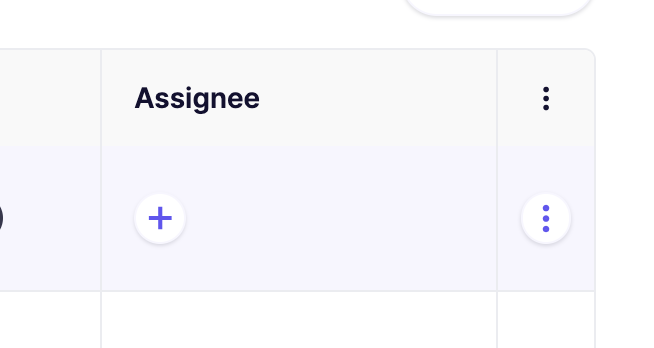
または、最後の列の三点リーダーをクリックしてアクションメニューを開くこともできます。課題をグループ化している場合、三点リーダーのアクションメニューは各サブ課題で利用できます。

2. ポップアップモーダルで必要な詳細を入力します。\

3. Asana で新規作成されたタスクは、Aikido の課題詳細の『Tasks』タブ(サイドパネル)にリンクされます。

## 2. タスクの自動作成
{% hint style="info" %}
Aikidoは自動的にタスクを作成します **1時間ごとに一括で。** 現時点では、これを手動で起動するオプションはありません。
{% endhint %}
1. 次の [Asana 連携](https://app.aikido.dev/settings/integrations/tasktracker) 設定
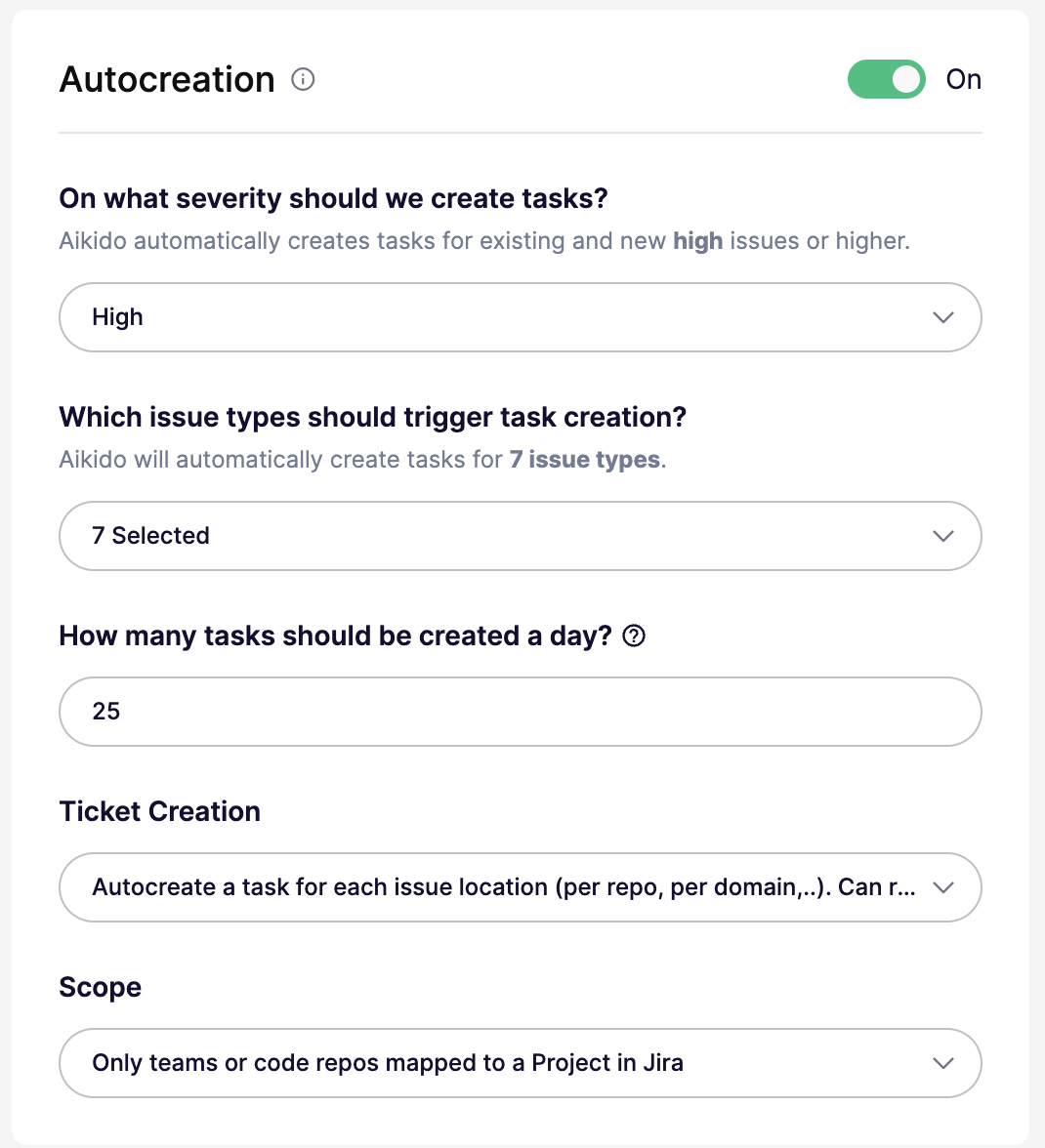
2. 「**自動作成**」を有効にするには、トグルを **オンにします。**
3. タスク自動作成の条件を定義します。
これらの設定はすべて、自動作成モーダルで構成できます:
* **オン/オフ:** 自動作成を有効または無効にします。オフの場合、しきい値は実質的に次のように設定されます `なし`.
* **重大度しきい値:** 次の重大度以上の問題についてチケットを作成します `重大`, `高`, `中`、または `低` 以上。たとえば、 `高` 次の項目に対してチケットを作成します `高` と `重大`.
* **問題タイプ:** すべての問題タイプに対してチケットを作成するか、次のような特定のタイプに限定します `、`, `SAST`, `Secrets`, `クラウド`, `IaC`, `マルウェア`、または `ライセンス`.
* **1日あたりの上限:** 1日に作成されるチケットの最大数を設定します。デフォルトは `25`です。一部のプランでは、より高い上限が利用できます。
* **チケット作成モード:** 問題グループごとに1件のチケットを作成するか、場所またはスコープごとに個別のチケットを作成します。場所別モードでは、より多くのチケットが作成される場合があります。
* **スコープ:** 場所別モードでのみ利用できます。対象はすべてのリポジトリまたはクラウド、マッピング済みのリポジトリまたはチームのみ、あるいは含める/除外するリストを使って特定のリポジトリまたはクラウドにできます。
4. その後、Aikido はこれらの設定に基づいて Asana のチケットを自動生成します 🚀
---
# Agent Instructions
This documentation is published with GitBook. GitBook is the documentation platform designed so that both humans and AI agents can read, navigate, and reason over technical content effectively. Learn more at gitbook.com.
## Querying This Documentation
If you need additional information that is not directly available in this page, you can query the documentation dynamically by asking a question.
Perform an HTTP GET request on the current page URL with the `ask` query parameter, and the optional `goal` query parameter:
```
GET https://help.aikido.dev/docs/docs-ja/hajimeni/task-management-systems/all-supported-task-trackers/asana.md?ask=&goal=
```
`ask` is the immediate question: it should be specific, self-contained, and written in natural language.
`goal` is optional and describes the broader end goal you are ultimately trying to accomplish on behalf of the user. GitBook uses it to tailor the answer towards what is most useful for that goal.
The response will contain a direct answer to the question and relevant excerpts and sources from the documentation.
Use this mechanism when the answer is not explicitly present in the current page, you need clarification or additional context, or you want to retrieve related documentation sections.