> For the complete documentation index, see [llms.txt](https://help.aikido.dev/llms.txt). Markdown versions of documentation pages are available by appending `.md` to page URLs; this page is available as [Markdown](https://help.aikido.dev/docs/docs-ja/hajimeni/task-management-systems/all-supported-task-trackers/azure-devops-boards.md).
# Azure DevOps Boards
この一度きりの設定 *ワークスペースごとに* Aikido組織の誰もが、Azure DevOps Boardsに直接Issueを作成できるようになります。
以下のユースケースがサポートされています:
* **チケットの自動作成**: セキュリティ問題をシームレスに追跡するために、指定したBoardsプロジェクトへチケットを自動作成してプッシュします。
* **チケットの手動追加**: セキュリティ問題のチケットをBoardsに手動で追加し、重要な脆弱性に的を絞って対応できるようにします。
## AikidoアプリをBoardsに接続する
1. 次へ移動します: [統合設定](https://app.aikido.dev/settings/integrations) Aikido アプリ内で。
2. 「Task Trackers」セクションで「Azure DevOps Boards」を選択します\
認証のため、モーダルで追加情報の入力が求められます:
* **UserID**: これはあなたの **email**
* **アクセストークン**: Azure DevOps内で見つけられます。スコープとして、「**Work Items**」の下で「**読み取りと書き込み**'.
* **組織** ***Name*****:** 組織名。URL内で確認できます URLのプレフィックス https\://... を含めず、組織名のみを必ず入力してください。\

3. 認証情報を正しく入力したら、保存してモーダルを閉じます。\
4. 自動作成設定を管理するには、Azure DevOps Boards統合ページを開きます。\

## Aikidoを介したAzure DevOps Boardsでのタスク作成オプション
AikidoからBoardsへ新しいタスクを作成するには、2つの異なるオプションがあります
1. Aikido のインターフェースから手動でタスクを作成する
2. Aikido の自動作成機能を使って、新しいタスクを自動的に作成する。
## 1. 手動でのタスク作成
1. フィード内の任意の課題にカーソルを合わせ、次をクリックします: ***+*** を **担当者列。**\
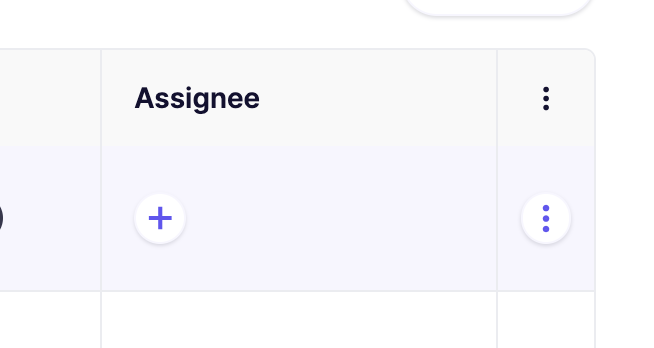
あるいは、最後の列にある三点リーダーをクリックしてアクションメニューを開くこともできます。Issueがグループ化されている場合は、三点リーダーのアクションメニューが各サブIssueで利用できます。\

2. ポップアップモーダルで必要な詳細を入力します。\

3. 新しく作成されたBoardsのタスクは、AikidoのIssue詳細の「Tasks」タブ(サイドパネル)にリンクされます。

## 2. 自動タスク作成
{% hint style="info" %}
Aikido はタスクを自動的に作成します **1時間ごとに一括で。** 現時点では、これを手動で起動するオプションはありません。
{% endhint %}
1. へ移動 [Azure DevOps Boards統合](https://app.aikido.dev/settings/integrations/tasktracker) 設定ページ
2. 「**自動作成を変更**'
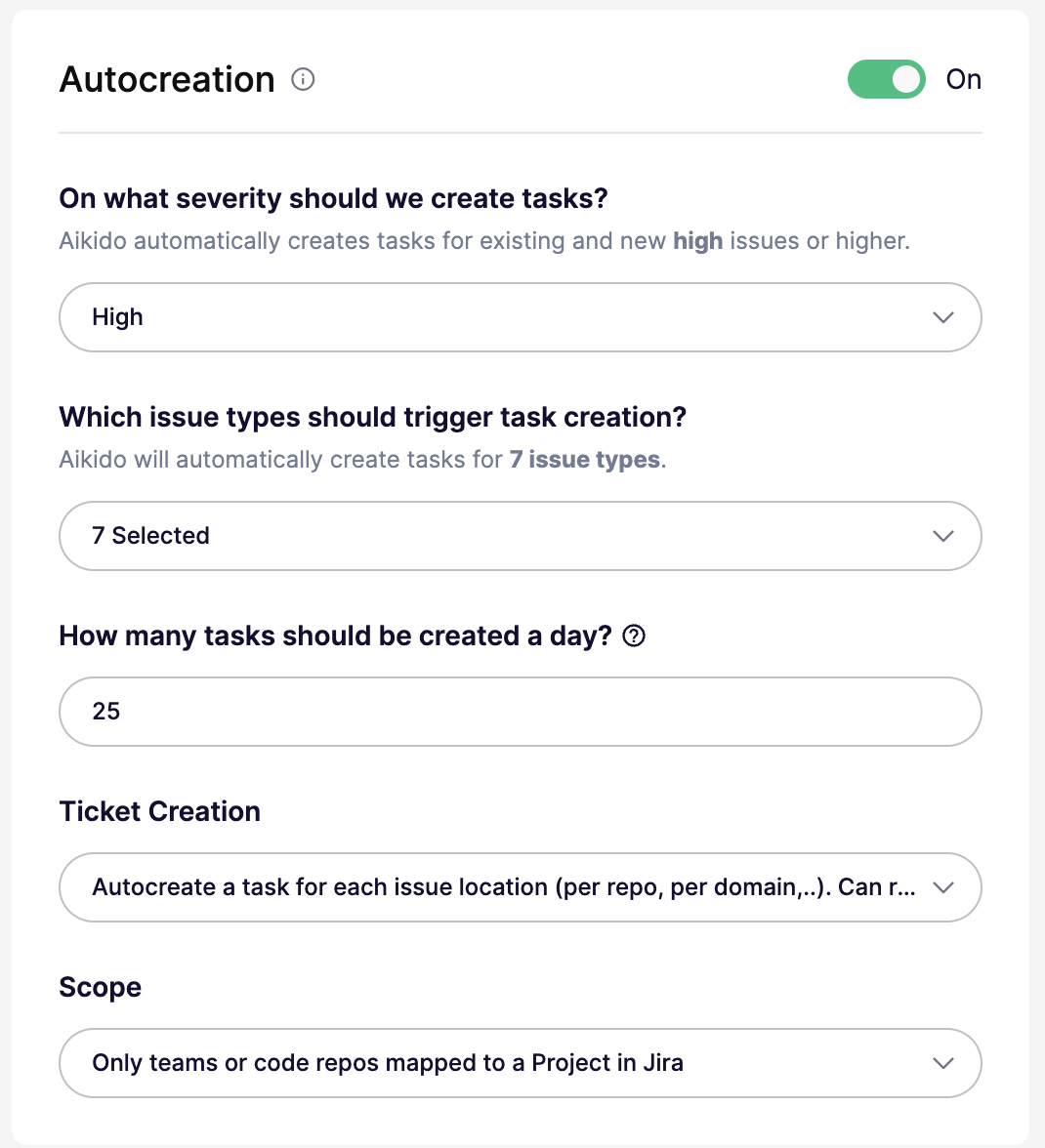
3. 自動タスク作成の条件を定義します。
これらの設定はすべて自動作成モーダルで構成できます:
* **オン/オフ:** 自動作成を有効または無効にします。オフの場合、しきい値は実質的に `なし`.
* **重大度しきい値:** 次の問題に対してチケットを作成: `重大`, `高`, `中`、または `低` およびそれ以上。たとえば、 `高` 次の対象のチケットを作成します: `高` と `重大`.
* **問題タイプ:** すべての問題タイプのチケットを作成するか、次のような特定のタイプに限定します `SCA`, `SAST`, `Secrets`, `クラウド`, `IaC`, `マルウェア`、または `ライセンス`.
* **1日あたりの上限:** 1日に作成されるチケットの最大数を設定します。既定値は `25`。一部のプランでは、より高い上限をサポートしています。
* **チケット作成モード:** 問題グループごとに1件のチケットを作成するか、場所またはスコープごとに個別のチケットを作成します。場所ごとのモードでは、より多くのチケットが作成される場合があります。
* **スコープ:** 場所ごとのモードでのみ利用できます。すべてのリポジトリまたはクラウド、マッピング済みのリポジトリまたはチームのみ、あるいは含める/除外するリストを使って特定のリポジトリまたはクラウドを対象にします。
4. その後、Aikidoがこれらの設定に基づいてBoardsのチケットを自律的に生成します 🚀
***
---
# Agent Instructions
This documentation is published with GitBook. GitBook is the documentation platform designed so that both humans and AI agents can read, navigate, and reason over technical content effectively. Learn more at gitbook.com.
## Querying This Documentation
If you need additional information that is not directly available in this page, you can query the documentation by asking a question.
Perform an HTTP GET request on the following URL with the `ask` and `goal` query parameters:
```
GET https://help.aikido.dev/docs/docs-ja/hajimeni/task-management-systems/all-supported-task-trackers/azure-devops-boards.md?ask=&goal=
```
`ask` is the immediate question: it should be specific, self-contained, and written in natural language.
`goal` is what the user is ultimately trying to achieve, the reason they need the answer. Sharing it helps GitBook give you a better, more relevant answer. A goal is most helpful when it describes the outcome the user wants rather than restating the question. For example, with `ask=how do I create an API token`, a goal like `automate deployments from our CI pipeline` lets GitBook tailor the answer to that use case.
The response will contain a direct answer to the question and relevant excerpts and sources from the documentation.
Use this mechanism when the answer is not explicitly present in the current page, you need clarification or additional context, or you want to retrieve related documentation sections.