> For the complete documentation index, see [llms.txt](https://help.aikido.dev/llms.txt). Markdown versions of documentation pages are available by appending `.md` to page URLs; this page is available as [Markdown](https://help.aikido.dev/docs/docs-ja/kdosukyan/local-code-scanning/mac-setup-for-local-code-scanning.md).
# ローカルコードスキャン用のMac設定
**目次:**
* [要件](#requirements)
* [一時フォルダー](#temporary-folder)
* [ローカルスキャンの設定方法](#how-to-set-up-local-scanning)
* [1. 認証トークンを取得する](#1-get-your-authentication-token)
* [2. ローカルスキャナーをプロジェクトに追加する](#2-adding-the-local-scanner-to-your-project)
* [3. ローカルスキャナーを実行する](#3-running-the-local-scanner)
* [4. スキャン結果を確認する](#4-check-your-scanning-results)
## ローカルコードスキャン用のMacのセットアップ
Aikido Security Local Scanner は、Aikido Security のスキャンを自分の環境内で実行できるツールで、コードが外部に出ることはありません。スキャンはローカルで行われ、その結果は Aikido Security プラットフォームにアップロードされます。このセットアップにより、自分のマシン上で任意のリポジトリをローカルにスキャンできます。
### 要件
現在サポートしているのは **ARM64** のオペレーティングシステムアーキテクチャです。これは、2020年後半以降に出荷されたApple Silicon搭載の新しいMacで使用されます。
### 一時フォルダー
スキャナーは、特定の処理を行うために一時的なローカルフォルダー(デフォルトは .aikidotmp)を作成します:
* 効率的なスキャンを実行するために特定のロックファイルをコピーします。
* スキャナーの結果を書き込みます。
スキャン完了後、このフォルダーはクリーンアップされます。
さらに、一部のファイルは一時的な作業ディレクトリにコピーされます。十分な空き容量があることを確認してください。最低でも2GBを推奨します。
### ローカルスキャンの設定方法
#### 1. 認証トークンを取得する
1. 次へ移動します [ローカルスキャナーのセットアップページ](https://app.aikido.dev/settings/integrations/localscan)
2. 認証トークンを生成してコピーします。このトークンは一度しか表示できないことに注意してください。
3. このトークンを引数として追加 `--apikey` プロジェクトでローカルスキャナーを実行するときに。
#### 2. ローカルスキャナーをプロジェクトに追加する
1. AikidoのUIからLocal Scannerのインストーラーをダウンロードします。
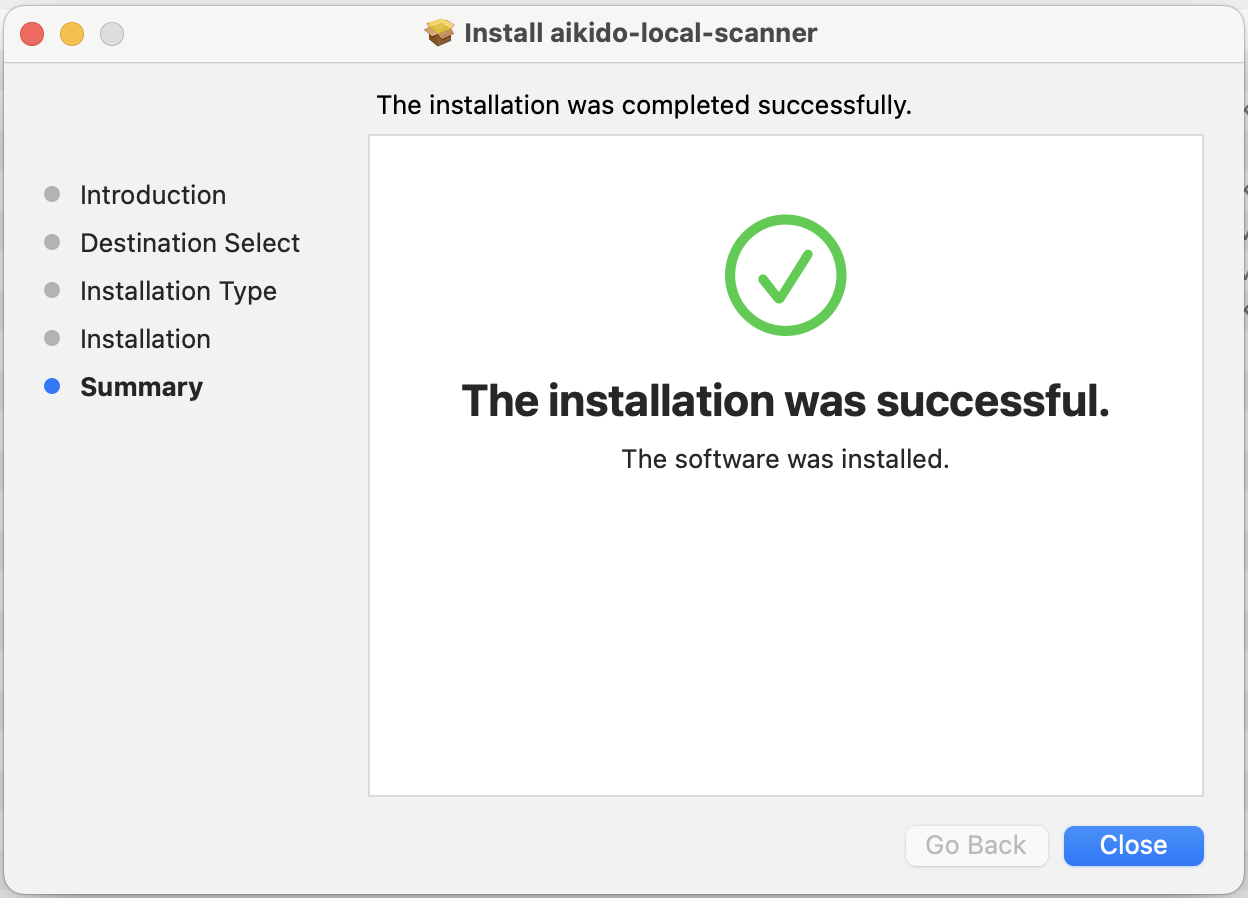
2. インストーラーを実行します。
#### 3. ローカルスキャナーを実行する
**オプション1:**\
あとは、リポジトリでスキャナーを実行するだけです。
```shellscript
aikido-local-scanner scan path_to_your_repo --apikey AIK_CI_xxx --repositoryname DemoApp --branchname main
```
**オプション2:**\
代わりに、私たちの [Dockerイメージ](https://hub.docker.com/r/aikidosecurity/local-scanner) リポジトリをスキャンできます。次の点を確認してください: [Docker がインストールされている](https://docs.docker.com/desktop/) を使用できます。続行する前に、スキャンしたいディレクトリに移動し、次のようなコマンドでスキャンを実行します。
```shellscript
docker run --rm -v "$(pwd):/my-app" aikidosecurity/local-scanner scan /my-app --apikey AIK_CI_xxx --repositoryname RepoName --branchname main
```
ARMベースのシステムを使用している場合は、 `--platform=linux/amd64` フラグを追加してDockerイメージを取得してください。
#### 4. スキャン結果を確認する
最初のスキャンが完了したら、Aikido Feed で結果を確認できます。指定した名前のリポジトリが作成され、スキャン結果がすべて含まれます。
---
# Agent Instructions
This documentation is published with GitBook. GitBook is the documentation platform designed so that both humans and AI agents can read, navigate, and reason over technical content effectively. Learn more at gitbook.com.
## Querying This Documentation
If you need additional information that is not directly available in this page, you can query the documentation dynamically by asking a question.
Perform an HTTP GET request on the current page URL with the `ask` query parameter, and the optional `goal` query parameter:
```
GET https://help.aikido.dev/docs/docs-ja/kdosukyan/local-code-scanning/mac-setup-for-local-code-scanning.md?ask=&goal=
```
`ask` is the immediate question: it should be specific, self-contained, and written in natural language.
`goal` is optional and describes the broader end goal you are ultimately trying to accomplish on behalf of the user. GitBook uses it to tailor the answer towards what is most useful for that goal.
The response will contain a direct answer to the question and relevant excerpts and sources from the documentation.
Use this mechanism when the answer is not explicitly present in the current page, you need clarification or additional context, or you want to retrieve related documentation sections.