> For the complete documentation index, see [llms.txt](https://help.aikido.dev/llms.txt). Markdown versions of documentation pages are available by appending `.md` to page URLs; this page is available as [Markdown](https://help.aikido.dev/docs/docs-ja/mashinsukyan/gcp-virtual-machine-scanning-configuration.md).
# Google Cloud仮想マシンスキャンのセットアップ
### なぜ仮想マシンをスキャンする必要があるのですか?
仮想マシンスキャンでは、Aikido が Google Compute Engine の VM のディスクをスキャンし、脆弱なパッケージや古いランタイムを検出します。
### はじめに
Google Cloud インスタンスのスキャンを有効にするには、まず Google Cloud プロジェクトを Aikido に接続します。記載されている手順に従ってください [こちら](https://help.aikido.dev/cloud-scanning/connect-your-cloud/gcp) まだ行っていない場合。
クラウドが接続されたら、Virtual Machines ページに移動して **Connect VMs**.
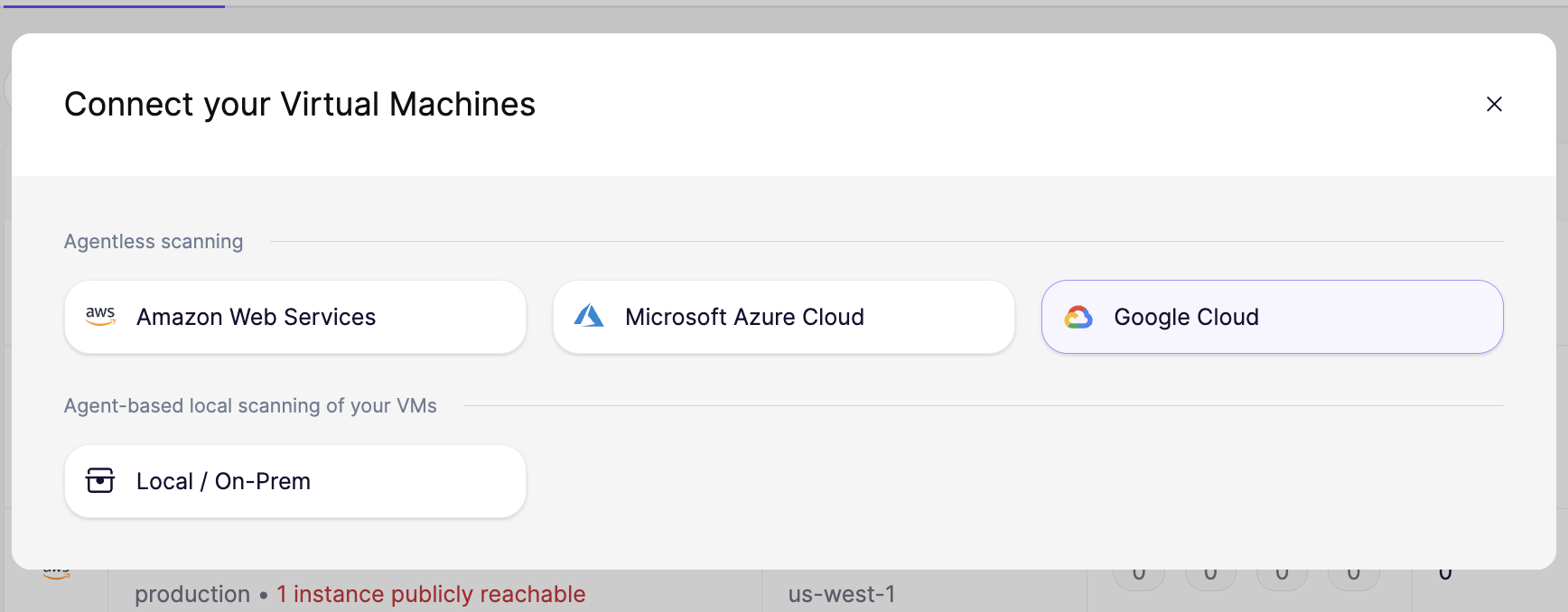
次の **仮想マシンを接続する** モーダルで、 **Google Cloud** 以下の **エージェントレススキャン**を選択します。Aikido が次の 4 つの手順をご案内します。
カスタムロールとサービスアカウントには必要最小限の権限のみが付与され、ストレージ権限はプロジェクト全体ではなくスナップショットバケットのみに限定されます。これにより、Aikido はリソースを意図せず変更するリスクなしにセキュリティチェックを実行できます。
{% stepper %}
{% step %}
**必要な Google Cloud API を有効にする**
Aikido がコンピュートインスタンスをスキャンするには、プロジェクトでいくつかの Google Cloud API を有効にする必要があります。
1. GCP コンソールで、右上の **Cloud Shell をアクティブにする** アイコンをクリックします。
2. 画面下部に開いたシェルで、セットアップページに表示されているコマンドを実行します。次の API が有効になります。
* `compute.googleapis.com`
* `iam.googleapis.com`
3. コマンドが完了したら、 **続行**.
{% endstep %}
{% step %}
**カスタムロールを作成する**
Aikido は 2 つのカスタムロールを使用します。
1. インスタンスの一覧表示、ディスクの読み取り、スナップショットの作成、スナップショットの読み取りを行うためのメインロール
2. Aikido が作成したスナップショットを削除するための削除専用ロール
セットアップウィザードに表示されるコマンドを実行して、両方のロールを作成します。
メインロールには次が含まれます。
* `compute.instances.list`
* `compute.instanceGroups.get`
* `compute.instanceGroups.list`
* `compute.disks.createSnapshot`
* `compute.disks.get`
* `compute.snapshots.create`
* `compute.snapshots.get`
* `compute.snapshots.list`
* `compute.snapshots.setLabels`
* `compute.snapshots.useReadOnly`
2 つ目のロールには次が含まれます。
* `compute.snapshots.delete`
ロールを作成したら、それらの ID を記録してください(`aikidoSecurityVmScannerRole` と `aikidoSecurityVmScannerSnapshotDeleteRole` 変更していない場合)。
押してください **続行**.
{% hint style="info" %}
**このロールのすべての権限を保持します。** これは、Aikido が VM スキャンを実行するために必要な絶対最小限の権限です。どれか 1 つでも削除すると、スキャンは失敗します。
{% endhint %}
{% endstep %}
{% step %}
**アクセスを許可**
Aikido は、セットアップウィザードで管理対象の Google Cloud サービスアカウントのメールアドレスを表示します。手順 2 で作成したロールを、Aikido 管理のサービスアカウントに付与してください。
* ウィザードに表示されるコマンドを使用して、そのサービスアカウントにメインのカスタムロールを付与します。
* 次に、ウィザードに表示される 2 つ目のコマンドを使用して、削除専用ロールを付与します。このバインディングには条件が含まれており、Aikido が作成したスナップショットにのみ適用されます。これにより、Aikido は自分で作成したスナップショットのみを削除できます。
{% endstep %}
{% endstepper %}
### 仕組み
全体の流れは次のとおりです。
{% stepper %}
{% step %}
Aikido は、Google Cloud プロジェクト内の GCE インスタンスを検出します。
{% endstep %}
{% step %}
Aikido は、プロジェクト内の対応するディスクのスナップショットを作成します。
{% hint style="info" %}
Aikido はそれらのスナップショットにラベルを付けるため、付与する削除権限は Aikido 管理のスナップショットのみに適用されます。
{% endhint %}
{% endstep %}
{% step %}
その後、Aikido は各スナップショットから、Aikido 管理のプロジェクト内に一時ディスクを作成します。
{% hint style="info" %}
ディスクは、元のディスクと同じリージョンの Aikido 管理プロジェクト内で作成され、スキャンされます。
{% endhint %}
{% endstep %}
{% step %}
一時ディスクは、実際のスキャンを実行する分離された一時ジョブに接続されます。
{% endstep %}
{% step %}
一時ディスクは、Aikido 管理のプロジェクトから削除されます。
{% endstep %}
{% endstepper %}
### VPC Service Controls を使用した GCP VM スキャン
GCP プロジェクトが VPC Service Controls の境界で保護されている場合は、前述の IAM 権限に加えて、追加のプロジェクト間操作を 1 つ許可する必要がある場合があります [上記](#getting-started).
で説明されているように [「仕組み」セクション](#how-it-works)、Aikido はプロジェクト内にスナップショットを作成し、そのスナップショットから Aikido のスキャナープロジェクトに一時ディスクを作成します。ディスクの作成は VPC Service Controls によってブロックされる可能性があります。
**許可する内容**
* サービス: `compute.googleapis.com`
* メソッド: `compute.v1.DisksService.Insert`
* 対象プロジェクト: `aikido-vm-scanning`
* サービスアカウント: `aikido-vm-scanner-batch@aikido-vm-scanning.iam.gserviceaccount.com`
### Domain-Restricted Sharing を使用した GCP VM スキャン
次のような組織ポリシー制約を使用している場合は `iam.managed.allowedPolicyMembers` または `iam.allowedPolicyMemberDomains`、Aikido の Google Workspace 顧客 ID は次のとおりです。 `C016qe815`.
---
# Agent Instructions
This documentation is published with GitBook. GitBook is the documentation platform designed so that both humans and AI agents can read, navigate, and reason over technical content effectively. Learn more at gitbook.com.
## Querying This Documentation
If you need additional information that is not directly available in this page, you can query the documentation by asking a question.
Perform an HTTP GET request on the following URL with the `ask` and `goal` query parameters:
```
GET https://help.aikido.dev/docs/docs-ja/mashinsukyan/gcp-virtual-machine-scanning-configuration.md?ask=&goal=
```
`ask` is the immediate question: it should be specific, self-contained, and written in natural language.
`goal` is what the user is ultimately trying to achieve, the reason they need the answer. Sharing it helps GitBook give you a better, more relevant answer. A goal is most helpful when it describes the outcome the user wants rather than restating the question. For example, with `ask=how do I create an API token`, a goal like `automate deployments from our CI pipeline` lets GitBook tailor the answer to that use case.
The response will contain a direct answer to the question and relevant excerpts and sources from the documentation.
Use this mechanism when the answer is not explicitly present in the current page, you need clarification or additional context, or you want to retrieve related documentation sections.