# Pentesting Mobile Apps
Aikido tests a native or hybrid Android app, an iOS app, or both on one **Mobile Application** assessment. Connect the source repository for each app you upload.
Watch the walkthrough below, or follow the steps on this page.
{% embed url="https://www.youtube.com/watch?v=EGzGZIr2rn4" %}
{% hint style="warning" %}
Run the assessment against a test environment that closely mirrors production. Don't use production data or accounts.
{% endhint %}
## Prerequisites
* **Manage Pentests** [permission](https://help.aikido.dev/docs/docs-ja/getting-started/automated-user-management/setting-roles-and-permissions)
* **Sufficient credits** in your [wallet](https://help.aikido.dev/docs/docs-ja/miscellaneous-info/wallet-and-credits)
* **Source code** for each app you upload, in a repository you can connect to Aikido
* **A test build** for each app: an APK (for Android) and/or an IPA (for iOS)
## Prepare the app
{% tabs %}
{% tab title="Android" %}
Build a test `.apk`. The file must be an `.apk`, not an Android App Bundle (`.aab`).
In Android Studio, choose **Build** → **Build Bundle(s) / APK(s)** → **Build APK(s)**. Android Studio writes the file under `app/build/outputs/apk/`. From the Android project directory, run `./gradlew assembleDebug` to build the same file.
In that test build:
* Turn off certificate pinning.
* Turn off root detection and emulator detection.
Hybrid apps (for example React Native or Flutter) use the same Gradle build. For Flutter, run `flutter build apk`.
{% endtab %}
{% tab title="iOS" %}
Aikido installs the IPA you upload. App Store and TestFlight builds are FairPlay-encrypted, so Aikido can't install them. Export a **Development**, **Ad Hoc**, or **Enterprise** IPA from Xcode. That file is signed and not encrypted.
In that test build:
* Turn off certificate pinning.
* Turn off jailbreak detection and emulator checks.
In Xcode, choose **Product** → **Archive**. In the Organizer, click **Distribute App**, select **Development**, **Ad Hoc**, or **Enterprise**, and export the `.ipa`.
Hybrid apps (for example React Native or Flutter) use the same export. The file must be an `.ipa`, not an `.app` or an `.xcarchive`.
{% endtab %}
{% endtabs %}
## Create a mobile assessment
{% stepper %}
{% step %}
### Select Mobile Application
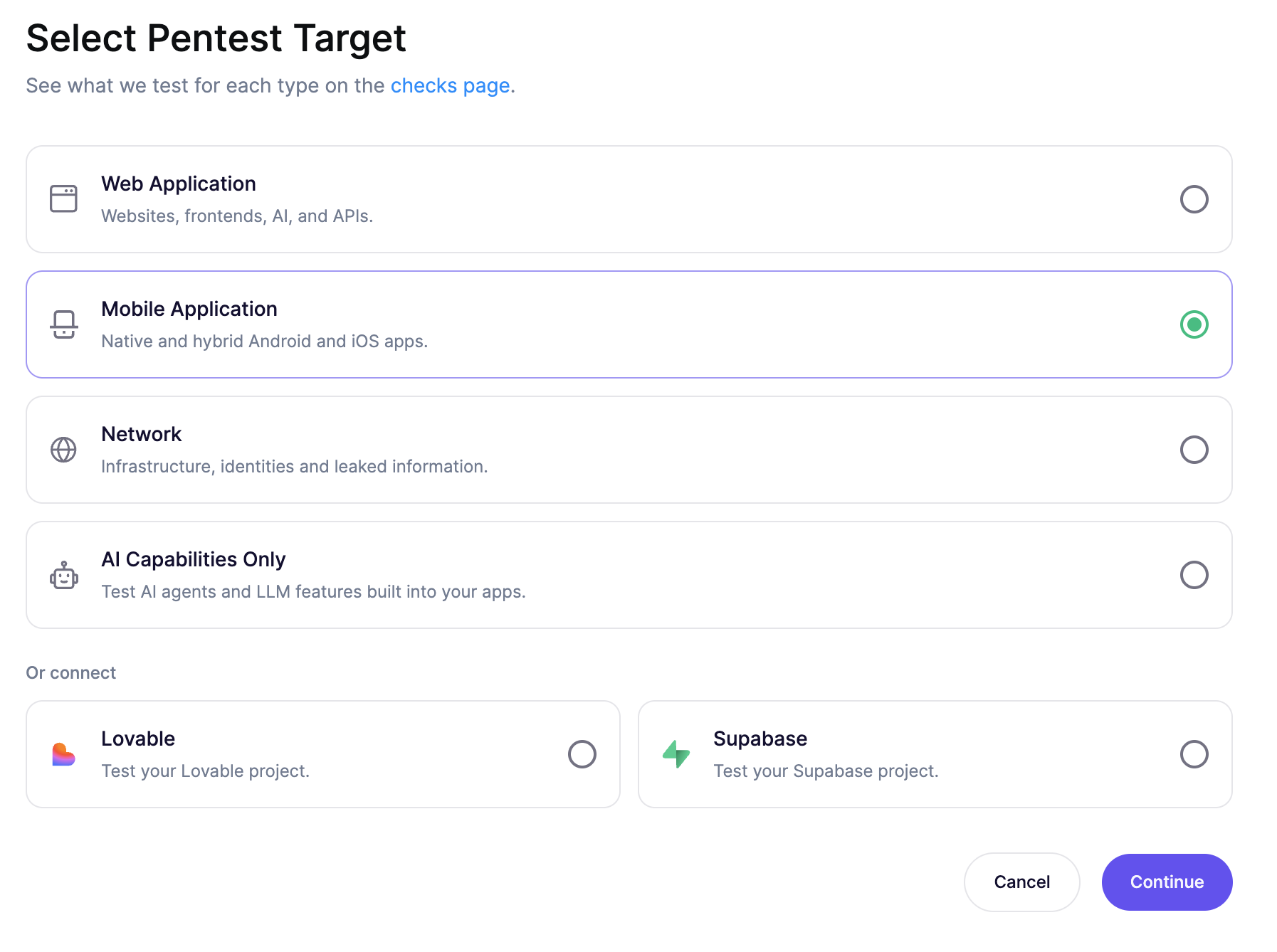
Go to **Pentests**, open your **Project**, and click **Create Assessment**. On the **Select Pentest Target** step, select **Mobile Application**.
{% endstep %}
{% step %}
### Define test scope
On the **Scope** step, add the web app or API URL (for example, `https://api.application.com`) so Aikido can test those endpoints.
Upload an Android app, an iOS app, or both:
* **Android Application:** upload the APK. Aikido reads the package name from the file. The APK must not use certificate pinning, root detection, or emulator detection.
* **iOS Application:** upload the IPA. Aikido reads the bundle ID from the file. The IPA must be signed and unencrypted, with no certificate pinning, jailbreak detection, or emulator checks.
Choose **Test entire application** or **Test specific parts only**.
{% endstep %}
{% step %}
### Add test users
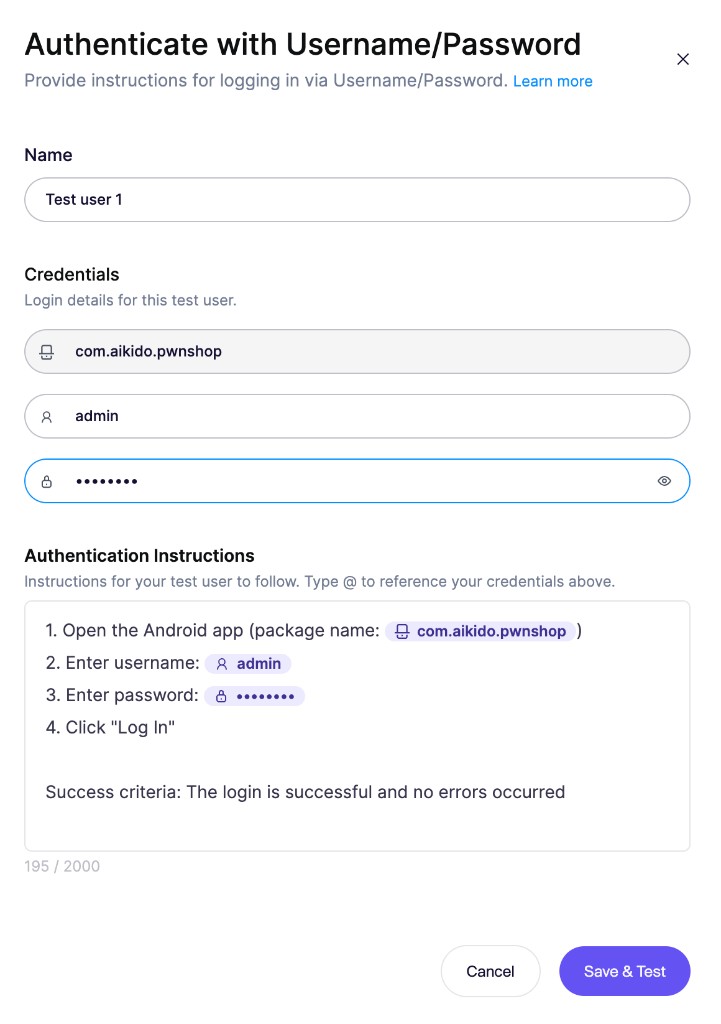
Add a test user for each role you want Aikido to test, such as an admin, a standard user, or a user from another tenant.
For username and password authentication, Aikido uses the package name or bundle ID instead of a login URL.
Run the login preflight check before you launch. See [Setting Up Test Users](https://help.aikido.dev/docs/docs-ja/pentests/configure-a-pentest/setting-up-authenticated-testing).
{% endstep %}
{% step %}
### Configure access, context, and safety
Configure the remaining steps in the wizard:
* **Allowed Domains:** Allow domains that the app needs to reach during testing.
* **Code & Documentation:** Select the repository for each mobile app. You can also link backend repositories and add documentation. See [Leveraging Code and Documentation](https://help.aikido.dev/docs/docs-ja/pentests/configure-a-pentest/leveraging-code-and-documentation).
* **Safety Check:** Set the request rate and permitted testing hours. See [Safety Measures](https://help.aikido.dev/docs/docs-ja/pentests/safety-measures).
* **Pricing:** Select the assessment profile and review the credit cost. See [Pentest Pricing](https://help.aikido.dev/docs/docs-ja/pentests/pentest-pricing).
{% endstep %}
{% step %}
### Review and launch
On the **Summary** step, confirm the setup, then click **Run Assessment**.
{% endstep %}
{% endstepper %}
## Review results
Open the assessment to follow progress and review its **Issues** tab. Findings can cover sensitive data handling, network security, platform interactions, URL schemes and universal links, WebView security, client-side authentication, cryptography, privacy, and build or release configuration.
When the assessment is complete, download a PDF from the assessment. See [Pentest Reports](https://help.aikido.dev/docs/docs-ja/pentests/coverage-and-findings/pentest-reports).
Before you retest a finding in the app, upload a new APK or IPA from the **Retests** tab. See [Retest Pentest Findings](https://help.aikido.dev/docs/docs-ja/pentests/coverage-and-findings/retest-pentest-findings).
## Related
{% content-ref url="setting-up-authenticated-testing/" %}
[Setting Up Test Users](https://help.aikido.dev/docs/docs-ja/pentests/configure-a-pentest/setting-up-authenticated-testing)
{% endcontent-ref %}
{% content-ref url="leveraging-code-and-documentation.md" %}
[Leveraging Code and Documentation](https://help.aikido.dev/docs/docs-ja/pentests/configure-a-pentest/leveraging-code-and-documentation)
{% endcontent-ref %}