# Microsoft Auth

{% stepper %}
{% step %}
**セキュリティ設定に移動する**

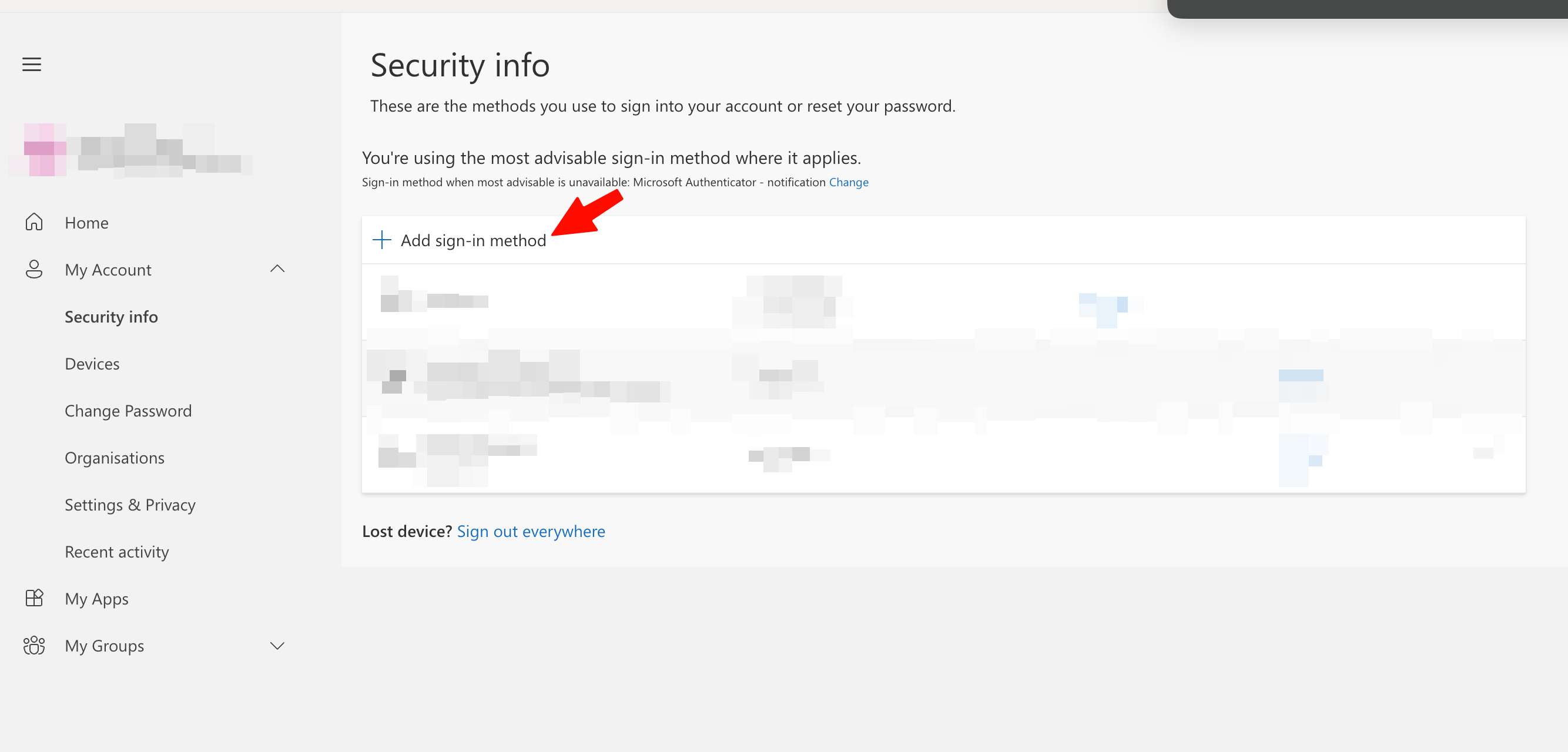
アカウントの設定ページ [https://mysignins.microsoft.com/security-info](https://mysignins.microsoft.com/security-info) に移動し、2 段階認証のセットアップを開始します

<div data-with-frame="true"><figure><img src="https://help.aikido.dev/_assets/9f44d8d699c3/microsoft-security-info-add-signin-method.png" alt=""><figcaption></figcaption></figure></div>
{% endstep %}

{% step %}
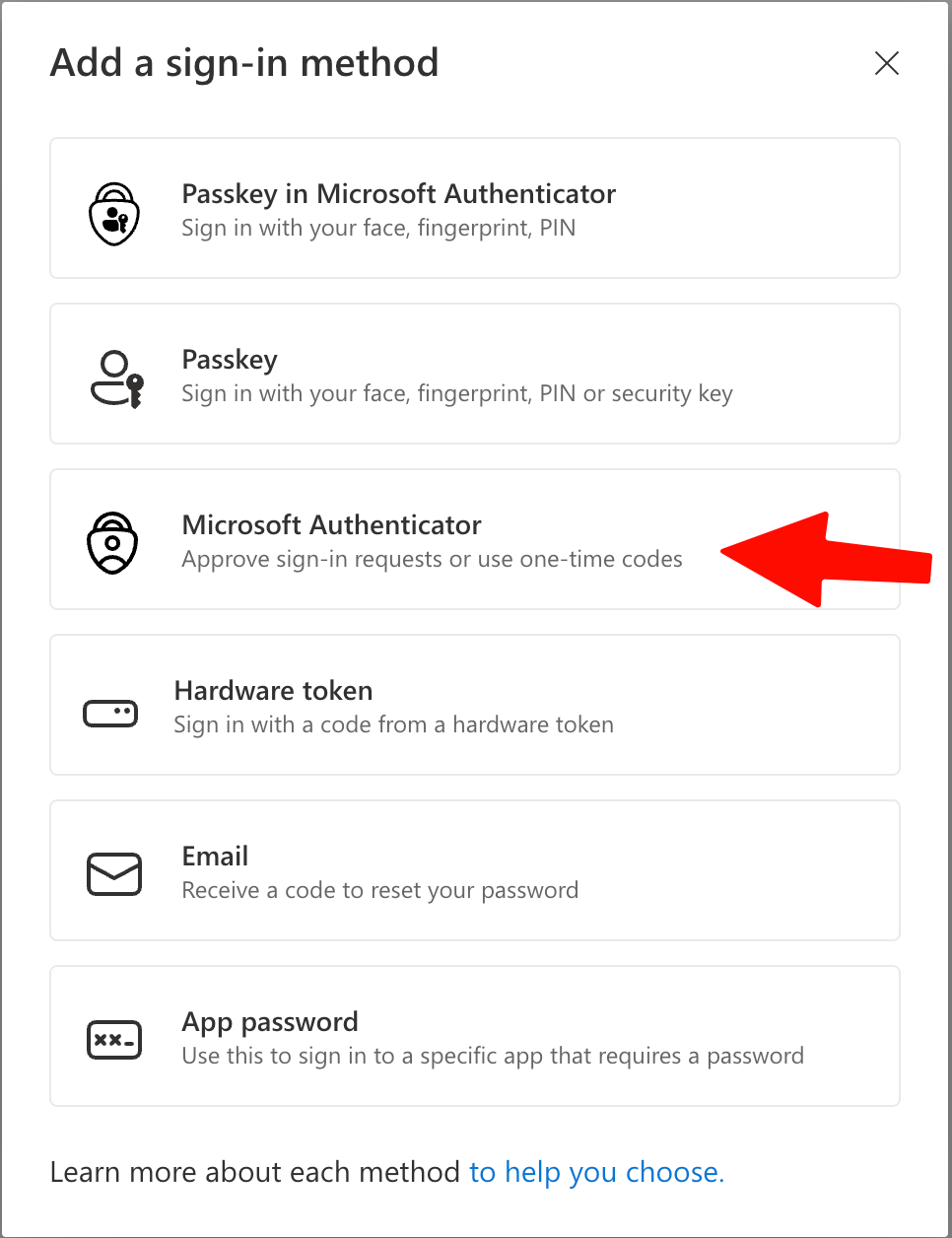
**2 段階認証をセットアップする**

別の認証アプリでセットアップすることを選択します。

<div data-with-frame="true"><figure><img src="https://help.aikido.dev/_assets/ef4de220fd61/microsoft-add-signin-method-authenticator.png" alt=""><figcaption></figcaption></figure></div>
{% endstep %}

{% step %}
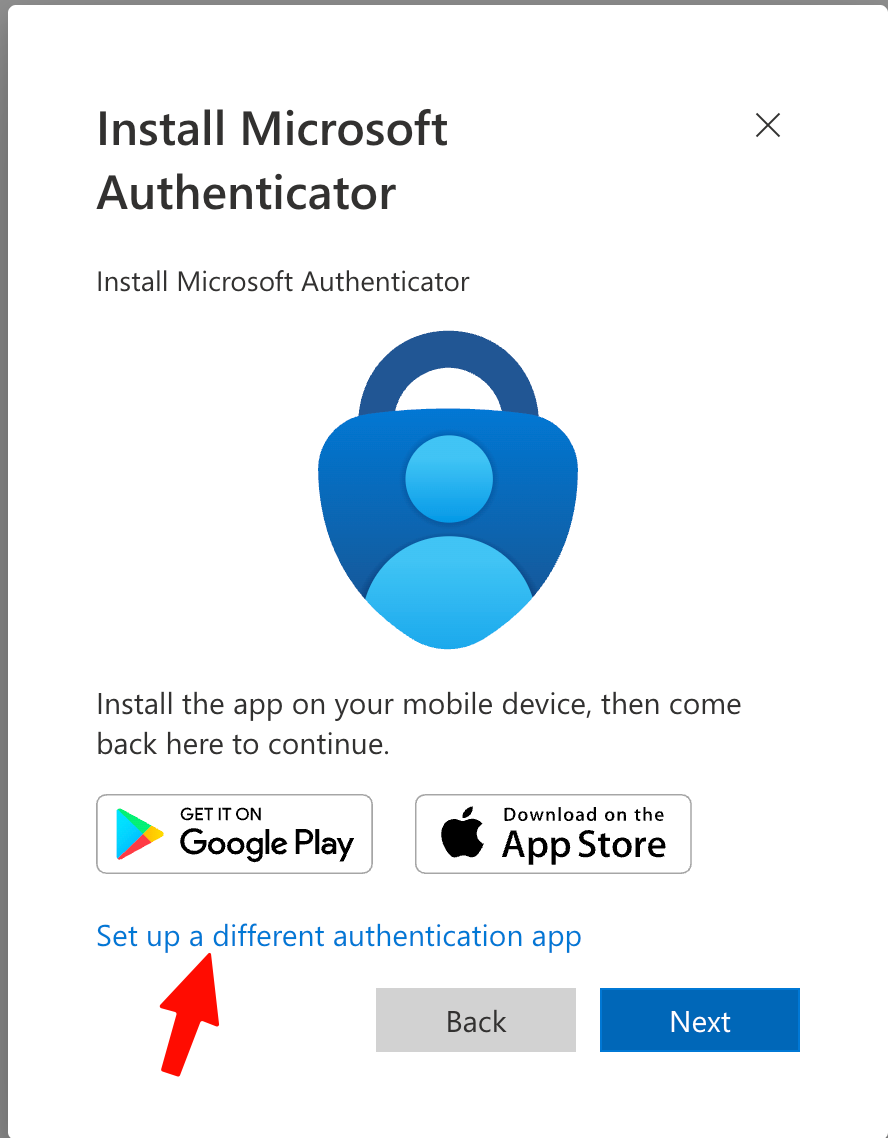
**別の認証アプリを選択する**

「別の認証アプリを設定します」をクリックします。

<div data-with-frame="true"><figure><img src="https://help.aikido.dev/_assets/b2b9e6c909c3/microsoft-install-authenticator-different-app.png" alt=""><figcaption></figcaption></figure></div>
{% endstep %}

{% step %}
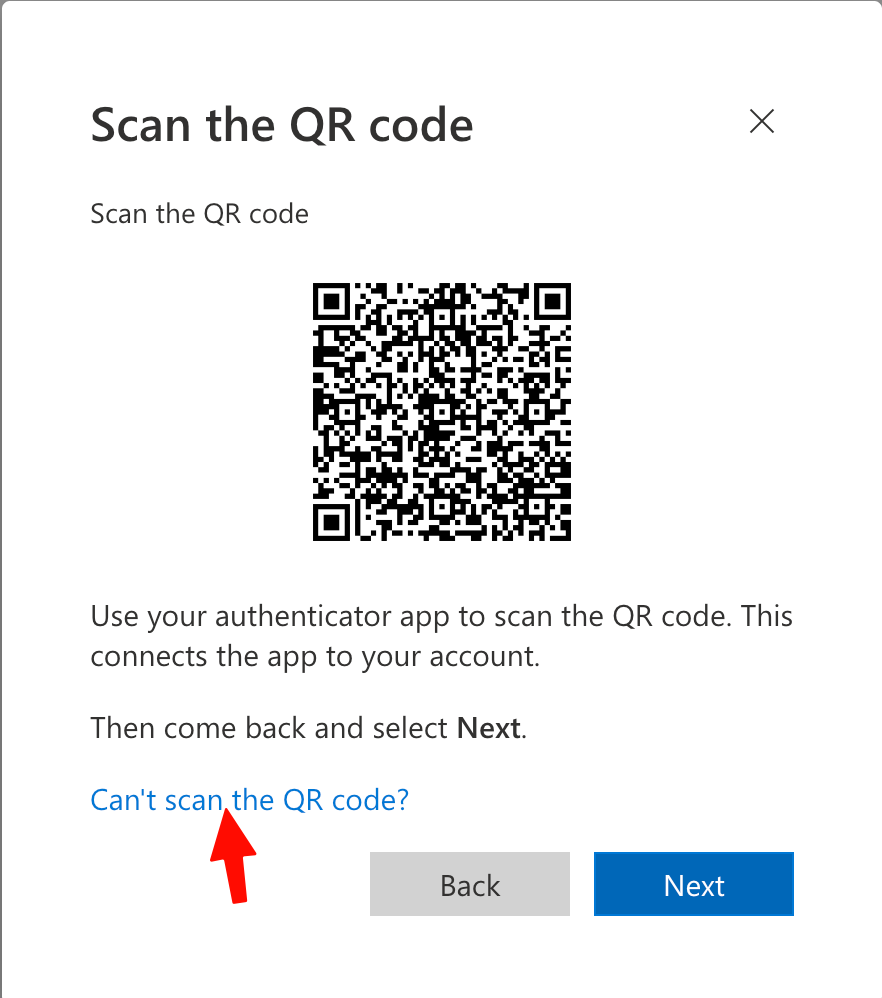
**コードの代わりにシークレットを取得する**

QR コードが表示されたら、「画像をスキャンできませんか?」のオプションを選択します

<div data-with-frame="true"><figure><img src="https://help.aikido.dev/_assets/93265a85e998/microsoft-scan-qr-code-cant-scan.png" alt=""><figcaption></figcaption></figure></div>
{% endstep %}

{% step %}
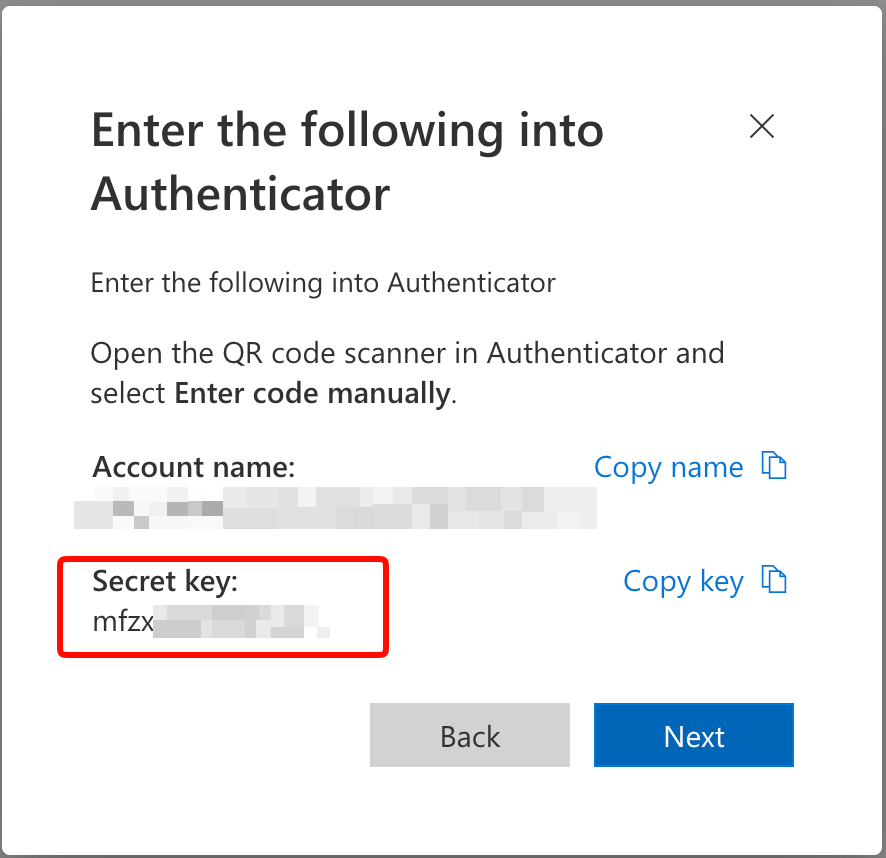
**キーをコピーする**

<div data-with-frame="true"><figure><img src="https://help.aikido.dev/_assets/65a48f46e928/microsoft-enter-authenticator-secret-key.png" alt=""><figcaption></figcaption></figure></div>
{% endstep %}

{% step %}
**キーをパスワードマネージャーに保存する**

次に、お好みのパスワードマネージャーにキーを追加します。1Password や Bitwarden のように、キーを簡単に取り出せるパスワードマネージャーの使用をお勧めします。
{% endstep %}

{% step %}
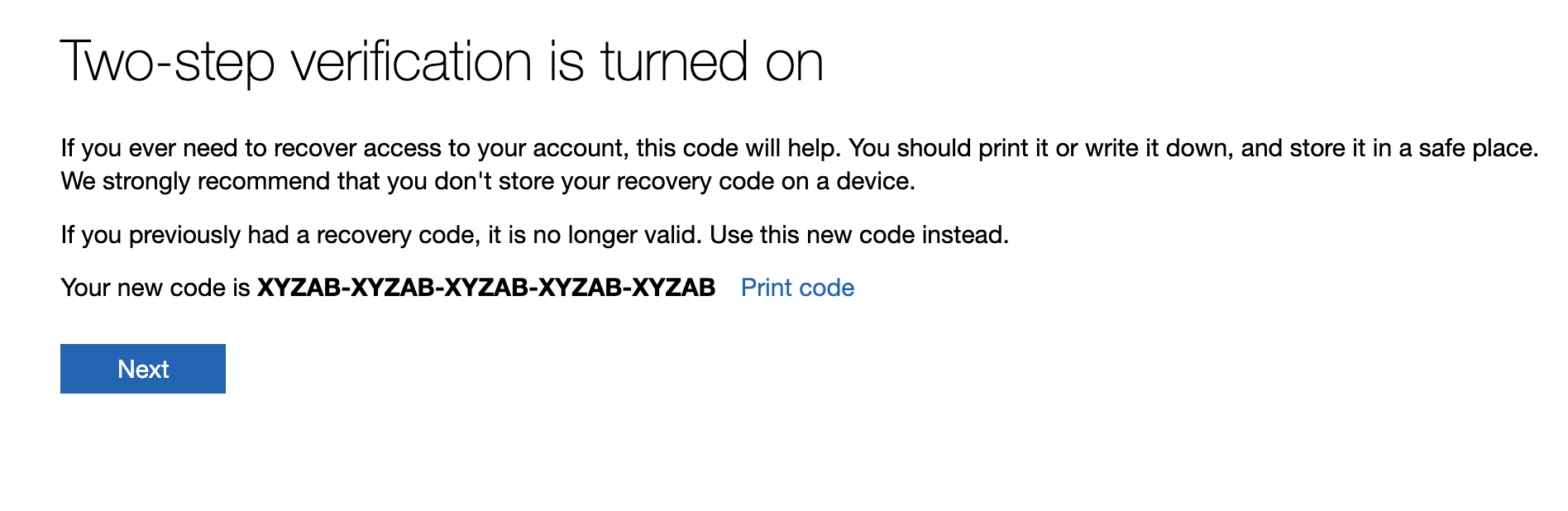
**フローを完了して 2 段階認証を有効にする**

<div data-with-frame="true"><figure><img src="https://help.aikido.dev/_assets/ad061e289d47/Screenshot-2025-12-19-at-17.55.13.png" alt=""><figcaption></figcaption></figure></div>
{% endstep %}

{% step %}
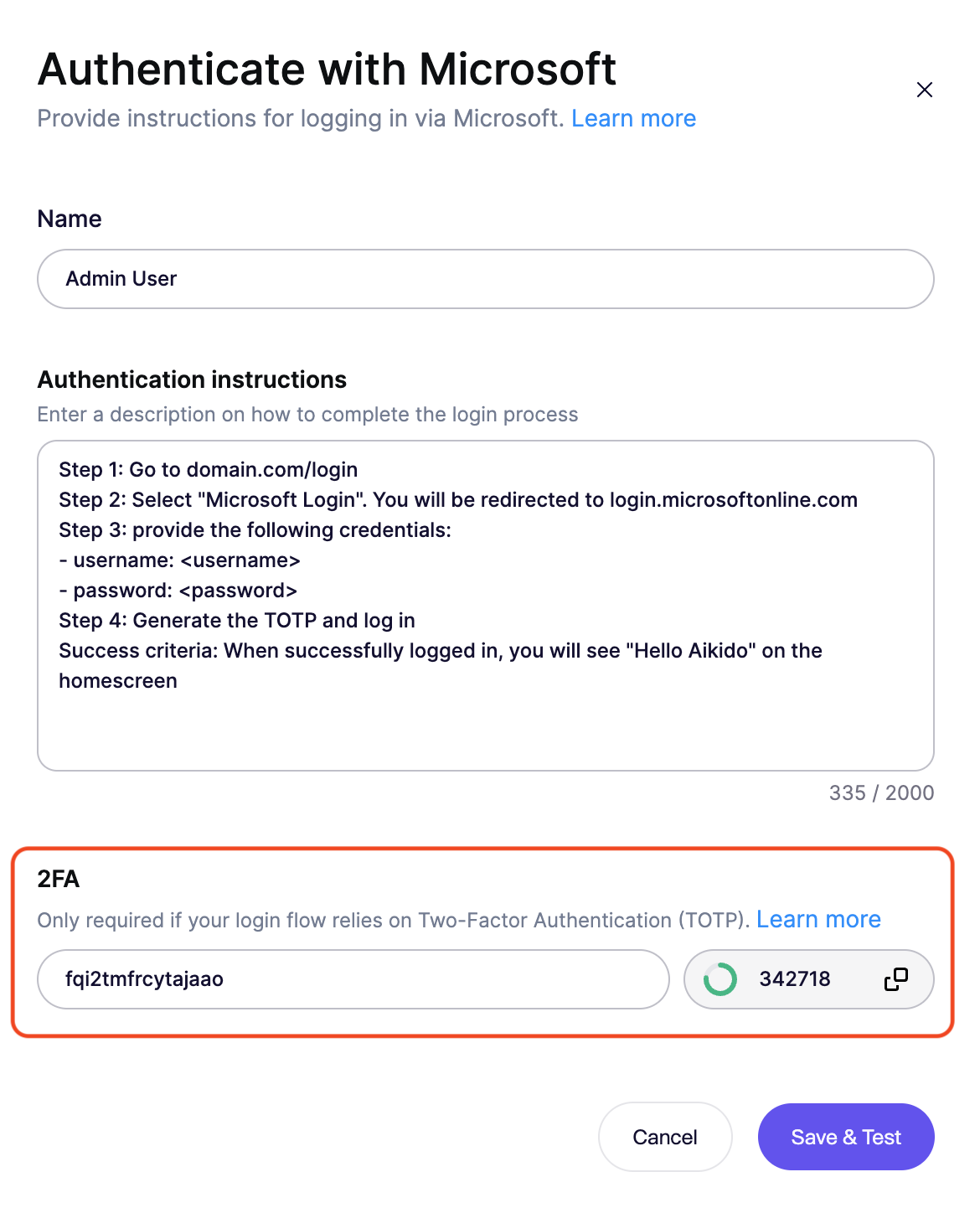
**Aikido Pentest で認証を設定する**

以下と同様の形式で手順を記述します

```
Step 1: Go to domain.com/login
Step 2: Select "Microsoft Login". You will be redirected to login.microsoftonline.com
Step 3: provide the following credentials:
- username: <username>
- password: <password>
Step 4: Generate the TOTP and log in
Success criteria: When successfully logged in, you will see "Hello Aikido" on the homescreen
```
{% endstep %}

{% step %}
**TOTP URL を追加する**

正しい base32 形式でキーを追加します。Microsoft のキーを追加する際は、スペースを必ず削除してください

<div data-with-frame="true"><figure><img src="https://help.aikido.dev/_assets/482c63d2090a/Screenshot-2026-05-19-at-13.40.02-1.png" alt=""><figcaption></figcaption></figure></div>
{% endstep %}
{% endstepper %}