> For the complete documentation index, see [llms.txt](https://help.aikido.dev/llms.txt). Markdown versions of documentation pages are available by appending `.md` to page URLs; this page is available as [Markdown](https://help.aikido.dev/docs/docs-ja/pr-torirsugtingu/bitbucket-pr-gating/bitbucket-ci-pr-gating-via-aikido-dashboard.md).

# Bitbucket Free & Standard: PRスキャンのセットアップ

Bitbucketのプルリクエストスキャンを設定して、Aikidoの問題についてスキャン結果とコメントを公開します。パイプラインコードは不要です。

{% hint style="warning" %}
このセットアップは次の用途向けです **Bitbucket Free と Standard** のプランでは、Workspace Access Tokens は利用できず、代わりに専用ユーザーが使用されます。

もしご利用中のプランが **Bitbucket Premium**、次のものを使用します [**Workspace Access Token**](/docs/docs-ja/pr-torirsugtingu/bitbucket-pr-gating/bitbucket-ci-pr-gating-via-aikido-dashboard-with-a-workspace-access-token.md) ユーザーベースのセットアップの代わりに。
{% endhint %}

## Bitbucket PR Scanning を設定する <a href="#setting-up-bitbucket-ci" id="setting-up-bitbucket-ci"></a>

{% stepper %}
{% step %}
**専用の Bitbucket ユーザーを作成する**

次のような専用ユーザーを作成します `AikidoSec`。Aikido 専用で使用してください。

ゲートをかけたいリポジトリで、このユーザーに管理者アクセス権を付与してください。Aikido がリポジトリの webhook を作成・管理するために必要です。
{% endstep %}

{% step %}
**連携を有効にする**

新しいユーザーとして Bitbucket にログインします。

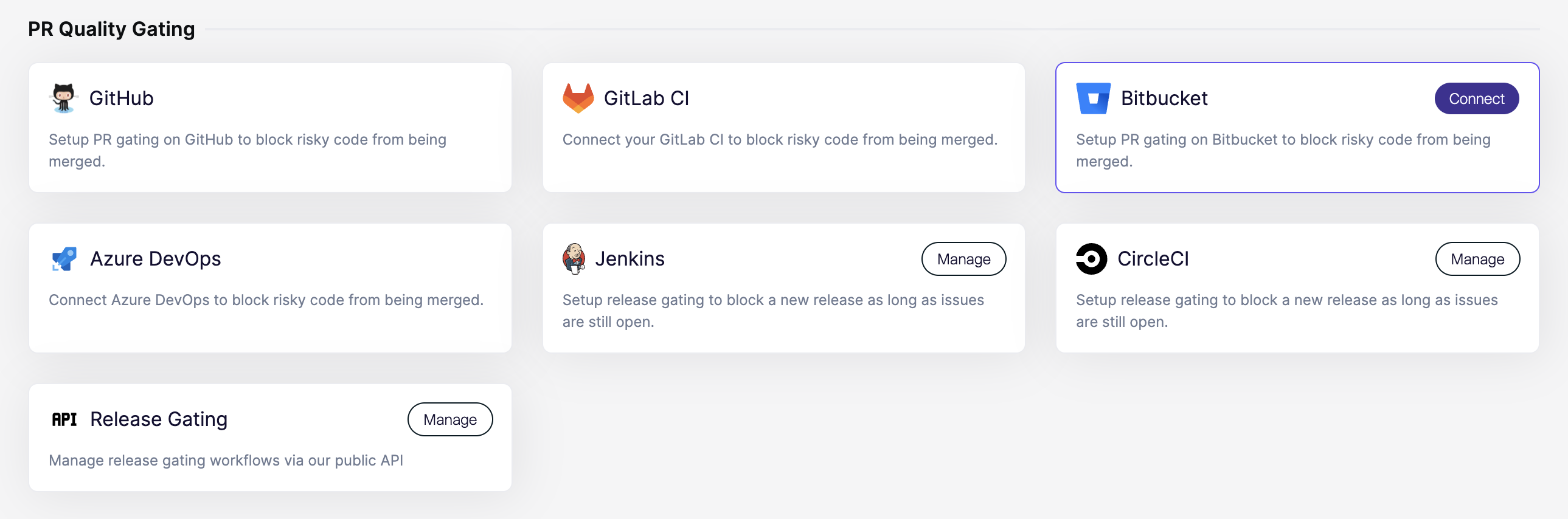
Aikido で、次を開きます: [連携](https://app.aikido.dev/settings/integrations?section=ci) ページ。次に、 **Bitbucket** 以下の **PR Quality Gating**.

<div data-with-frame="true"><figure><img src="https://715870456-files.gitbook.io/~/files/v0/b/gitbook-x-prod.appspot.com/o/spaces%2FyKbzcQGrx7UtrG0nPZZ7%2Fuploads%2Fgit-blob-40075f81a6a797407276d4cf64fd9e8d4a5eb9a9%2FScreenshot%202026-02-26%20at%2016.57.41.png?alt=media" alt=""><figcaption></figcaption></figure></div>
{% endstep %}

{% step %}
**アクセスを許可**

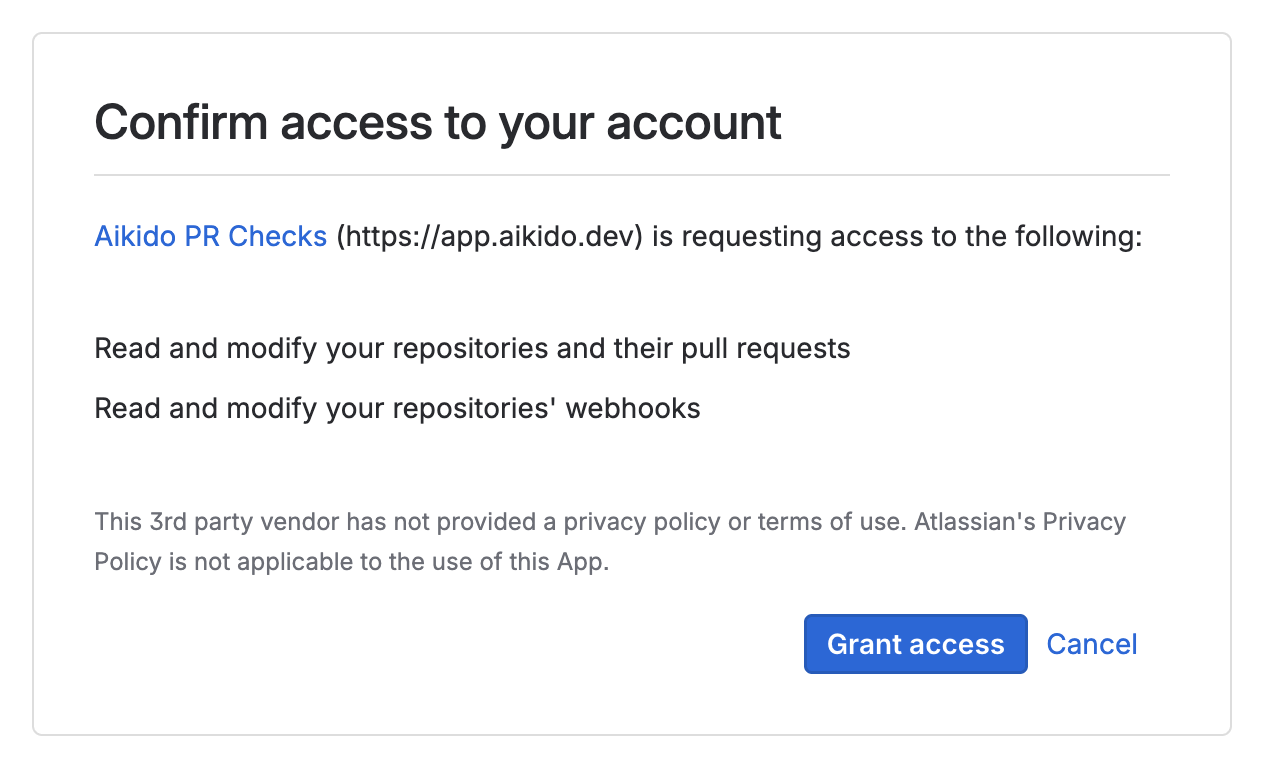
Bitbucket にリダイレクトされます。要求されたアクセスを承認してください。

<div data-with-frame="true"><figure><img src="https://715870456-files.gitbook.io/~/files/v0/b/gitbook-x-prod.appspot.com/o/spaces%2FyKbzcQGrx7UtrG0nPZZ7%2Fuploads%2Fgit-blob-68e8baf45122e82713949c4e58a6edc4c0b6038e%2FScreenshot%202026-02-26%20at%2016.35.57.png?alt=media" alt=""><figcaption></figcaption></figure></div>
{% endstep %}

{% step %}
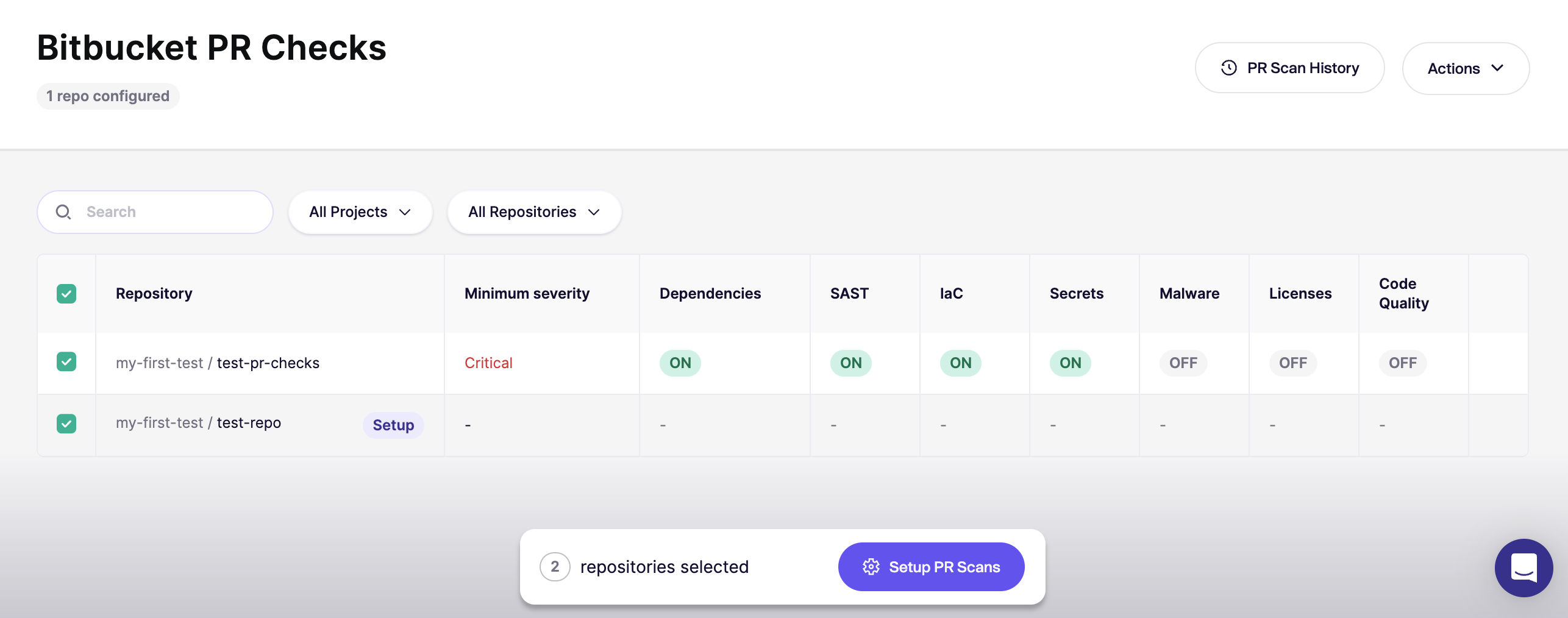
**最初のリポジトリを設定する**

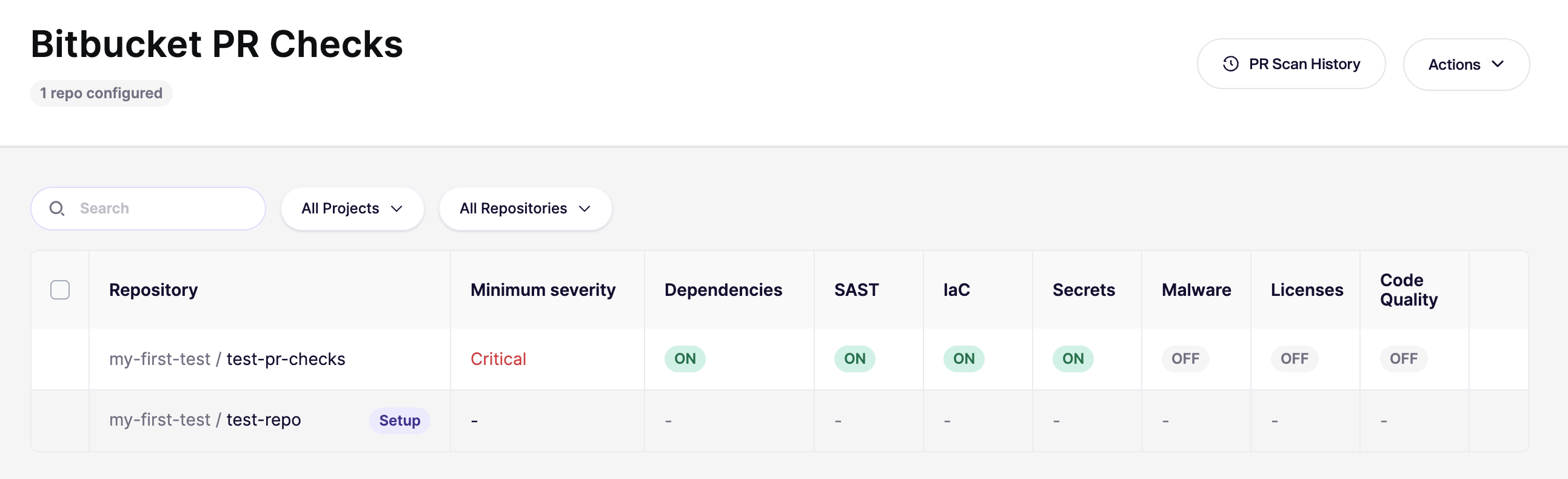
認証後、Aikido は次を開きます: [Bitbucket PR Checks](https://app.aikido.dev/settings/integrations/bitbucket/checks) ページ上で使用します。

まずは **1つのリポジトリ** を最初に設定します。全体に展開する前に、すべてが正しく動作することを確認してください。

<div data-with-frame="true"><figure><img src="https://715870456-files.gitbook.io/~/files/v0/b/gitbook-x-prod.appspot.com/o/spaces%2FyKbzcQGrx7UtrG0nPZZ7%2Fuploads%2Fgit-blob-ff730017744cac5b9148a817045c11610fd86445%2FScreenshot%202026-02-26%20at%2017.02.36.png?alt=media" alt=""><figcaption></figcaption></figure></div>
{% endstep %}

{% step %}
**新しいPRで確認する**

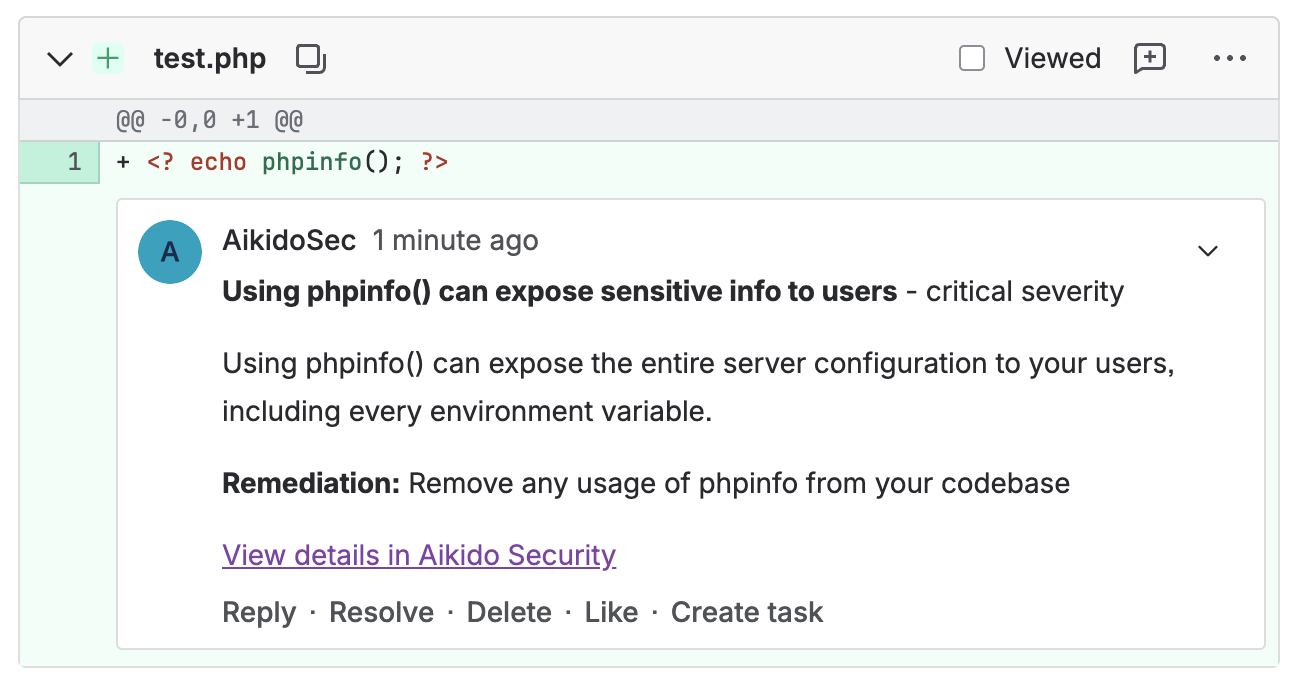
設定したリポジトリで新しいPRを開きます。次に、チェックが実行されることを確認します。

<div data-with-frame="true"><figure><img src="https://715870456-files.gitbook.io/~/files/v0/b/gitbook-x-prod.appspot.com/o/spaces%2FyKbzcQGrx7UtrG0nPZZ7%2Fuploads%2Fgit-blob-568bd026adfc6c847c8d7e1a0811434658ef04bd%2FScreenshot%202026-02-26%20at%2018.04.55.png?alt=media" alt=""><figcaption></figcaption></figure></div>

コメントは、ステップ 1 で作成したユーザーとして表示されるはずです（例： `AikidoSec`).

<figure><img src="https://715870456-files.gitbook.io/~/files/v0/b/gitbook-x-prod.appspot.com/o/spaces%2FyKbzcQGrx7UtrG0nPZZ7%2Fuploads%2Fgit-blob-6f526277eecb2d594f46f86871ab328396d00235%2FScreenshot%202026-02-26%20at%2018.09.19.png?alt=media" alt=""><figcaption></figcaption></figure>
{% endstep %}

{% step %}
**すべてのリポジトリで有効にする**

結果に満足したら、 [Bitbucket PR Checks](https://app.aikido.dev/settings/integrations/bitbucket/checks) ページに戻り、残りのリポジトリでチェックを有効にします。

<div data-with-frame="true"><figure><img src="https://715870456-files.gitbook.io/~/files/v0/b/gitbook-x-prod.appspot.com/o/spaces%2FyKbzcQGrx7UtrG0nPZZ7%2Fuploads%2Fgit-blob-4d6f5bf3c25c48beba52c724565e081059b0d921%2FScreenshot%202026-02-26%20at%2018.13.59.png?alt=media" alt=""><figcaption></figcaption></figure></div>
{% endstep %}

{% step %}
**新しいリポジトリのデフォルトを設定する**

右上で、次を開きます: `アクション` and select `新しいリポジトリのデフォルトを設定` また、今後追加されるリポジトリに対して自動設定を有効にします。

UI の手順ガイドが必要ですか？こちらをご覧ください [新しいリポジトリに対するデフォルトのPR/MRゲーティング設定](/docs/docs-ja/pr-torirsugtingu/aikido-ci-gating-functionality/default-pr-mr-gating-configuration-for-new-repositories.md).
{% endstep %}
{% endstepper %}

{% hint style="info" %}
で **Bitbucket Free と Standard**、あなたは **必須にできません** Aikido のスキャンが成功することを、マージを防ぐ条件にすることはできません。これには **Bitbucket Premium**.

Atlassian を参照してください： [マージ前にチェックを提案または必須にする](https://support.atlassian.com/bitbucket-cloud/docs/suggest-or-require-checks-before-a-merge/).
{% endhint %}


---

# Agent Instructions
This documentation is published with GitBook. GitBook is the documentation platform designed so that both humans and AI agents can read, navigate, and reason over technical content effectively. Learn more at gitbook.com.

## Querying This Documentation
If you need additional information that is not directly available in this page, you can query the documentation by asking a question.

Perform an HTTP GET request on the following URL with the `ask` and `goal` query parameters:

```
GET https://help.aikido.dev/docs/docs-ja/pr-torirsugtingu/bitbucket-pr-gating/bitbucket-ci-pr-gating-via-aikido-dashboard.md?ask=<question>&goal=<user_goal>
```

`ask` is the immediate question: it should be specific, self-contained, and written in natural language.
`goal` is what the user is ultimately trying to achieve, the reason they need the answer. Sharing it helps GitBook give you a better, more relevant answer. A goal is most helpful when it describes the outcome the user wants rather than restating the question. For example, with `ask=how do I create an API token`, a goal like `automate deployments from our CI pipeline` lets GitBook tailor the answer to that use case.

The response will contain a direct answer to the question and relevant excerpts and sources from the documentation.

Use this mechanism when the answer is not explicitly present in the current page, you need clarification or additional context, or you want to retrieve related documentation sections.