> For the complete documentation index, see [llms.txt](https://help.aikido.dev/llms.txt). Markdown versions of documentation pages are available by appending `.md` to page URLs; this page is available as [Markdown](https://help.aikido.dev/docs/docs-ja/pr-torirsugtingu/github-ci-pr-gating-via-aikido-dashboard.md).
# GitHub PRゲーティング
Aikido インターフェースから GitHub PR Gating を簡単に設定できます。この機能では、 **新たに追加された** 問題を、あなたが決めたしきい値までブロックし、プルリクエストがどの既存の問題を解決するかを確認できます。これらのチェックは **毎回** 変更がフィーチャーブランチにコミットされるたびに実行されます。このドキュメントでは、コードを使わずに、設定を一括で管理する方法——複数のリポジトリを同時に——に焦点を当てています。
### ユースケース
* **リポジトリ一括管理**: Aikido インターフェースから複数のリポジトリの設定を一度に簡単に指定・管理できます。
* **コード不要の統合**: GitHub に Aikido アプリをインストールするだけで、コードを埋め込まずにチェックを管理でき、セットアップが簡単になります。
* **コスト効率**: Aikido で GitHub Checks を管理することで、GitHub の CI 分数を使わずに済み、大幅なコスト削減につながります。
### GitHub CI の設定
**手順 1.** へ移動 [統合ページ](https://app.aikido.dev/settings/integrations) の CI gating セクションで GitHub を選択します。
**手順 2.** 次をインストールします **Aikido PR Checks アプリ** を GitHub にインストールします。ワークスペースで現在使用されている GitHub 組織を選択していることを確認してください。Aikido がアクセスを許可されるリポジトリを選択します。Aikido 内から簡単に管理できるよう、すべてのリポジトリへのアクセスを許可することを推奨します。
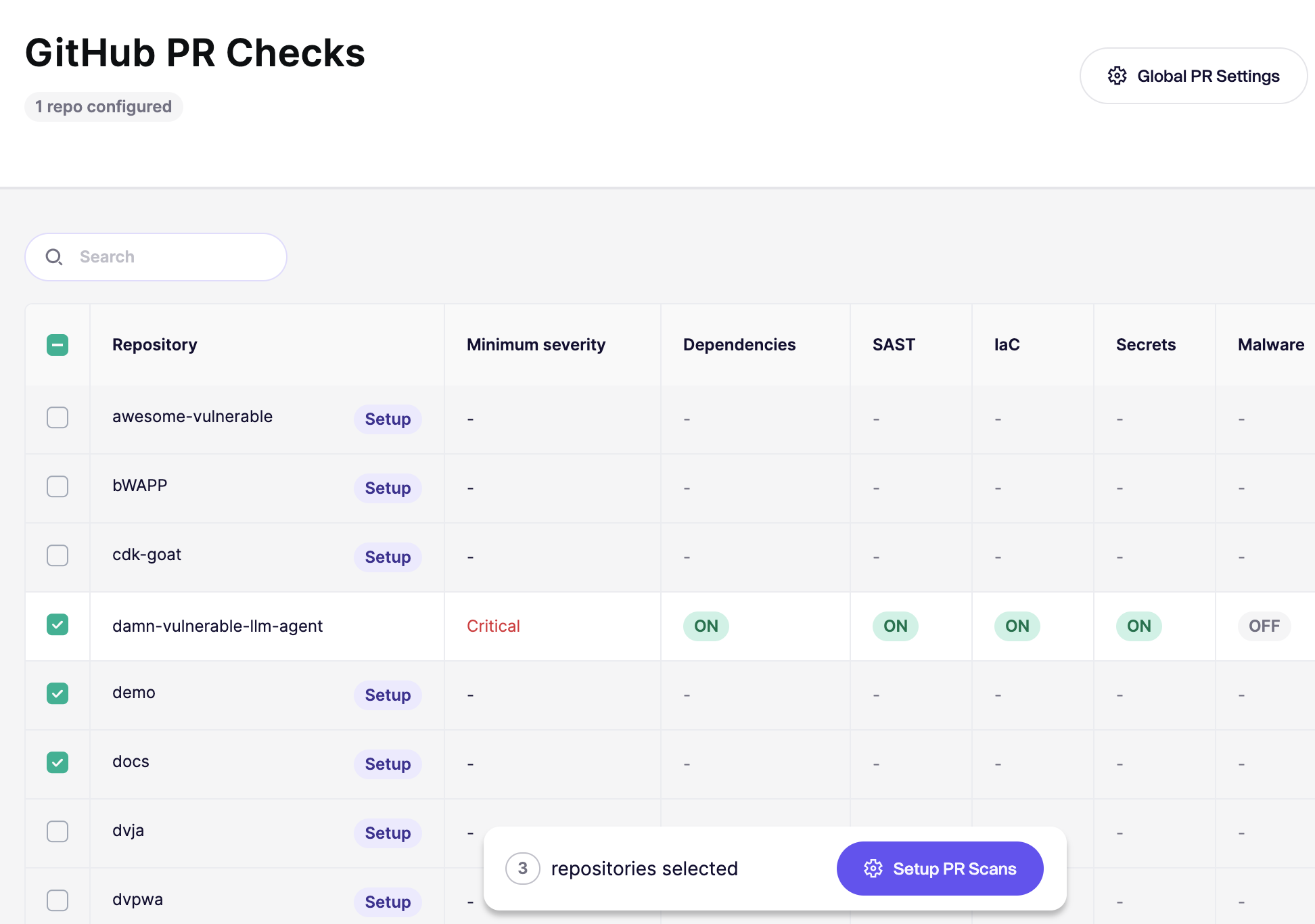
**手順 3.** Aikido はあなたを [GitHub CI ページ](https://app.aikido.dev/settings/integrations/github/checks) へリダイレクトし、リポジトリの概要が表示されます。ここからリポジトリの設定を始められます。まずは 1 つのリポジトリから始めて、すべてが問題なく動作することを確認することを推奨します。
**手順 4. リポジトリを一括選択** に移動し、 **PR スキャンを設定** 下部のフローティングバーで
**手順 5.** これにより設定モーダルが開き、選択したリポジトリの失敗しきい値とスキャンを選べます。
有効化されたスキャンを GitHub PR チェックを失敗させずに実行するには、 **常に合格**.
{% hint style="info" %}
初期設定後に新しいリポジトリを追加した場合は、それらのリポジトリも設定する必要があります。
既定の構成を自動的に適用するには、こちらを参照してください [新しいリポジトリに対するデフォルトのPR/MRゲーティング設定](/docs/docs-ja/pr-torirsugtingu/aikido-ci-gating-functionality/default-pr-mr-gating-configuration-for-new-repositories.md).
{% endhint %}
### PR コメントから直接問題を無視する
Aikido が検出結果に対してインラインの PR コメントを投稿した場合、次のようにコメントへ返信することで GitHub からその問題を直接無視できます:
`@AikidoSec ignore: [無視する理由]`
例:
`@AikidoSec ignore: このシークレットはテスト専用です。`
これは、Aikido プラットフォームで手動で問題を無視するのと同じ操作です:
* 問題は Aikido で無視済みとしてマークされます。
* 無視理由が保存されます。
* すべてのブロッキング問題が解決または無視されると、PR ゲーティングは緑色になります。
{% hint style="info" %}
無視権限がない場合、このコメントは次の場所にリクエストを作成します: [承認受信箱](/docs/docs-ja/hajimeni/core-functionalities/approval-inbox-for-ignored-issues.md) すぐに問題を無視する代わりに、検出結果は管理者が承認または却下するまでフィードに残ります。
{% endhint %}
### 失敗した PR チェックでマージをブロックする
Aikido は PR チェックを失敗させられますが、その失敗したチェックでマージをブロックするかどうかは GitHub が決めます。必要なステータスチェックを使ってブランチ保護を設定してください:
* [GitHub ドキュメント: 保護されたブランチについて](https://docs.github.com/en/repositories/configuring-branches-and-merges-in-your-repository/managing-protected-branches/about-protected-branches#require-status-checks-before-merging)
* [GitHub ドキュメント: ブランチ保護ルールの管理](https://docs.github.com/en/repositories/configuring-branches-and-merges-in-your-repository/managing-protected-branches/managing-a-branch-protection-rule)
### 特定のリポジトリに例外を追加する
設定が少し異なる特定のリポジトリを 1 つ持ちたい場合があるかもしれません。リポジトリ項目の三点メニューをクリックするか、1 つ以上の項目を選択して、 **スキャンを設定** 手順を再度実行します。
---
# Agent Instructions
This documentation is published with GitBook. GitBook is the documentation platform designed so that both humans and AI agents can read, navigate, and reason over technical content effectively. Learn more at gitbook.com.
## Querying This Documentation
If you need additional information that is not directly available in this page, you can query the documentation by asking a question.
Perform an HTTP GET request on the following URL with the `ask` and `goal` query parameters:
```
GET https://help.aikido.dev/docs/docs-ja/pr-torirsugtingu/github-ci-pr-gating-via-aikido-dashboard.md?ask=&goal=
```
`ask` is the immediate question: it should be specific, self-contained, and written in natural language.
`goal` is what the user is ultimately trying to achieve, the reason they need the answer. Sharing it helps GitBook give you a better, more relevant answer. A goal is most helpful when it describes the outcome the user wants rather than restating the question. For example, with `ask=how do I create an API token`, a goal like `automate deployments from our CI pipeline` lets GitBook tailor the answer to that use case.
The response will contain a direct answer to the question and relevant excerpts and sources from the documentation.
Use this mechanism when the answer is not explicitly present in the current page, you need clarification or additional context, or you want to retrieve related documentation sections.