> For the complete documentation index, see [llms.txt](https://help.aikido.dev/llms.txt). Markdown versions of documentation pages are available by appending `.md` to page URLs; this page is available as [Markdown](https://help.aikido.dev/docs/docs-ja/zen-firewall/zen-features/blocking-users-with-zen-firewall.md).
# Zen Firewallでユーザーを追跡する
Aikido の Zen Firewall は、不要なユーザーや攻撃を引き起こすユーザーを特定してブロックする方法を提供し、悪意のある活動を防ぐことでアプリのセキュリティを強化します。
### ユースケース
* 🔍 **アクティブなユーザーを監視中:** ユーザーのアクティビティを追跡して、潜在的な脅威を特定し、対処します。
* 🛡️ **悪意のあるユーザーをブロック**: セキュリティイベントを引き起こしたユーザーからのアクセスを防止
### ユーザーを特定する方法
**ステップ 1:** 提供されたインストール手順に従って Aikido のミドルウェアを設定します。
{% content-ref url="/pages/38bd843dd9341a36ea2aa586595c2f04a98920fb" %}
[Zen Firewallをインストールする](/docs/docs-ja/zen-firewall/zen-installation-instructions.md)
{% endcontent-ref %}
**ステップ 2:** 次を使用してください: `setUser` アプリケーションのコンテキストで現在のユーザーを指定する関数。
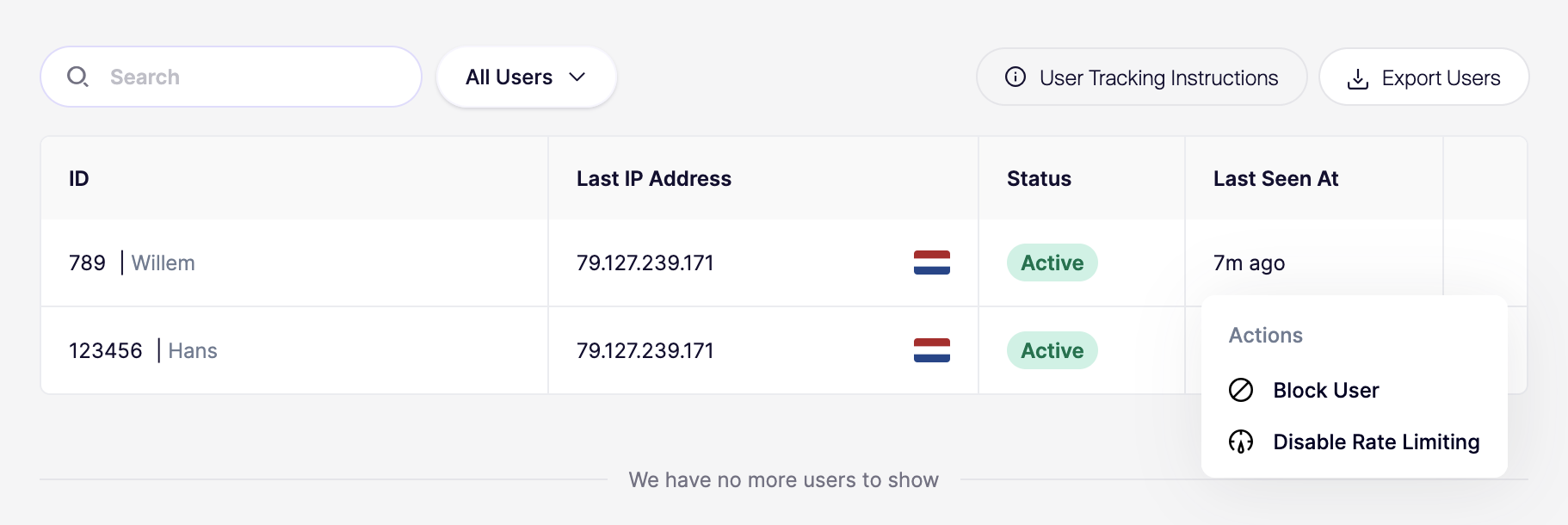
設定すると、Aikido はダッシュボードにすべてのアクティブなユーザーを表示します。

**ステップ 2:** ブロックするユーザーを特定し、三点リーダーをクリックしてアクションメニューを開きます。

{% hint style="info" %}
ユーザーのブロックは即時ではないことに注意してください。ブロックが有効になるまで最大1分かかります。
{% endhint %}
## 機能
### ユーザーをブロック
ユーザーのアクションメニューをクリックし、「ユーザーをブロック」アクションを使用することで、そのユーザーのアプリケーションへのアクセスを恒久的にブロックできます。
### レート制限を解除
ユーザーのアクションメニューをクリックし、「レート制限を無効化」アクションを使用して、特定のユーザーのレート制限を無効にできます。これにより、 **すべて** この特定のユーザーのレート制限がすべて無効になります。
## プライバシーとGDPR
ユーザー名の送信は任意ですが、ダッシュボードでユーザーを特定するのに役立ちます。個人を特定できる情報(PII)を共有する場合は、Aikido Security を処理者として記載する必要があります。
---
# Agent Instructions
This documentation is published with GitBook. GitBook is the documentation platform designed so that both humans and AI agents can read, navigate, and reason over technical content effectively. Learn more at gitbook.com.
## Querying This Documentation
If you need additional information that is not directly available in this page, you can query the documentation by asking a question.
Perform an HTTP GET request on the following URL with the `ask` and `goal` query parameters:
```
GET https://help.aikido.dev/docs/docs-ja/zen-firewall/zen-features/blocking-users-with-zen-firewall.md?ask=&goal=
```
`ask` is the immediate question: it should be specific, self-contained, and written in natural language.
`goal` is what the user is ultimately trying to achieve, the reason they need the answer. Sharing it helps GitBook give you a better, more relevant answer. A goal is most helpful when it describes the outcome the user wants rather than restating the question. For example, with `ask=how do I create an API token`, a goal like `automate deployments from our CI pipeline` lets GitBook tailor the answer to that use case.
The response will contain a direct answer to the question and relevant excerpts and sources from the documentation.
Use this mechanism when the answer is not explicitly present in the current page, you need clarification or additional context, or you want to retrieve related documentation sections.