# Microsoft Azure: Login with SAML/ Entra ID

{% hint style="info" %}
This feature is only available on a **Pro** or **Advanced** plan and is not enabled by default. If you’d like to enable this feature, please reach out via the chat in the bottom right corner within Aikido.
{% endhint %}

> If you switch to SAML Login instead of auto-onboarding via your Git provider, team import from GitHub, Bitbucket, or Azure DevOps will no longer work. You will need to manage your teams manually moving forward, either through the Aikido UI or [Access Profiles.](/getting-started/automated-user-management/saml-login/saml-user-rights-access-profiles-recommended.md)

## Setting up SAML in your account <a href="#setting-up-saml-in-your-account" id="setting-up-saml-in-your-account"></a>

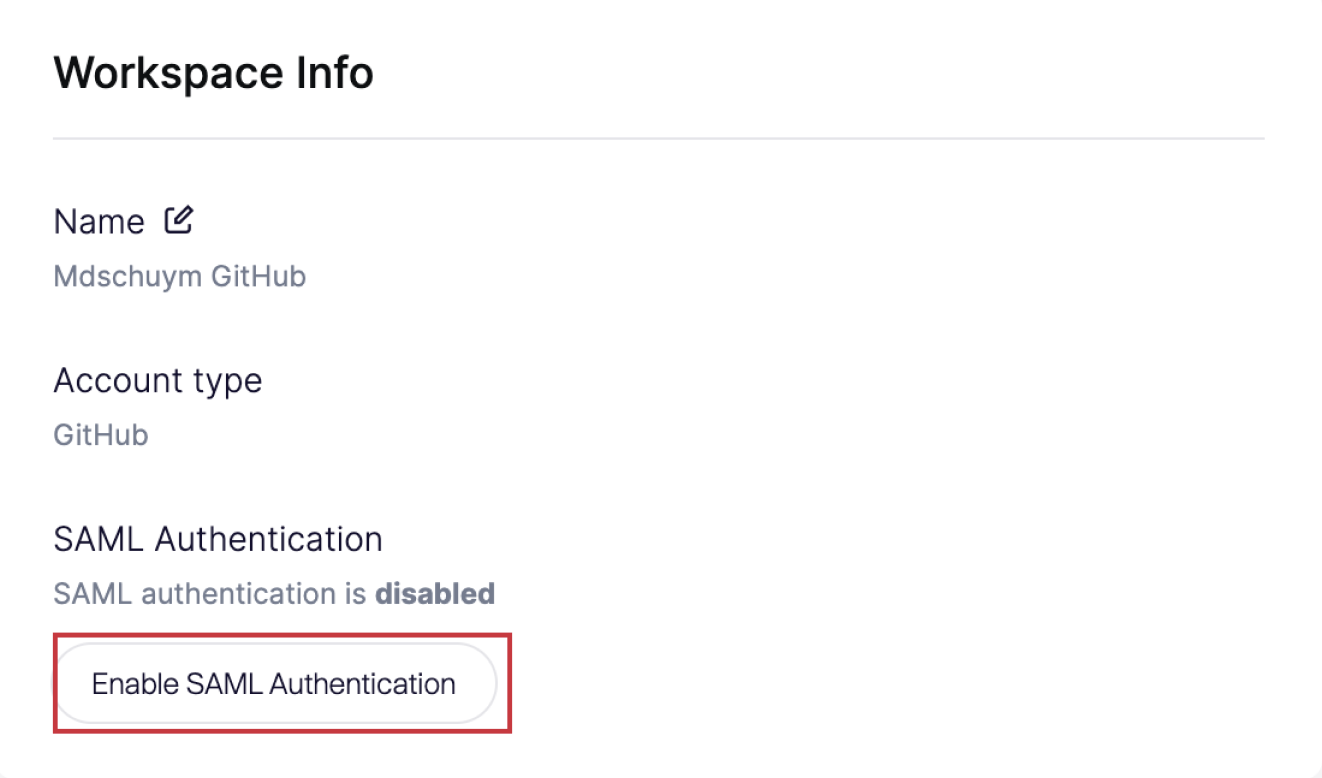
**Step 1.** Go to [**General Settings**](https://app.aikido.dev/settings/account) and click '**Enable SAML Authentication'**

![Workspace info screen with option to enable SAML authentication for GitHub account.](/files/aOiM25kER30KfCFw8LIE)

**Step 2.** Copy **all details** to your identity provider. See steps below.
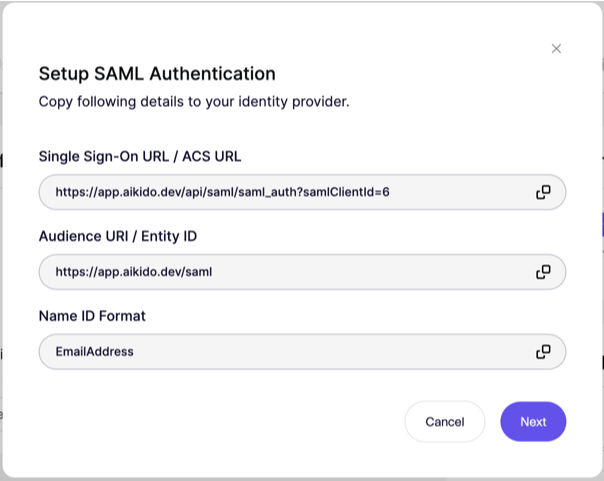
![SAML Authentication setup screen showing required URLs and Name ID format for configuration.](/files/fFEyJIfsFEkVeMLbAZmi)

### Continue in Azure <a href="#continue-in-azure" id="continue-in-azure"></a>

**Step 1.** Go to **Microsoft Entra ID**.

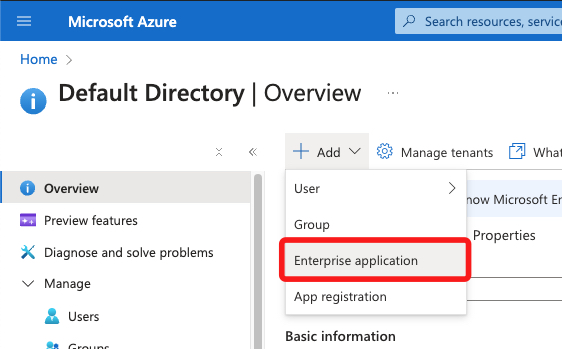
**Step 2.** Click the **Add** dropdown and select **Enterprise application**.

![Adding a new enterprise application in Microsoft Azure Active Directory.](/files/BWtmvVYBJvvOKhySjNH5)

**Step 3.** Click **Create your own application**, choose a name for your app and select 'Non-gallery'.
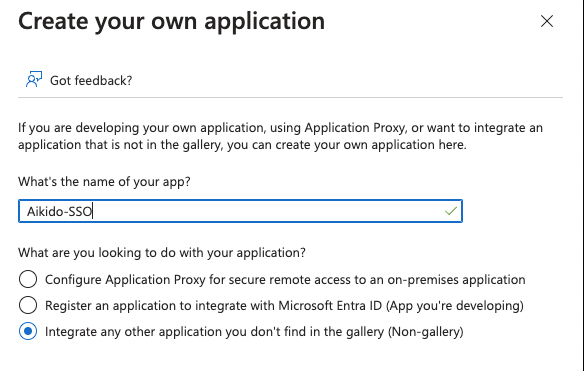
![Creating a custom non-gallery application named "Aikido-SSO" for integration purposes.](/files/czSYhc2ZtKbE7MQgtS2m)

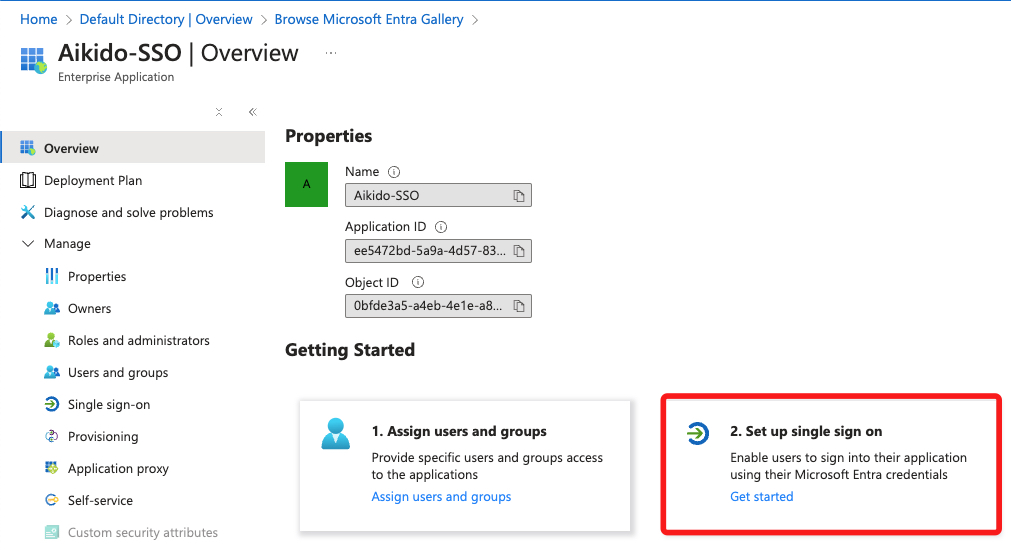
**Step 4.** Select **Set up single sign on**.

![Aikido-SSO application setup: Assign users and configure single sign-on in Microsoft Entra.](/files/9CzflR5V3JYv3RipfjD5)

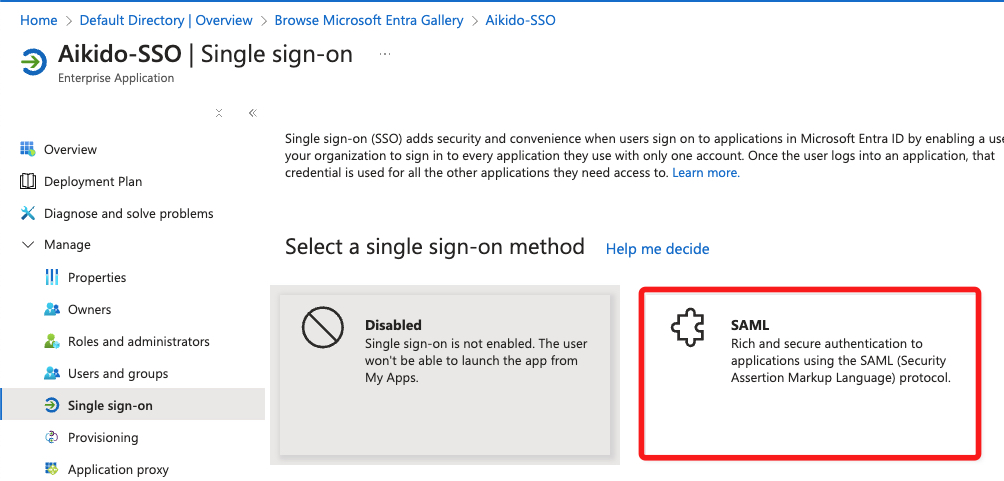
**Step 5.** Click the **SAML** option.

![Enable SAML single sign-on for secure application authentication in Aikido-SSO.](/files/YNwdSsJxQ7LEdLzaCQPk)

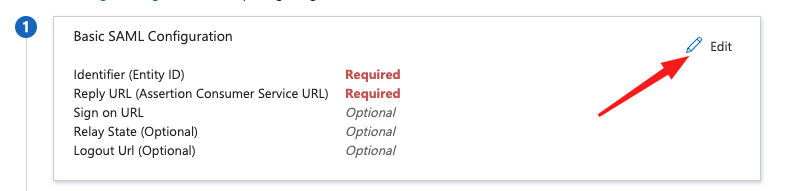
**Step 6.** On **step 1**, click **Edit.**

![Basic SAML Configuration: Edit required Identifier and Reply URL fields.](/files/LznVLZwAf7mx0AEIsuwv)

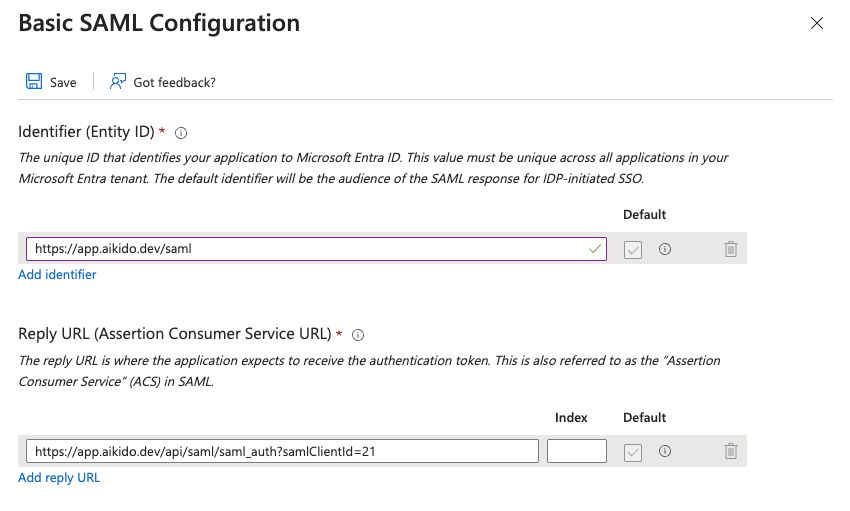
**Step 7.** Fill in the **Entity ID** and **ACS URL** as shown in Aikido.

![Configuration screen for SAML SSO with Entity ID and Reply URL fields specified.](/files/P8HanoJmIxEjarvxEF9Z)

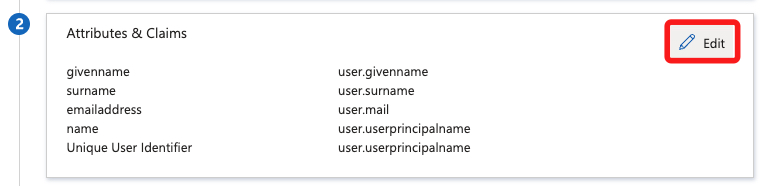
**Step 8.** At **step 2**, click **Edit.**

![User attributes and claims mapping with editable options highlighted.](/files/DWsWMe1uzAdDyg5e838y)

**Step 9.** Click the **Unique User Identifier (Name ID)**.\
Optional: clicking 'Add new claim' at the top of this page allows you to add [custom attributes](/getting-started/automated-user-management/saml-login/saml-user-rights-using-custom-attributes-advanced.md) to SAML. More info [here](https://help.aikido.dev/doc/microsoft-azure-custom-attributes-with-saml--entra-id/docFaysVwVZy).

![Highlighted SAML claim: Unique User Identifier (Name ID) for user identification.](/files/jey09FVr8MJgLGhDt4tN)

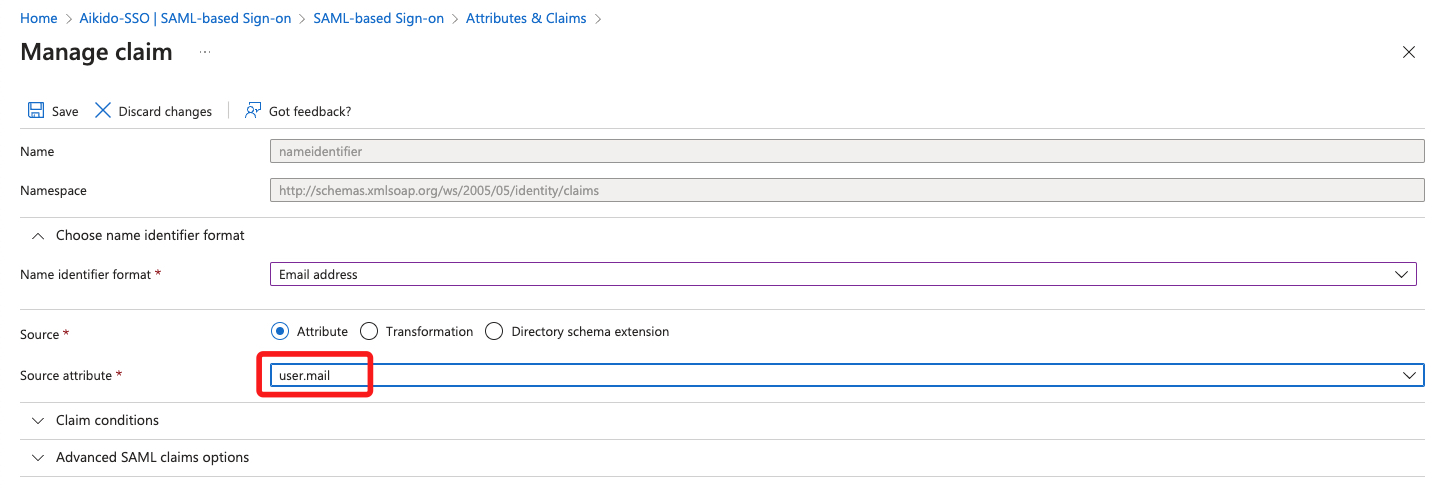
**Step 10.** Make sure to set **Source attribute** to `user.mail` here.

![Configuring a SAML claim for user email as the name identifier in Azure AD.](/files/HpcG4ZGUcJveZjAqgSss)

**Step 11.** At step 3 you can download the **Certificate (Base64)** & at step 4 you'll see the **Login URL** and **Mircosoft Entra Identifier**. These should be copy and pasted to Aikido.

### Go back to Aikido <a href="#go-back-to-aikido" id="go-back-to-aikido"></a>

* Fill in the **Entity ID / Issuer**, **Single Sign-On URL** and **X.509 Certificate** as shown in Azure.
* Also fill out the **Company Domain** to make sure people can log in without the need of a Single Sign-On URL.
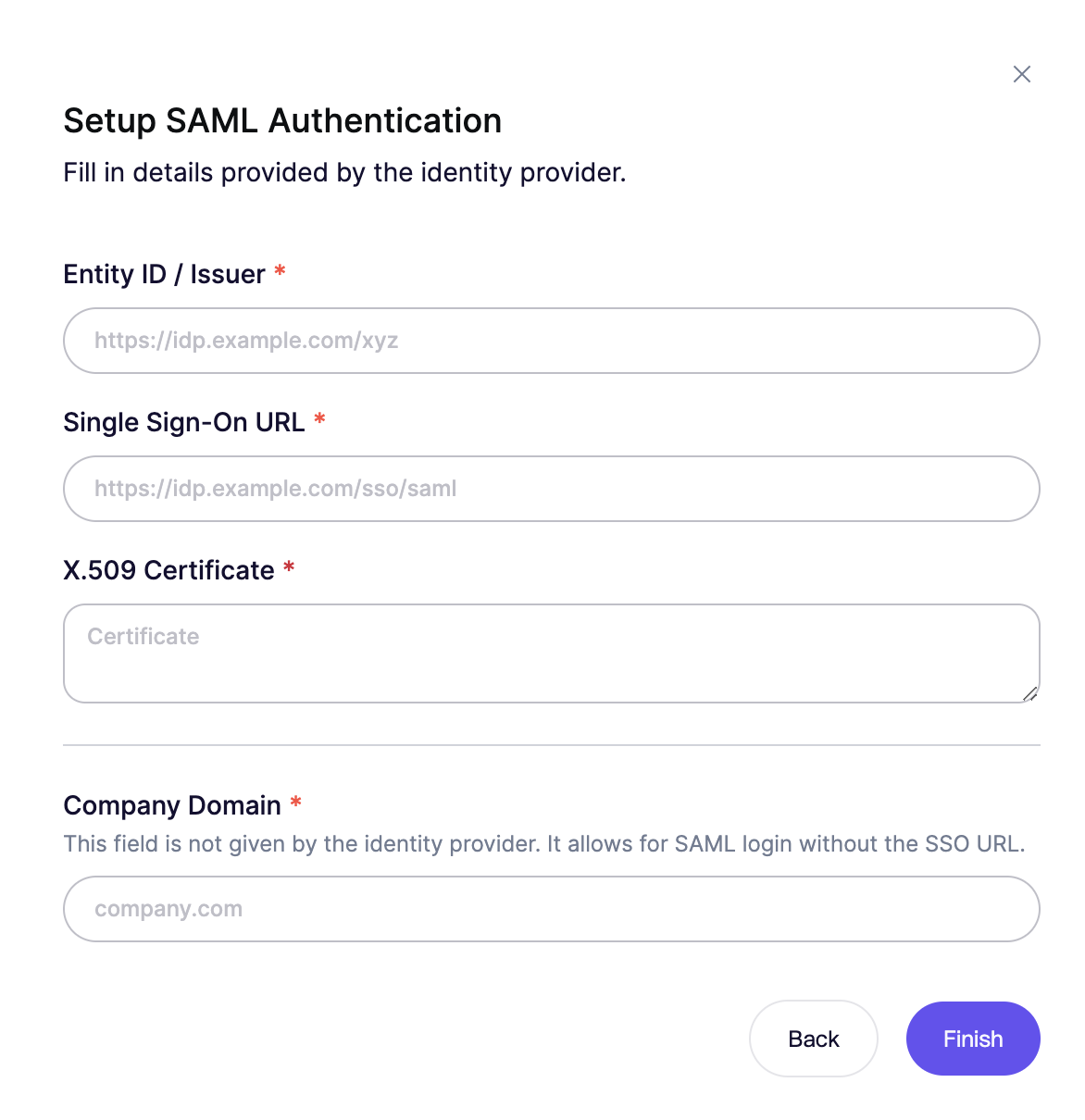
![SAML Authentication setup form for configuring Single Sign-On (SSO) credentials.](/files/MmfaM4FoxViIVFil4Vf9)

> Success! People having access to your Azure SAML app will now be able to auto-onboard to your Aikido workspace.

### 2 options for users to login using your SAML client <a href="#id-2-options-for-users-to-login-using-your-saml-client" id="id-2-options-for-users-to-login-using-your-saml-client"></a>

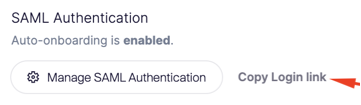
**Option 1. Using SSO Link Directly**

Copy the Login Link and share this internally with other users.
![SAML Authentication settings with options to manage or copy the login link.](/files/xyz04nKTOkjhYRoEY2JV)

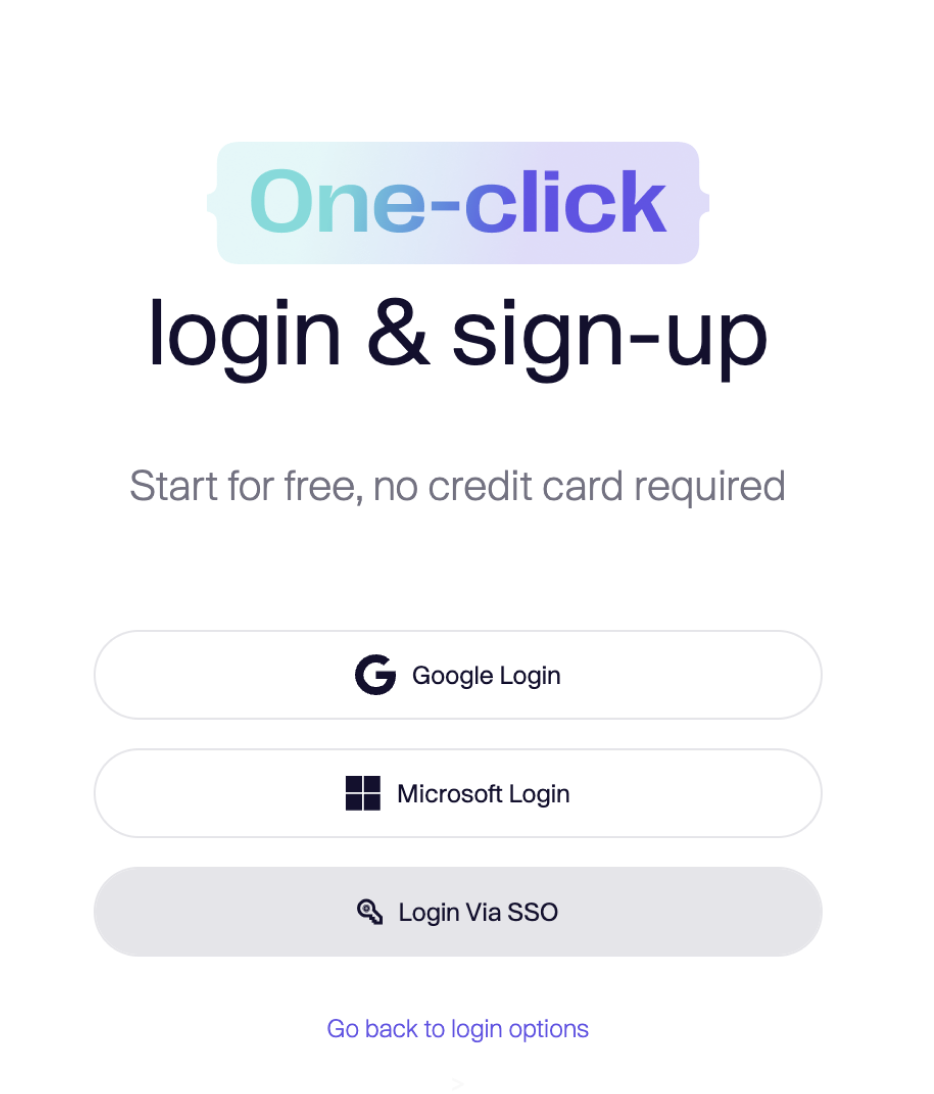
**Option 2.** Going to the Aikido login screen, selecting **Login Via SSO** and filling in the email address **Important**: the email needs to contain the company domain that has been set up.
![One-click login and sign-up with Google, Microsoft, or SSO; no credit card needed.](/files/l4LiZQEdG4K8nwx4sY9F)

![Login screen offering Google, Microsoft, or email sign-in options.](/files/SJnoFWTkYSeLzTeyyO1F)


---

# Agent Instructions: Querying This Documentation

If you need additional information that is not directly available in this page, you can query the documentation dynamically by asking a question.

Perform an HTTP GET request on the current page URL with the `ask` query parameter:

```
GET https://help.aikido.dev/getting-started/automated-user-management/saml-login/microsoft-azure-login-with-saml-entra-id.md?ask=<question>
```

The question should be specific, self-contained, and written in natural language.
The response will contain a direct answer to the question and relevant excerpts and sources from the documentation.

Use this mechanism when the answer is not explicitly present in the current page, you need clarification or additional context, or you want to retrieve related documentation sections.