> For the complete documentation index, see [llms.txt](https://help.aikido.dev/llms.txt). Markdown versions of documentation pages are available by appending `.md` to page URLs; this page is available as [Markdown](https://help.aikido.dev/getting-started/task-management-systems/all-supported-task-trackers/github-issues.md).
# GitHub Issues
This one-time setup *per workspace* allows everyone in your Aikido organization to create issues directly in GitHub Issues
Following use cases are supported :
* **Manual Ticket Addition**: Manually sync security issue tickets to GitHub Issues.
* **Automated Ticket Creation**: Automatically create and push tickets to specified GitHub Issue projects/repos.
{% hint style="warning" %}
All issues will be automatically created in the respective repo. If you wish to disable this functionality, contact us.
{% endhint %}
{% hint style="info" %}
This integration is for GitHub.com. If you are on a GitHub Enterprise Cloud with data residency tenant (`SUBDOMAIN.ghe.com`), use the [GitHub Enterprise Cloud Issues](/getting-started/task-management-systems/all-supported-task-trackers/github-enterprise-cloud-issues.md) integration instead.
{% endhint %}
### Prerequisites
* GitHub account needs to be an organisation account
* Issues need to be enabled inside GitHub
### Connecting the Aikido App to GitHub Issues
1. Navigate to [Integration Settings](https://app.aikido.dev/settings/integrations) within the Aikido app.
2. In the 'Task Trackers' section, select 'GitHub Issues'
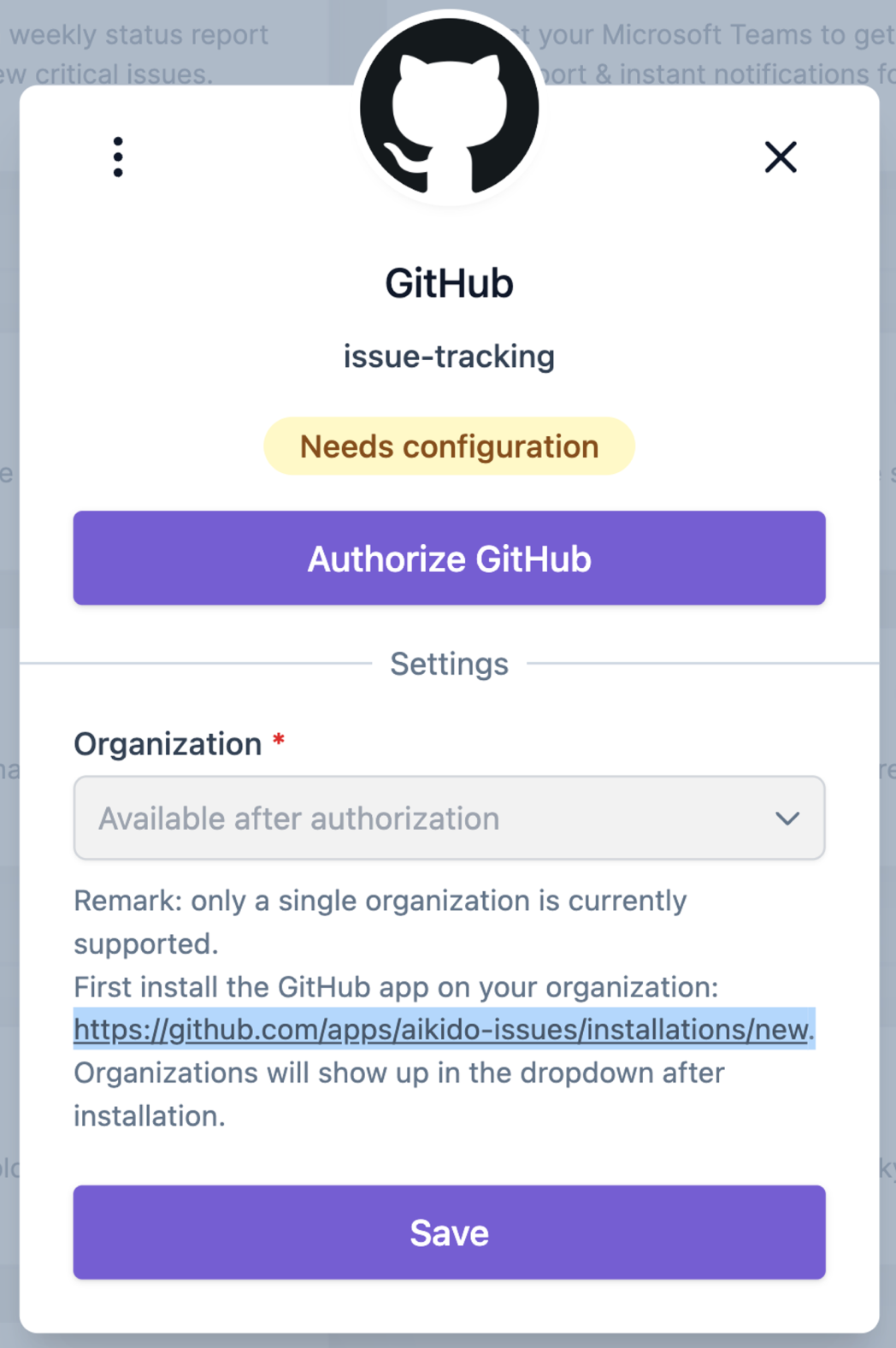
3. **Install the Issues App inside your organisation** ([Install Link](https://github.com/apps/aikido-issues/installations/new)). This is needed in order to select your organisation.\
4. Select your organisation and repos\

5. When installed succesfully, you will get a notification on top of the page in GitHub. **Return to Aikido.**\

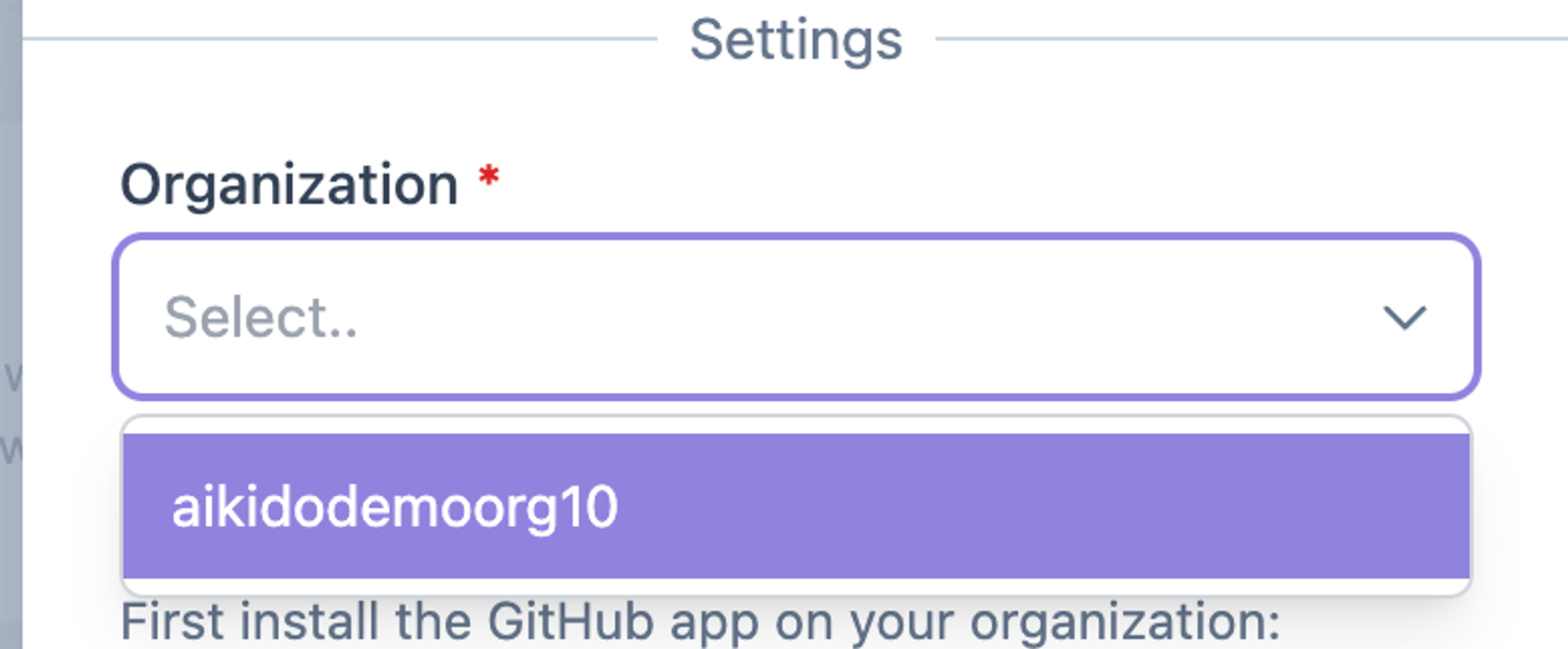
6. **Select your organisation** in the modal.\
7. **Click Save.** The status will now change to **Connected.**
8. Close the modal & open the GitHub Issues Integration page. By default all issues will be synced to the 'Default Repo'. **Contact us** if you'd like to have autosyncing issues to the respective repo.

You can set a Default Label that will be send for all Aikido Issues. These will be synced and appear in GitHub.\

#### Options for Task Creation in GitHub Issues via Aikido
There are two different options to create new tasks from Aikido into GitHub Issues
1. Manually create tasks from the Aikido interface
2. Automatically create new tasks via Aikido's auto creation functionality.
### Manual Task Creation
1. Hover over any issue in your feed and click the ***+*** in the **assignee column.**\
Alternatively, you can click the triple dots in the last columns to open up the action menu. If you have grouped issues, the triple dot action menu is available on every subissue.\
2. Fill in the required details in the popup modal.\
3. The newly created task in GitHub Issues will be linked in the Aikido Issue Detail under the 'Tasks' tab (sidepanel).

### Automated Task Creation
{% hint style="info" %}
Aikido will automatically create tasks **every hour in bulk.** There is at the moment no option to trigger this manually.
{% endhint %}
1. Go to the [GitHub Integration](https://app.aikido.dev/settings/integrations/tasktracker) settings page
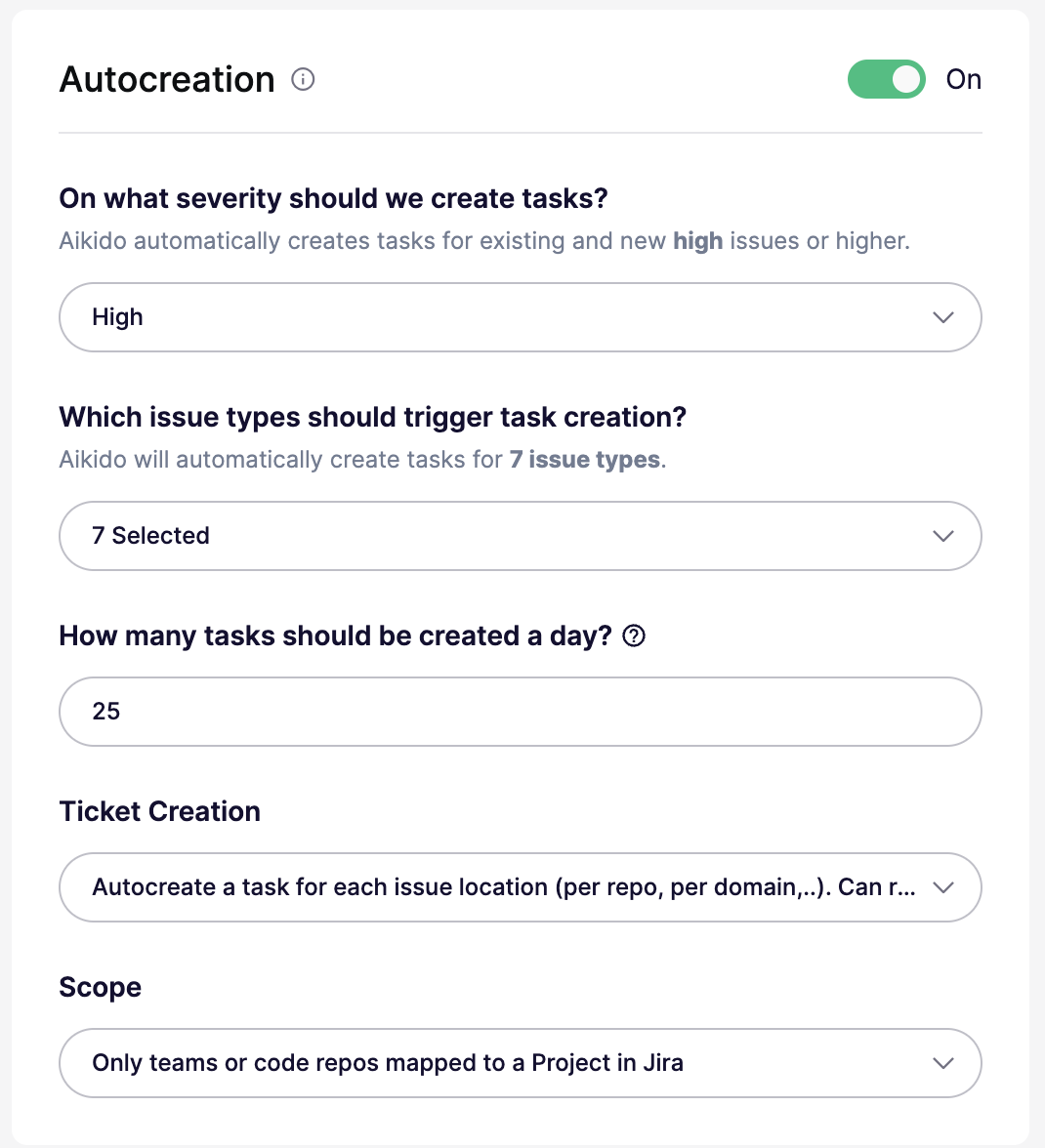
2. Make sure to enable '**Autocreation**' by clicking the toggle to **On.**
3. Define the criteria for automatic task creation.
You can configure all of these settings in the autocreation modal:
* **On/Off:** Enable or disable autocreation. When off, the threshold is effectively set to `None`.
* **Severity threshold:** Create tickets for issues at `Critical`, `High`, `Medium`, or `Low` and above. For example, `High` creates tickets for `High` and `Critical`.
* **Issue types:** Create tickets for all issue types, or limit them to specific types like `SCA`, `SAST`, `Secrets`, `Cloud`, `IaC`, `Malware`, or `License`.
* **Daily limit:** Set the maximum number of tickets created per day. The default is `25`. Some plans support higher limits.
* **Ticket creation mode:** Create one ticket per issue group, or create separate tickets per location or scope. Per-location mode can create more tickets.
* **Scope:** Available only in per-location mode. Target all repos or clouds, only mapped repos or teams, or specific repos or clouds with include and exclude lists.
4. Aikido will then autonomously generate GitHub Issues based on these settings 🚀
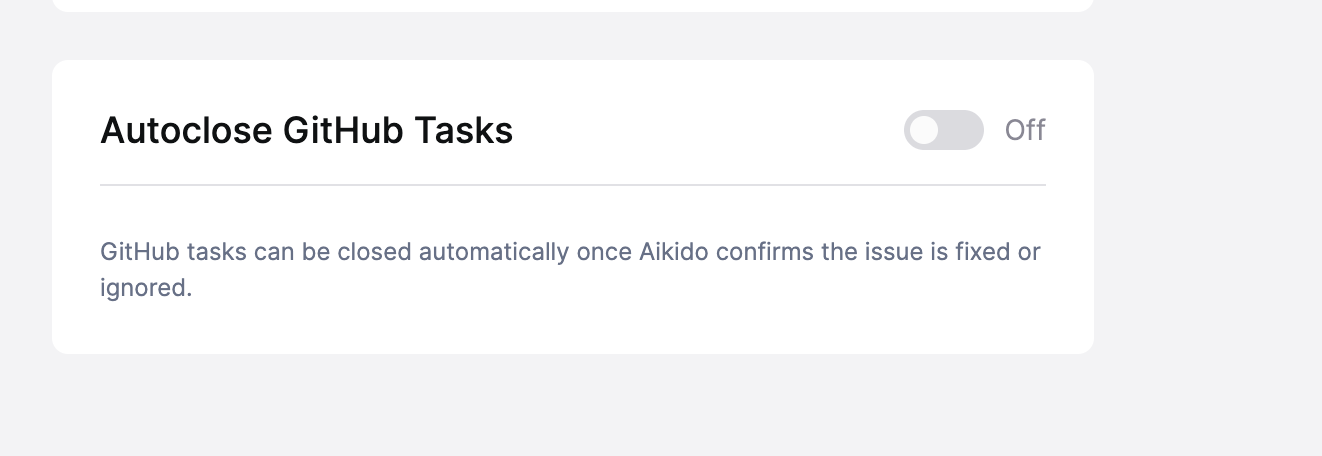
### Automatically Close Issues in GitHub
Aikido can automatically close linked GitHub issues once the related vulnerability is resolved in Aikido, for example after a successful scan no longer reports it, or when you manually mark it solved. The GitHub issue is only closed when there are no remaining open or snoozed Aikido issues for that link (ignored issues do not block closing). You need a GitHub issue linked to the Aikido finding for this to apply.
***
---
# Agent Instructions
This documentation is published with GitBook. GitBook is the documentation platform designed so that both humans and AI agents can read, navigate, and reason over technical content effectively. Learn more at gitbook.com.
## Querying This Documentation
If you need additional information that is not directly available in this page, you can query the documentation by asking a question.
Perform an HTTP GET request on the following URL with the `ask` and `goal` query parameters:
```
GET https://help.aikido.dev/getting-started/task-management-systems/all-supported-task-trackers/github-issues.md?ask=&goal=
```
`ask` is the immediate question: it should be specific, self-contained, and written in natural language.
`goal` is what the user is ultimately trying to achieve, the reason they need the answer. Sharing it helps GitBook give you a better, more relevant answer. A goal is most helpful when it describes the outcome the user wants rather than restating the question. For example, with `ask=how do I create an API token`, a goal like `automate deployments from our CI pipeline` lets GitBook tailor the answer to that use case.
The response will contain a direct answer to the question and relevant excerpts and sources from the documentation.
Use this mechanism when the answer is not explicitly present in the current page, you need clarification or additional context, or you want to retrieve related documentation sections.
 4. Select your organisation and repos\

5. When installed succesfully, you will get a notification on top of the page in GitHub. **Return to Aikido.**\

6. **Select your organisation** in the modal.\
4. Select your organisation and repos\

5. When installed succesfully, you will get a notification on top of the page in GitHub. **Return to Aikido.**\

6. **Select your organisation** in the modal.\
 7. **Click Save.** The status will now change to **Connected.**
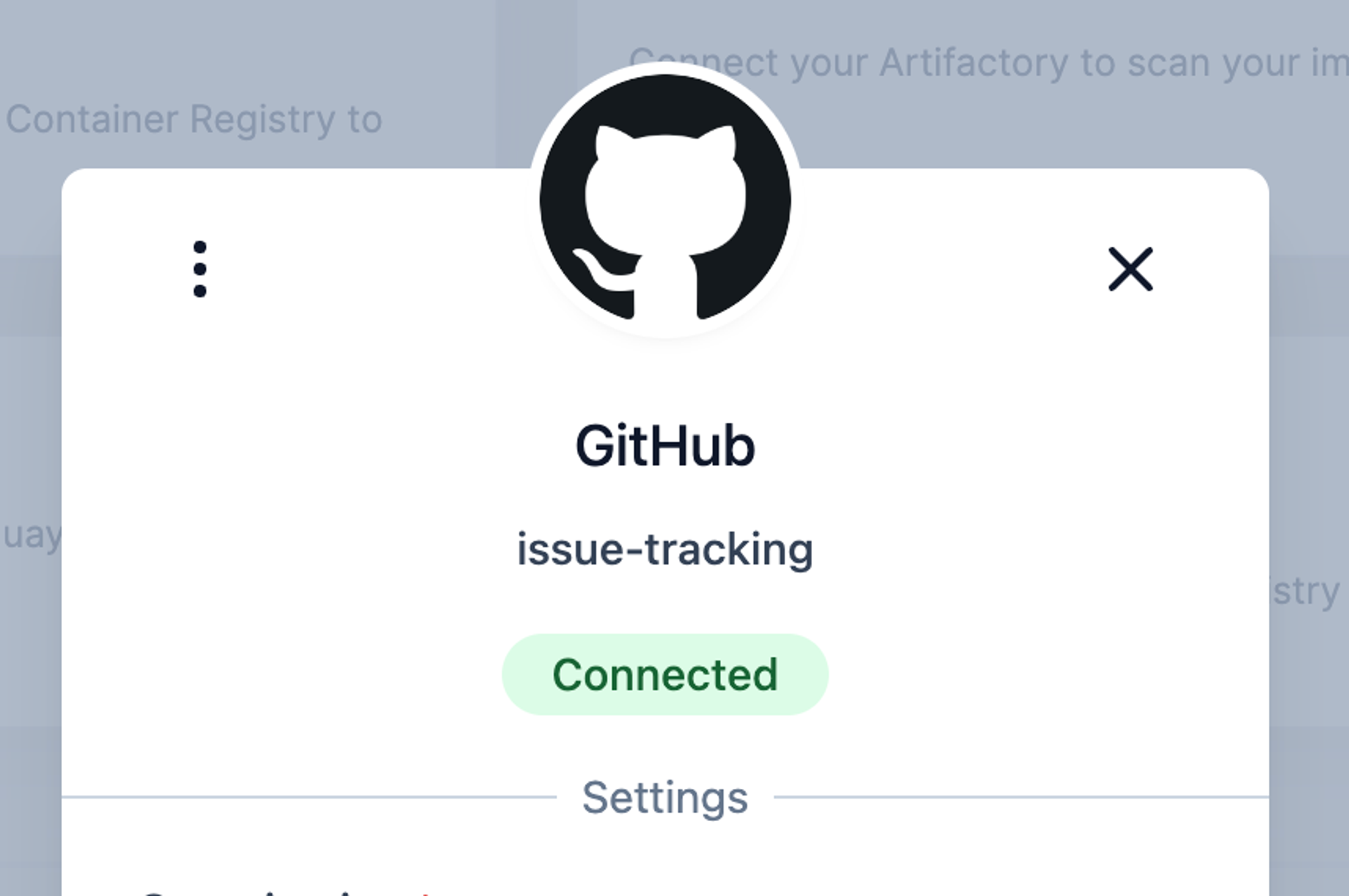 8. Close the modal & open the GitHub Issues Integration page. By default all issues will be synced to the 'Default Repo'. **Contact us** if you'd like to have autosyncing issues to the respective repo.

You can set a Default Label that will be send for all Aikido Issues. These will be synced and appear in GitHub.\

#### Options for Task Creation in GitHub Issues via Aikido
There are two different options to create new tasks from Aikido into GitHub Issues
1. Manually create tasks from the Aikido interface
2. Automatically create new tasks via Aikido's auto creation functionality.
### Manual Task Creation
1. Hover over any issue in your feed and click the ***+*** in the **assignee column.**\
8. Close the modal & open the GitHub Issues Integration page. By default all issues will be synced to the 'Default Repo'. **Contact us** if you'd like to have autosyncing issues to the respective repo.

You can set a Default Label that will be send for all Aikido Issues. These will be synced and appear in GitHub.\

#### Options for Task Creation in GitHub Issues via Aikido
There are two different options to create new tasks from Aikido into GitHub Issues
1. Manually create tasks from the Aikido interface
2. Automatically create new tasks via Aikido's auto creation functionality.
### Manual Task Creation
1. Hover over any issue in your feed and click the ***+*** in the **assignee column.**\
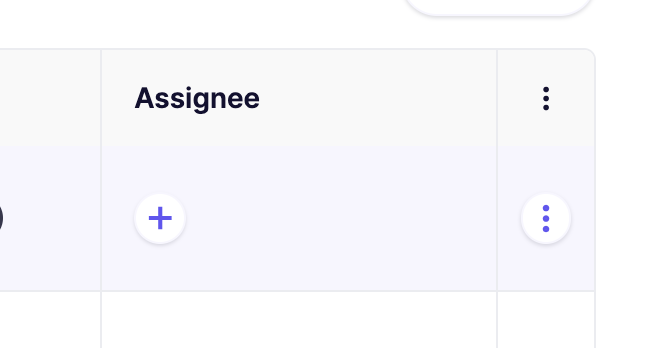 Alternatively, you can click the triple dots in the last columns to open up the action menu. If you have grouped issues, the triple dot action menu is available on every subissue.\
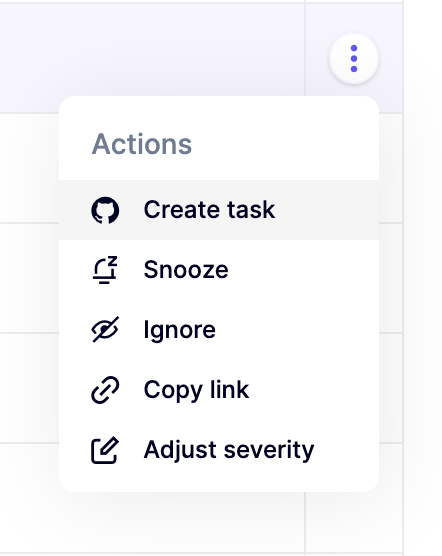 2. Fill in the required details in the popup modal.\
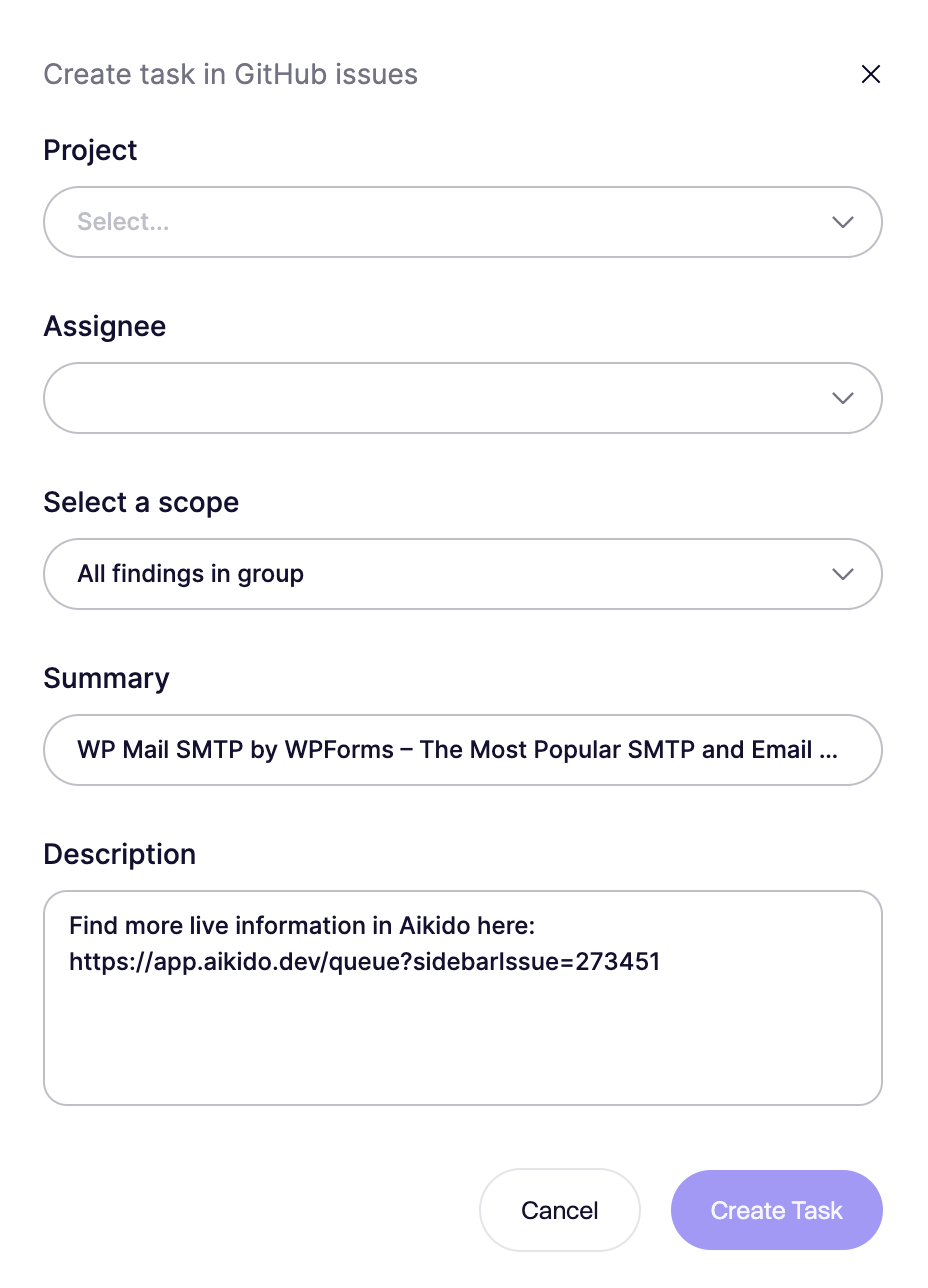
3. The newly created task in GitHub Issues will be linked in the Aikido Issue Detail under the 'Tasks' tab (sidepanel).

### Automated Task Creation
{% hint style="info" %}
Aikido will automatically create tasks **every hour in bulk.** There is at the moment no option to trigger this manually.
{% endhint %}
1. Go to the [GitHub Integration](https://app.aikido.dev/settings/integrations/tasktracker) settings page
2. Make sure to enable '**Autocreation**' by clicking the toggle to **On.**
3. Define the criteria for automatic task creation.
You can configure all of these settings in the autocreation modal:
* **On/Off:** Enable or disable autocreation. When off, the threshold is effectively set to `None`.
* **Severity threshold:** Create tickets for issues at `Critical`, `High`, `Medium`, or `Low` and above. For example, `High` creates tickets for `High` and `Critical`.
* **Issue types:** Create tickets for all issue types, or limit them to specific types like `SCA`, `SAST`, `Secrets`, `Cloud`, `IaC`, `Malware`, or `License`.
* **Daily limit:** Set the maximum number of tickets created per day. The default is `25`. Some plans support higher limits.
* **Ticket creation mode:** Create one ticket per issue group, or create separate tickets per location or scope. Per-location mode can create more tickets.
* **Scope:** Available only in per-location mode. Target all repos or clouds, only mapped repos or teams, or specific repos or clouds with include and exclude lists.
3. The newly created task in GitHub Issues will be linked in the Aikido Issue Detail under the 'Tasks' tab (sidepanel).

### Automated Task Creation
{% hint style="info" %}
Aikido will automatically create tasks **every hour in bulk.** There is at the moment no option to trigger this manually.
{% endhint %}
1. Go to the [GitHub Integration](https://app.aikido.dev/settings/integrations/tasktracker) settings page
2. Make sure to enable '**Autocreation**' by clicking the toggle to **On.**
3. Define the criteria for automatic task creation.
You can configure all of these settings in the autocreation modal:
* **On/Off:** Enable or disable autocreation. When off, the threshold is effectively set to `None`.
* **Severity threshold:** Create tickets for issues at `Critical`, `High`, `Medium`, or `Low` and above. For example, `High` creates tickets for `High` and `Critical`.
* **Issue types:** Create tickets for all issue types, or limit them to specific types like `SCA`, `SAST`, `Secrets`, `Cloud`, `IaC`, `Malware`, or `License`.
* **Daily limit:** Set the maximum number of tickets created per day. The default is `25`. Some plans support higher limits.
* **Ticket creation mode:** Create one ticket per issue group, or create separate tickets per location or scope. Per-location mode can create more tickets.
* **Scope:** Available only in per-location mode. Target all repos or clouds, only mapped repos or teams, or specific repos or clouds with include and exclude lists.