> For the complete documentation index, see [llms.txt](https://help.aikido.dev/llms.txt). Markdown versions of documentation pages are available by appending `.md` to page URLs; this page is available as [Markdown](https://help.aikido.dev/getting-started/task-management-systems/all-supported-task-trackers/servicenow.md).
# ServiceNow
This one-time setup *per workspace* allows everyone in your Aikido organization to create issues directly in ServiceNow.
Following use cases are supported:
* **Automated Ticket Creation**: Automatically create and push tickets to ServiceNow for seamless tracking of security issues.
* **Manual Ticket Addition**: Manually add security issue tickets to ServiceNow, ensuring targeted attention for critical vulnerabilities.
{% hint style="info" %}
Aikido currently pushes tickets to the **Incident** table in ServiceNow. Support for additional tables can be requested via Support.
{% endhint %}
### Prerequisites: Register an OAuth App in ServiceNow
Before connecting Aikido, you'll need to register an OAuth application in your ServiceNow instance to generate a **Client ID** and **Client Secret**.
{% stepper %}
{% step %}
**Activate the OAuth 2.0 plugin**
Log in to your ServiceNow instance and activate the OAuth 2.0 plugin if it isn't already.
{% endstep %}
{% step %}
**Enable OAuth system property**
In the `sys_properties` table, set the system property `com.snc.platform.security.oauth.is.active` to `true`.
{% endstep %}
{% step %}
**Open the Application Registry**
Navigate to **System OAuth > Application Registry**.
{% endstep %}
{% step %}
**Create a new OAuth endpoint**
Click **New**, then select **Create an OAuth API endpoint for external clients**.
{% endstep %}
{% step %}
**Configure the application**
Set the following fields:
* **Name**: A unique name (e.g. `Aikido`)
* **Client ID**: Auto-generated by ServiceNow
* **Client Secret**: Auto-generated by ServiceNow
* **Redirect URI**: `https://unify.apideck.com/vault/callback`
* **Refresh Token Lifespan**: Time in seconds the refresh token is valid
* **Access Token Lifespan**: Set to `3600`
* **Scope Restriction**: Set to **Broadly scoped**
{% hint style="info" %}
The default `Securely scoped` will cause API calls to fail.
{% endhint %}
{% endstep %}
{% step %}
**Save and copy credentials**
Click **Submit**, then reopen the record to copy the **Client ID** and **Client Secret** values.
{% endstep %}
{% endstepper %}
{% hint style="info" %}
Note: the ticket creation is linked to the user who has set up the integration. We recommend creating a dedicated 'Aikido' user inside ServiceNow with write access to the Incident table.
{% endhint %}
### Connecting the Aikido App to ServiceNow
{% stepper %}
{% step %}
**Open the integration**
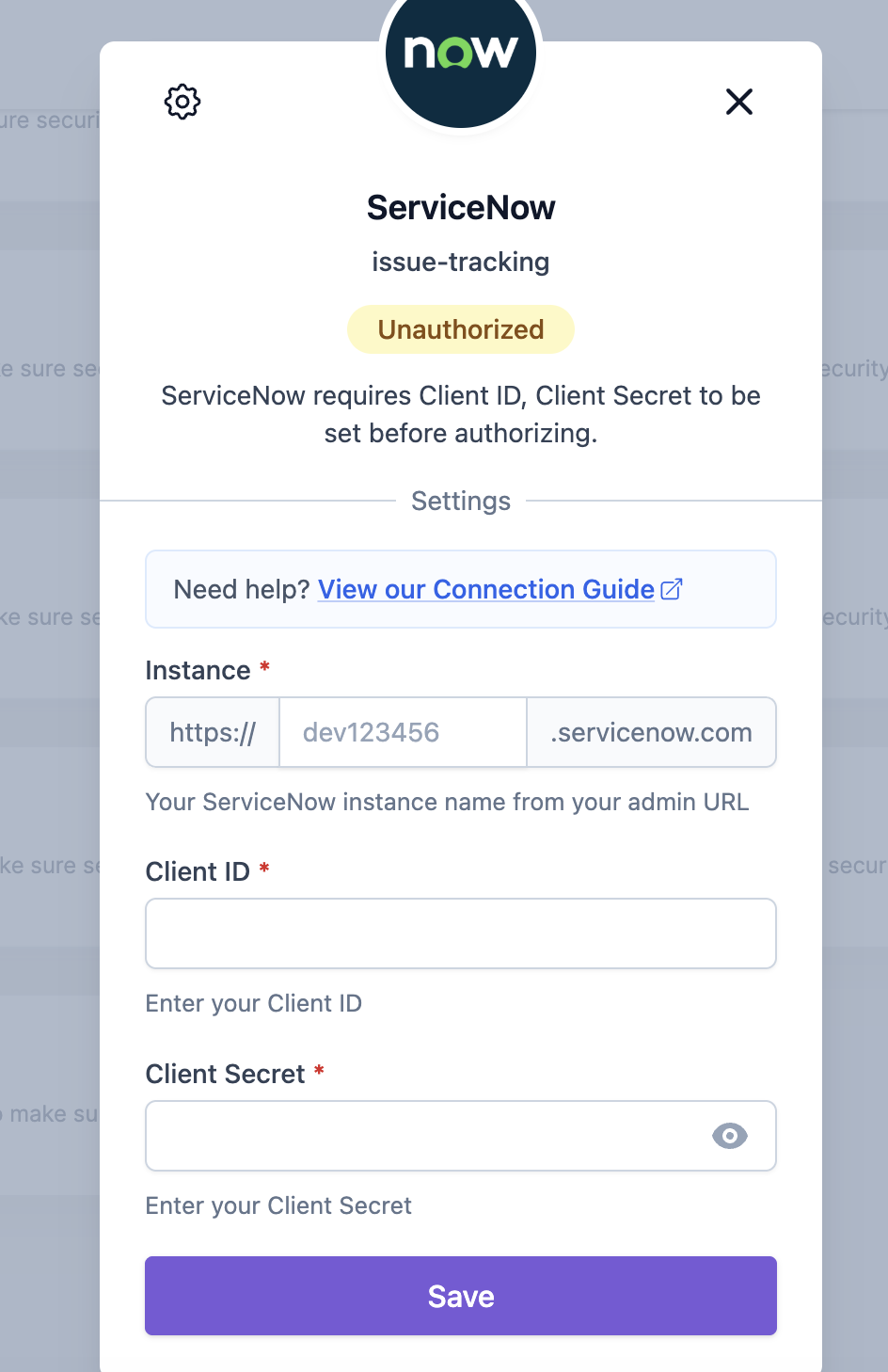
Navigate to [Integration Settings](https://app.aikido.dev/settings/integrations) within the Aikido app. In the 'Task Trackers' section, select **ServiceNow**.
{% endstep %}
{% step %}
**Fill in your credentials**
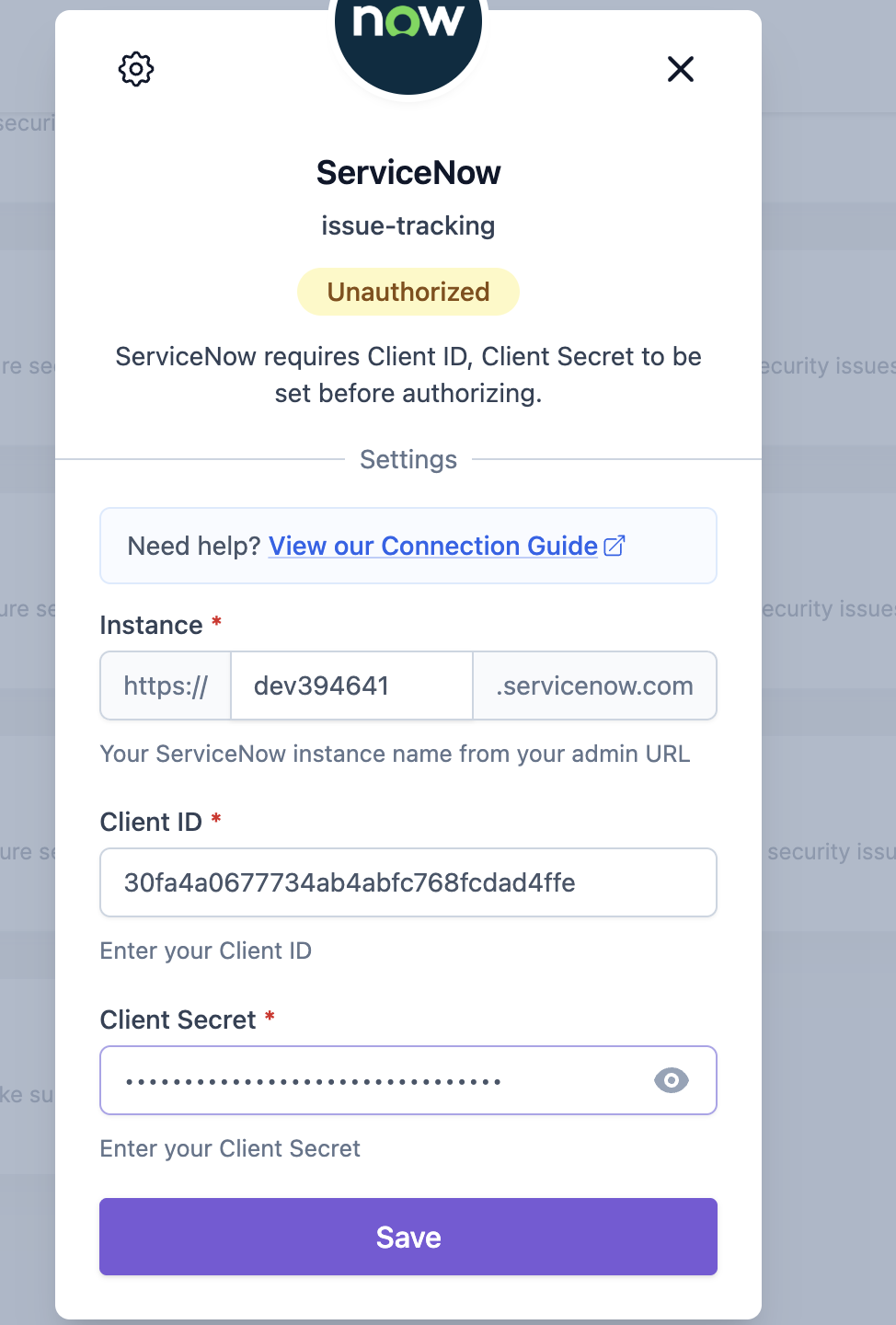
Enter your ServiceNow **instance name**, **Client ID**, and **Client Secret**, then click **"Save"**.
{% hint style="info" %}
Your ServiceNow **instance name** is the subdomain in your admin URL (e.g. `dev394641` from `https://dev394641.servicenow.com`).
{% endhint %}
{% endstep %}
{% step %}
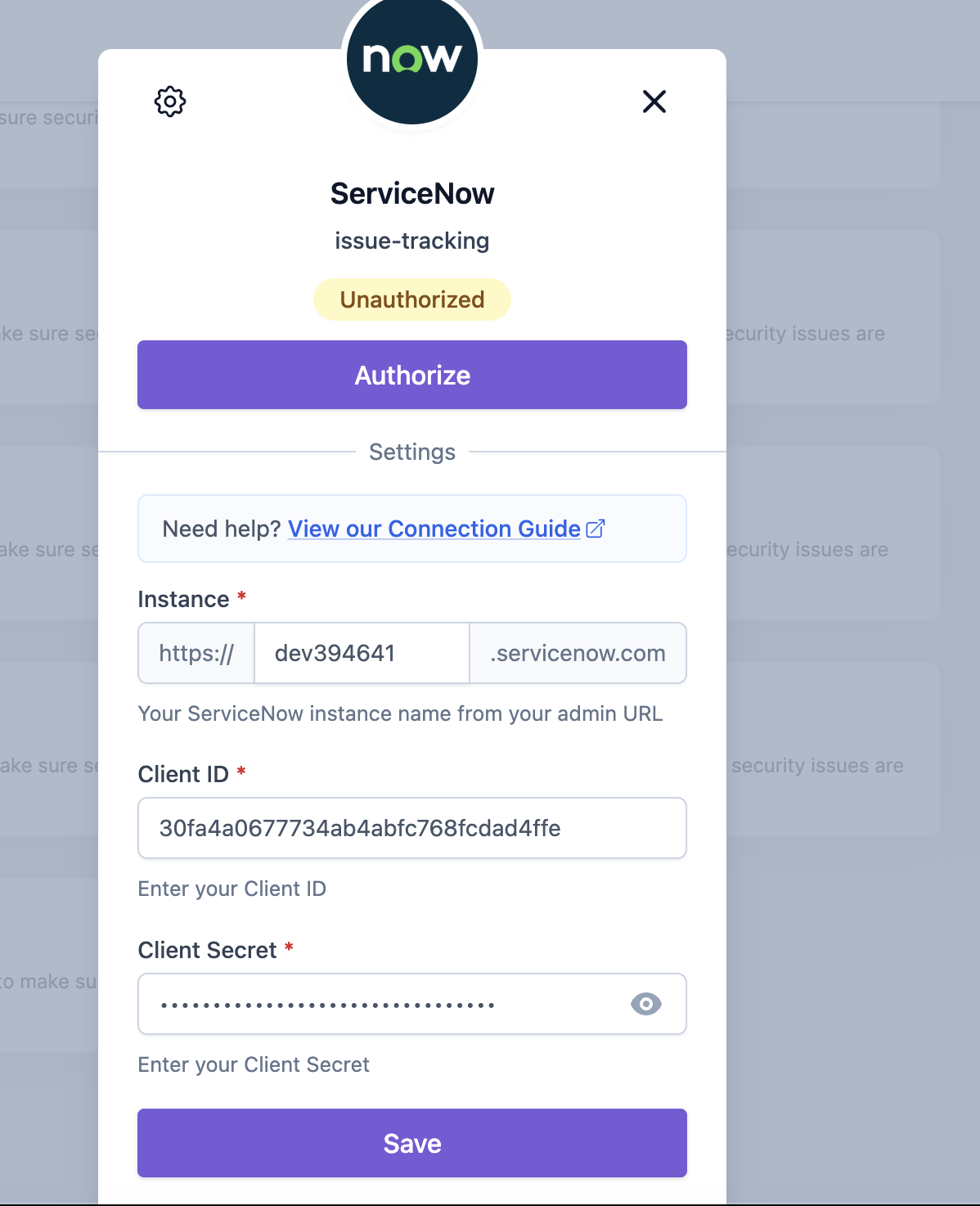
**Authorize the connection**
Click **"Authorize"** to grant Aikido access to your ServiceNow instance.
{% endstep %}
{% step %}
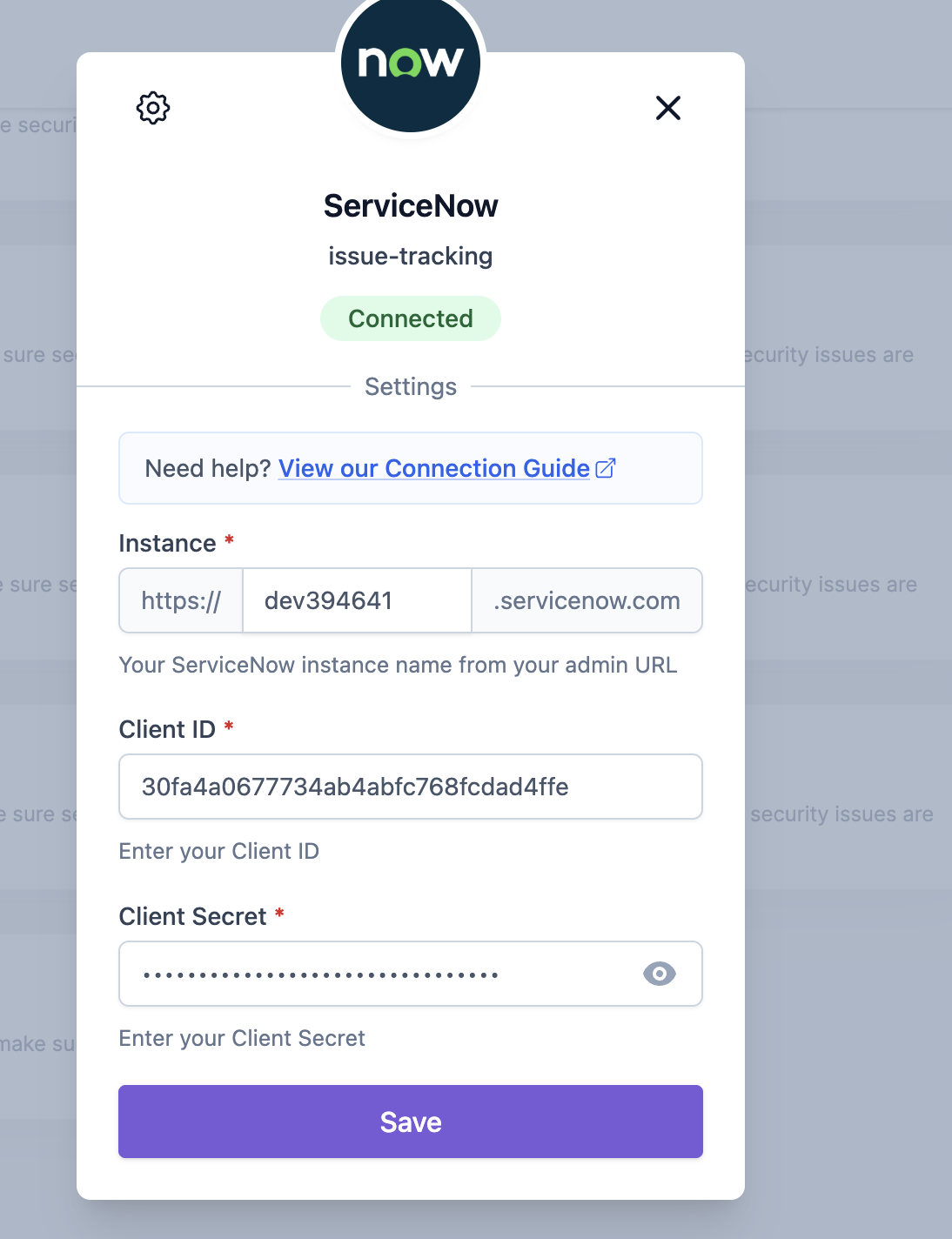
**Confirm**
Click **"Save"** once more to complete the setup. Aikido is now connected to ServiceNow.
{% endstep %}
{% endstepper %}
### Options for Task Creation in ServiceNow via Aikido
There are two different options to create new tasks from Aikido into ServiceNow.
#### 1. Manual Task Creation
1. Hover over any issue in your feed and click the ***+*** in the **assign column.** Alternatively, you can click the triple dots in the last column to open up the action menu. If you have grouped issues, the triple dot action menu is available on every subissue.\
\

2. Fill in the required details in the popup modal.\
\

3. The newly created task in ServiceNow will be linked in the Aikido Issue Detail under the 'Tasks' tab.
#### 2. Automated Task Creation
{% hint style="info" %}
Aikido will automatically create tasks **every hour in bulk.** There is at the moment no option to trigger this manually.
{% endhint %}
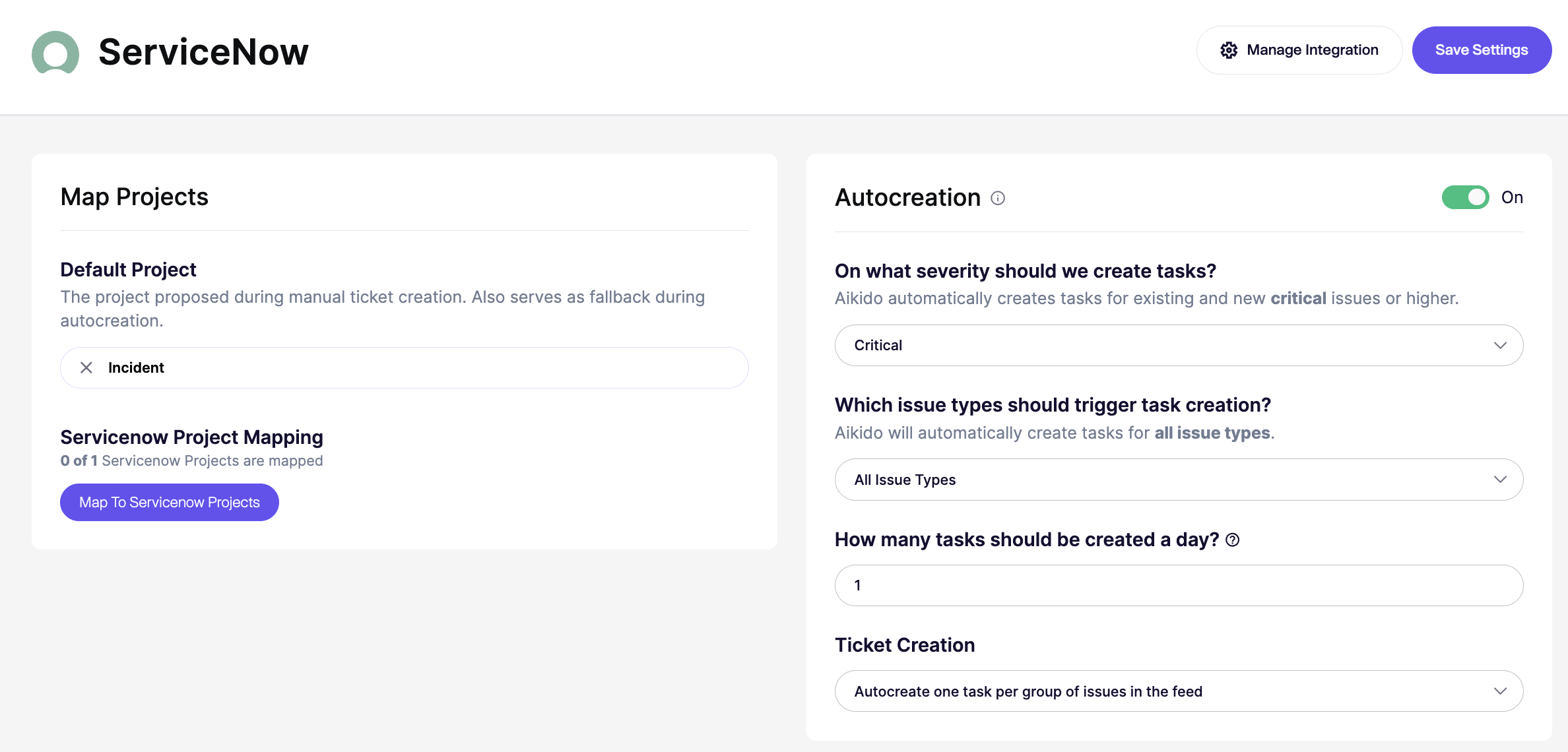
1. Go to the [ServiceNow Integration](https://app.aikido.dev/settings/integrations/tasktracker) settings
2. Make sure to enable '**Autocreation**' by clicking the toggle to **On.**
3. Define the criteria for automatic task creation.
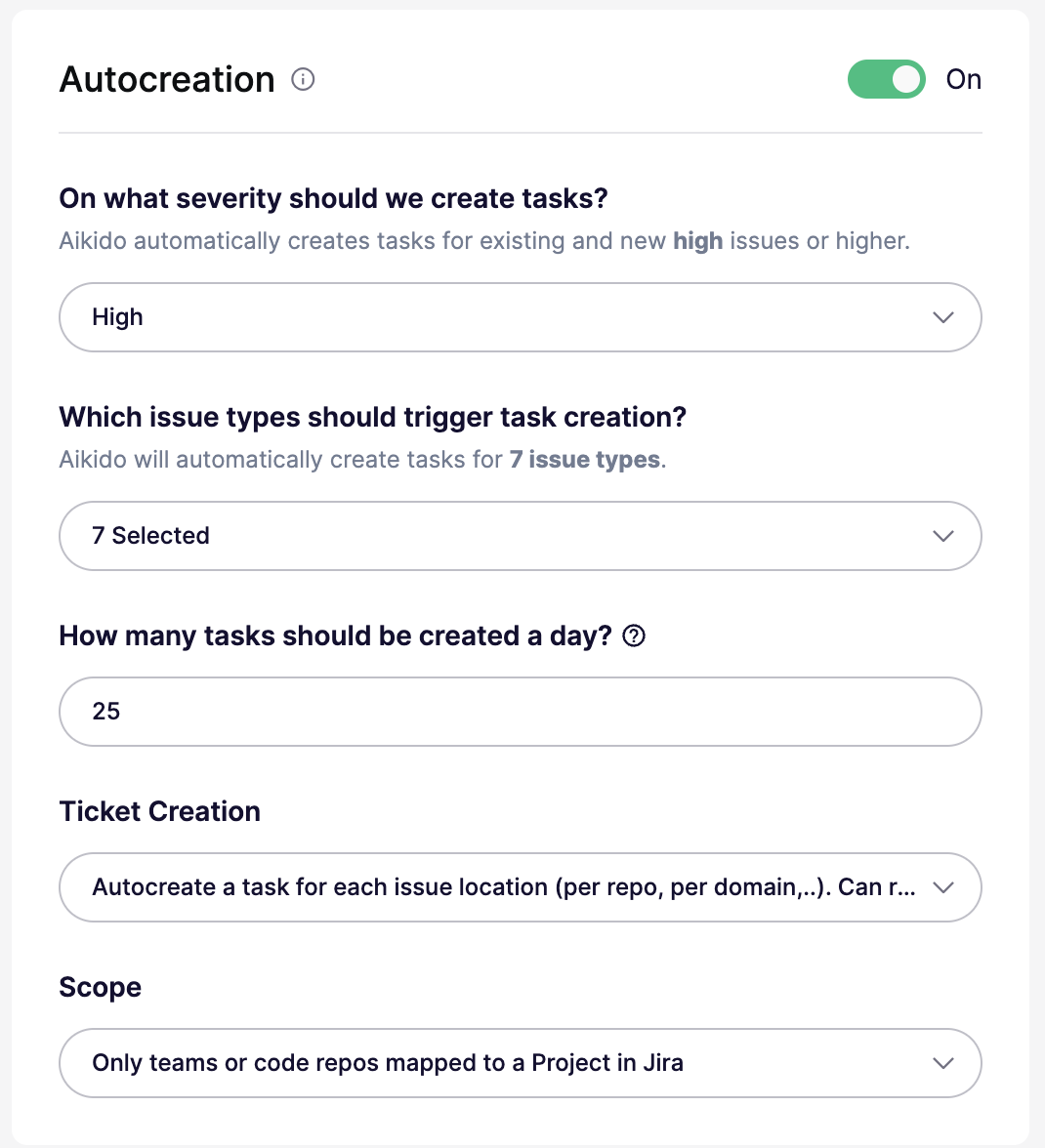
You can configure all of these settings in the autocreation modal:
* **On/Off:** Enable or disable autocreation. When off, the threshold is effectively set to `None`.
* **Severity threshold:** Create tickets for issues at `Critical`, `High`, `Medium`, or `Low` and above. For example, `High` creates tickets for `High` and `Critical`.
* **Issue types:** Create tickets for all issue types, or limit them to specific types like `SCA`, `SAST`, `Secrets`, `Cloud`, `IaC`, `Malware`, or `License`.
* **Daily limit:** Set the maximum number of tickets created per day. The default is `25`. Some plans support higher limits.
* **Ticket creation mode:** Create one ticket per issue group, or create separate tickets per location or scope. Per-location mode can create more tickets.
* **Scope:** Available only in per-location mode. Target all repos or clouds, only mapped repos or teams, or specific repos or clouds with include and exclude lists.
4. Aikido will autonomously generate ServiceNow tickets hourly until the configured daily limit of tasks is reached.
### ServiceNow Sync
Aikido automatically syncs a couple of fields to ServiceNow:
* Severity is mapped to the 'Priority' field in ServiceNow
* Assignees are synced both ways (so updates in ServiceNow will be reflected in Aikido too)
---
# Agent Instructions
This documentation is published with GitBook. GitBook is the documentation platform designed so that both humans and AI agents can read, navigate, and reason over technical content effectively. Learn more at gitbook.com.
## Querying This Documentation
If you need additional information that is not directly available in this page, you can query the documentation dynamically by asking a question.
Perform an HTTP GET request on the current page URL with the `ask` query parameter, and the optional `goal` query parameter:
```
GET https://help.aikido.dev/getting-started/task-management-systems/all-supported-task-trackers/servicenow.md?ask=&goal=
```
`ask` is the immediate question: it should be specific, self-contained, and written in natural language.
`goal` is optional and describes the broader end goal you are ultimately trying to accomplish on behalf of the user. GitBook uses it to tailor the answer towards what is most useful for that goal.
The response will contain a direct answer to the question and relevant excerpts and sources from the documentation.
Use this mechanism when the answer is not explicitly present in the current page, you need clarification or additional context, or you want to retrieve related documentation sections.