> For the complete documentation index, see [llms.txt](https://help.aikido.dev/llms.txt). Markdown versions of documentation pages are available by appending `.md` to page URLs; this page is available as [Markdown](https://help.aikido.dev/pentests/configure-a-pentest/pentesting-with-the-broker.md).
# Set Up a Pentest with the Broker
Use the Aikido Broker for a pentest only when you cannot allowlist Aikido's IP addresses.
Allowlisting Aikido's [pentest IP addresses](/pentests/prepare-a-pentest/ip-addresses-for-pentest.md) is the straightforward way to let a pentest reach your application. Add those IPs to your firewall, WAF, or security group and follow [How to Setup a Pentest](/pentests/configure-a-pentest/starting-an-assessment.md). That avoids installing anything in your network.
Use this page only when you cannot allowlist those IPs, because the application lives on a private network, VPN, or intranet that cannot accept inbound traffic from the public internet. In that case the Aikido Broker runs inside your infrastructure and forwards pentest traffic to the internal URLs you allow. If the application is public and only some services are internal, add both in the same assessment. See [Combine broker and public domains](#combine-broker-and-public-domains).
{% hint style="warning" %}
Run the pentest on a staging or QA environment, not production. Agents may create, change, or delete data to confirm a finding. [Why use a testing environment?](/pentests/prepare-a-pentest/why-use-a-testing-environment.md)
{% endhint %}
## What you need
* The [Aikido Broker](/miscellaneous-info/aikido-broker-for-internal-applications.md) installed on a host that can reach the internal application, and connected to the same Aikido region as your workspace.
* Each internal URL added as a broker resource. Aikido can only reach URLs you register.
* **Manage Pentests** [permission](/getting-started/automated-user-management/setting-roles-and-permissions.md) and enough [credits](/miscellaneous-info/wallet-and-credits.md).
{% hint style="info" %}
If you cannot open [Broker Clients](https://app.aikido.dev/settings/integrations/broker/clients), or **Add Broker Domain** never appears in the pentest wizard, contact support from the Aikido dashboard. Broker access is enabled per workspace.
{% endhint %}
## How traffic reaches the application
1. You add the internal URL as a broker resource. Aikido generates a Broker URL for it.
2. In the pentest wizard you pick that resource. The scope stores your internal URL, and Aikido sends traffic to the Broker URL.
3. The broker, running inside your network, forwards the request to the internal service.
The broker needs outbound HTTPS to your region's broker host. Your application does not need to accept connections from the public internet.
Keep the broker running for the whole assessment. If it stops, connectivity checks, login preflight, and the pentest itself cannot reach the application.
## Set up the assessment
{% stepper %}
{% step %}
### Register the internal URLs
On [Broker Clients](https://app.aikido.dev/settings/integrations/broker/clients), open your broker client and add a resource for every internal URL the pentest should reach. That includes the application itself and any internal API, auth service, or dependency the agents should be allowed to call.
Examples:
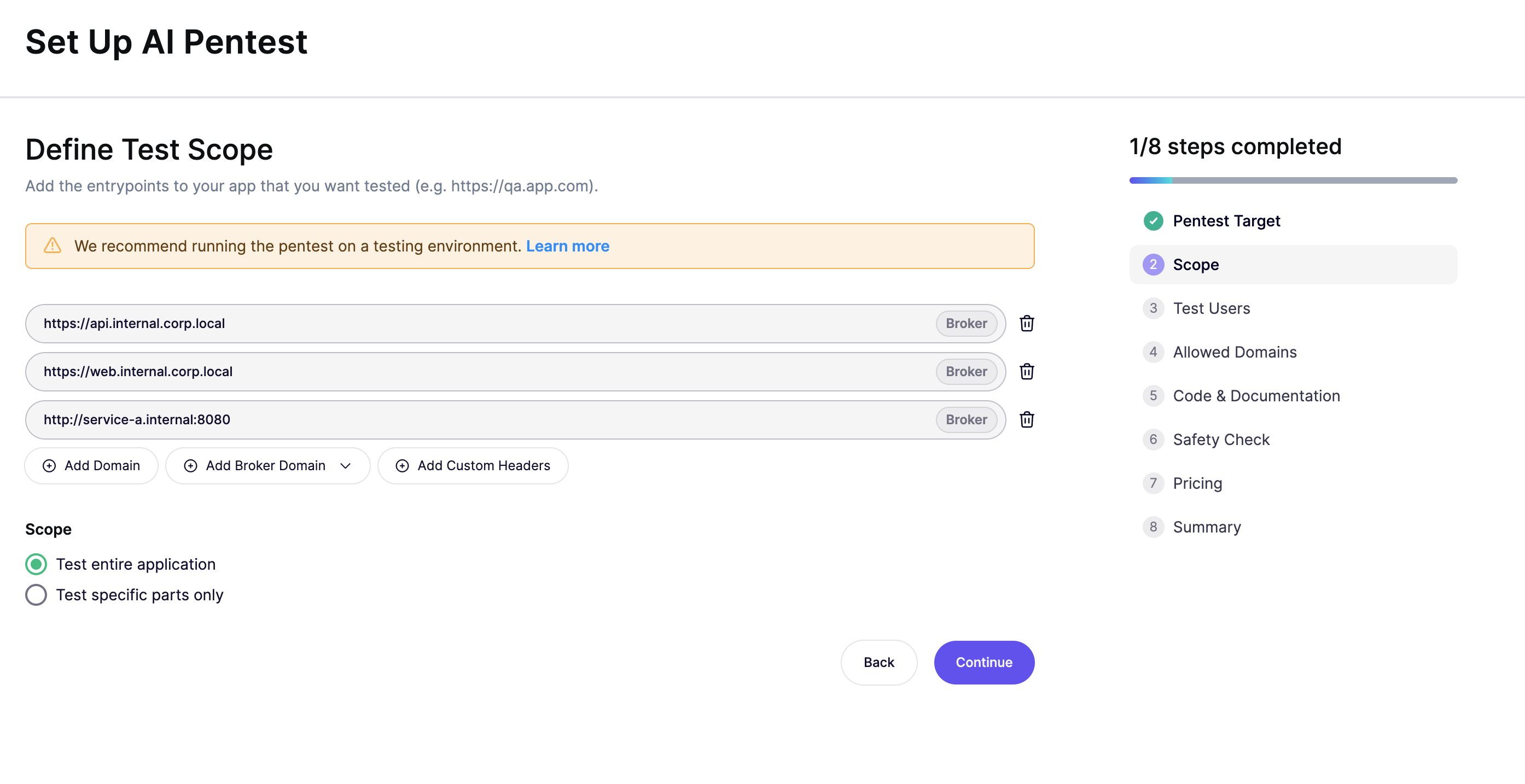
* `https://web.internal.corp.local`
* `https://api.internal.corp.local`
* `http://service-a.internal:8080`
Confirm the broker is connected before you create the assessment. Installation, region, DNS, and certificate settings are covered in [Aikido Broker for Internal Applications](/miscellaneous-info/aikido-broker-for-internal-applications.md).
{% endstep %}
{% step %}
### Add the broker domain to scope
Go to **Pentests**, open your **Project**, and click **Create Assessment**. On **Define Test Scope**, click **Add Broker Domain** and select each internal URL.
Each field shows the internal URL with a **Broker** label. The field is locked so the scope stays tied to that resource. Hover the label to see the Broker URL Aikido will call.
You can also paste the internal URL or the Broker URL into a domain field. If it matches a resource in this workspace, Aikido treats it as that broker domain.
To include a public URL in the same assessment, click **Add Domain** and enter it next to the broker domains. See [Combine broker and public domains](#combine-broker-and-public-domains).
Choose **Test entire application** or **Test specific parts only**, the same as a public pentest. See [How to Setup a Pentest](/pentests/configure-a-pentest/starting-an-assessment.md) for the rest of the wizard.
{% endstep %}
{% step %}
### Pass the connectivity check
Aikido checks that it can reach each target before you continue. For a broker domain, the check goes through the broker, so the broker must be running and the resource URL must be allowed by `ALLOWED_INTERNAL_SUBNETS`. A public domain in the same assessment is checked directly.
If a broker domain fails, run the broker diagnostics in [Troubleshooting](/miscellaneous-info/aikido-broker-for-internal-applications.md#troubleshooting) before you retry. If a public domain fails, check the firewall, WAF, and DNS allowlist.
{% endstep %}
{% step %}
### Review other domains
On **Review Discovered Domains**, mark domains the application talks to as **Attackable** or **Accessible**. Requests to anything else are blocked.
Internal dependencies are not reachable unless they are broker resources too. Add them on Broker Clients first, then paste the internal URL or Broker URL into this step. Aikido marks a match with the **Broker** label.
Public domains the app calls (identity providers, CDNs, third-party APIs) stay normal allowlist entries. Allowlist those the same way you would for a public pentest.
{% endstep %}
{% step %}
### Authenticate and launch
On **Test Users**, login instructions use the internal URL, not the Broker URL. Write the steps the way a person on your network would log in.
Finish **Code & Documentation**, **Safety**, and **Pricing**, then click **Run Assessment**. Leave the broker running until the assessment completes.
{% endstep %}
{% endstepper %}
## Combine broker and public domains
One assessment can include a public URL and an internal URL. Use that when the application is reachable from the internet, but an API or another service only exists on your private network.
* **Public URLs.** Add them with **Add Domain**. Complete [domain verification](/pentests/configure-a-pentest/domain-verification.md) and allowlist [pentest IP addresses](/pentests/prepare-a-pentest/ip-addresses-for-pentest.md), the same as a public pentest.
* **Internal URLs.** Register them as broker resources, then add them with **Add Broker Domain**. They do not need an inbound allowlist.
* **Connectivity check.** Aikido checks each target on its own path. A failure on a public host is a firewall, WAF, or DNS problem. A failure on a broker host is the broker, `ALLOWED_INTERNAL_SUBNETS`, or DNS inside your network.
* **When to use the broker.** Send a hostname through the broker only when it is not reachable from the public internet.
Public domains the application calls, such as identity providers, CDNs, and third-party APIs, stay allowlist entries on **Review Discovered Domains**. Mark one **Attackable** only if it should be a pentest target.
## What is different from a public pentest
* **No inbound allowlist for broker targets.** Traffic to an internal URL enters through the broker's outbound connection. Allowlisting [pentest IPs](/pentests/prepare-a-pentest/ip-addresses-for-pentest.md) does not help that URL, and is not required for it. A public URL in the same assessment still needs the allowlist.
* **No public port scan of the internal host.** Aikido does not scan ports on addresses that only exist inside your network. Web and API testing still runs through the broker.
* **Only registered URLs.** Agents cannot follow links to other internal hosts until you add those URLs as broker resources and include them in scope.
## Troubleshooting
**Add Broker Domain is missing.** The workspace does not have broker access, or the broker has no resources yet. Add at least one resource, reload the wizard, and contact support if the button is still absent.
**The connectivity check or login preflight fails.** Confirm the broker container or pod is running, `BROKER_TARGET_URL` matches your workspace region, and the target IP is inside `ALLOWED_INTERNAL_SUBNETS`. Internal hostnames need `DNS_SERVERS` when public DNS cannot resolve them. Private CAs need `NODE_EXTRA_CA_CERTS`.
**The assessment starts, then requests fail.** The broker stopped, or the resource was removed. Restore the broker and the resource, then retest. Requests still in flight while the broker is down will fail.
---
# Agent Instructions
This documentation is published with GitBook. GitBook is the documentation platform designed so that both humans and AI agents can read, navigate, and reason over technical content effectively. Learn more at gitbook.com.
## Querying This Documentation
If you need additional information that is not directly available in this page, you can query the documentation by asking a question.
Perform an HTTP GET request on the following URL with the `ask` and `goal` query parameters:
```
GET https://help.aikido.dev/pentests/configure-a-pentest/pentesting-with-the-broker.md?ask=&goal=
```
`ask` is the immediate question: it should be specific, self-contained, and written in natural language.
`goal` is what the user is ultimately trying to achieve, the reason they need the answer. Sharing it helps GitBook give you a better, more relevant answer. A goal is most helpful when it describes the outcome the user wants rather than restating the question. For example, with `ask=how do I create an API token`, a goal like `automate deployments from our CI pipeline` lets GitBook tailor the answer to that use case.
The response will contain a direct answer to the question and relevant excerpts and sources from the documentation.
Use this mechanism when the answer is not explicitly present in the current page, you need clarification or additional context, or you want to retrieve related documentation sections.