
Setting Up Test Users
Most critical vulnerabilities, including IDORs, privilege escalations, and logic bugs, live behind your login screen. To find them, Aikido’s Pentest agents need access.
Unlike legacy tools that require complex Selenium scripts or proxy recordings, Aikido uses an LLM-driven approach. You simply tell the agent how to log in using natural language, just like you would explain it to a human QA tester.
Here is how to configure your authentication sets.
Create a Test User
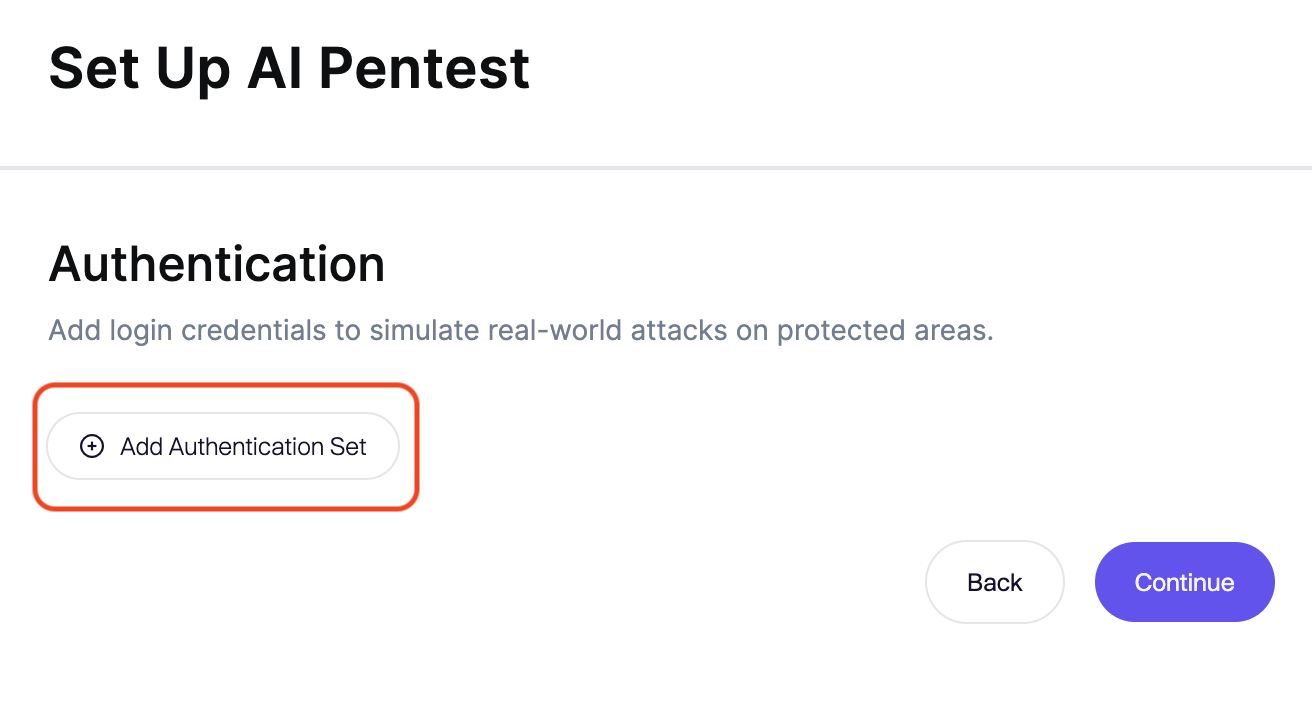
- Click Add Test User.
- Name: Give this set a descriptive name (e.g.,
Admin User,Read-Only User,Tenant A - Manager).
We recommend setting up multiple personas to test for Broken Access Control (BAC) between different privilege levels.
Provide Login Instructions
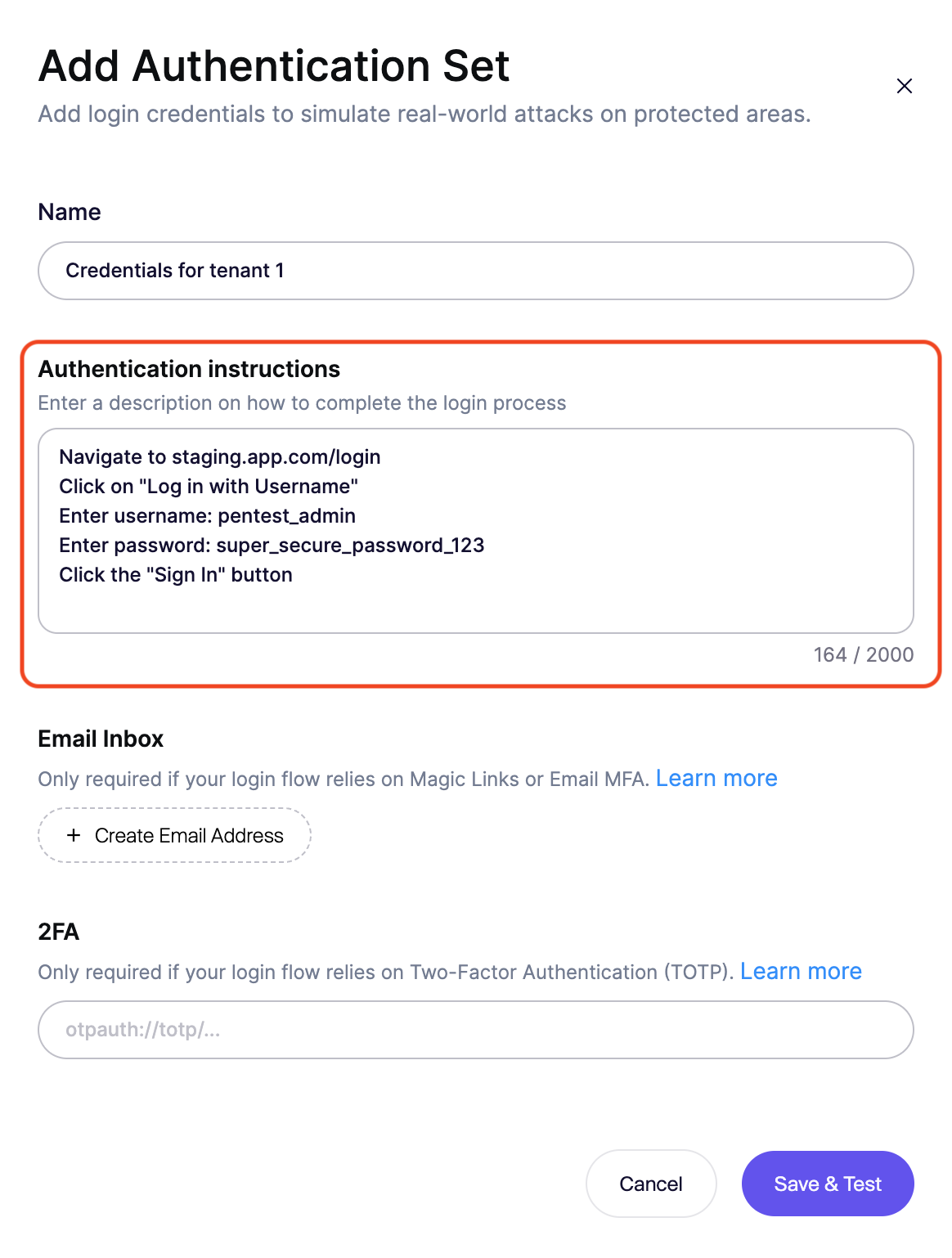
This is the most important step. In the Authentication instructions field, provide a step-by-step text description of your login flow.
The AI agent parses this to navigate your specific UI quirks. Be explicit.
Example format:
Navigate to
staging.app.com/loginClick on "Log in with Username"
Enter username:
pentest_adminEnter password:
super_secure_password_123Click the "Sign In" button
The AI agent is equipped to solve standard Captchas automatically. You do not need to disable these for the scan or provide specific instructions for them.
Test the Configuration
Finally, verify that the agent can interpret your instructions:
- Click Save & Test.
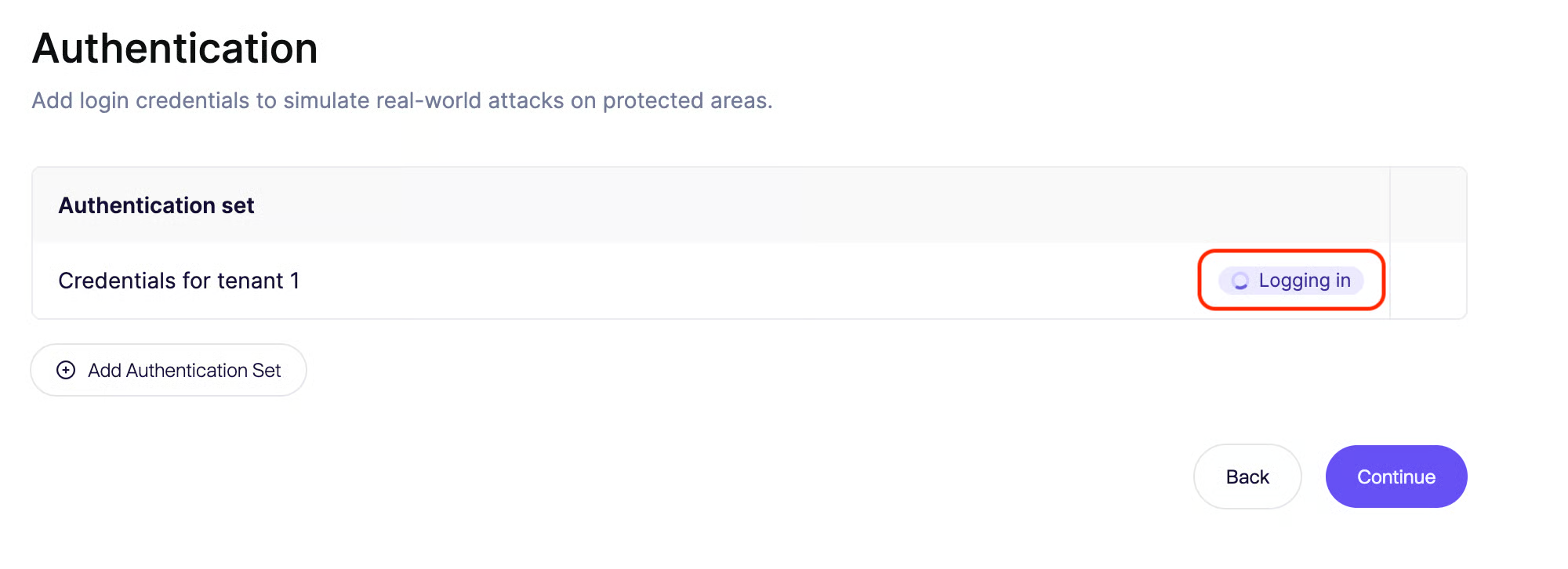
- The agent will launch a browser session and attempt to log in using the credentials and inbox instructions.
- If successful, you will see a confirmation that the agent authenticated and reached the post-login state.
Advanced Login Flows
If your application requires more than a simple username and password, use our specialized tools:
- Email Verification & Magic Links: If you need to click a link in an email or receive a code.
- Two-Factor Authentication (TOTP): If you need to generate 6-digit codes from an authenticator app.
- SMS Verification: If you need to handle SMS-based verification codes.
- Agent Creates New Account: Let the agent generate disposable test users from natural-language instructions, which is useful for multi-role coverage.
- Authenticate with MCP: Connect to a remote MCP server with an endpoint URL and a bearer token.
- Disable Credential Sharing: Give each agent its own test user when the app allows only one active session.
Vendor-Specific Authentication Flows:
- Google Auth: Native support for Google Workspace login flows is available in beta.
- Microsoft Auth: Support for Microsoft accounts with two-step verification.
- Auth0 Configuration: Oauth provider settings required to support session sharing between multiple agents.
OAuth and JWT apps
Aikido Pentest runs many agents in parallel that share a single authenticated session per test user. The same refresh token is reused across agents to keep that session alive throughout the assessment.
For this to work reliably, your identity provider (Auth0, Cognito, Azure AD / Entra ID, Keycloak, custom OIDC, etc.) must be configured so that:
- Refresh tokens are reusable. Disable single-use refresh tokens and refresh token rotation that invalidates the previous token on exchange.
- Refresh token lifetime exceeds your assessment window. A typical pentest can run for several hours, so set the lifetime accordingly (e.g. greater than 7200 seconds).
- Short-lived access tokens (JWTs) are fine as long as refresh works under the rules above.
Common failure mode: With single-use or rotating refresh tokens, the first agent's refresh consumes the token. Other agents reload the stored session with the now-dead token and fail with 403 on refresh, leaving them stuck once the access token expires.
The symptom is a successful preflight followed by mass authentication failures across agents partway through the assessment.
For Auth0, follow the step-by-step settings in Auth0 Configuration. The same checklist applies to other OIDC providers.
If you cannot change the identity provider, turn on Disable Credential Sharing instead. Each agent then uses its own test user, so refresh tokens are not shared.
Best Practices
- Don’t use Production Credentials: Always run pentests on a Staging or QA environment. The scanner performs intrusive tests that can corrupt data.
- Create Dedicated Test Accounts: Do not use personal developer accounts. Create specific accounts for the scanner (e.g.,
aikido-scanner@yourdomain.com). - Cover All Tenants: If your app is multi-tenant, add credentials for users in different tenants (e.g.,
User - Tenant A,User - Tenant B). This allows the AI to test for cross-tenant data leakage.
Troubleshooting
Authentication is verified during the preflight check immediately after launch. You can watch the agent's screen in real-time to see if it succeeds.
If the agent fails to log in:
- Inspect the failure: Check the agent's screenshots in the error log to see exactly where it got stuck.
- Sanity check steps: Walk through your provided instructions manually in an incognito window. If you skipped a step or a button is unclear, the agent might struggle.
- Check accessibility: Is the URL reachable from the public internet? (Check your IP whitelisting).
- Account status: Ensure the test user hasn't been locked out.