> For the complete documentation index, see [llms.txt](https://help.aikido.dev/llms.txt). Markdown versions of documentation pages are available by appending `.md` to page URLs; this page is available as [Markdown](https://help.aikido.dev/pentests/configure-a-pentest/setting-up-authenticated-testing/handling-email-verification-and-magic-links.md).
# Handling Email Verification & Magic Links
Aikido provides a hosted email inbox to allow the AI Pentest agent to navigate authentication flows that require email interaction.
**Use this feature if your application requires:**
* **Magic Links:** Passwordless login via email links.
* **Email MFA:** Two-factor authentication where a code is sent to the inbox.
* **Account Verification:** New users must verify their email before logging in.
{% hint style="info" %}
If your app uses authenticator apps, use [TOTP setup](/pentests/configure-a-pentest/setting-up-authenticated-testing/handling-two-factor-authentication-totp.md).
If your app uses SMS codes, use [SMS Verification](/pentests/configure-a-pentest/setting-up-authenticated-testing/handling-sms-verification.md).
{% endhint %}
### How it works
You generate a unique `@auto-pentest.com` email address within Aikido. This address acts as a bridge:
1. **You** use it to create and verify a valid user account in your application.
2. **The Agent** monitors this inbox during scans to retrieve login codes or click magic links in real-time.
### Setup Guide
{% stepper %}
{% step %}
**Let Aikido create the Email Address**
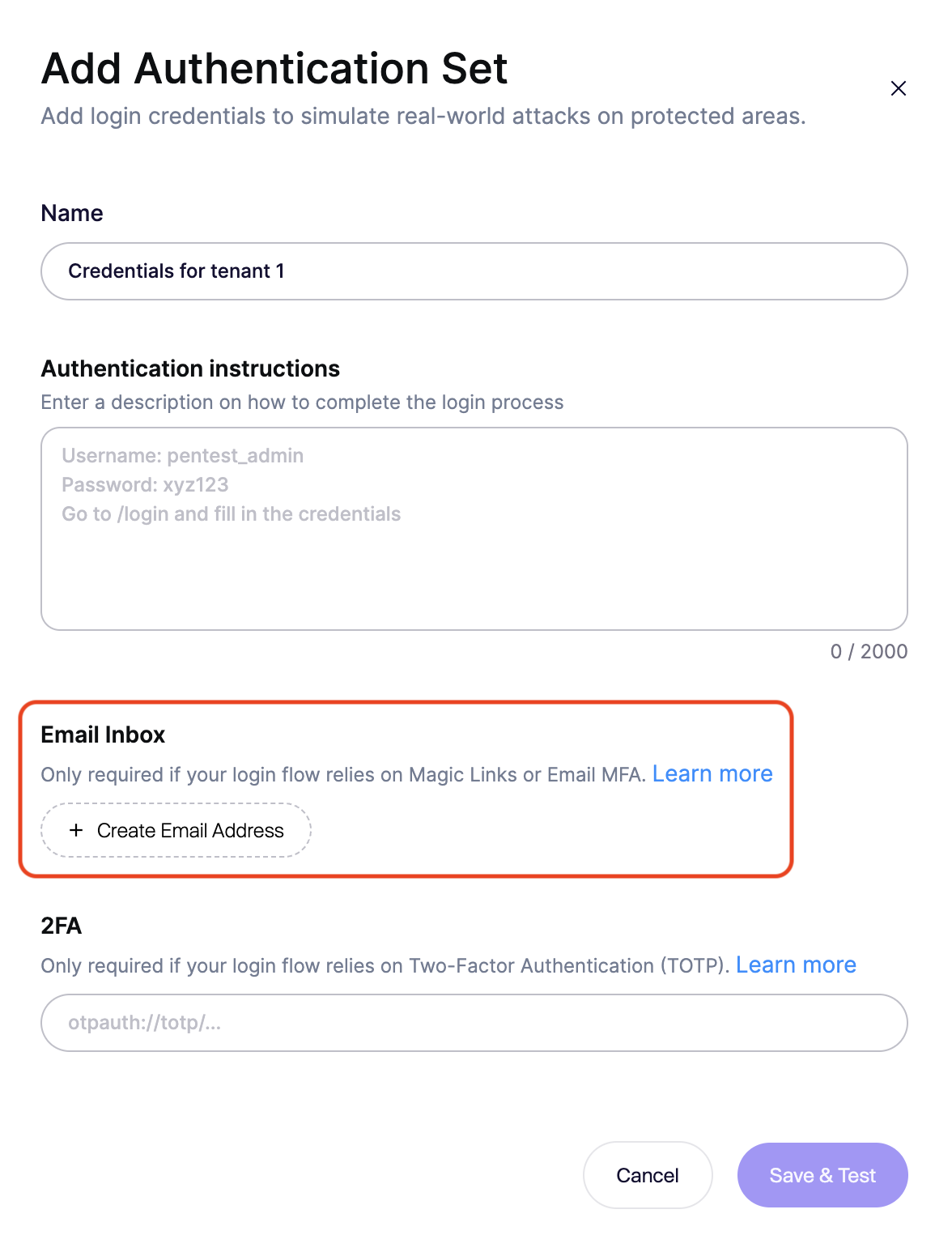
In the **Authentication Set** modal:
1. Scroll to the **Email Inbox** section.
2. Click `+ Generate Email Address`.
3. Copy the address (e.g., `random-name@auto-pentest.com`).
{% endstep %}
{% step %}
**Create the Test User in your application**
Go to your application and sign up a new user using the address you just created.
{% endstep %}
{% step %}
**Verify the Account (if required)**
If your app sends a "Confirm your email" link upon signup:
1. Return to the Aikido modal.
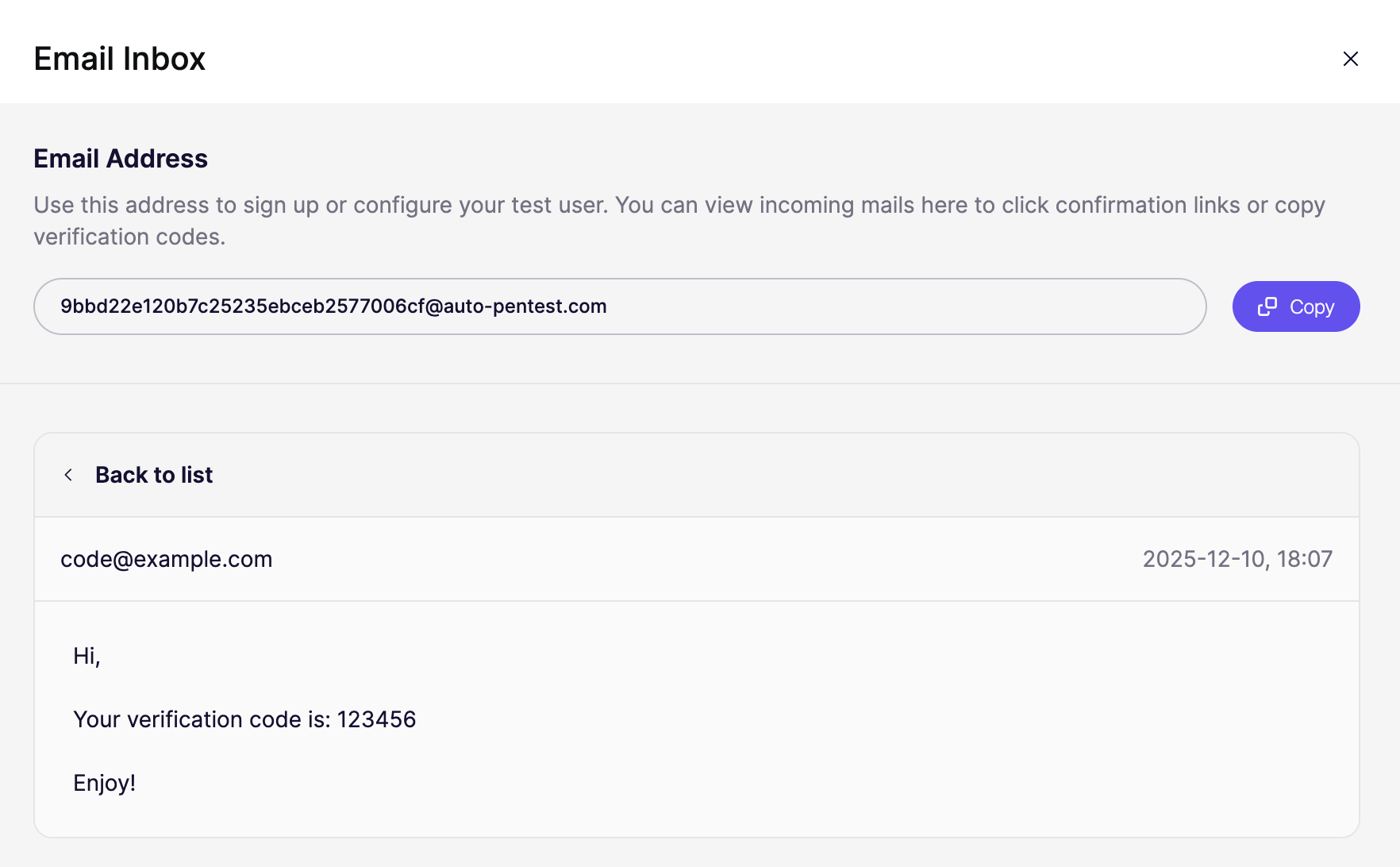
2. Click the **Open Inbox** icon (or click the email address itself).
3. You will see the confirmation email from your app.
4. Open it and click the confirmation link/button to activate the user.
{% endstep %}
{% step %}
**Update Login Logic in Aikido**
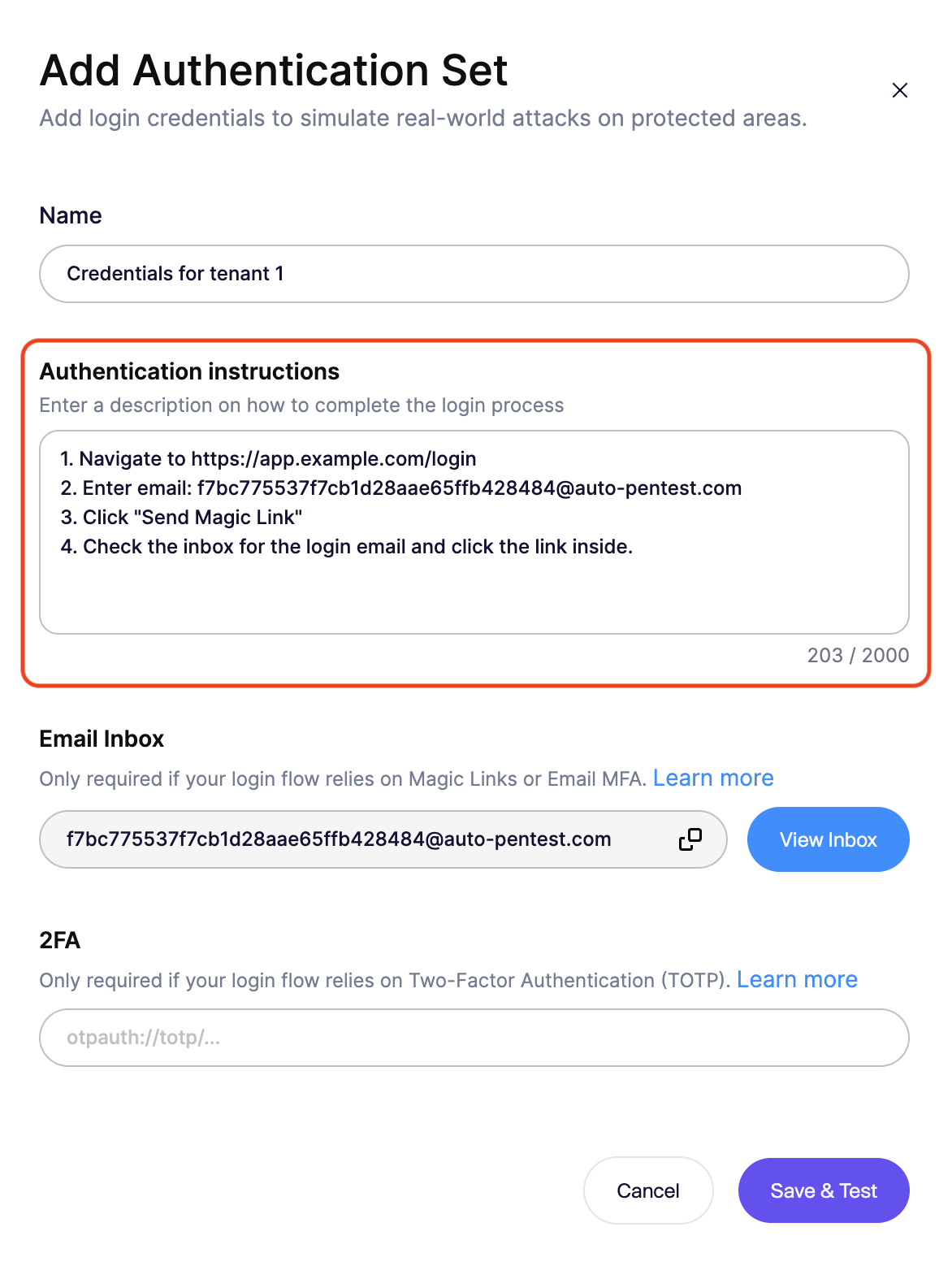
You must explicitly tell the agent to check this inbox in the **Login Logic** text area.
**Example Instruction for Magic Links:**
```
1. Navigate to https://app.example.com/login
2. Enter email: [insert the created email here]
3. Click "Send Magic Link"
4. Check the inbox for the login email and click the link inside.
```
**Example Instruction for Email MFA:**
```
1. Navigate to https://app.example.com/login
2. Enter username and password.
3. When prompted for the code, check the inbox.
4. Extract the 6-digit code from the latest email.
5. Enter the code into the verification field and submit.
```
{% endstep %}
{% step %}
**Test the Configuration**
Finally, verify that the agent can interpret your instructions:
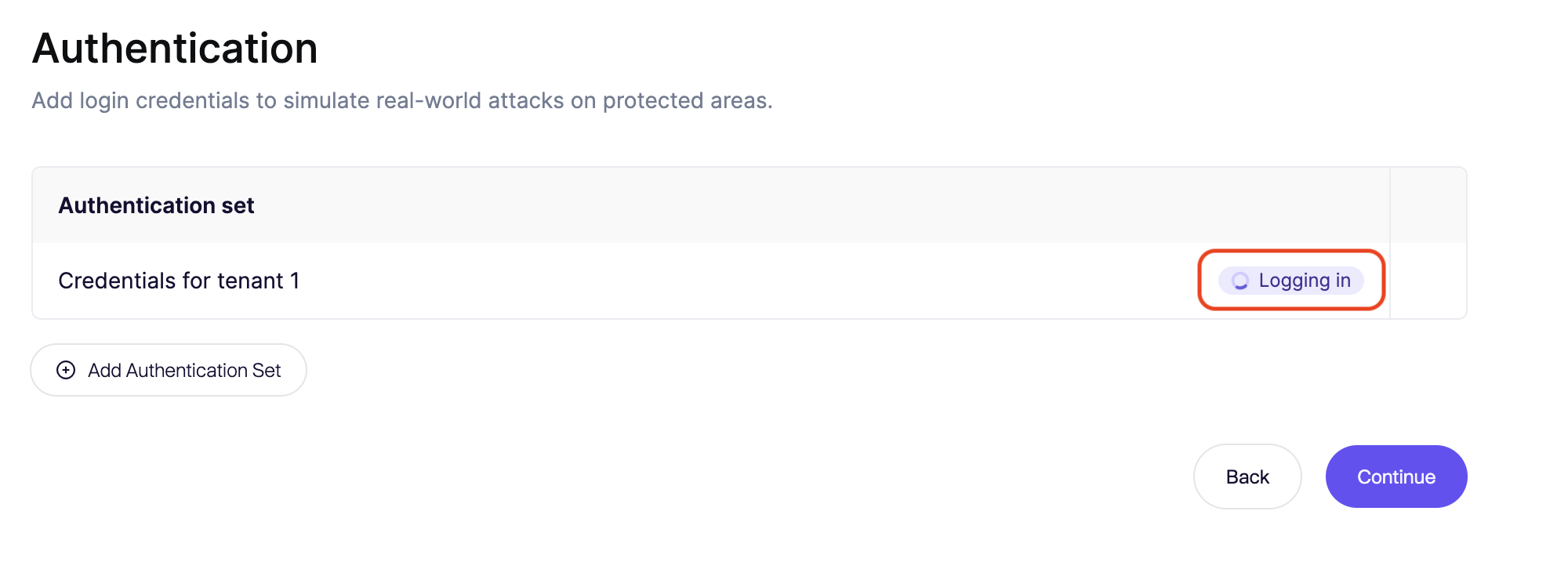
1. Click **Save & Test**.
2. The agent will launch a browser session and attempt to log in using the credentials and inbox instructions.
3. If successful, you will see a confirmation that the agent authenticated and reached the post-login state.
{% endstep %}
{% endstepper %}
---
# Agent Instructions
This documentation is published with GitBook. GitBook is the documentation platform designed so that both humans and AI agents can read, navigate, and reason over technical content effectively. Learn more at gitbook.com.
## Querying This Documentation
If you need additional information that is not directly available in this page, you can query the documentation dynamically by asking a question.
Perform an HTTP GET request on the current page URL with the `ask` query parameter, and the optional `goal` query parameter:
```
GET https://help.aikido.dev/pentests/configure-a-pentest/setting-up-authenticated-testing/handling-email-verification-and-magic-links.md?ask=&goal=
```
`ask` is the immediate question: it should be specific, self-contained, and written in natural language.
`goal` is optional and describes the broader end goal you are ultimately trying to accomplish on behalf of the user. GitBook uses it to tailor the answer towards what is most useful for that goal.
The response will contain a direct answer to the question and relevant excerpts and sources from the documentation.
Use this mechanism when the answer is not explicitly present in the current page, you need clarification or additional context, or you want to retrieve related documentation sections.