> For the complete documentation index, see [llms.txt](https://help.aikido.dev/llms.txt). Markdown versions of documentation pages are available by appending `.md` to page URLs; this page is available as [Markdown](https://help.aikido.dev/pentests/configure-a-pentest/setting-up-authenticated-testing/handling-two-factor-authentication-totp.md).
# Handling Two-Factor Authentication (TOTP)
Aikido's AI agent can generate valid Time-based One-Time Passwords (TOTP) to bypass 2FA screens during authenticated scanning.
**Use this feature if your application requires:**
* **Authenticator Apps:** The login flow asks for a 6-digit code from Google Authenticator, Authy, 1Password, etc.
{% hint style="info" %}
If your app sends codes via Email, use the [Email Verification feature](/pentests/configure-a-pentest/setting-up-authenticated-testing/handling-email-verification-and-magic-links.md).
If your app uses SMS codes, use [SMS Verification](/pentests/configure-a-pentest/setting-up-authenticated-testing/handling-sms-verification.md).
{% endhint %}
### How it works
Instead of scanning a QR code with your phone, you extract the raw **Secret Key** (or `otpauth://` URI) from your application and paste it into Aikido. The agent uses this secret to mathematically generate valid codes on the fly during the scan.
### Setup Guide
{% stepper %}
{% step %}
**Locate the Secret Key**
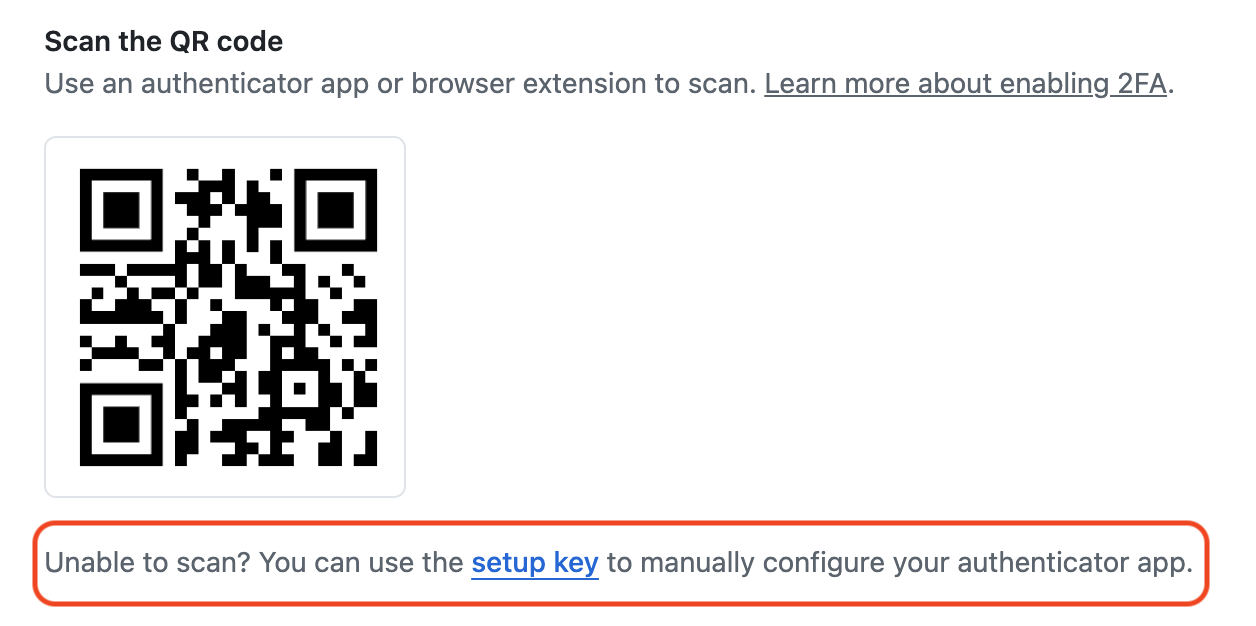
Go to the 2FA setup screen in your target application (where you would normally scan the QR code).
1. Look for a text link that says **"Can't scan the QR code?"**, **"Trouble scanning?"**, or **"View Setup Key"**.
2. Click it to reveal the raw text code (the Secret Key).
3. Copy this string (e.g., `4IKIDOI5AW35OME`).
{% endstep %}
{% step %}
**Configure Aikido**
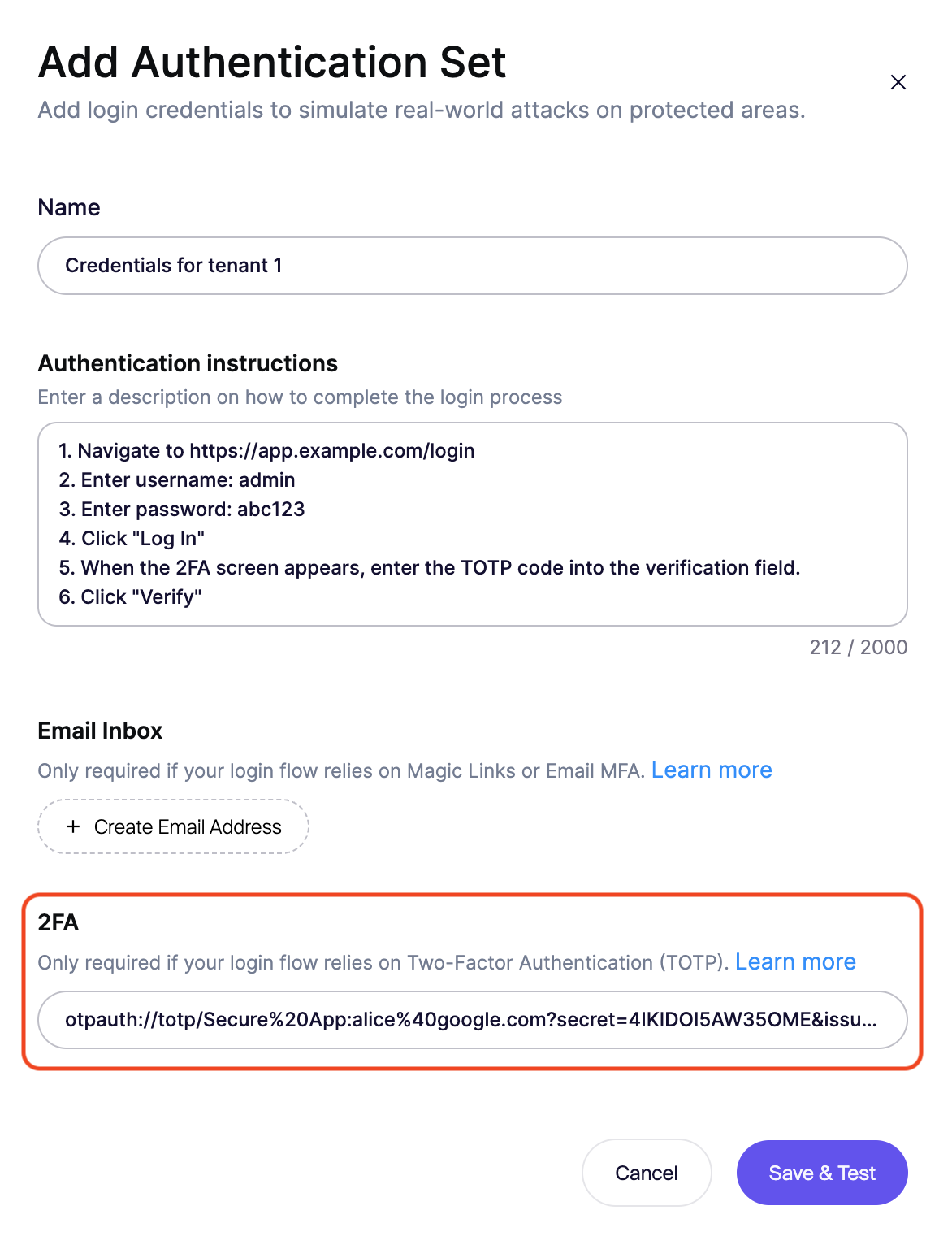
In the Aikido **Authentication Set** modal:
1. Scroll to the **TOTP Setup** section.
2. Paste the Secret Key (or the full `otpauth://` URI) into the input field.
3. The system will validate the format immediately.
{% endstep %}
{% step %}
**Update Login Logic**
You must explicitly tell the agent when to enter the code.
**Example Instruction:**
```
1. Navigate to https://app.example.com/login
2. Enter username: admin
3. Enter password: abc123
4. Click "Log In"
5. When the 2FA screen appears, generate a TOTP code and enter it into the verification field.
6. Click "Verify"
```
{% endstep %}
{% step %}
**Test the Configuration**
Verify that the agent can generate and input the code correctly:
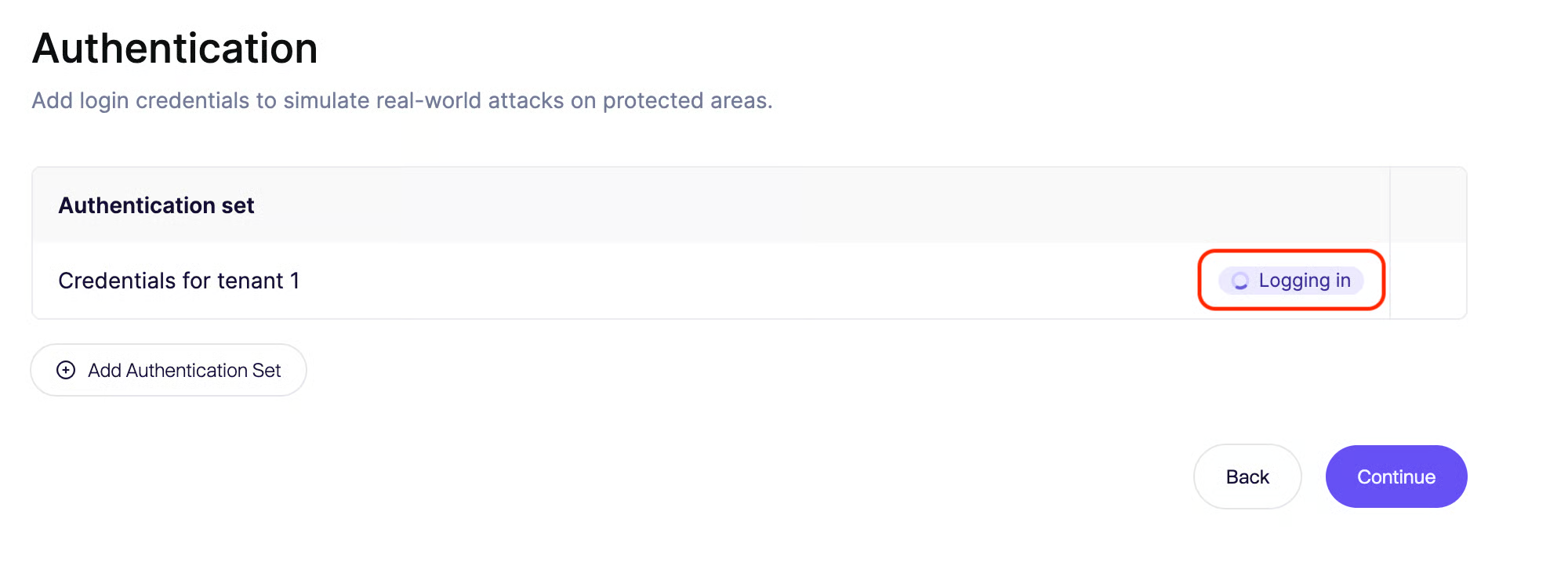
1. Click **Save & Test**.
2. The agent will launch a browser session.
3. Watch the playback logs to ensure the agent successfully bypassed the 2FA prompt and reached the dashboard.
{% endstep %}
{% endstepper %}
---
# Agent Instructions
This documentation is published with GitBook. GitBook is the documentation platform designed so that both humans and AI agents can read, navigate, and reason over technical content effectively. Learn more at gitbook.com.
## Querying This Documentation
If you need additional information that is not directly available in this page, you can query the documentation dynamically by asking a question.
Perform an HTTP GET request on the current page URL with the `ask` query parameter, and the optional `goal` query parameter:
```
GET https://help.aikido.dev/pentests/configure-a-pentest/setting-up-authenticated-testing/handling-two-factor-authentication-totp.md?ask=&goal=
```
`ask` is the immediate question: it should be specific, self-contained, and written in natural language.
`goal` is optional and describes the broader end goal you are ultimately trying to accomplish on behalf of the user. GitBook uses it to tailor the answer towards what is most useful for that goal.
The response will contain a direct answer to the question and relevant excerpts and sources from the documentation.
Use this mechanism when the answer is not explicitly present in the current page, you need clarification or additional context, or you want to retrieve related documentation sections.