> For the complete documentation index, see [llms.txt](https://help.aikido.dev/llms.txt). Markdown versions of documentation pages are available by appending `.md` to page URLs; this page is available as [Markdown](https://help.aikido.dev/pentests/coverage-and-findings/retest-pentest-findings.md).
# Retesting Findings
Verify whether Aikido Pentest findings are fixed after remediation.
After you fix a finding, use a retest to verify the fix in your pentest environment. Aikido retests one finding at a time, validates that the remediation properly fixes the issue, and checks for related risks introduced by the change. Aikido automatically closes the finding when the retest confirms that it is fixed.
{% hint style="warning" %}
Deploy your fix to the environment used for the assessment before you start a retest.
{% endhint %}
## Before you start
You can retest a finding if you have [access to the assessment](/pentests/aikido-pentest.md#who-can-access-pentests).
* **Default users** can retest pentest issues in the workspace.
* **Team-only users** can retest only if they already have access to every repository attached to the assessment.
* Any pending credits for the assessment must be settled.
* You can retest findings from assessments started within the last six months.
## Retest a finding
{% stepper %}
{% step %}
### Open the finding
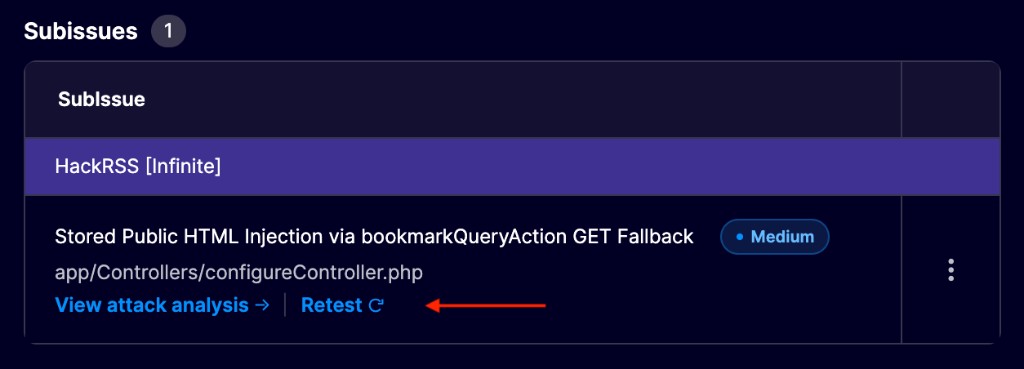
Open the finding and select **Retest** from its **Subissues** section.
Select Retest from the subissues overview.
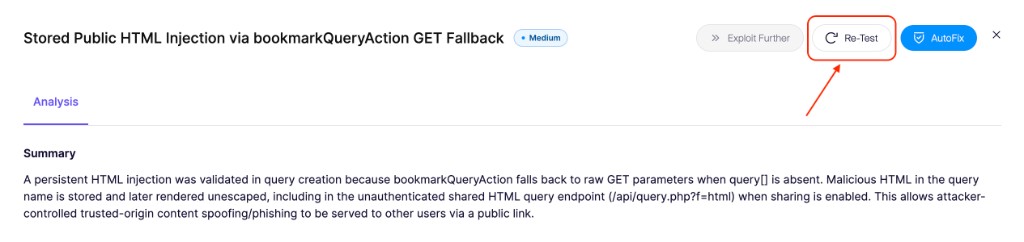
You can also select **View attack analysis** for a subissue, then click **Re-test** in the Attack Analysis view.
Use Re-test in Attack Analysis to retest this finding.
{% endstep %}
{% step %}
### Confirm the retest
In the **Run Retest** dialog, click **Run Retest**.
If the retest falls outside your configured testing hours, choose **Run Now** to start immediately or **Schedule** to wait for the next permitted testing window.
{% endstep %}
{% step %}
### Monitor the result
While a retest runs, the assessment shows **Retest Running**. For findings with Attack Analysis, open the live retest to follow its progress.
When the retest finishes, Aikido marks the finding as **Solved** if it can't reproduce the issue. Otherwise, the finding remains open with a **Not fixed** result and updated remediation guidance.
{% endstep %}
{% endstepper %}
## Retest Android findings
For an Android assessment, build a new APK that includes your fix and upload it before retesting the finding:
1. Open the assessment overview.
2. Under **Configuration Details**, find **Android App**.
3. Select the edit icon and upload the new APK.
4. Start the finding retest as described above.
{% hint style="info" %}
Future retests use the newly uploaded APK. You can replace the APK only when the assessment isn't running.
{% endhint %}
Make sure the replacement APK meets the [Android pentest requirements](/pentests/configure-a-pentest/android-pentesting.md#prerequisites), including the 500 MB limit and no certificate pinning, root detection, or emulator detection.
## What's next?
Review the retest result in the finding. Once all relevant findings are resolved, download a [Post-Remediation Report](/pentests/coverage-and-findings/pentest-reports.md#report-types) to share your current security posture with stakeholders.
---
# Agent Instructions
This documentation is published with GitBook. GitBook is the documentation platform designed so that both humans and AI agents can read, navigate, and reason over technical content effectively. Learn more at gitbook.com.
## Querying This Documentation
If you need additional information that is not directly available in this page, you can query the documentation by asking a question.
Perform an HTTP GET request on the following URL with the `ask` and `goal` query parameters:
```
GET https://help.aikido.dev/pentests/coverage-and-findings/retest-pentest-findings.md?ask=&goal=
```
`ask` is the immediate question: it should be specific, self-contained, and written in natural language.
`goal` is what the user is ultimately trying to achieve, the reason they need the answer. Sharing it helps GitBook give you a better, more relevant answer. A goal is most helpful when it describes the outcome the user wants rather than restating the question. For example, with `ask=how do I create an API token`, a goal like `automate deployments from our CI pipeline` lets GitBook tailor the answer to that use case.
The response will contain a direct answer to the question and relevant excerpts and sources from the documentation.
Use this mechanism when the answer is not explicitly present in the current page, you need clarification or additional context, or you want to retrieve related documentation sections.