> For the complete documentation index, see [llms.txt](https://help.aikido.dev/llms.txt). Markdown versions of documentation pages are available by appending `.md` to page URLs; this page is available as [Markdown](https://help.aikido.dev/pr-and-release-gating/azure-devops-pr-gating-with-an-entra-service-principal.md).
# Azure DevOps PR Gating with an Entra Service Principal
Let Aikido run PR checks on your Azure DevOps organization as a Microsoft Entra service principal instead of a personal access token.
Instead of a personal access token (PAT), you can let Aikido post pull request (PR) statuses and comments in your Azure DevOps organization as a Microsoft Entra service principal that you own. No token or secret is created or stored: for every call, Aikido proves its identity to Microsoft Entra, which issues a short-lived access token for your service principal. Nothing expires and nothing needs rotating, and every status and comment is posted under the application's own name.
{% hint style="info" %}
Your workspace must be connected to Azure DevOps Services (dev.azure.com), and your Azure DevOps organization must be connected to a Microsoft Entra tenant (**Organization settings** → **Microsoft Entra**). You need to be able to register applications in that tenant and to add users and change permissions in your Azure DevOps organization. You also need the Azure CLI for one command per project. Azure DevOps Server keeps using a PAT.
{% endhint %}
{% hint style="warning" %}
Azure DevOps PR gating via Aikido supports Azure Repos Git repositories only. Team Foundation Version Control (TFVC) repositories aren't supported for PR gating or Code Quality gates.
{% endhint %}
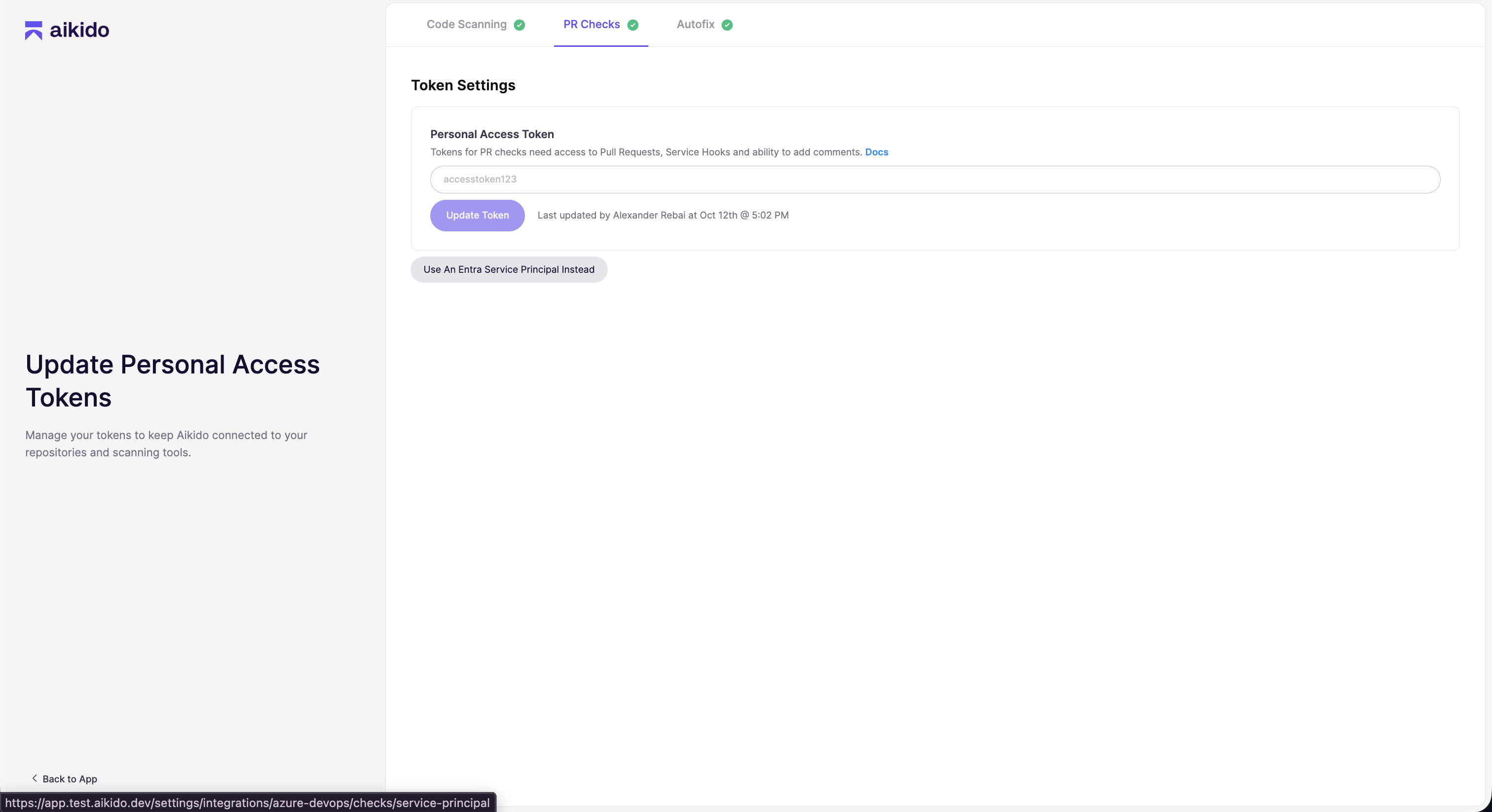
**First**, go to [General Settings](https://app.aikido.dev/settings/account), click **Update Personal Access Token** and, on the **PR Checks** tab, click **Use An Entra Service Principal Instead**. If PR checks aren't set up yet, go to [Integrations](https://app.aikido.dev/settings/integrations), click **Connect** on Azure DevOps PR checks, and click the same button on the personal access token page.
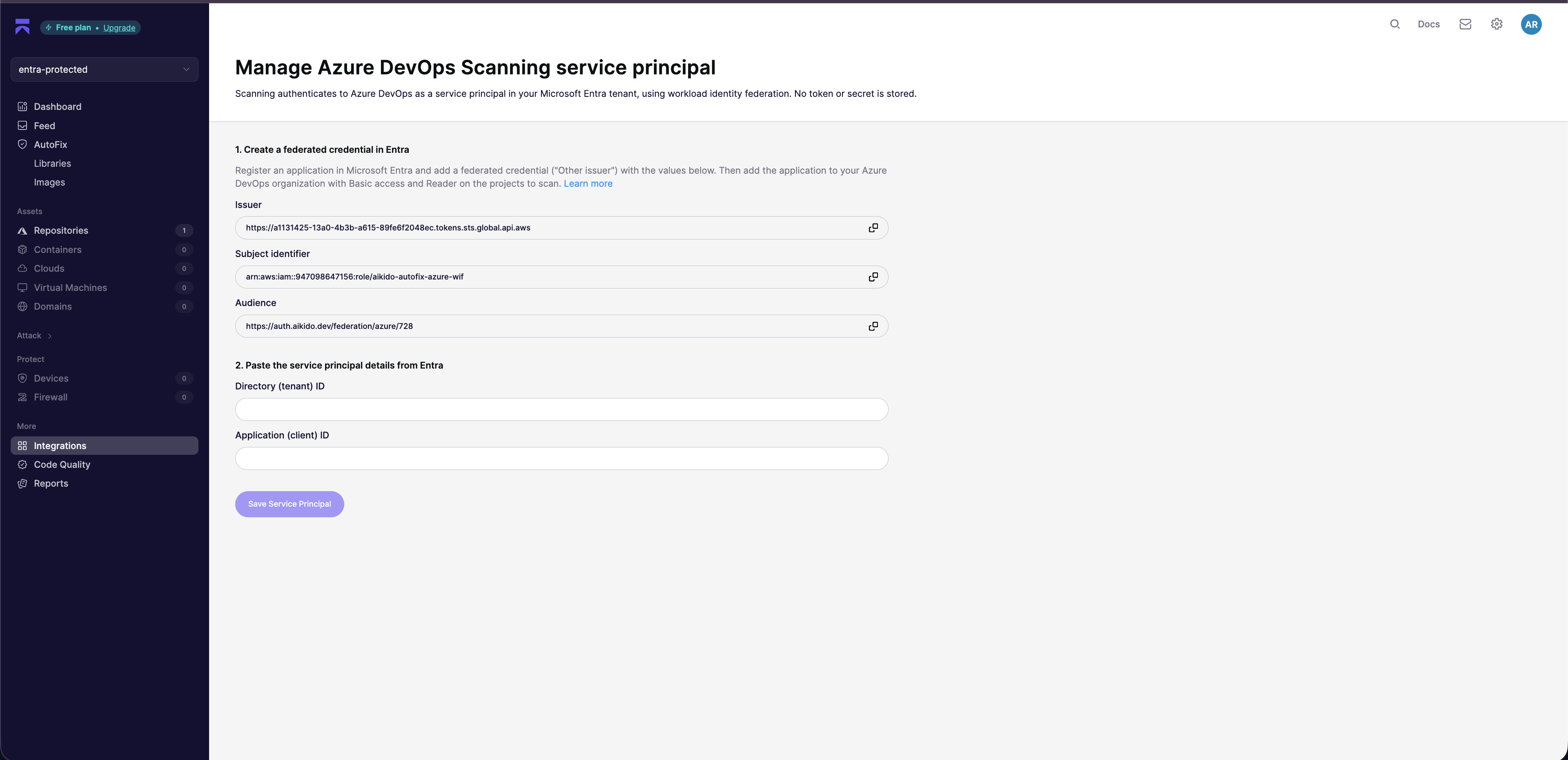
You end up on the service principal management page, which can also be found at [Manage Azure DevOps PR Checks service principal](https://app.aikido.dev/settings/integrations/azure-devops/checks/service-principal). Keep this page open: it shows the **Issuer**, **Subject identifier**, and **Audience** you need in the next section.
{% hint style="info" %}
Create a separate application for PR checks, even if you already set up [Code Scanning](/code-scanning/connect-your-source-code/code-scanning-for-azure-devops-with-entra-service-principal.md) or [AutoFix](/autofix-and-remediation/configure/autofix-for-azure-devops-with-entra-service-principal.md) with an Entra service principal. The Issuer and Audience are the same, but the Subject identifier is different because PR checks use their own Aikido identity. Copy it from the PR checks page.
{% endhint %}
**Next**, follow the instructions below to create the service principal in Microsoft Entra and give it access in Azure DevOps.
## Register the application in Microsoft Entra
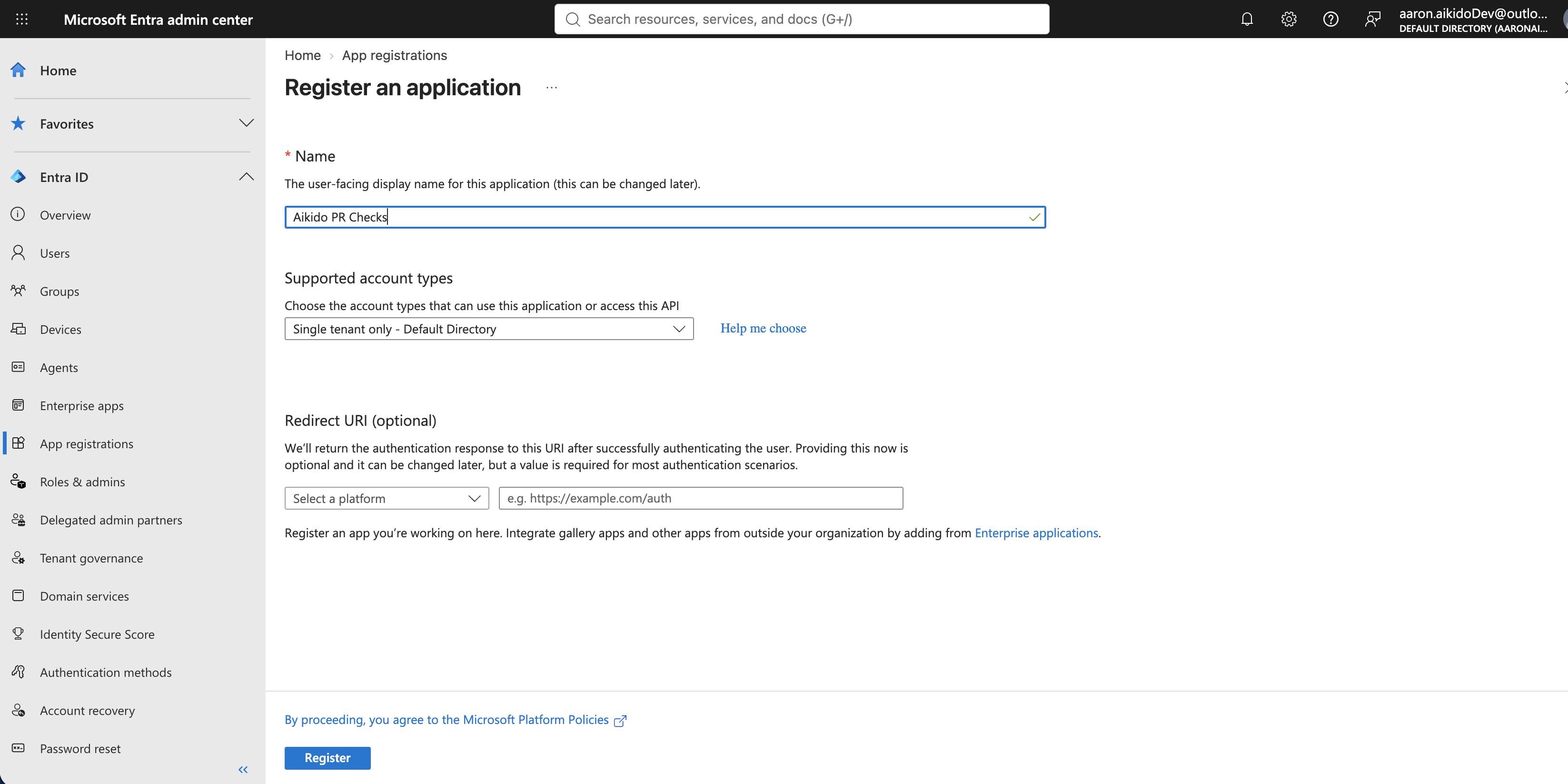
1. Open the [Microsoft Entra admin center](https://entra.microsoft.com), go to **Entra ID** → **App registrations** and click **New registration**.
2. Give the application the name **Aikido PR Checks**, keep **Single tenant only** selected, leave the redirect URI empty and click **Register**.
3. On the **Overview** page of the application, copy the **Application (client) ID** and the **Directory (tenant) ID**. You insert both in Aikido later.
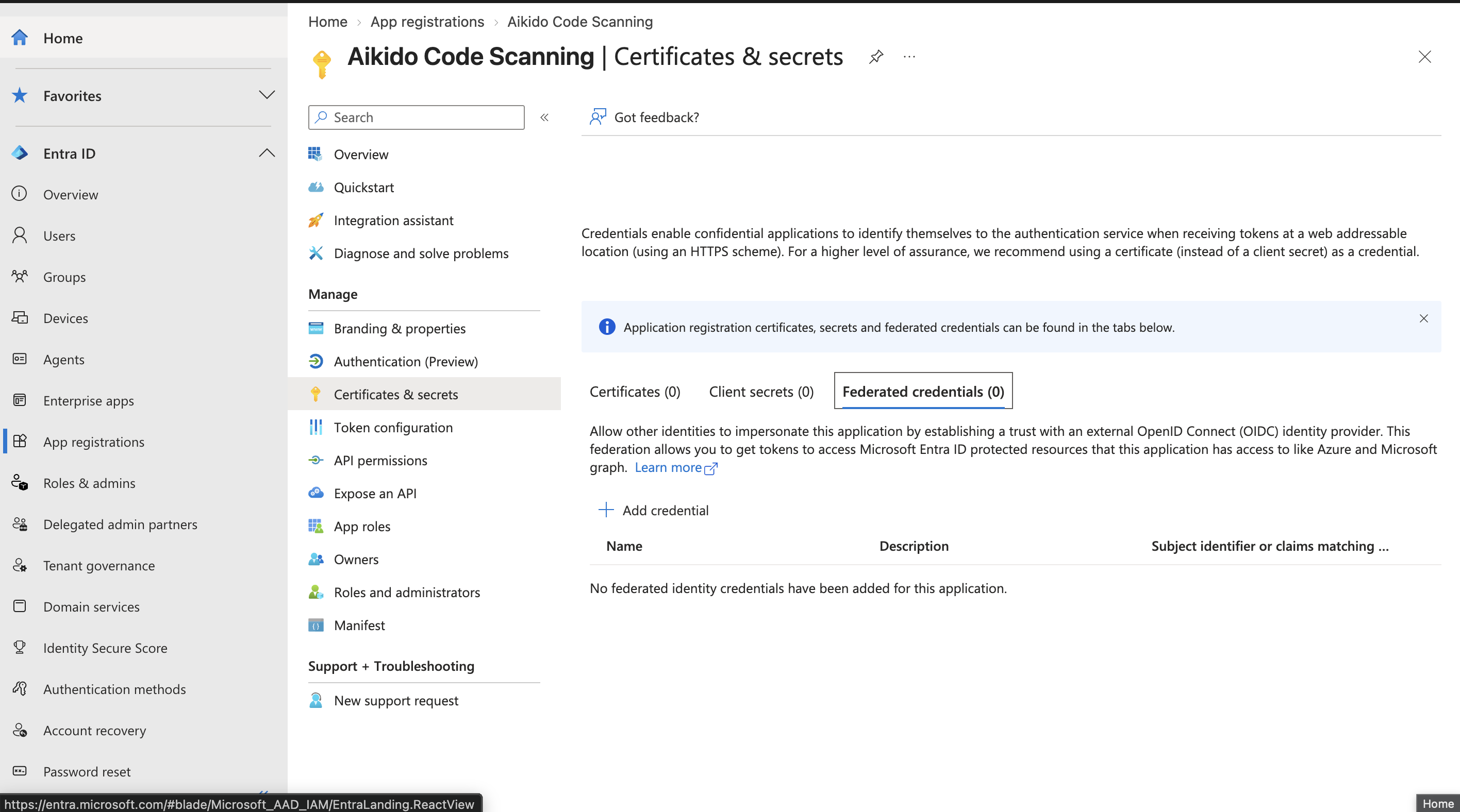
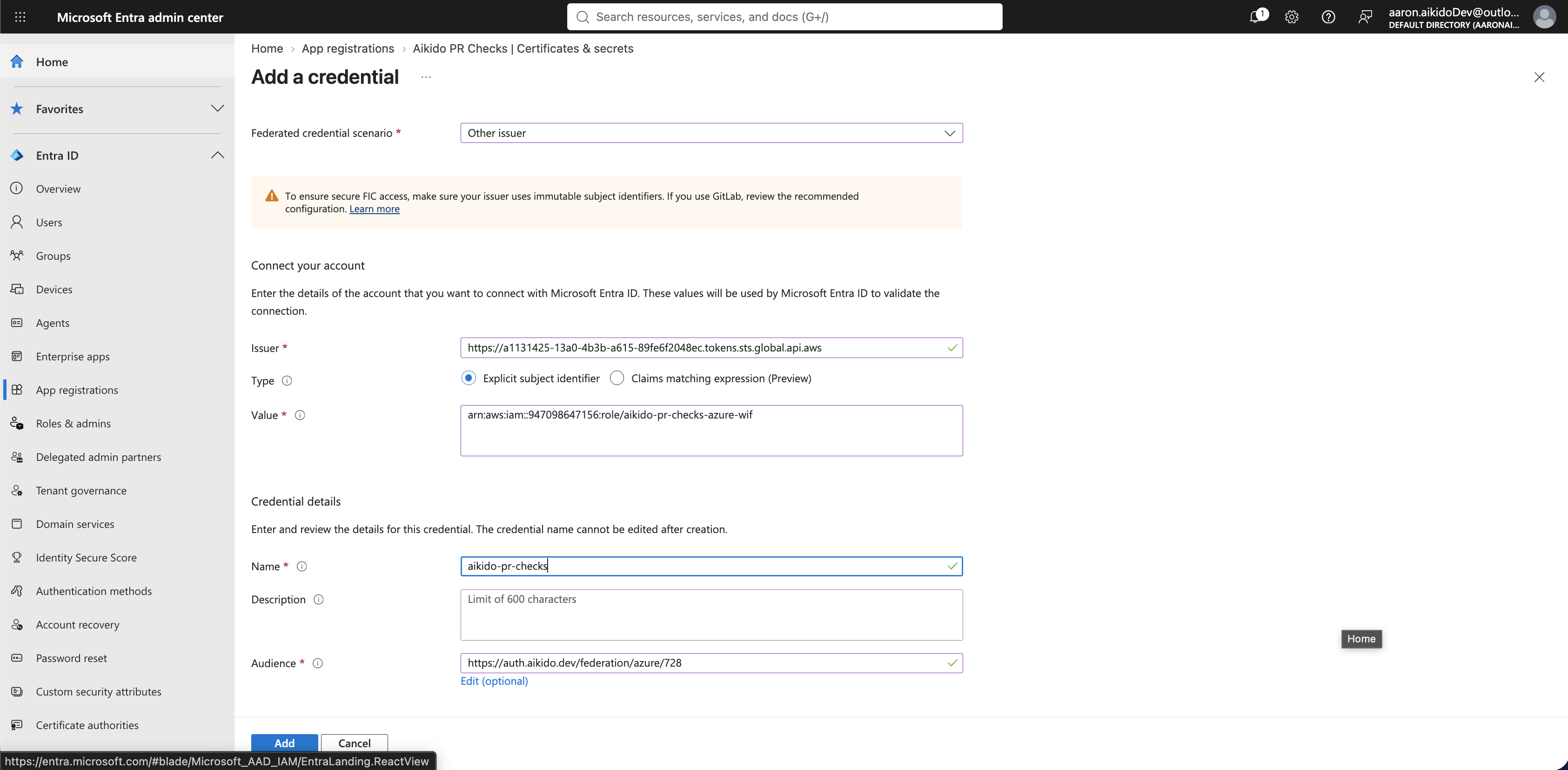
4. Go to **Certificates & secrets** → **Federated credentials** and click **Add credential**.
5. Select **Other issuer** and fill in the values exactly as shown on the service principal management page in Aikido:
* **Issuer**: the Issuer shown in Aikido
* **Type**: Explicit subject identifier
* **Value**: the Subject identifier shown in Aikido
* **Audience**: click **Edit** and replace the default with the Audience shown in Aikido. It contains your workspace id, so only tokens Aikido mints for your workspace are accepted.
Give the credential a name, for example **aikido-pr-checks**, and click **Add**. You don't need a client secret or certificate.
## Grant access in Azure DevOps
PR checks need three things in Azure DevOps: read access to your repositories, the right to post statuses and comments on pull requests, and the right to create and delete the service hooks that notify Aikido when a pull request is opened, updated, or commented on. Grant exactly those three and nothing else.
### Add the application to your projects
1. In Azure DevOps, go to **Organization settings** → **Users** and click **Add users**.
2. Search for the application name (**Aikido PR Checks**), set the **Access level** to **Basic**, and add it to the projects you want PR checks on. If the application doesn't show up yet, wait a minute and search again.
3. Under **Azure DevOps Groups**, keep **Project Readers**. Then click **Add**.
### Allow it to contribute to pull requests
Repeat this for every project you added the application to.
1. Open the project and go to **Project settings** → **Repositories** → **Security**.
2. Stay on the top-level **Git repositories** node so the permission applies to every repository in the project, or select a single repository.
3. Search for the application name and select it.
4. Set **Contribute to pull requests** to **Allow**. Leave every other permission as **Not set**: PR checks never push code.
### Allow it to manage service hooks
Service hooks are the webhooks Aikido creates when you enable PR checks on a repository and removes when you disable them. Azure DevOps has no page for this permission: by default only project administrators have it, and Microsoft documents granting it to anyone else through the Azure CLI or the REST API. Granting it this way keeps the application out of the administrator groups, so it can't change permissions, delete repositories, or touch anything else in your projects.
Run the commands below with the [Azure CLI](https://learn.microsoft.com/cli/azure/install-azure-cli) and its `azure-devops` extension, signed in as a Project Collection Administrator. Repeat them for every project you added the application to.
1. Get the id of the project:
```shell
az devops project show --org https://dev.azure.com/ --project "" --query id -o tsv
```
2. Get the descriptor of the application. It starts with `aadsp.`:
```shell
az devops invoke --org https://dev.azure.com/ --area graph --resource serviceprincipals --api-version 7.1-preview --query "value[?displayName=='Aikido PR Checks'].descriptor" -o tsv
```
3. Allow the application to view and edit the service hooks of the project. The namespace id is the fixed id of the service hooks permissions in Azure DevOps, and `3` is **View subscriptions** plus **Edit subscriptions**:
```shell
az devops security permission update --org https://dev.azure.com/ \
--namespace-id cb594ebe-87dd-4fc9-ac2c-6a10a4c92046 \
--subject \
--token PublisherSecurity/ \
--allow-bit 3 -o table
```
The output lists **ViewSubscriptions** and **EditSubscriptions** as *Allow*. Edit also covers deleting subscriptions.
{% hint style="info" %}
This is the same permission the PAT setup needs from the person who creates the token, which is why that setup requires an administrator. With a service principal you grant it to the application alone.
{% endhint %}
## Connect in Aikido
1. Go back to the service principal management page in Aikido.
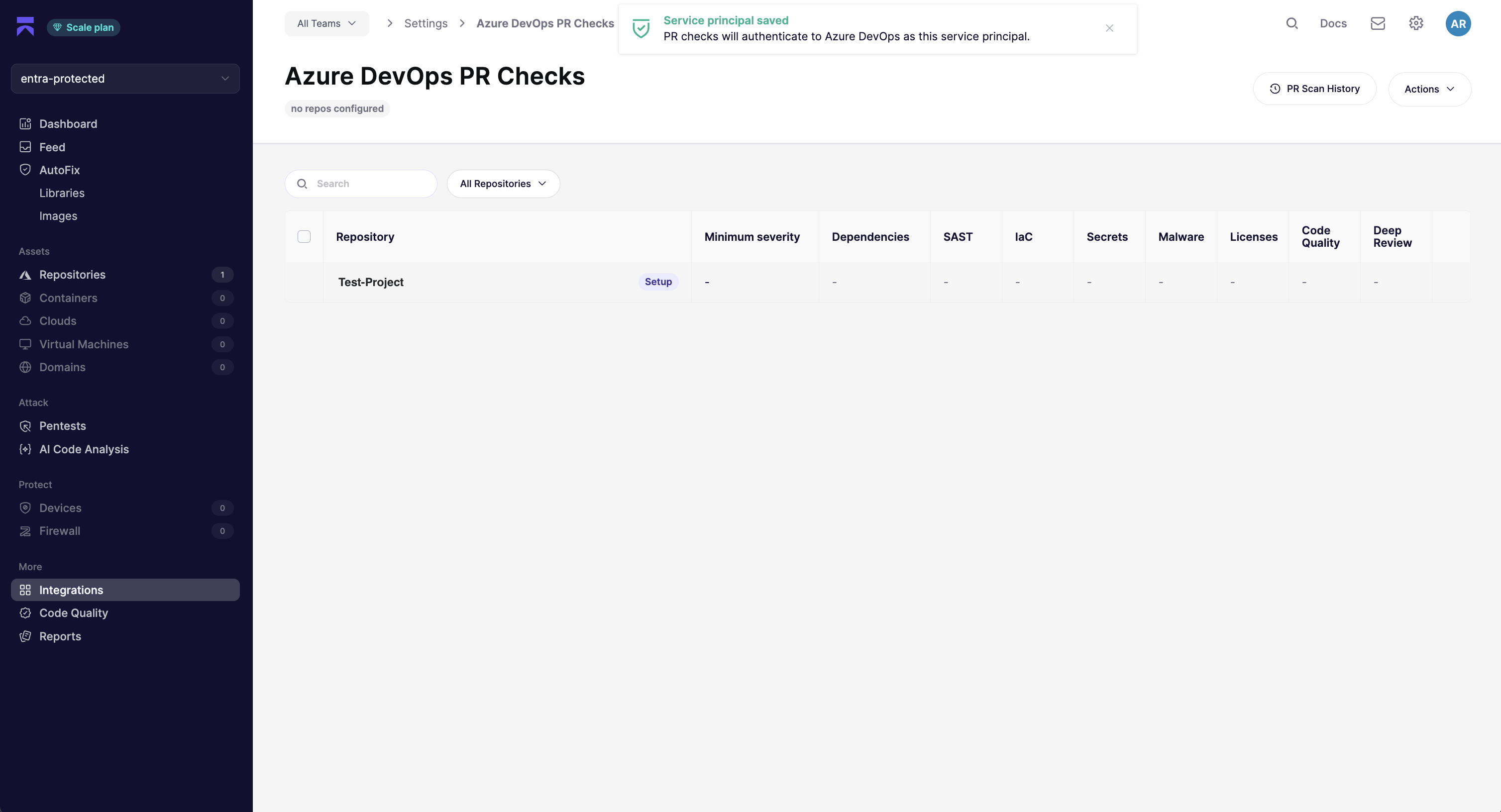
2. Insert the **Directory (tenant) ID** and the **Application (client) ID** you copied earlier and click **Save Service Principal**. Aikido requests a token from Microsoft Entra, verifies that it can access the repositories of your Azure DevOps organization, and checks that it can manage service hooks by creating and deleting a test subscription before saving.
You are all set. PR checks now authenticate as the service principal, and the **PR Checks** tab shows which application is in use. Configure the repositories you want to gate on the [Azure DevOps PR Checks](https://app.aikido.dev/settings/integrations/azure-devops/checks) page, as described in [Azure DevOps PR Gating](/pr-and-release-gating/azure-pipelines-ci-pr-gating-via-aikido-dashboard-with-a-personal-access-token.md). Service hooks, statuses, and comments are created by **Aikido PR Checks**.
{% hint style="info" %}
To switch back to a PAT, click **Use a personal access token instead** on the **PR Checks** tab and save a token: this removes the service principal, and your repository configurations keep working. **Uninstall** on the Azure DevOps PR Checks page removes the service hooks, the integration, and the service principal. Deleting the federated credential in Microsoft Entra or removing the application from your Azure DevOps organization revokes Aikido's access immediately.
{% endhint %}
---
# Agent Instructions
This documentation is published with GitBook. GitBook is the documentation platform designed so that both humans and AI agents can read, navigate, and reason over technical content effectively. Learn more at gitbook.com.
## Querying This Documentation
If you need additional information that is not directly available in this page, you can query the documentation by asking a question.
Perform an HTTP GET request on the following URL with the `ask` and `goal` query parameters:
```
GET https://help.aikido.dev/pr-and-release-gating/azure-devops-pr-gating-with-an-entra-service-principal.md?ask=&goal=
```
`ask` is the immediate question: it should be specific, self-contained, and written in natural language.
`goal` is what the user is ultimately trying to achieve, the reason they need the answer. Sharing it helps GitBook give you a better, more relevant answer. A goal is most helpful when it describes the outcome the user wants rather than restating the question. For example, with `ask=how do I create an API token`, a goal like `automate deployments from our CI pipeline` lets GitBook tailor the answer to that use case.
The response will contain a direct answer to the question and relevant excerpts and sources from the documentation.
Use this mechanism when the answer is not explicitly present in the current page, you need clarification or additional context, or you want to retrieve related documentation sections.