> For the complete documentation index, see [llms.txt](https://help.aikido.dev/llms.txt). Markdown versions of documentation pages are available by appending `.md` to page URLs; this page is available as [Markdown](https://help.aikido.dev/pr-and-release-gating/gitlab-mr-gating/gitlab-free-mr-scans-setup.md).
# GitLab Free: MR Scans Setup
Publish MR scan results and comments for issues from Aikido. No pipeline code needed.
{% hint style="warning" %}
This setup is meant for the **GitLab Free** plan, where Service Accounts aren’t available and a dedicated user is used instead.
If you’re on **GitLab Premium, GitLab Ultimate or GitLab Server**, use a [**Service Account**](/pr-and-release-gating/gitlab-mr-gating/gitlab-server-ci-mr-gating-via-aikido-dashboard-with-a-service-account-token.md) instead of a user-based setup.
{% endhint %}
## Set up GitLab MR scanning
{% stepper %}
{% step %}
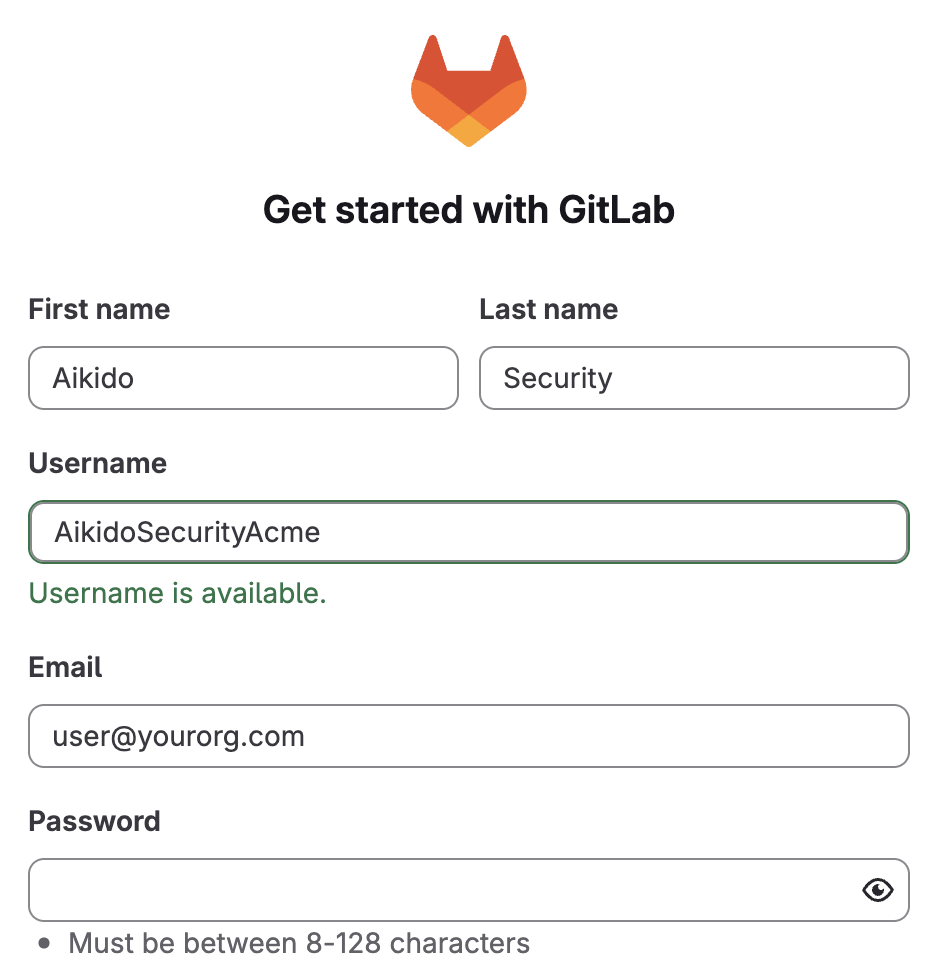
**Create a dedicated GitLab user**
Create a dedicated user like `AikidoSecurity[YourCompany]`. Use it only for Aikido.
For easy recognition, use the [Aikido logo](https://www.aikido.dev/press-kit) as the profile picture.
{% endstep %}
{% step %}
**Create a Personal Access Token**
Log in as the new user.
Go to **Preferences** → [**Personal access tokens**](https://gitlab.com/-/user_settings/personal_access_tokens).
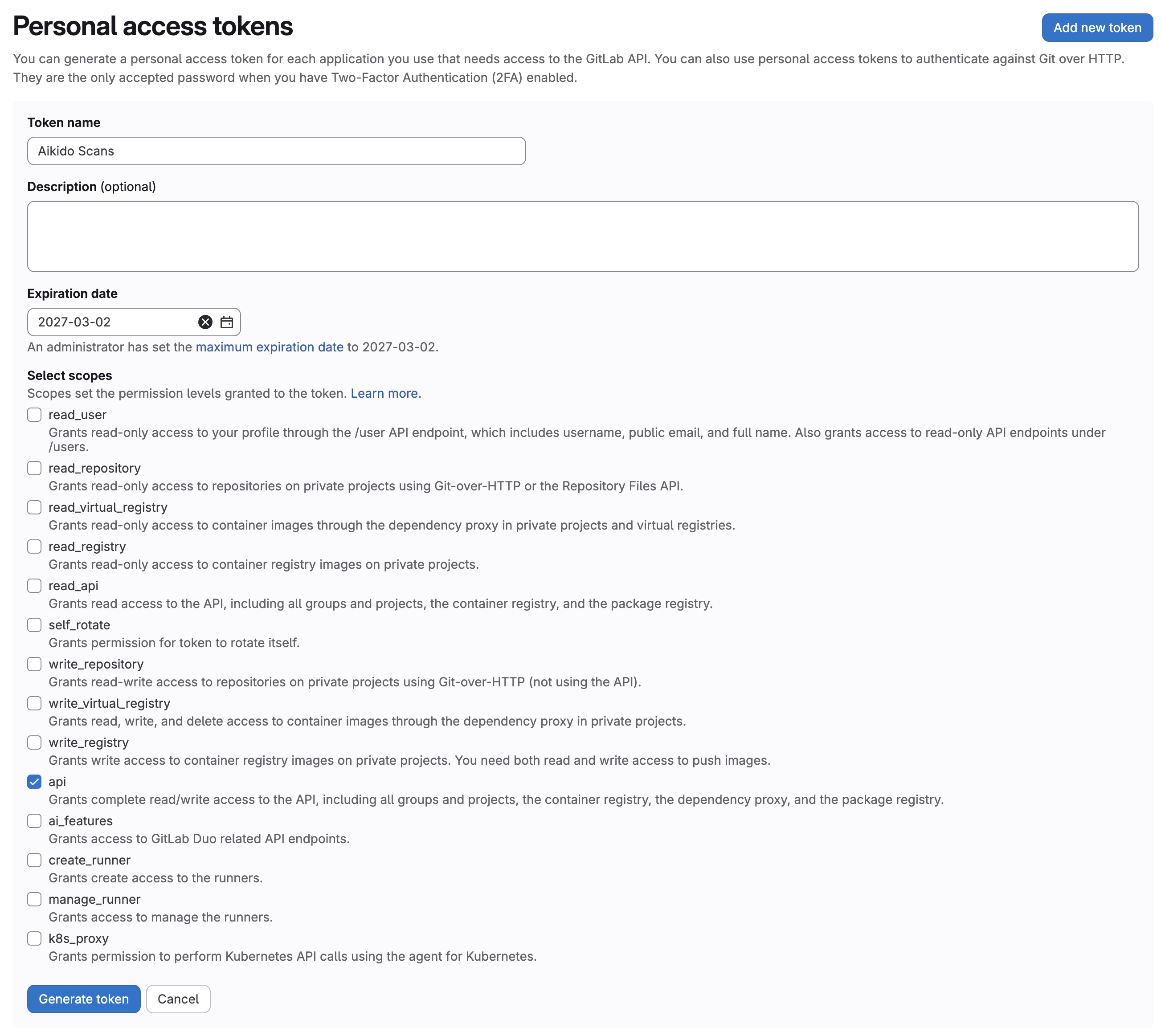
Add a new token:
* Name: for example `Aikido Scans`
* Expiration date: Set an expiry date that matches your rotation policy
* Scopes: `api`
{% endstep %}
{% step %}
**Save the token**
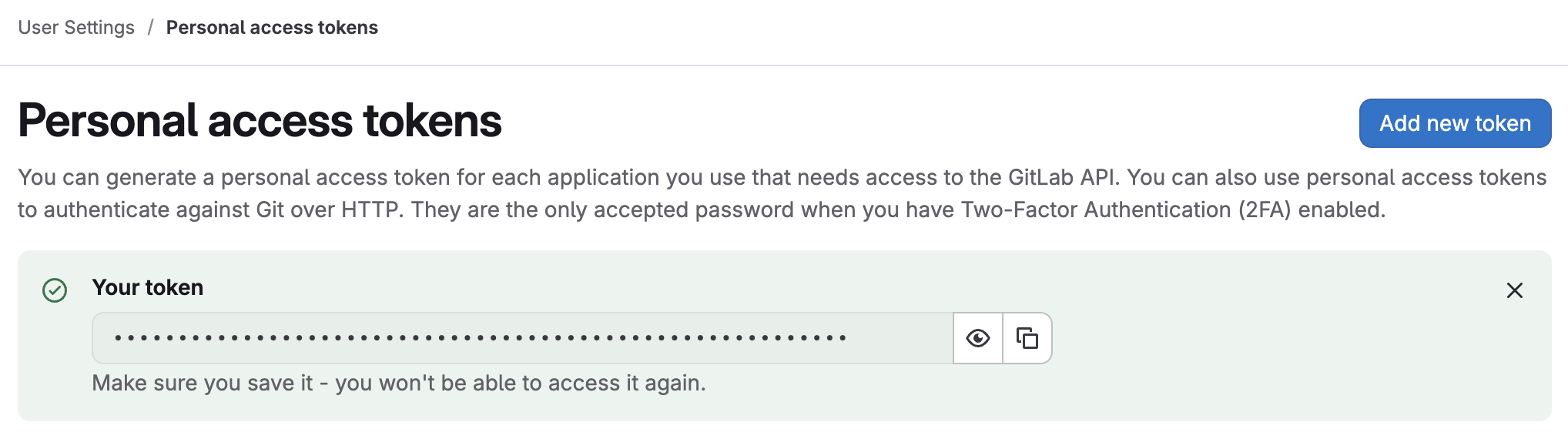
Copy the token now. GitLab won’t show it again.
You’ll paste it into Aikido in step 6.
{% endstep %}
{% step %}
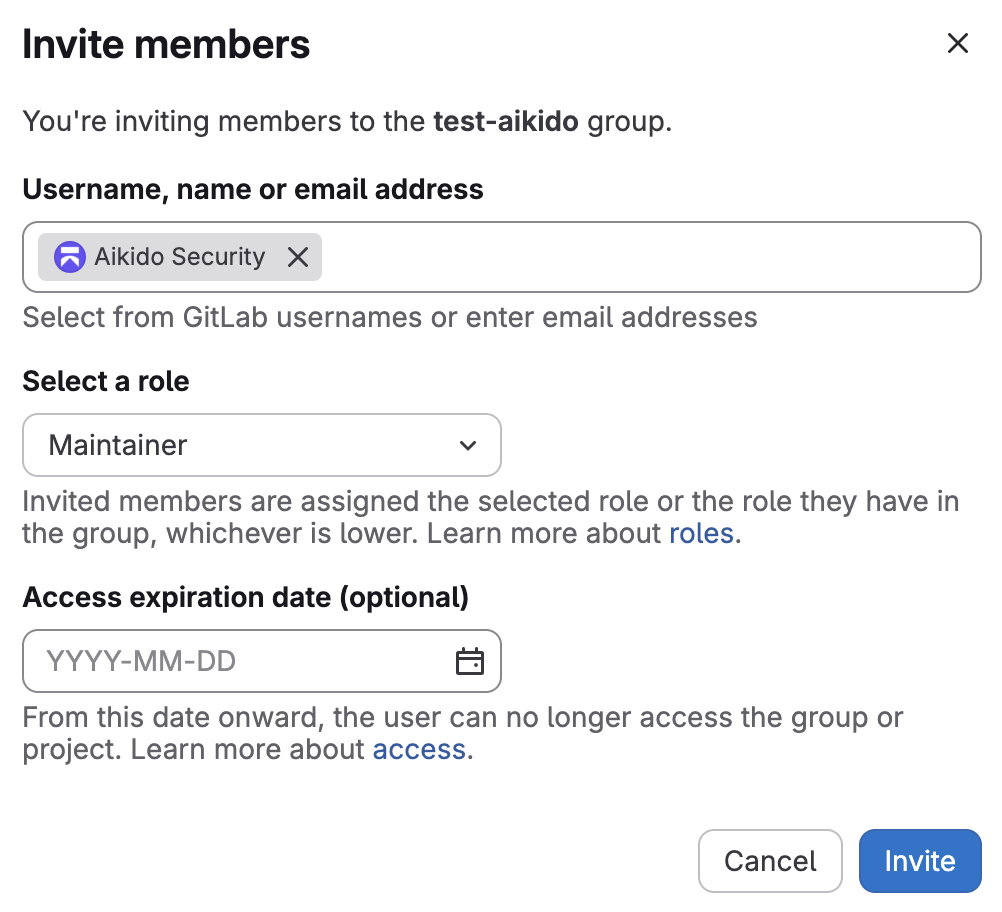
**Invite your Aikido user to your group**
Log back in with your own GitLab account.
Go to [**Groups**](https://gitlab.com/dashboard/groups).
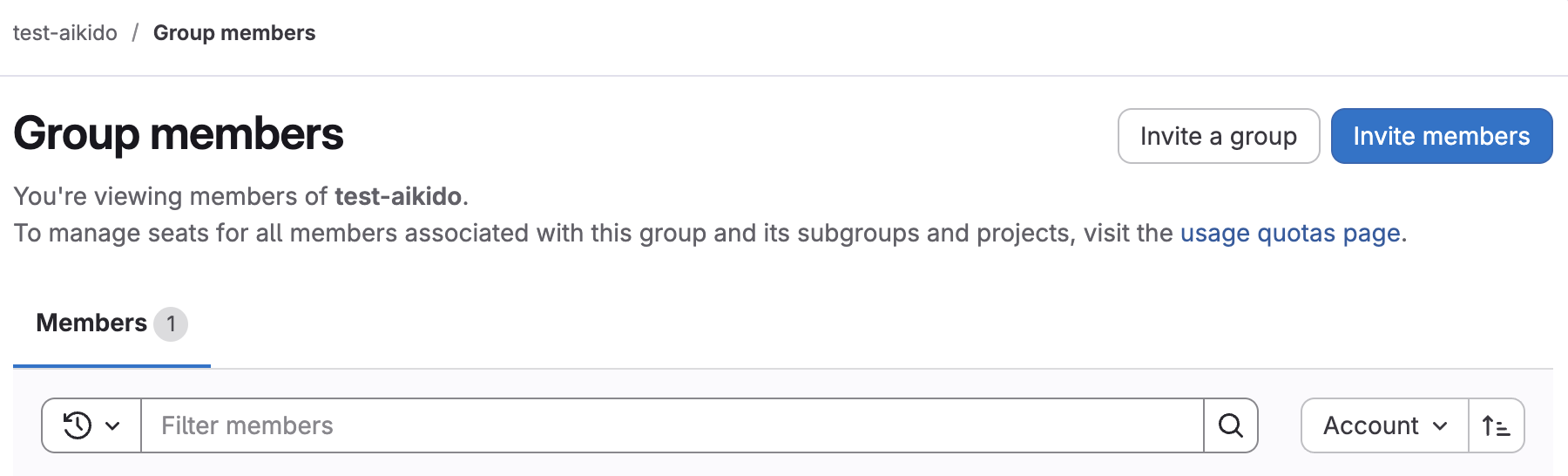
For each group you want to enable, open the group.
Go to **Manage** → **Members** → **Invite members**.
Invite the dedicated Aikido user.
Give it at least **Maintainer** access.
{% endstep %}
{% step %}
**Enable the integration**
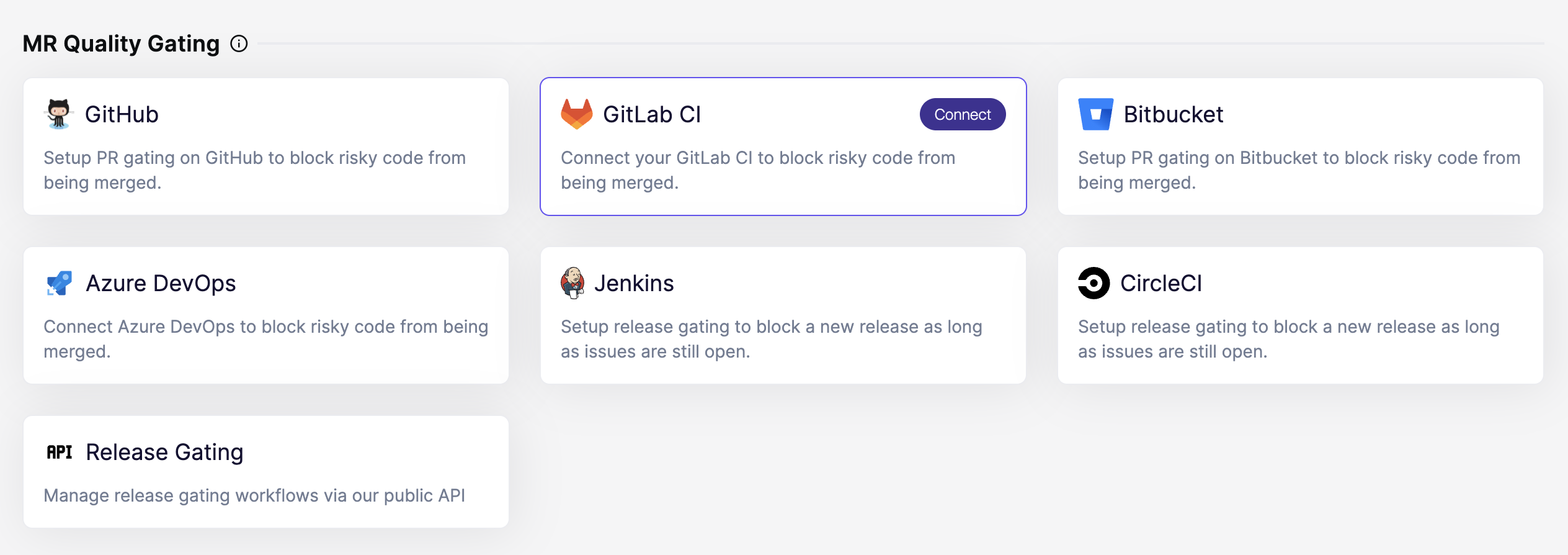
In Aikido, open the [Integrations](https://app.aikido.dev/settings/integrations?section=ci) page. Then select **GitLab CI** under **MR Quality Gating**.
{% endstep %}
{% step %}
**Paste the Personal Access Token**
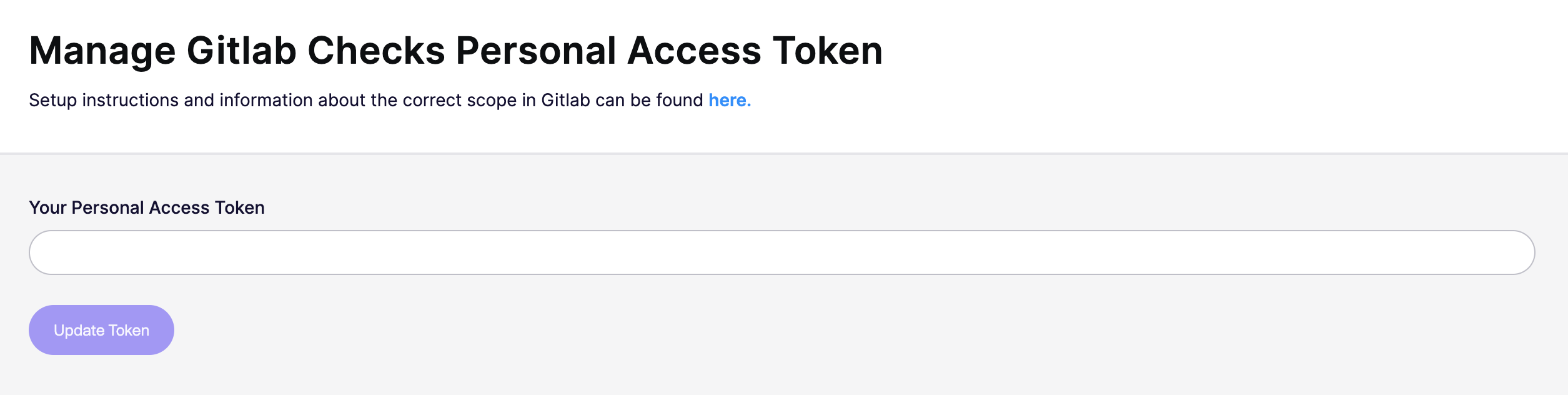
Paste the token you created in step 3.
Click **Update token**.
Aikido validates group access and required permissions.
{% endstep %}
{% step %}
**Configure your first repository**
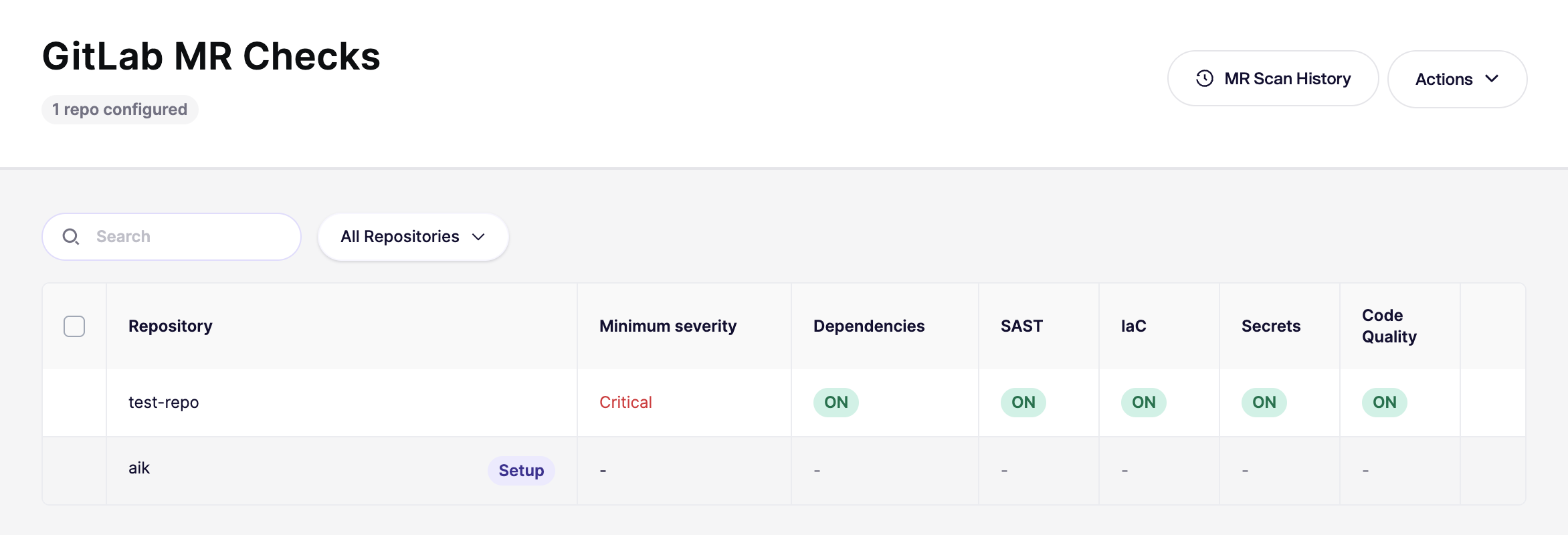
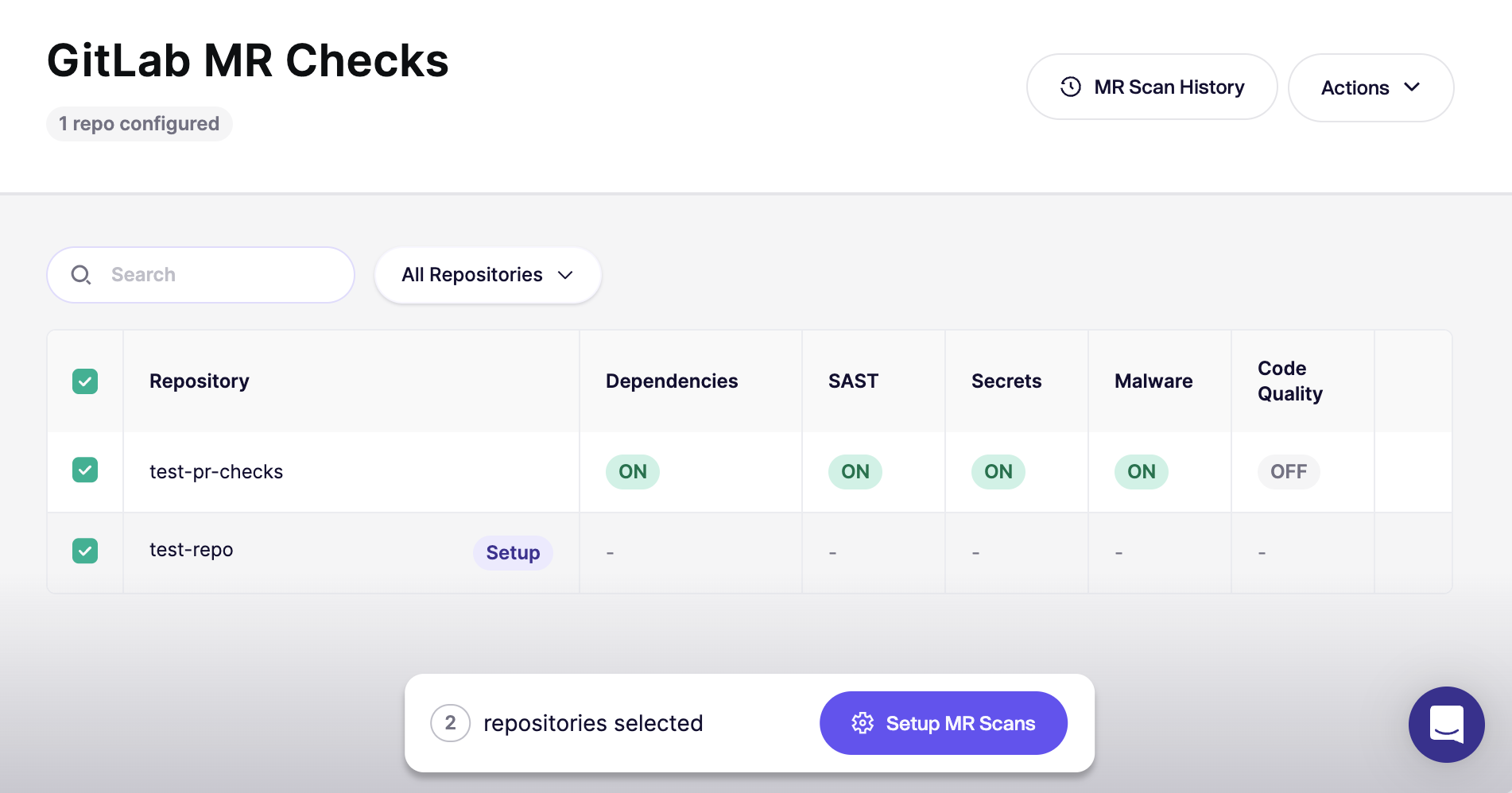
After authorization, Aikido opens the [GitLab MR Checks](https://app.aikido.dev/settings/integrations/gitlab/checks) page.
Start with **one repository** first. Confirm everything works before rolling out broadly.
{% endstep %}
{% step %}
**Verify with a new MR**
Open a new merge request (MR) in the repo you configured.
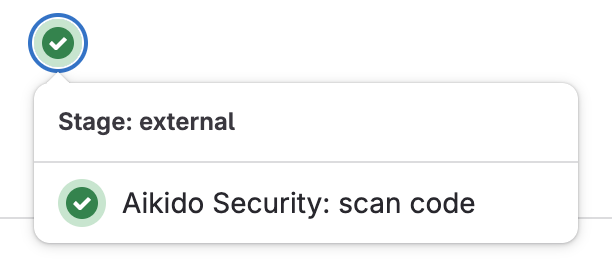
Then confirm the checks run in the **Pipelines** tab.
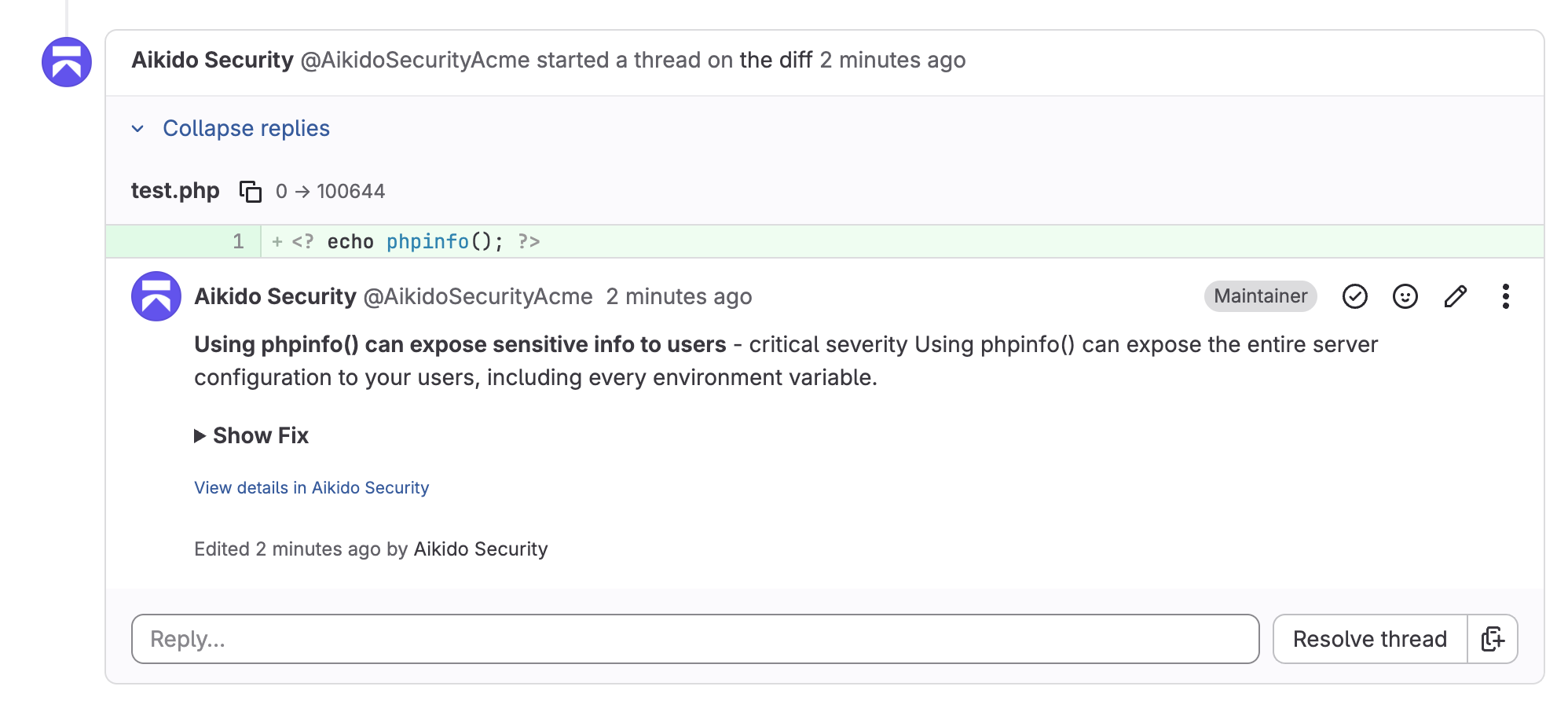
Comments should appear as the dedicated user. For example, `@AikidoSecurity[YourCompany]`.
{% endstep %}
{% step %}
**Require the scan to succeed**
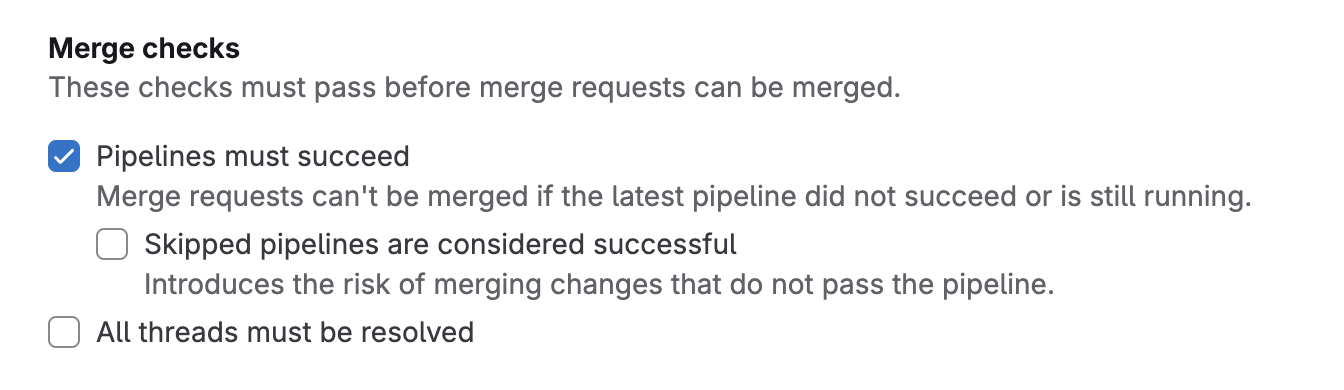
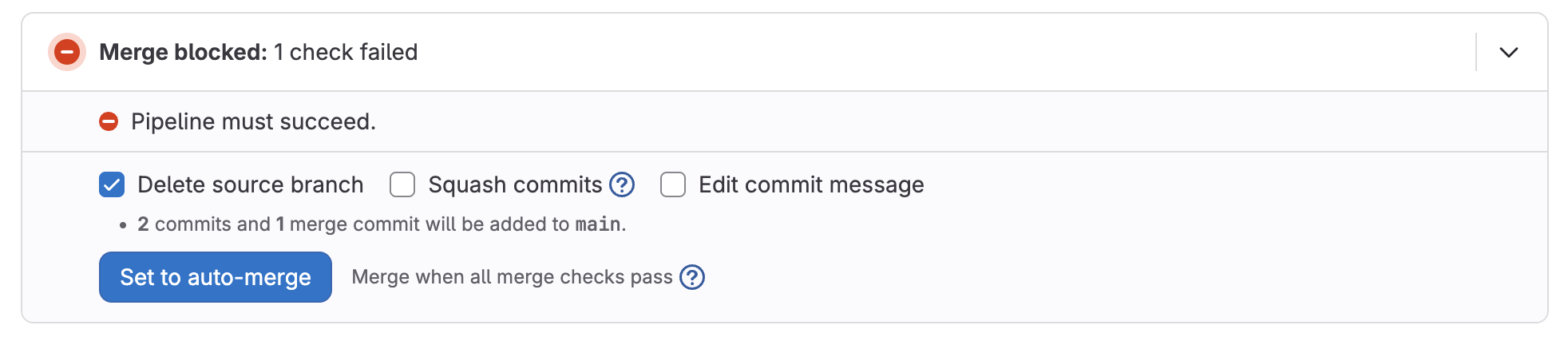
If you want to block merging until the scan succeeds, configure **merge checks** in GitLab.
In GitLab, go to **\[Repository]** → **Settings** → **Merge Requests**. Enable the check `Pipelines must succeed`.
{% endstep %}
{% step %}
**Enable for all repositories**
Once you’re happy with the results, go back to the [GitLab MR Checks](https://app.aikido.dev/settings/integrations/gitlab/checks) page and enable checks for the rest of your repositories.
{% endstep %}
{% step %}
**Set the default for new repositories**
In the top-right, open `Actions` and select `Set Default for New Repos` and enable automatic configuration for newly added repositories in the future.
Need the UI walkthrough? See [Default PR/MR gating configuration for new repositories](/pr-and-release-gating/aikido-ci-gating-functionality/default-pr-mr-gating-configuration-for-new-repositories.md).
{% endstep %}
{% endstepper %}
## Ignore issues directly from MR comments
When Aikido posts an inline MR comment for a finding, you can ignore that issue directly from GitLab by replying to the comment with:
`@AikidoSecurity[YourCompany] ignore: [your reason to ignore]`
Example:
`@AikidoSecurity[YourCompany] ignore: This secret is used for tests only.`
Replace `@AikidoSecurity[YourCompany]` with the username of the dedicated GitLab user you created in step 1.
This performs the same action as manually ignoring the issue in the Aikido platform:
* The issue is marked as ignored in Aikido.
* The ignore reason is stored.
* MR gating can turn green once all blocking issues are resolved or ignored.
{% hint style="info" %}
If you do not have ignore permissions, this comment creates a request in the [Approval Inbox](/getting-started/core-functionalities/approval-inbox-for-ignored-issues.md) instead of ignoring the issue immediately. The finding stays in the feed until an admin approves or rejects it.
{% endhint %}
---
# Agent Instructions
This documentation is published with GitBook. GitBook is the documentation platform designed so that both humans and AI agents can read, navigate, and reason over technical content effectively. Learn more at gitbook.com.
## Querying This Documentation
If you need additional information that is not directly available in this page, you can query the documentation dynamically by asking a question.
Perform an HTTP GET request on the current page URL with the `ask` query parameter, and the optional `goal` query parameter:
```
GET https://help.aikido.dev/pr-and-release-gating/gitlab-mr-gating/gitlab-free-mr-scans-setup.md?ask=&goal=
```
`ask` is the immediate question: it should be specific, self-contained, and written in natural language.
`goal` is optional and describes the broader end goal you are ultimately trying to accomplish on behalf of the user. GitBook uses it to tailor the answer towards what is most useful for that goal.
The response will contain a direct answer to the question and relevant excerpts and sources from the documentation.
Use this mechanism when the answer is not explicitly present in the current page, you need clarification or additional context, or you want to retrieve related documentation sections.