# Setup Custom Role in Azure

This document guides you through creating a new App Registration with client credentials, and a custom RBAC role for Aikido VM scanning.

The credentials will be used by Aikido to make the necessary API requests to scan your Virtual Machines. Access to scan your Virtual Machines will be granted to the App Registration using a custom role.

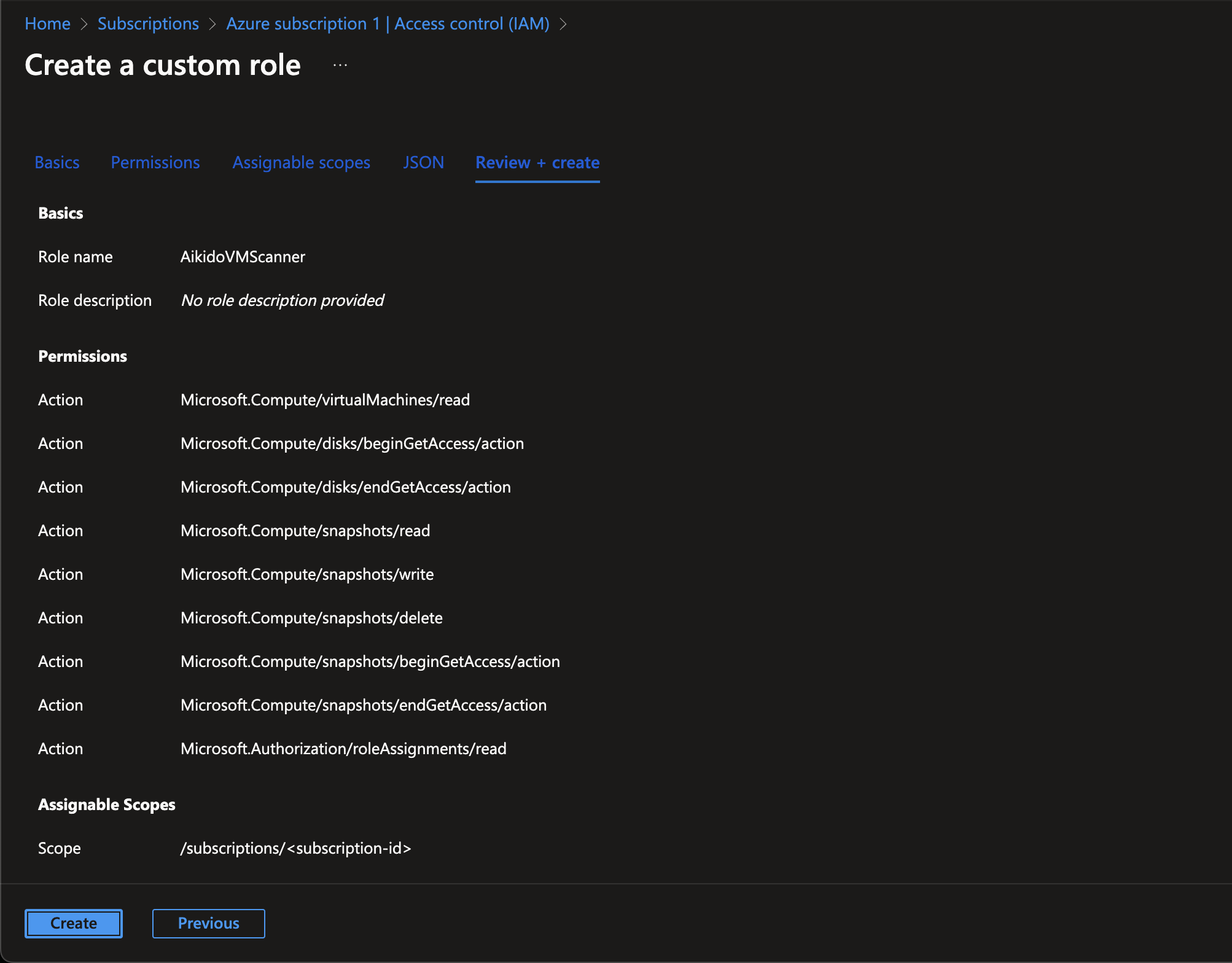
These permissions are limited to the minimum required for Virtual Machine scanning:

Use the following steps to create

Log into your [**Azure Portal**](https://portal.azure.com/) and navigate to the **Microsoft Entra ID service**.

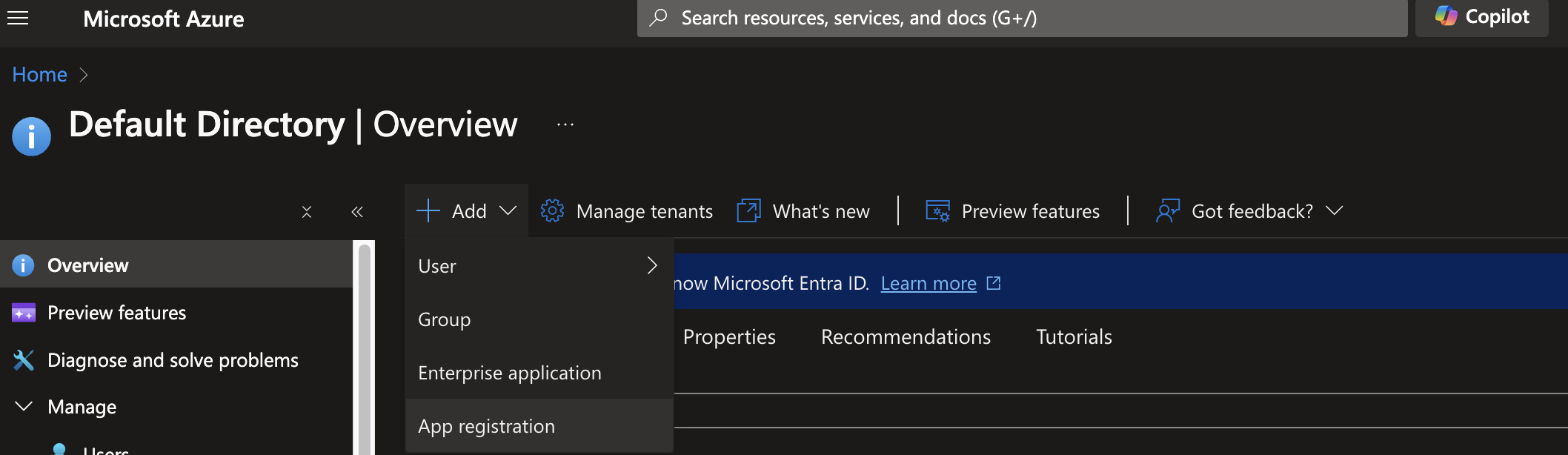
Click on **Add** and select **App registration**

![Azure Portal: Adding a new app registration under Default Directory Overview.](/files/tYXu57S3O6LA6lV7AyTn)

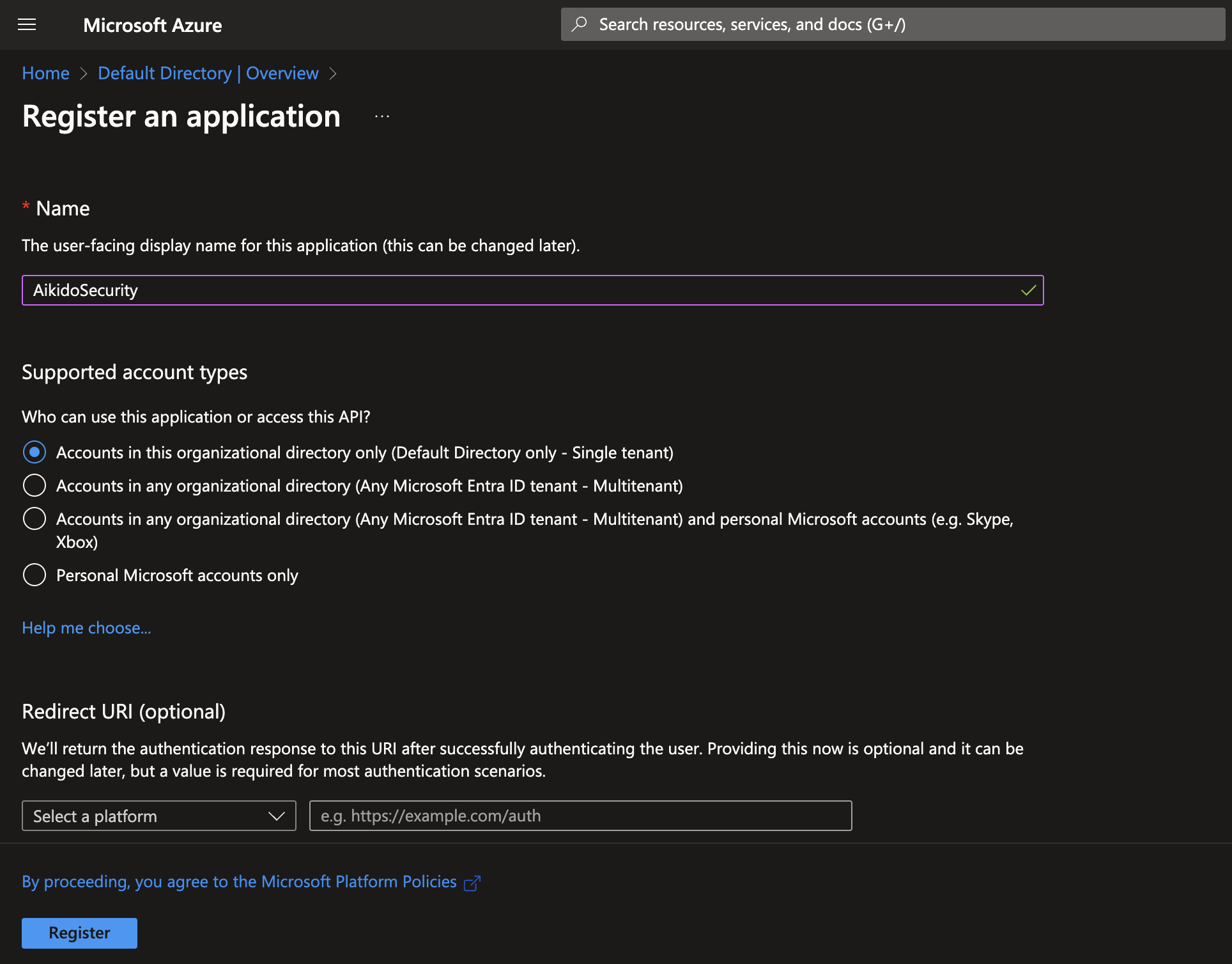
Give the application a meaningful name, we need this name later.

Leave the **Supported account types** default: **Accounts in this organizational directory only**.

Click on **Register**.

![Registering a new application named "AikidoSecurity" in Microsoft Azure Active Directory.](/files/cOrohzIfPgBx2074rCvN)

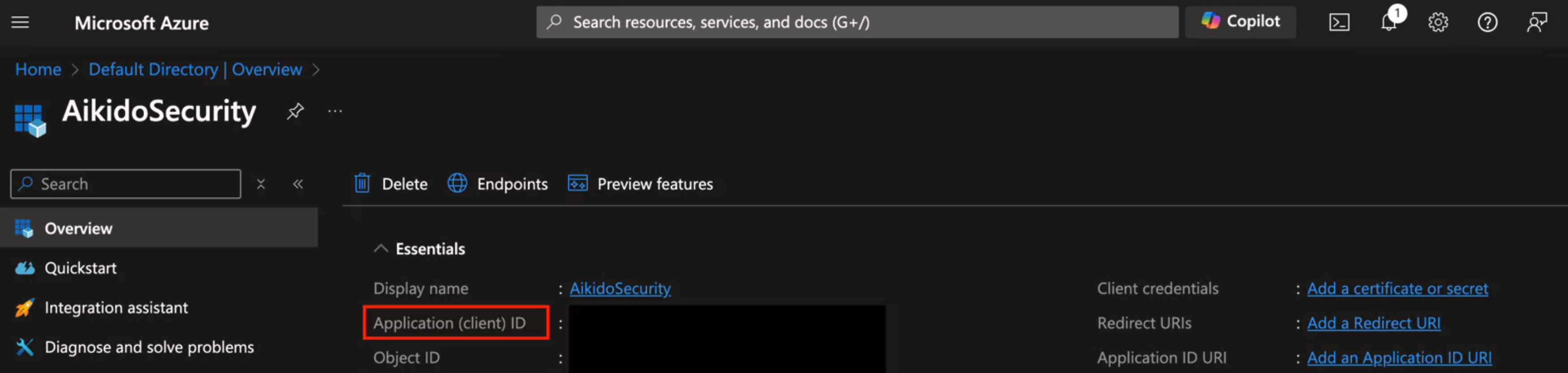
You get redirected to the detail page of the newly created application. Here you can find and copy the **Application (client) ID** and the **Directory (tenant) ID**

![Azure portal displaying AikidoSecurity application overview and client ID information.](/files/4fpKwbsaRodFUbOEMMX8)

At the client credentials field, click "Add a certificate or secret"
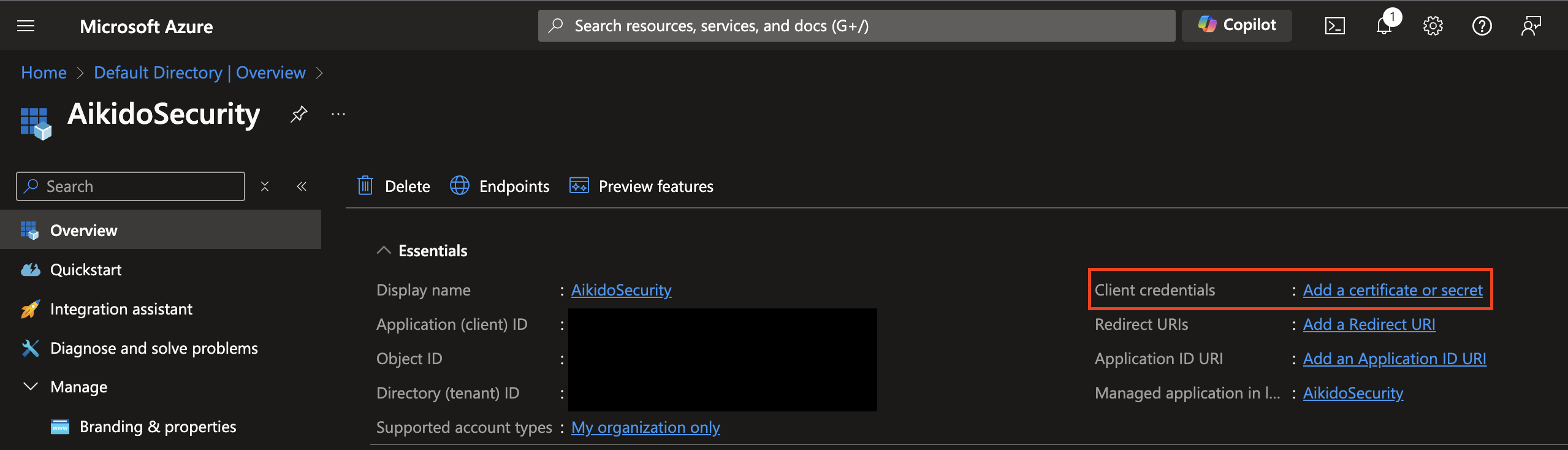
![Azure portal app registration overview, highlighting "Add a certificate or secret" for client credentials.](/files/qcpe9bPtT57jVasgw9ES)

Click the "New client secret"-button, give a description for the secret and set the expiration date to 2 years (730 days / 24 months)
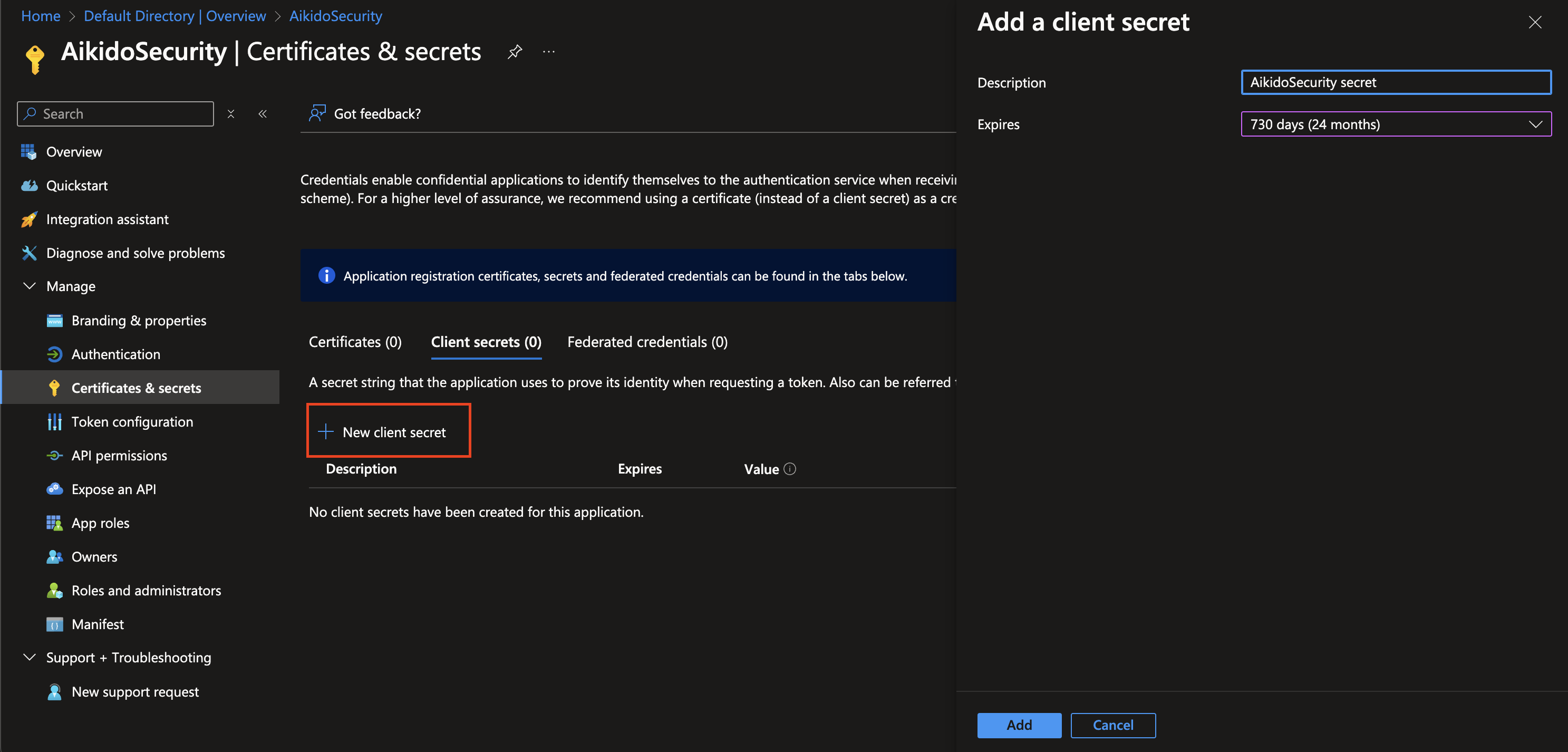
![Creating a new client secret for application authentication in Azure Portal.](/files/QOHwbhOYMHyGPnbKZ66C)

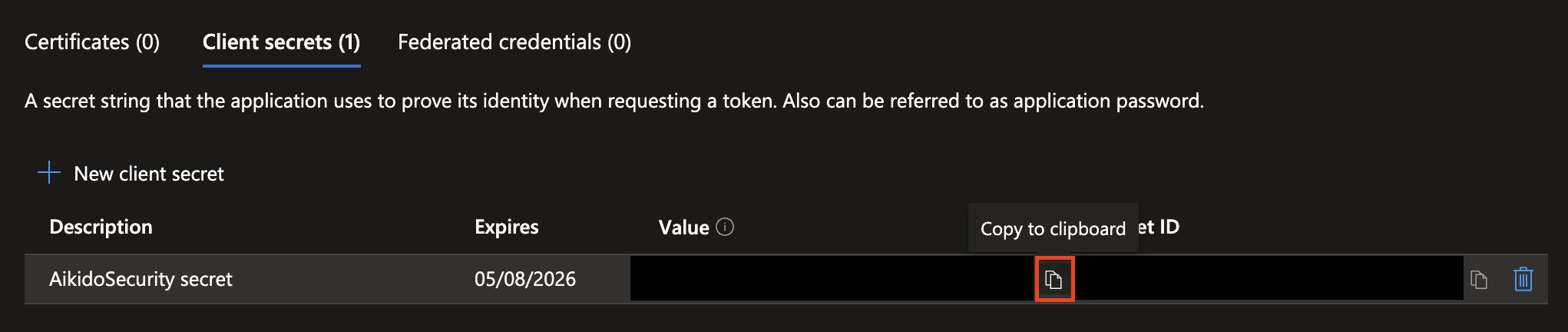
Copy the **Secret's Value**

![Azure portal showing an active client secret for application authentication with expiration date.](/files/LTm3MK6opl5AyZKzyuxA)

You now have all the required values to configure VM scanning in Aikido, once the application setup is complete in Azure Portal. Next, we need to make sure we grant the application access for VM scanning.

Navigate to **Subscriptions**, find the relevant Subscription for your Virtual Machines

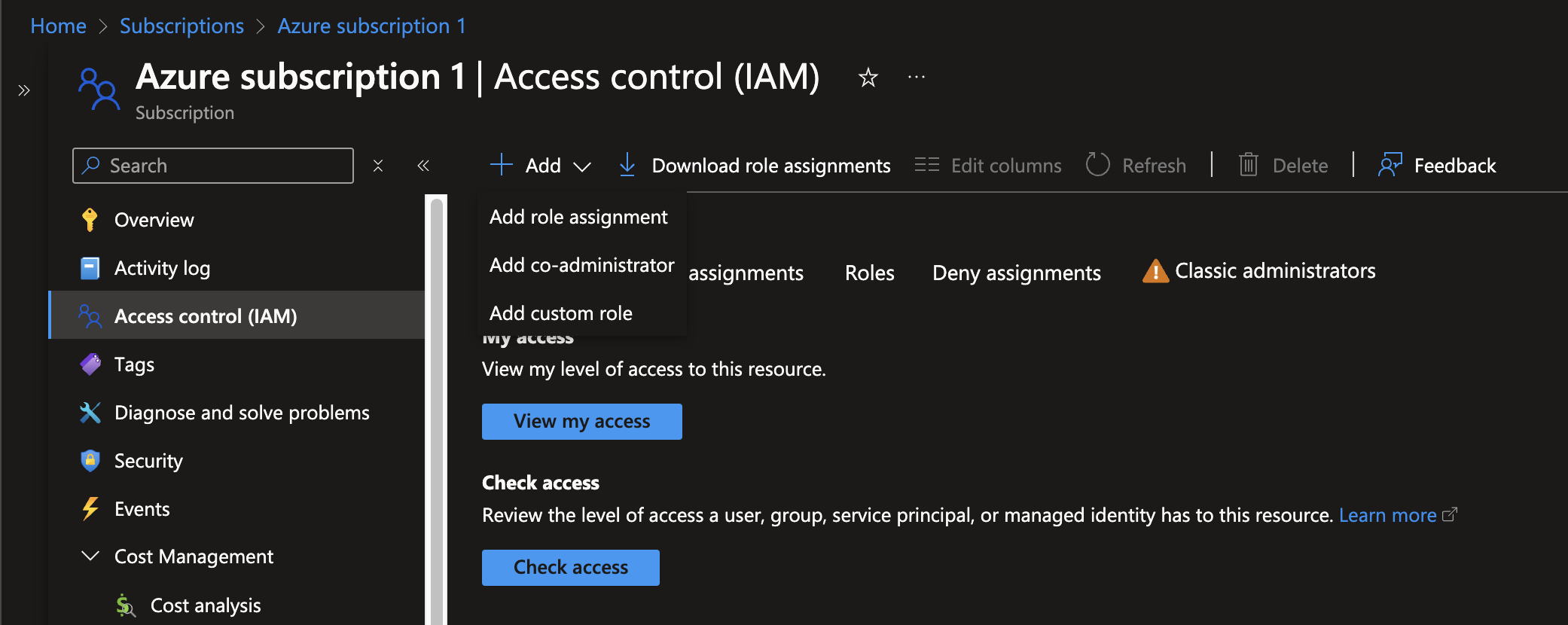
Click on **"Access Control (IAM)"**.

![Azure IAM portal for managing role assignments, permissions, and access levels on subscriptions.](/files/QQTSKaUk9SqA9gyZgfeV)

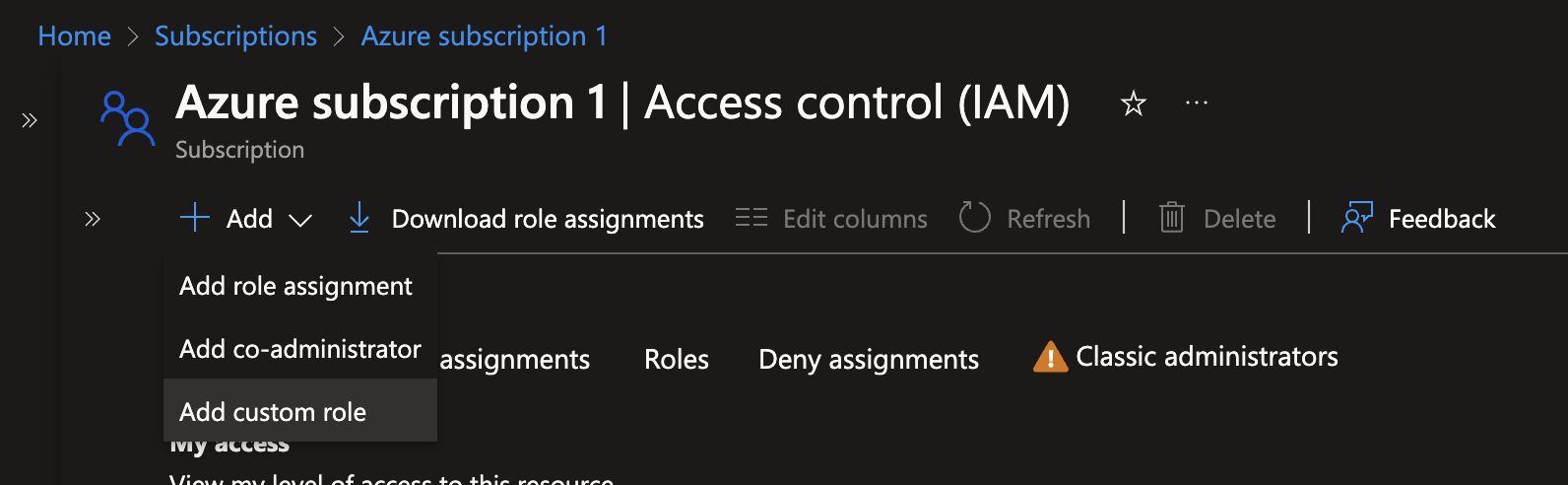
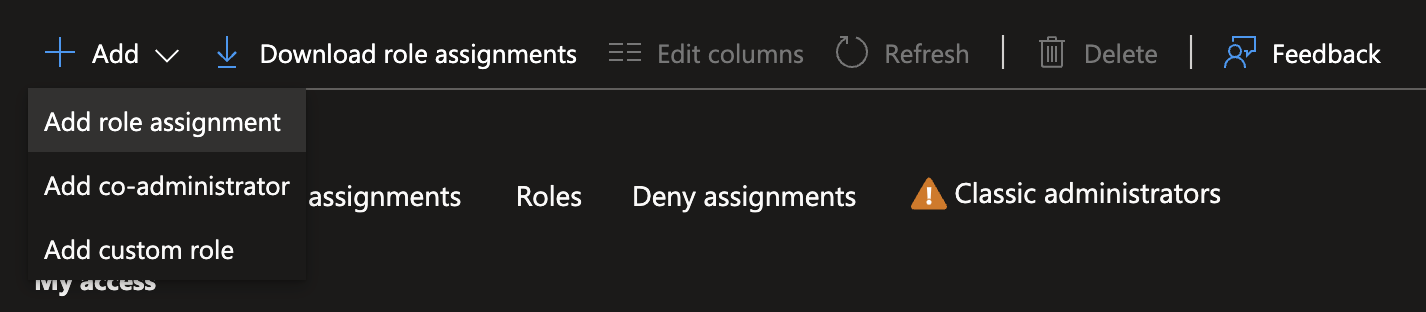
Click on the **"Add"** button.

Select **"Add custom role"**

![Azure IAM: Add role assignment, co-administrator, or custom role for subscription access control.](/files/24LFtHCgYqvgOanEGcw7)

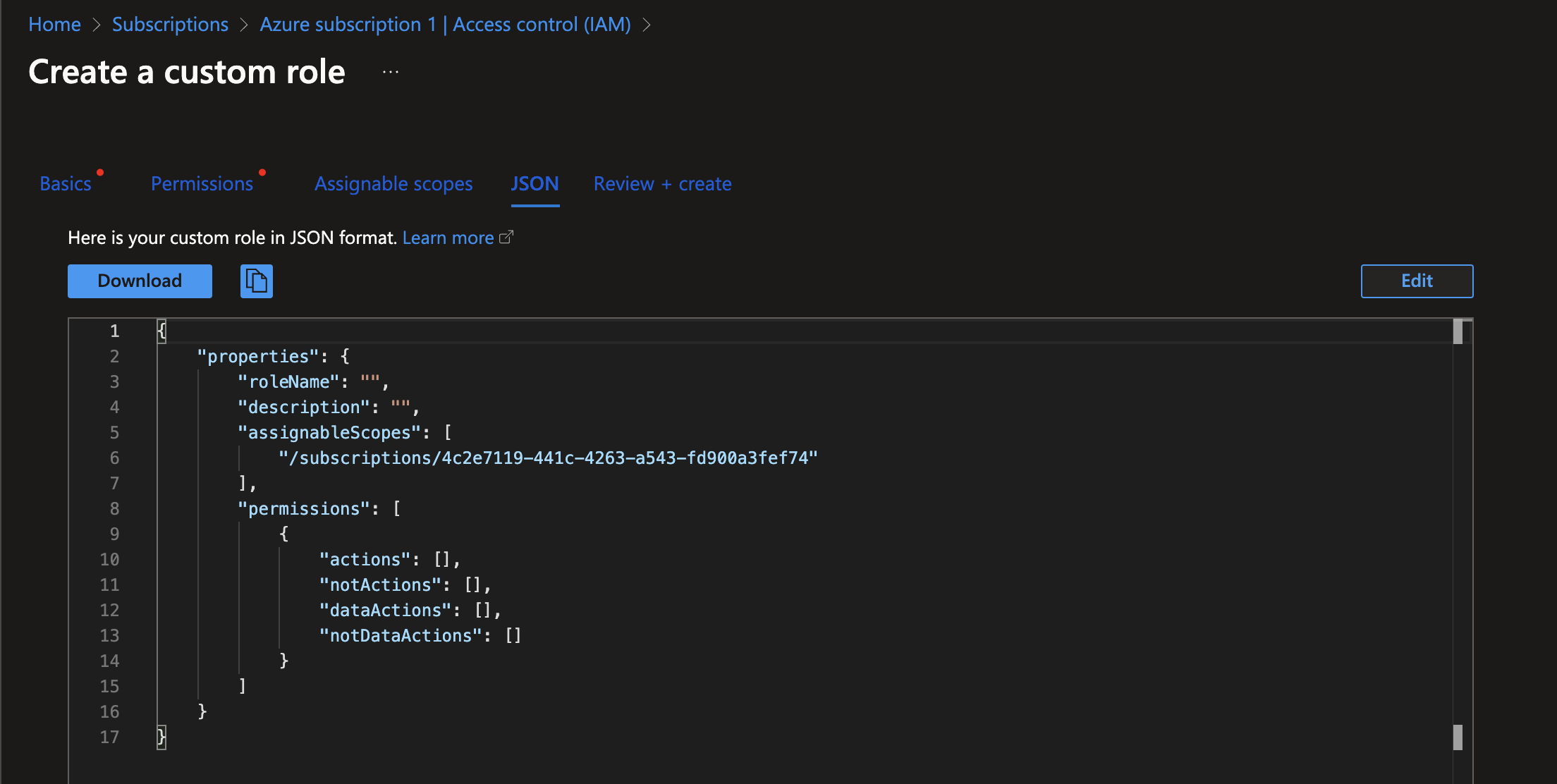
Go to the **"JSON"** tab and open the editor by clicking on **"Edit"**

![Azure portal interface for creating and downloading a custom role JSON definition.](/files/3Wmbtn1hz61g9XPy0jyn)

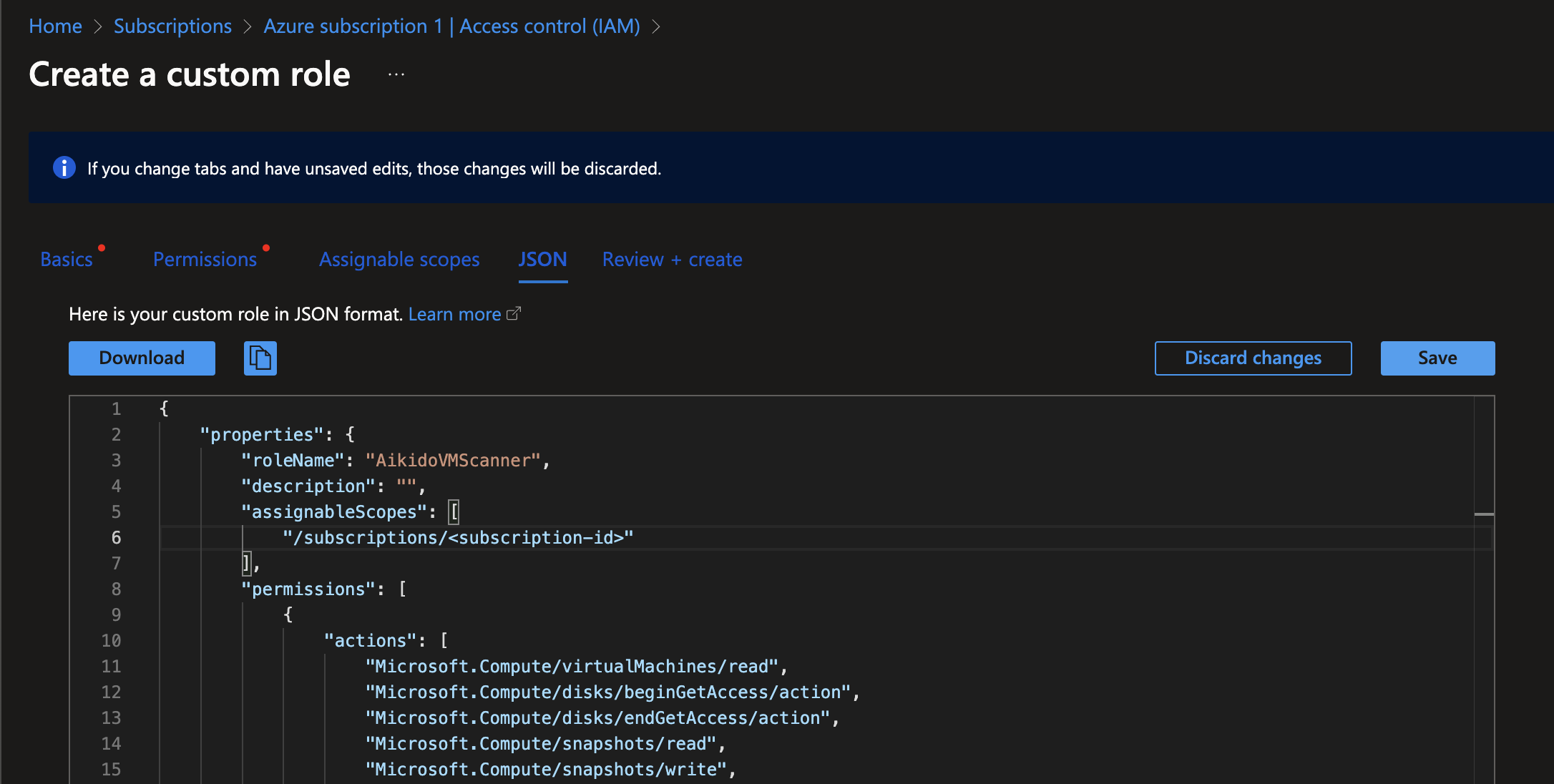
Copy generated JSON config from the Aikido setup screen, paste it into the editor

Click **"Save"**

![Creating a custom Azure IAM role using JSON permissions template.](/files/QcFms64JVhVuYADdIiwH)

At the bottom, click **"Review + assign"**, then **"Create"**

![Azure custom role creation: review of permissions and assignable scopes for AikidoVMScanner.](/files/0r76QxpOVE1R0aT7VdiO)

Now that the custom role is created, we can assign it to the App Registration we created at the start.

Navigate to **Subscriptions**, find the relevant Subscription for your Virtual Machines

Click on **"Access Control (IAM)"**.

![Azure portal IAM: Manage access roles and permissions for subscription resources.](/files/QQTSKaUk9SqA9gyZgfeV)

Go to the Role assignments tab & Click on **"Add"**, then **"Add role assignment"**.

![Role assignment menu in Azure portal with options to add or download roles.](/files/ciR0N2eaEFFFoRw1NxxD)

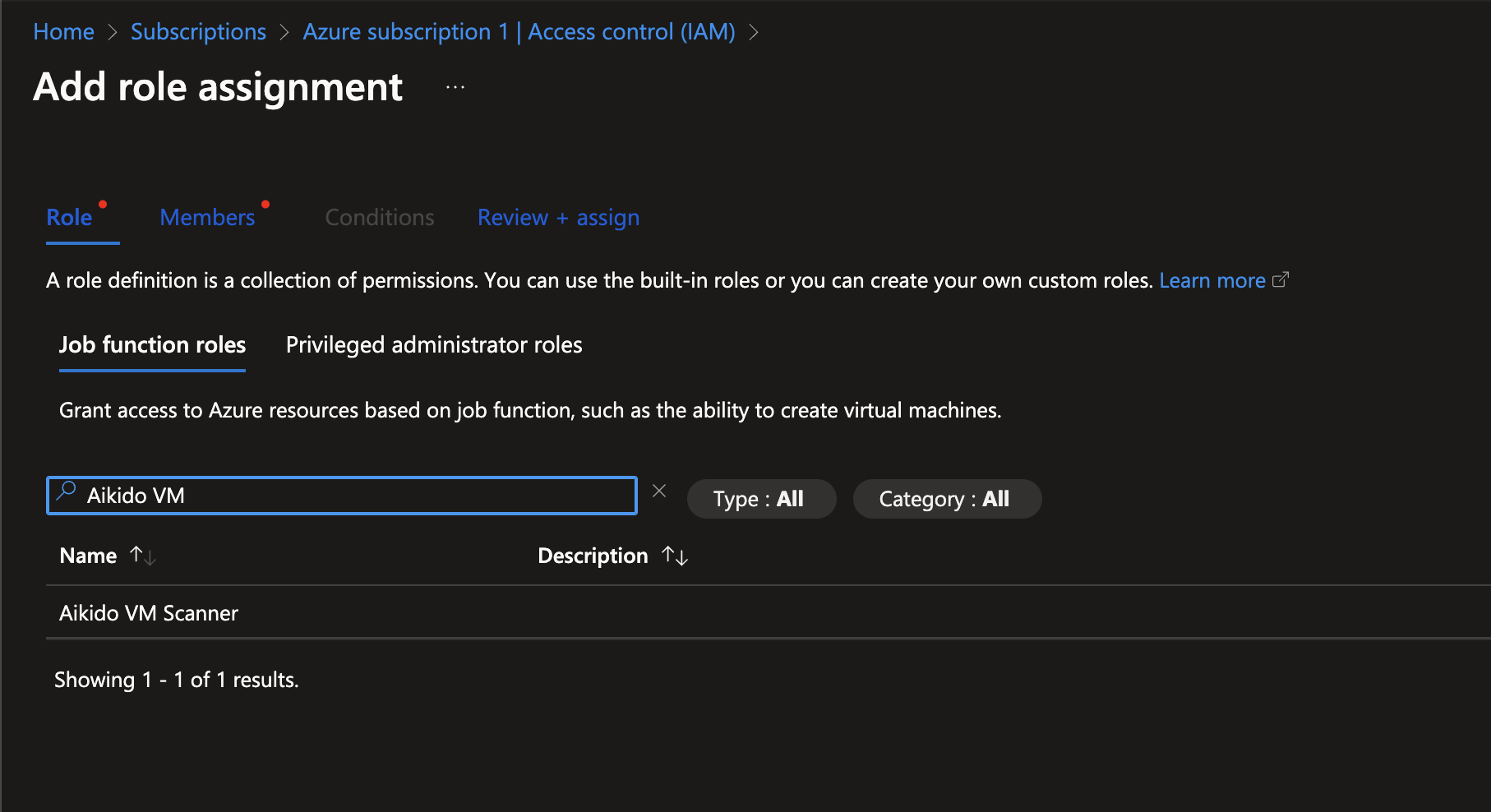
In the **"Role"** tab, search and select the custom role you created (”Aikido VM Scanner”) & Click **"Next"**.

![Assigning the "Aikido VM Scanner" role in Azure for virtual machine access.](/files/X29QbWLjAFidRZ1BVWm3)

Leave the **"Assign access to"** default value.

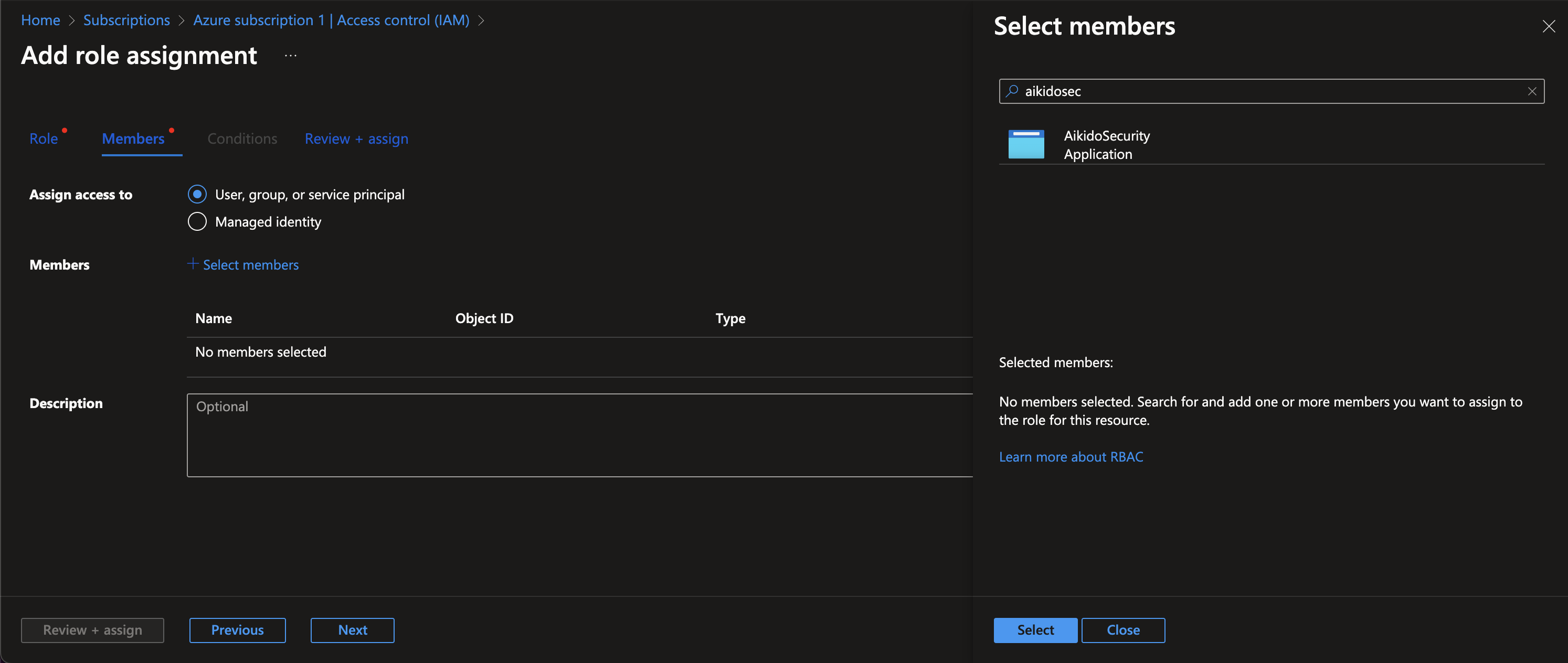
Click on **"Select Members"**, search for the name of the app registration (e.g. "AikidoSecurity") you created and select it.

Click **"Select"**

Click **"Review + assign"** twice

![Assigning user, group, or application roles in Azure subscription via role assignment interface.](/files/0sf3Dmp9hyjhRTQKhkt2)

The App Registration now has the required permissions to scan your Azure Virtual Machines.


---

# Agent Instructions: Querying This Documentation

If you need additional information that is not directly available in this page, you can query the documentation dynamically by asking a question.

Perform an HTTP GET request on the current page URL with the `ask` query parameter:

```
GET https://help.aikido.dev/virtual-machine-scanning/azure/setup-custom-role-in-azure.md?ask=<question>
```

The question should be specific, self-contained, and written in natural language.
The response will contain a direct answer to the question and relevant excerpts and sources from the documentation.

Use this mechanism when the answer is not explicitly present in the current page, you need clarification or additional context, or you want to retrieve related documentation sections.