> For the complete documentation index, see [llms.txt](https://help.aikido.dev/llms.txt). Markdown versions of documentation pages are available by appending `.md` to page URLs; this page is available as [Markdown](https://help.aikido.dev/virtual-machine-scanning/gcp-virtual-machine-scanning-configuration.md).
# Google Cloud Virtual Machine Scanning Setup
### Why should I scan my virtual machines?
With virtual machine scanning, Aikido scans the disks of your Google Compute Engine VMs for vulnerable packages and outdated runtimes.
### Getting started
To enable the scanning of your Google Cloud instances, you should first start by connecting your Google Cloud project to Aikido. Follow the steps outlined [here](https://help.aikido.dev/cloud-scanning/connect-your-cloud/gcp) if you haven't done so already.
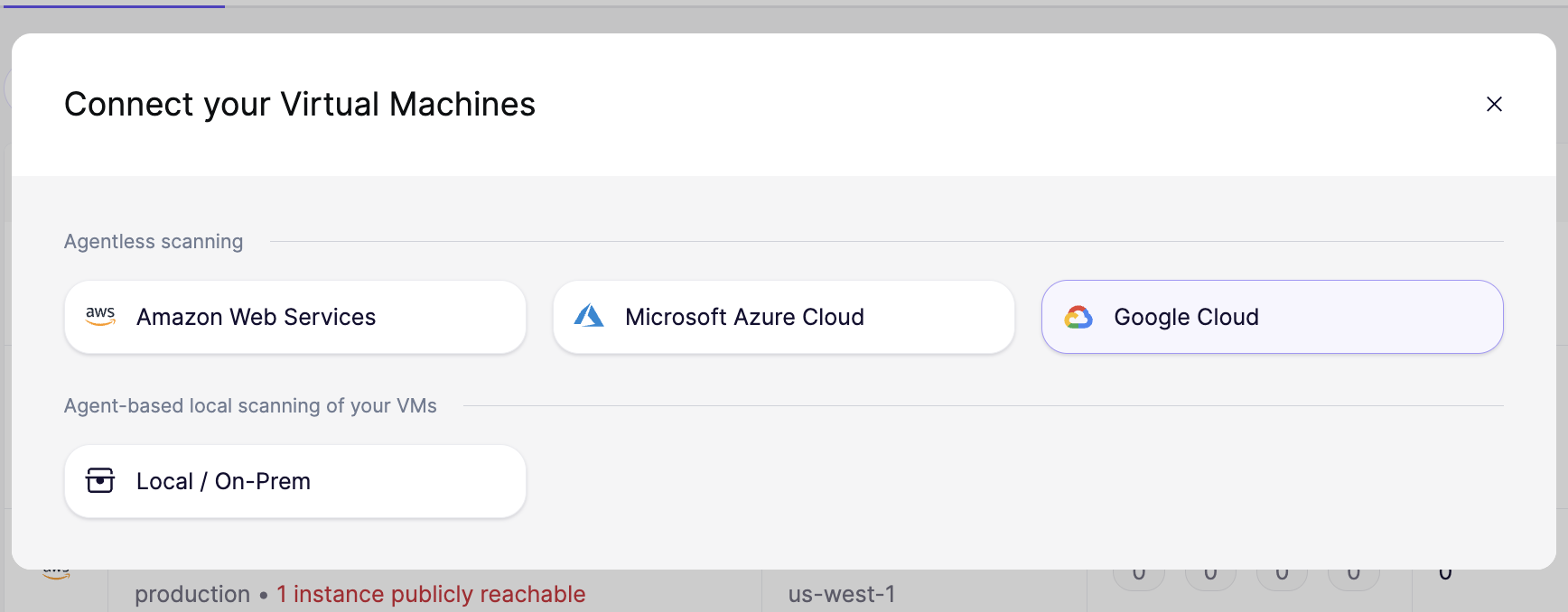
Once your cloud is connected, navigate to the Virtual Machines page and click **Connect VMs**.
In the **Connect your Virtual Machines** modal, select **Google Cloud** under **Agentless scanning**. Aikido will guide you through the four steps:
Only the bare minimum of permissions are granted to the custom role and service account, and storage permissions are scoped to the snapshot bucket only, not project-wide. This ensures that Aikido can perform its security checks without the risk of unintended altering of your resources.
{% stepper %}
{% step %}
**Enable the required Google Cloud APIs**
Aikido needs several Google Cloud APIs enabled in your project to scan your compute instances.
1. In the GCP console, click the **Activate Cloud Shell** icon in the top right.
2. In the shell that opens at the bottom of the screen, run the command shown on the setup page. It enables the following APIs:
* `compute.googleapis.com`
* `iam.googleapis.com`
3. Once the command completes, click **Continue**.
{% endstep %}
{% step %}
**Create custom roles**
Aikido uses two custom roles:
1. A main role for listing instances, reading disks, creating snapshots, and reading snapshots
2. A delete-only role for removing Aikido-created snapshots
Run the commands shown in the setup wizard to create both roles.
The main role includes:
* `compute.instances.list`
* `compute.instanceGroups.get`
* `compute.instanceGroups.list`
* `compute.disks.createSnapshot`
* `compute.disks.get`
* `compute.snapshots.create`
* `compute.snapshots.get`
* `compute.snapshots.list`
* `compute.snapshots.setLabels`
* `compute.snapshots.useReadOnly`
The second role includes:
* `compute.snapshots.delete`
Once the roles are created, note their IDs (`aikidoSecurityVmScannerRole` and `aikidoSecurityVmScannerSnapshotDeleteRole` unless you changed them).
Press **Continue**.
{% hint style="info" %}
**Keep all permissions in this role.** This is the absolute minimum Aikido needs to perform VM scans. Removing any will cause scans to fail.
{% endhint %}
{% endstep %}
{% step %}
**Grant access**
Aikido shows you the email address of its managed Google Cloud service account in the setup wizard. Grant the roles you created in step 2 to the Aikido-managed service account:
* Grant the main custom role to that service account using the command shown in the wizard.
* Then grant the delete-only role using the second command shown in the wizard. That binding includes a condition so it only applies to Aikido-created snapshots. This ensures Aikido can only delete snapshots that it created itself.
{% endstep %}
{% endstepper %}
### How it works
At a high level, the flow is:
{% stepper %}
{% step %}
Aikido discovers the GCE instances in your Google Cloud project.
{% endstep %}
{% step %}
Aikido creates snapshots for the corresponding disks in your project.
{% hint style="info" %}
Aikido labels those snapshots so the delete permission you grant applies only to Aikido-managed snapshots.
{% endhint %}
{% endstep %}
{% step %}
Aikido then creates a temporary disk in an Aikido-managed project from each snapshot.
{% hint style="info" %}
The disks are created and scanned in the Aikido-managed project in the same region as the original disk.
{% endhint %}
{% endstep %}
{% step %}
The temporary disk is attached to an isolated ephemeral job, which performs the actual scanning.
{% endstep %}
{% step %}
The temporary disk is deleted from the Aikido-managed project.
{% endstep %}
{% endstepper %}
### Using GCP VM Scanning with VPC Service Controls
If your GCP project is protected by a VPC Service Controls perimeter, you may need to allow one additional cross-project operation on top of the IAM permissions described [above](#getting-started).
As described in [the "how it works" section](#how-it-works), Aikido creates a snapshot in your project and then creates a temporary disk in Aikido's scanner project from that snapshot. The disk creation can be blocked by VPC Service Controls.
**What to allow**
* Service: `compute.googleapis.com`
* Method: `compute.v1.DisksService.Insert`
* Target project: `aikido-vm-scanning`
* Service account: `aikido-vm-scanner-batch@aikido-vm-scanning.iam.gserviceaccount.com`
### Using GCP VM Scanning with Domain-Restricted Sharing
In case you are using organization policy constraints such as `iam.managed.allowedPolicyMembers` or `iam.allowedPolicyMemberDomains`, here is Aikido's Google Workspace customer ID: `C016qe815`.
---
# Agent Instructions
This documentation is published with GitBook. GitBook is the documentation platform designed so that both humans and AI agents can read, navigate, and reason over technical content effectively. Learn more at gitbook.com.
## Querying This Documentation
If you need additional information that is not directly available in this page, you can query the documentation by asking a question.
Perform an HTTP GET request on the following URL with the `ask` and `goal` query parameters:
```
GET https://help.aikido.dev/virtual-machine-scanning/gcp-virtual-machine-scanning-configuration.md?ask=&goal=
```
`ask` is the immediate question: it should be specific, self-contained, and written in natural language.
`goal` is what the user is ultimately trying to achieve, the reason they need the answer. Sharing it helps GitBook give you a better, more relevant answer. A goal is most helpful when it describes the outcome the user wants rather than restating the question. For example, with `ask=how do I create an API token`, a goal like `automate deployments from our CI pipeline` lets GitBook tailor the answer to that use case.
The response will contain a direct answer to the question and relevant excerpts and sources from the documentation.
Use this mechanism when the answer is not explicitly present in the current page, you need clarification or additional context, or you want to retrieve related documentation sections.