
Playbooks
Automatically block IPs when Zen sees suspicious behavior in your app.
Playbooks are automation rules for Zen Firewall. Each playbook pairs an event with an action: when Zen sees the event, it takes the action for you. No one has to be watching the dashboard.
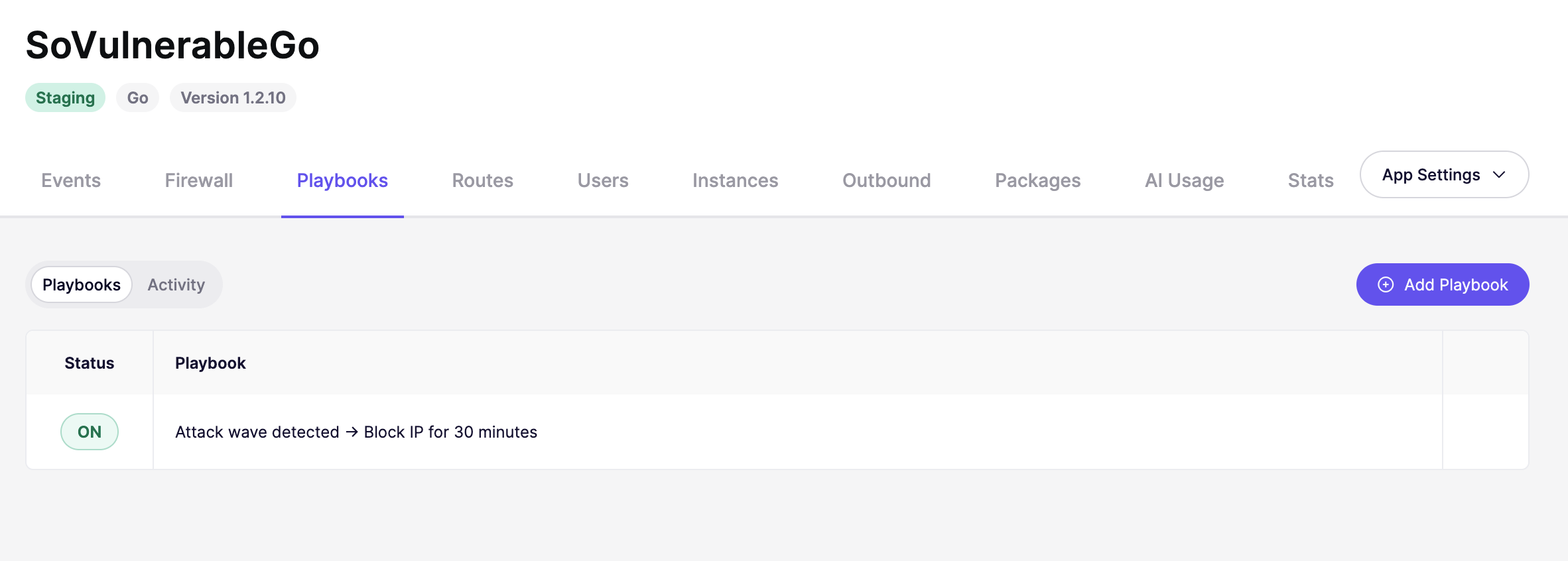
A playbook reads as one sentence: Attack wave detected → Block IP for 30 minutes.
#Create a playbook
- Open a Zen Firewall app and go to the Playbooks tab.
- Click Add Playbook.
- Under When, pick the event that should trigger the playbook.
- Under Configure, pick the action and how long it should last.
- Click Create Playbook.
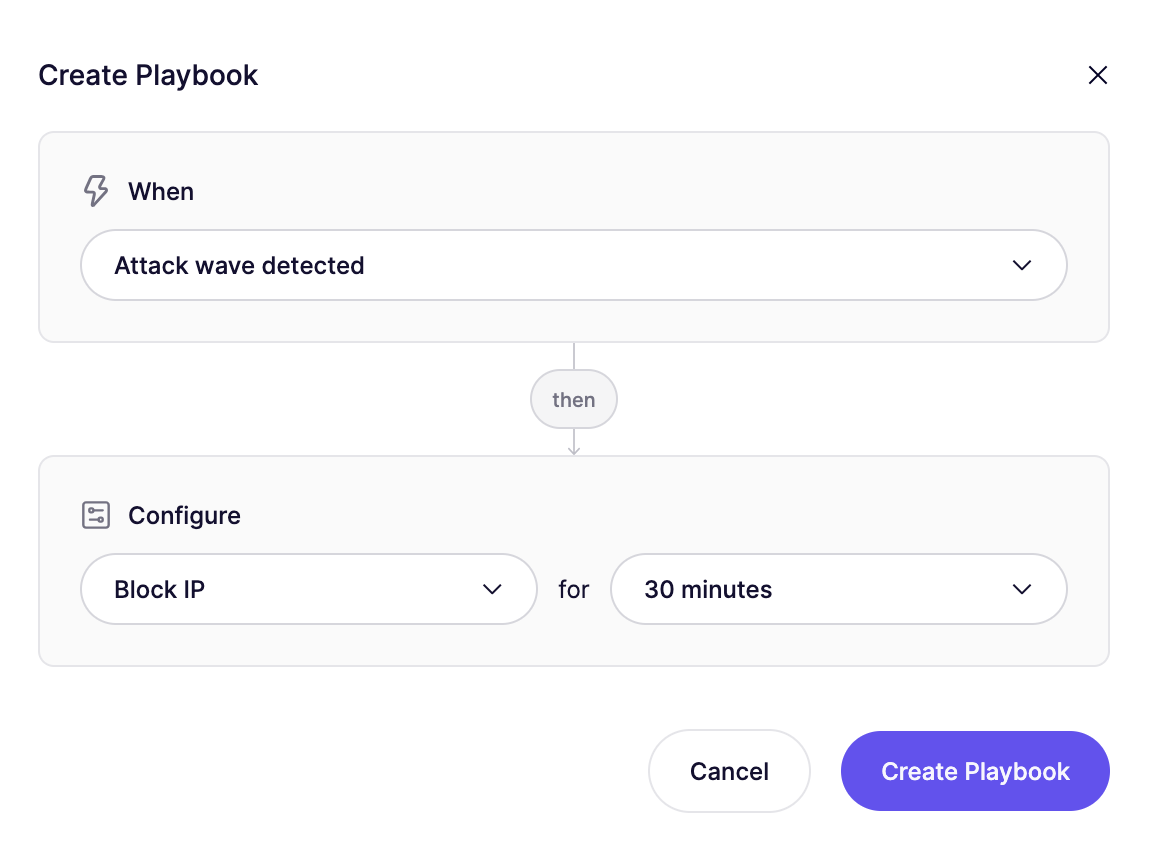
The playbook is active as soon as you create it.
#Events
Playbooks react to events. You can send your own events from your application code, or use the events Zen detects out of the box.
#Custom events
Report events from your application code with track, so playbooks can react to things only your app knows about. Some examples: a failed login, an invalid coupon code, a password reset request, a rejected API key, or a failed payment.
Call track with an event name wherever that event happens in your request handling:
const Zen = require("@aikidosec/firewall");

// Inside any request handler
Zen.track("your.event_name");
from aikido_zen import track
# Inside any request handler
track("your.event_name")// Inside any HTTP handler, pass the request context
zen.Track(r.Context(), "your.event_name")# Inside any request, for example a Rails controller action
Aikido::Zen.track("your.event_name")// Inside any request handler
if (extension_loaded('aikido')) {
\aikido\track('your.event_name');
}// ASP.NET Core: using Aikido.Zen.DotNetCore;
// ASP.NET Framework: using Aikido.Zen.DotNetFramework;
// Inside any controller action or middleware
Zen.Track("your.event_name");Event names can use any format. We recommend lowercase, dot-separated names such as user.login_failed or coupon.invalid.
After you add track, trigger the event once. It then shows up as an event you can pick when you create a playbook. Calling track on its own does not block anything.
Zen picks up the IP address from the request, so you only pass the event name. If you set the current user before calling track, Zen includes the user too. You can then build a playbook like coupon.invalid 10 times in 5 minutes → Block IP for 1 hour. The count is per IP, not across your whole app.
#Built-in events
Attack wave detected. An IP is systematically probing your app, for example scanning for .env files or hidden directories. See Attack Wave Protection for how Zen detects this.
Injection attack detected. User input tried to exploit your app through SQL injection, command injection, path traversal, or server-side request forgery (SSRF). See How Does Zen Work? for how Zen detects this.
#Actions
Block IP. The IP that caused the event is added to the blocklist for this app. You choose how long: 30 minutes, 1 hour, 24 hours, or permanently.
Temporary blocks expire on their own. When a block expires, Zen also resets the event count for that IP, so the playbook starts from zero again.
Playbooks never block IPs on your bypass list.
#See what a playbook did
The Activity view on the Playbooks tab logs every action a playbook took: when it happened, which playbook fired, the IP it targeted, and how much of the block is left. Use the dropdown to filter by playbook.
Blocks made by a playbook also show up as Playbook rule in Why is this IP blocked?
#Turn a playbook off, edit, or delete it
Use the actions menu on the right of a playbook row:
- Disable Playbook stops it from taking action. Existing blocks stay in place.
- Edit Playbook changes the event, action, or duration.
- Remove Playbook deletes it.