> For the complete documentation index, see [llms.txt](https://help.aikido.dev/llms.txt). Markdown versions of documentation pages are available by appending `.md` to page URLs; this page is available as [Markdown](https://help.aikido.dev/~/revisions/SGhJfnCIOpxRjx1gC1k5/code-quality/code-quality-setup.md).
# Code Quality Setup
{% hint style="info" %}
Code Quality is **currently works by adding comments on newly introduced PRs**. Over time, Aikido will add support for IDE and will allow to scan the entire codebase.
{% endhint %}
Code Quality helps you maintain high standards across your codebase by automatically reviewing pull requests for common issues, best practices, and team-specific guidelines. This guide walks you through setting up Code Quality in your PR / MR Checks.
## Prerequisites
Before you begin, ensure you have:
* **Access to this functionality**
* An account connected to GitHub, Bitbucket, Gitlab or Azdo. **No support for Local Scanning Accounts.**
* Admin access to your Aikido account
* [Connected repositories to Aikido](/~/revisions/SGhJfnCIOpxRjx1gC1k5/code-scanning/connect-your-source-code.md)
## Getting started
{% hint style="danger" %}
This functionality is currently **not** **enabled by default** on any Aikido account. Contact us to sign up for access.
{% endhint %}
There are 3 steps in total to setup and run your first code quality steps. The Aikido UI shows clearly which steps to follow on the Code Quality page (accessible from sidebar). Below a more extensive description.
{% stepper %}
{% step %}
### Enable Code Quality for repositories
Choose which repositories should have Code Quality checks enabled:
1. Click **Configure Repositories** on the Code Quality Page to open the PR checks page. If you haven't configured the CI checks yet, you will be taken through the installation flow.
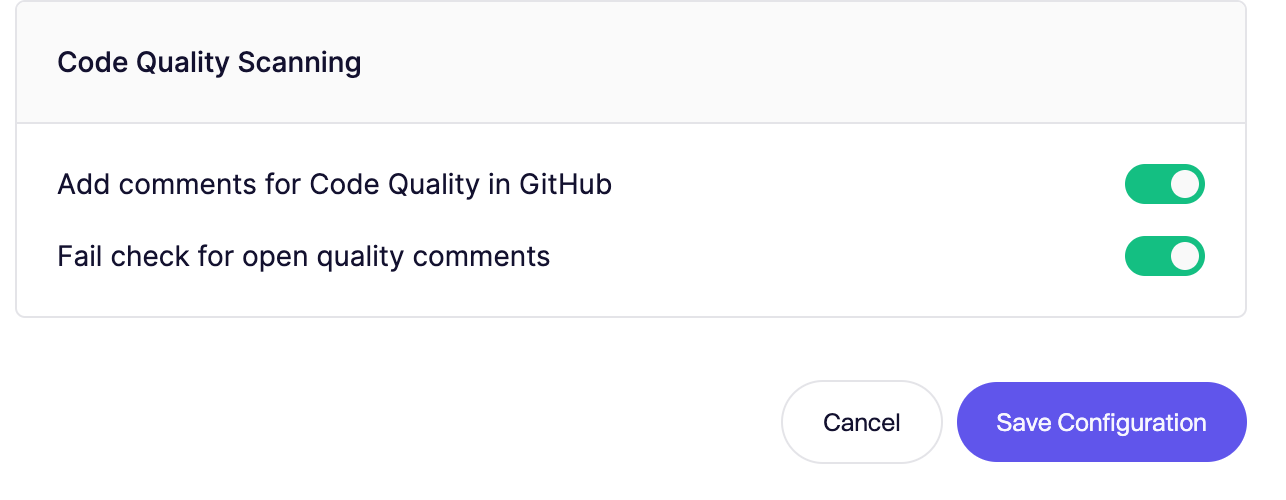
2. Select the repositories where you want to run code quality checks and enable the Code Quality functionality (on the bottom) in the modal. You can choose whether you just want to add comments or also fail the gate.
{% endstep %}
{% step %}
### Select quality checks
Configure which code quality rules to enforce on the Code Quality Checks page
1. Browse through the available checks organized by:
* **Default checks** - Pre-configured best practices for multiple languages
* **Custom checks** - Rules specific to your team (you can add these later)
2. Toggle checks on/off based on your team’s needs
{% endstep %}
{% step %}
### Run your first scan
Once you’ve configured repositories and checks:
1. Click **Scan Last 5 PRs** to analyze your most recent pull requests. This helps you validate whether the setup has been done correctly. As soon as the setup is succesful, you will **not** be able to trigger this again.
2. Review the results in the Activity tab
{% endstep %}
{% step %}
### PR integration
After the initial scan, Code Quality will automatically:
* Comment on new pull requests with found issues
{% endstep %}
{% endstepper %}
---
# Agent Instructions
This documentation is published with GitBook. GitBook is the documentation platform designed so that both humans and AI agents can read, navigate, and reason over technical content effectively. Learn more at gitbook.com.
## Querying This Documentation
If you need additional information that is not directly available in this page, you can query the documentation by asking a question.
Perform an HTTP GET request on the following URL with the `ask` and `goal` query parameters:
```
GET https://help.aikido.dev/~/revisions/SGhJfnCIOpxRjx1gC1k5/code-quality/code-quality-setup.md?ask=&goal=
```
`ask` is the immediate question: it should be specific, self-contained, and written in natural language.
`goal` is what the user is ultimately trying to achieve, the reason they need the answer. Sharing it helps GitBook give you a better, more relevant answer. A goal is most helpful when it describes the outcome the user wants rather than restating the question. For example, with `ask=how do I create an API token`, a goal like `automate deployments from our CI pipeline` lets GitBook tailor the answer to that use case.
The response will contain a direct answer to the question and relevant excerpts and sources from the documentation.
Use this mechanism when the answer is not explicitly present in the current page, you need clarification or additional context, or you want to retrieve related documentation sections.