> For the complete documentation index, see [llms.txt](https://help.aikido.dev/llms.txt). Markdown versions of documentation pages are available by appending `.md` to page URLs; this page is available as [Markdown](https://help.aikido.dev/~/revisions/SGhJfnCIOpxRjx1gC1k5/zen-firewall/disable-attack-protection-for-specific-path-or-url.md).
# Disable Attack Protection for Specific Path or URL
Disable Attack Protection lets you mark a route as safe if Zen is incorrectly blocking legitimate traffic. This is the recommended way to handle false positives. Once disabled, Zen stops blocking requests on that route (or group of routes)
## Use Cases
* Database tools, for example PHPMyAdmin: Routes where raw SQL queries are expected. Zen would normally block these, but here they’re legitimate.
* Search APIs with custom query syntax: For example, an API that accepts filter expressions (field:value) that look like injection attempts.
* Developer / debug endpoints: Internal tools that accept large or unusual payloads.
* Custom applications: Endpoints intentionally designed to accept input patterns that resemble attacks.
{% hint style="warning" %}
Only disable protection if you are sure the behavior is expected and safe. For real attacks, Zen should stay enabled.
{% endhint %}
## How to Disable Protection
### Disable for a Single Route
1. Open the Routes view in your Zen dashboard.
2. Locate the route that triggered the false positive.
3. Click the action menu (⋮).
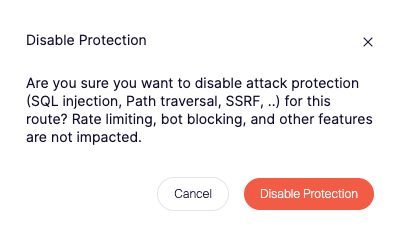
4. Select **Disable Protection** for this route.
5. Confirm your choice.
Zen will now no longer block attacks on this specific route.
### Disable for Multiple Routes (Wildcard)
1. Open the Routes view in your Zen dashboard.
2. Add a new route with wildcard `*`
3. Click the action menu (⋮)
4. Select Disable protection for route wildcard.
5. Confirm your choice.
All routes that match the wildcard will bypass attack blocking.
---
# Agent Instructions
This documentation is published with GitBook. GitBook is the documentation platform designed so that both humans and AI agents can read, navigate, and reason over technical content effectively. Learn more at gitbook.com.
## Querying This Documentation
If you need additional information that is not directly available in this page, you can query the documentation by asking a question.
Perform an HTTP GET request on the following URL with the `ask` and `goal` query parameters:
```
GET https://help.aikido.dev/~/revisions/SGhJfnCIOpxRjx1gC1k5/zen-firewall/disable-attack-protection-for-specific-path-or-url.md?ask=&goal=
```
`ask` is the immediate question: it should be specific, self-contained, and written in natural language.
`goal` is what the user is ultimately trying to achieve, the reason they need the answer. Sharing it helps GitBook give you a better, more relevant answer. A goal is most helpful when it describes the outcome the user wants rather than restating the question. For example, with `ask=how do I create an API token`, a goal like `automate deployments from our CI pipeline` lets GitBook tailor the answer to that use case.
The response will contain a direct answer to the question and relevant excerpts and sources from the documentation.
Use this mechanism when the answer is not explicitly present in the current page, you need clarification or additional context, or you want to retrieve related documentation sections.