
AWS EC2 KMS (Key Management Service) Support
When using AWS Customer Managed Keys (CMK) for encryption with your EC2 instances, you'll need to grant Aikido's scanning role access to these keys. This guide walks you through the necessary steps.
#Prerequisites
- You have EC2 instances encrypted with CMK.
- You have access to the key used for EBS encryption in AWS KMS.
- You have enabled EC2 scanning in Aikido. You will need the role ARN.
#Steps to Grant Access
- Navigate to AWS KMS → Customer managed keys
- Locate and click on the CMK you use for EC2 encryption
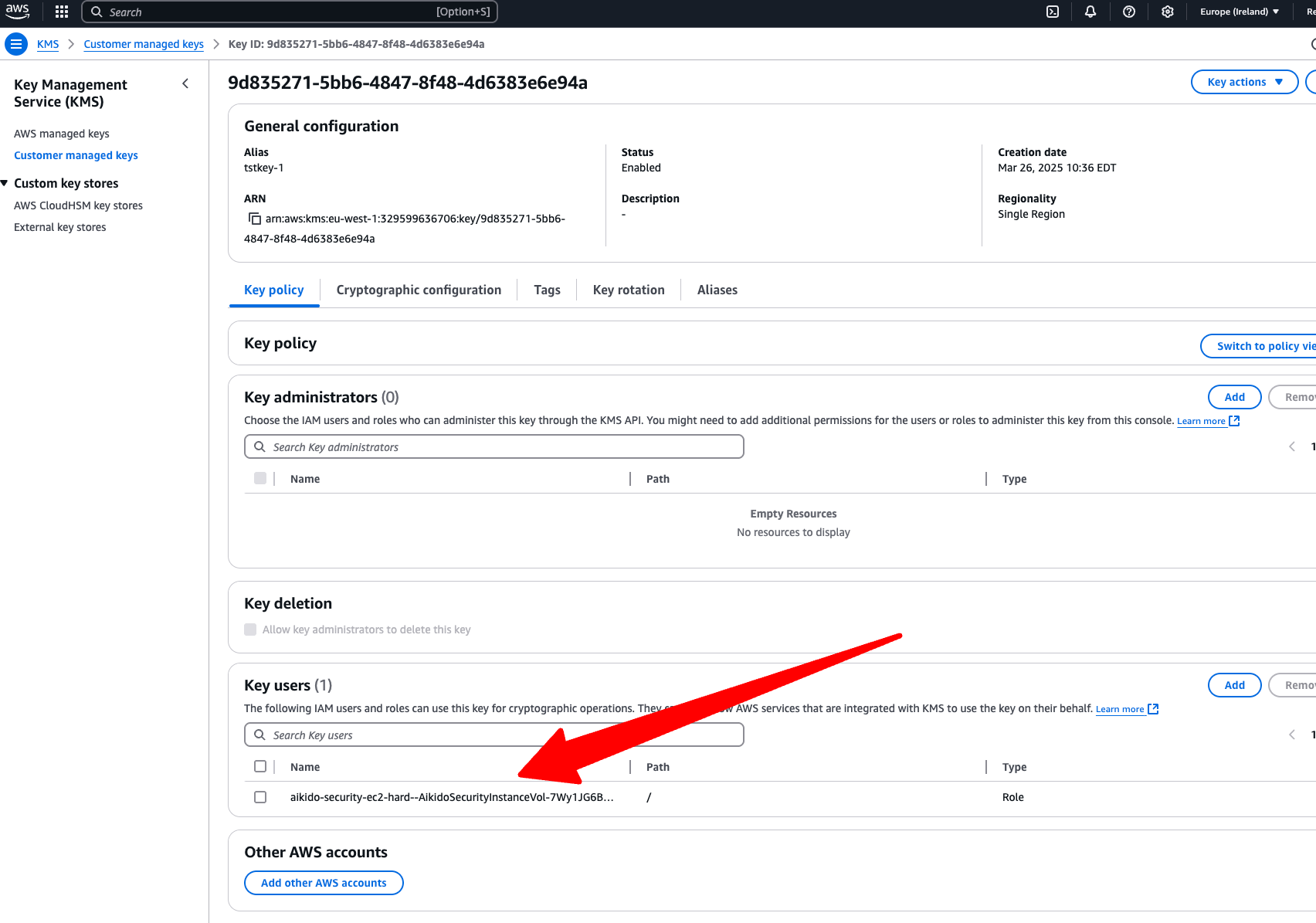
- In the key details page, scroll to the Key users section
- Click Add to include a new key user
- Search for and select the Aikido VM scanning role
- Save your changes
#JSON Policy
Alternatively, if you manage your KMS keys using infrastructure as code, add the following statements to the JSON policy of the key used for EBS encryption, replacing arn:aws:iam::112233445566:role/aikido-security-ec2 with your Aikido VM scanning role ARN:
{
  "Sid": "Allow use of the key",
  "Effect": "Allow",
  "Principal": {
    "AWS": "arn:aws:iam::112233445566:role/aikido-security-ec2" // Replace this
  },
  "Action": [
    "kms:Encrypt",
    "kms:Decrypt",
    "kms:ReEncrypt*",
    "kms:GenerateDataKey*",
    "kms:DescribeKey"
  ],
  "Resource": "*"
},
{
  "Sid": "Allow attachment of persistent resources",
  "Effect": "Allow",
  "Principal": {
    "AWS": "arn:aws:iam::112233445566:role/aikido-security-ec2" // Replace this
  },
  "Action": ["kms:CreateGrant", "kms:ListGrants", "kms:RevokeGrant"],
  "Resource": "*",
  "Condition": {
    "Bool": {
      "kms:GrantIsForAWSResource": "true"
    }
  }
}#Verification
Once you've added the Aikido role as a key user, Aikido should be able to scan your CMK-encrypted EC2 instances.
#Important Notes
- Without these permissions, Aikido cannot scan EC2 instances encrypted with your CMK.
- This permission is specifically scoped to allow only the necessary access for scanning purposes.
- If you remove these permissions later, scanning capabilities will be affected.
#Troubleshooting
If you encounter scanning issues with CMK-encrypted instances, verify that:
- The correct CMK is selected
- The Aikido role is properly added as a key user
- The key policy hasn't been modified to remove the permission
#Managing which VMs are scanned
Aikido supports an inclusion and exclusion model for VM scanning.
#Scanning Frequency
Each day, 10% of all VMs enabled for scanning are rescanned, so on average, every VM is scanned once every 10 days.