> For the complete documentation index, see [llms.txt](https://help.aikido.dev/llms.txt). Markdown versions of documentation pages are available by appending `.md` to page URLs; this page is available as [Markdown](https://help.aikido.dev/dast-surface-monitoring/api-scanning/authenticated-api-scanning-for-rest-graphql.md).
# Authenticated API Scanning for REST/GraphQL
This guide will walk you through the steps to set up authenticated domain scanning in Aikido, ensuring thorough and secure assessments.
> API Scanning is only available on Pro and Advanced Plans
## Use Cases
* Ensure comprehensive security assessments for protected areas of your website.
* Identify vulnerabilities in authenticated sections of your APIs.
## Setting up authentication on a domain
**Step 1:** Go to the [**Domains Overview**](https://app.aikido.dev/settings/domains) and open the action menu for a REST/ GraphQL API domain of your choice by clicking the triple dots. Select **Authenticate Domain.**

**Step 2:** Select your preferred option to authenticate.

> All types of scan credentials are securely stored using PKCS1 encryption
## Authentication Options
**Login via Form**
Fill in the URL and email/password for the domain authentication. Click **Test** to let Aikido check whether it can access the domain with those credentials.
You can also enter the one time password information if two factor authentication is enabled. For [more information about the OTP URL and how it works, see the documentation](/dast-surface-monitoring/miscellaneous/using-2fa-in-front-end-and-api-scans.md).
{% hint style="success" %}
* Microsoft / Google SSO is currently **not** supported. As a workaround, you can manually authenticate and pass a valid session using the Cookie header via custom headers.
* Is your case not supported? Let us know via the chat and we will look into it!
{% endhint %}

Aikido will attempt to submit the form using the following rules:
1. Find a visible button or input field with `type=submit` while ignoring popular OAuth options like Google and Facebook
2. Find button based on the label or text. Looks for text equal or similar to: login, log in, submit, sign in, .. It does so in multiple languages.
3. Find button based on set of HTML ID's, for example `id=form-submit`
4. Find first visible button on page
**Custom Headers**
If your endpoints accepts a fixed key, cookie or token which should not change after creation, you can add it as a custom header via this option.
Use-cases:
* Cookies: Set the `Cookie` header.
```
Cookie: sessionId=38afes7a8
```
* JWT Bearer token: Set the `Authorization` header
```
Authorization: Bearer
```
**OAuth Client Credentials**
This option can be used when you want to bypass MFA. Aikido makes a request to the provided login URL which follows the OAuth spec for a Client Credentials flow. This means that we'll make a POST request to the configured login url, with `grant_type` set to `client_credentials` and a basic authorization header containing the client\_id and client\_secret as the username and password respectively.
**OAuth Password Grant**
Choose this option if your API requires direct user credentials (username and password) using the OAuth Password Grant flow. Aikido sends a POST request to your login URL with `grant_type` set to `password`, including the username and password you provide. Depending on the API, a Client ID and Secret might also be required.
**Basic Auth**
Select this option if your API uses standard Basic Authentication. Provide your username and password, and Aikido will automatically include the necessary `Authorization: Basic ...` header with every request made to your API.
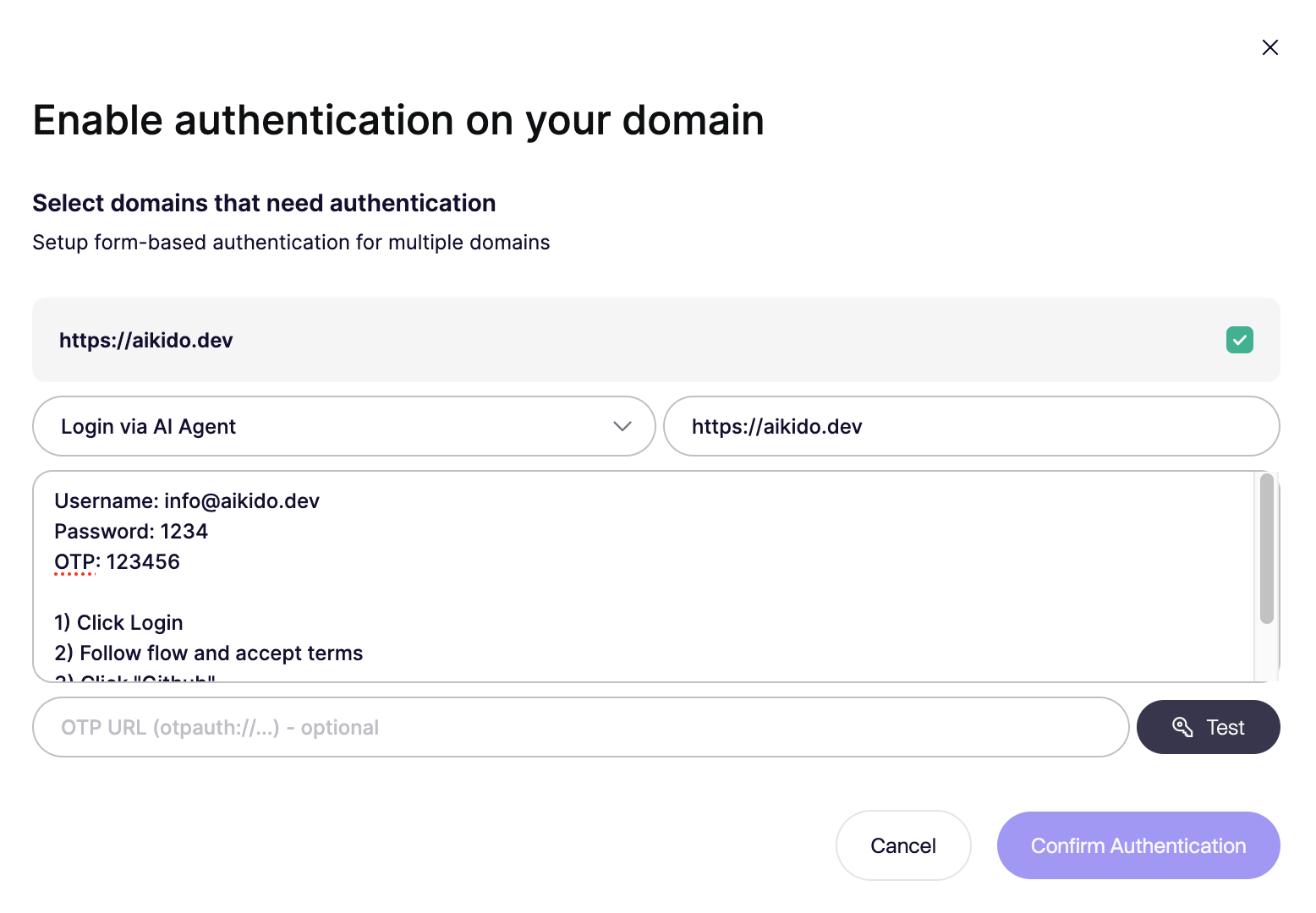
**Login via AI Agent (beta)**
The AI Agent uses an LLM to control a real browser session. It follows the instructions you provide to complete the authentication process, just like a human would. This works well for:
* Form based logins
* Static OTP or one time codes
* Multi step authentication flows
* Custom or non standard login screens
Provide clear step by step instructions, including credentials and any required actions. The agent can handle redirects, dynamic pages, and intermediate steps without needing detailed configuration. In most cases, short and simple instructions are enough.
---
# Agent Instructions
This documentation is published with GitBook. GitBook is the documentation platform designed so that both humans and AI agents can read, navigate, and reason over technical content effectively. Learn more at gitbook.com.
## Querying This Documentation
If you need additional information that is not directly available in this page, you can query the documentation by asking a question.
Perform an HTTP GET request on the following URL with the `ask` and `goal` query parameters:
```
GET https://help.aikido.dev/dast-surface-monitoring/api-scanning/authenticated-api-scanning-for-rest-graphql.md?ask=&goal=
```
`ask` is the immediate question: it should be specific, self-contained, and written in natural language.
`goal` is what the user is ultimately trying to achieve, the reason they need the answer. Sharing it helps GitBook give you a better, more relevant answer. A goal is most helpful when it describes the outcome the user wants rather than restating the question. For example, with `ask=how do I create an API token`, a goal like `automate deployments from our CI pipeline` lets GitBook tailor the answer to that use case.
The response will contain a direct answer to the question and relevant excerpts and sources from the documentation.
Use this mechanism when the answer is not explicitly present in the current page, you need clarification or additional context, or you want to retrieve related documentation sections.