> For the complete documentation index, see [llms.txt](https://help.aikido.dev/llms.txt). Markdown versions of documentation pages are available by appending `.md` to page URLs; this page is available as [Markdown](https://help.aikido.dev/getting-started/task-management-systems/map-aikido-data-to-jira-custom-fields.md).
# Map Aikido Data to Jira Custom Fields
#### **Why use custom field mapping:**
* **Required fields:** If your Jira issue types have required custom fields, Aikido cannot create tickets without mapping values to them
* **Richer ticket data:** Send Aikido data like severity, SLA dates, and teams directly into Jira fields
* **Jira automations:** Use mapped field values to trigger workflows, route tickets, or set priorities automatically
#### **Simple setup**
* Just enter your Jira field names exactly as they appear in Jira
* No field IDs, API lookups, or special formatting required
* For fixed values, use only the readable name as plain text
#### **Supported Jira field types:**
* Free text: `short text` `paragraph`
* Links: `URL Field`
* Selection fields: `select list (single choice)`
* Multi-selection fields: `select list (multiple choice)`
* Numbers: `Number field`
* Dates: `Date Picker`
* Datetimes: `Datetime Picker`
#### Configure Field Mappings
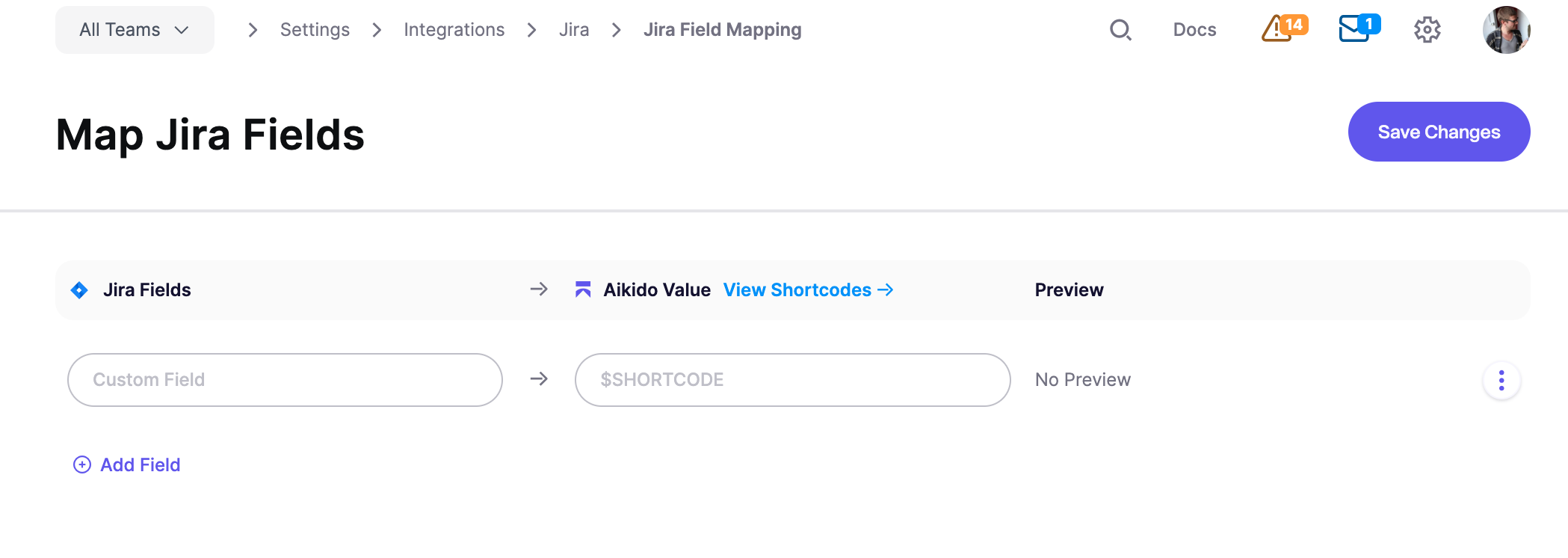
1. Go to [**Integrations** > **Jira** > **Jira Field Mapping**](https://app.aikido.dev/settings/integrations/tasktracker/fields/custom) and click **Add Field**
2. Enter the Jira custom field name in the **Custom Field** input exactly as it appears in Jira
3. Enter an Aikido shortcode (e.g., `$SEVERITY`) or a fixed text value in the **Aikido Value** input
4. Click **Save Changes**
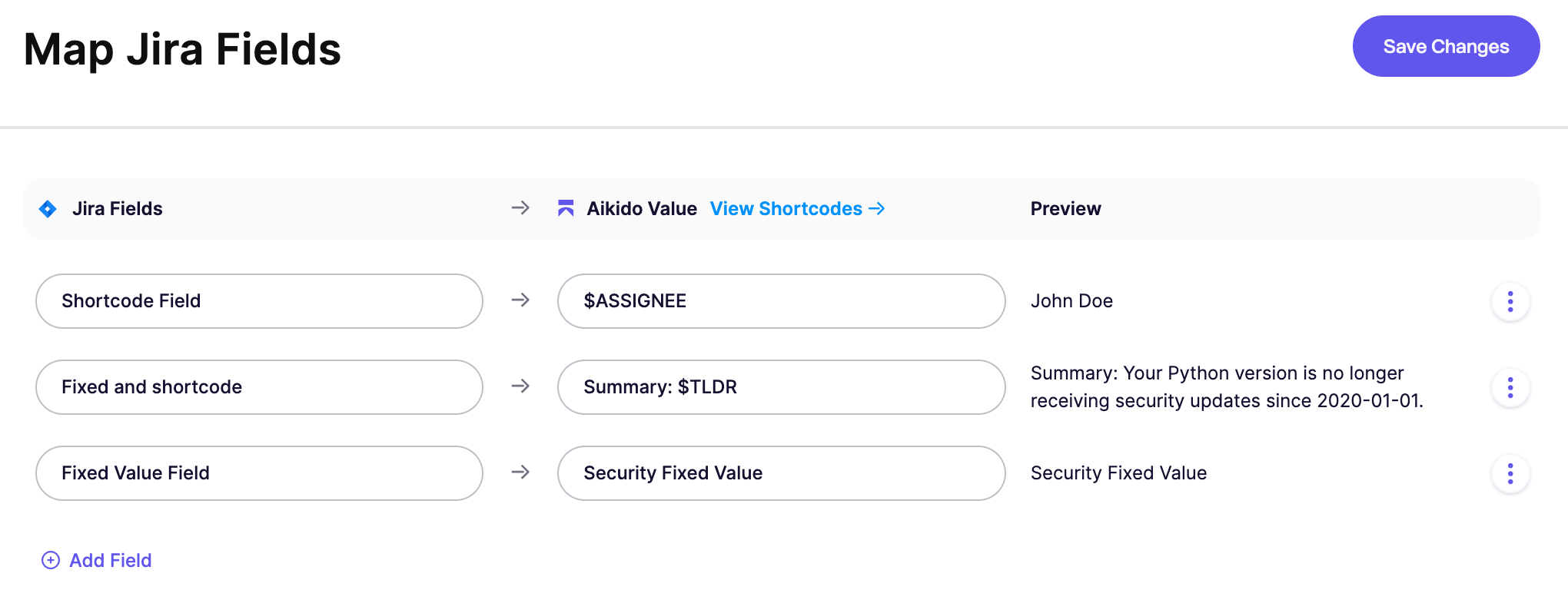
The **Preview** column shows what value will be sent to Jira. These can be values based on shortcodes or fixed values / free text.
#### Aikido Value: Fixed Text vs Shortcodes
**Option 1: Send Fixed Values to Jira via free text**
Enter plain text instead of a shortcode to set a constant value. Use only the readable name; you don't need Jira IDs or special formatting.
For example, entering `Security` populates that Jira field with "Security" for every ticket created from Aikido.
**Option 2: Send Aikido Values to Jira via Shortcodes**
Shortcodes are placeholders that pull data from your Aikido issues. When a Jira ticket is created, the shortcode is replaced with the actual value. You can also combine shortcodes with fixed text, such as `Issue: $TLDR` or `Detected on $FIRST_DETECTED_DATE`. Need a shortcode that's not listed? Reach out to us.
| Shortcode | Description |
| ----------------------- | ------------------------------------------------------------------------------------------------------------- |
| `$SEVERITY_SCORE` | The numeric severity score of the vulnerability (e.g., 85) |
| `$SEVERITY` | Severity level (Critical, High, Medium, Low) |
| `$ASSIGNEE` | User assigned to handle the issue in Aikido |
| `$TLDR` | Summary of the issue group |
| `$HOW_TO_FIX` | The how to fix description of the issue group |
| `$FIX_TIME` | The amount of time it takes to fix the issue group in minutes |
| `$TASK_DESCRIPTION` | The default description generated by Aikido for this task including scope, TLDR, and how to fix |
| `$TEAMS` | Teams responsible for the related issues |
| `$SCOPES_REPO` | The scopes filtered to only include repo names related to this task. Might be empty for some grouped issues. |
| `$SCOPES_SHORT` | The shorter version of the scopes related to this task such as repo names, container names, cloud names, etc. |
| `$SCOPES` | Scopes/locations related to the task (repo, container, etc) |
| `$SLA_DATE` | SLA due date |
| `$SLA_TIME` | SLA due date as a Unix timestamp |
| `$FIRST_DETECTED_DATE` | Date when the issue was first detected |
| `$FIRST_DETECTED_TIME` | First detected date as a Unix timestamp |
| `$AIKIDO_LINK` | Link to the issue group in Aikido |
| `$CWE_IDS` | The CWE ids of the issues related to this task |
| `$CVSS` | The highest CVSS score of the issues related to this task |
| `$ISSUE_TYPE` | The type of the issue related to this task |
| `$PROGRAMMING_LANGUAGE` | The programming language of the issue related to this task |
#### Date and Datetime Fields
For Jira **date** fields, use the `YYYY-MM-DD` format (e.g., `2024-03-15`) or the `_DATE` shortcodes.
For Jira **datetime** fields, use the `_TIME` shortcodes (e.g., `$SLA_TIME`, `$FIRST_DETECTED_TIME`). These output Unix timestamps, which Aikido automatically converts to Jira's required datetime format.
#### Advanced Examples
**Link all Aikido issues to one fixed parent**
If you want every Jira ticket from Aikido to use the same parent, map the Jira **Parent** field to a fixed value. In the **Aikido Value** input, enter the Jira issue key of the parent issue, such as `SEC-123`.
{% hint style="info" %}
The parent issue must already exist in Jira. It must also be valid for the project and issue type you use in Aikido.
{% endhint %}
---
# Agent Instructions
This documentation is published with GitBook. GitBook is the documentation platform designed so that both humans and AI agents can read, navigate, and reason over technical content effectively. Learn more at gitbook.com.
## Querying This Documentation
If you need additional information that is not directly available in this page, you can query the documentation dynamically by asking a question.
Perform an HTTP GET request on the current page URL with the `ask` query parameter, and the optional `goal` query parameter:
```
GET https://help.aikido.dev/getting-started/task-management-systems/map-aikido-data-to-jira-custom-fields.md?ask=&goal=
```
`ask` is the immediate question: it should be specific, self-contained, and written in natural language.
`goal` is optional and describes the broader end goal you are ultimately trying to accomplish on behalf of the user. GitBook uses it to tailor the answer towards what is most useful for that goal.
The response will contain a direct answer to the question and relevant excerpts and sources from the documentation.
Use this mechanism when the answer is not explicitly present in the current page, you need clarification or additional context, or you want to retrieve related documentation sections.