> For the complete documentation index, see [llms.txt](https://help.aikido.dev/llms.txt). Markdown versions of documentation pages are available by appending `.md` to page URLs; this page is available as [Markdown](https://help.aikido.dev/code-scanning/connect-your-source-code/connect-gitlab-self-managed-server-to-aikido.md).
# Connect GitLab Self-Managed Server
Aikido lets you connect a self-managed GitLab instance to scan and secure your code. Follow the steps below to connect your GitLab server to Aikido.
### Before you start
* If your GitLab is behind a firewall, [allowlist the Aikido IP addresses](/code-scanning/miscellaneous/allowing-ip-addresses-for-code-container-scanning.md) so Aikido can reach it.
* The person setting this up needs access to both the GitLab instance **and** the GitLab group you want to connect.
{% hint style="warning" %}
An Aikido workspace always maps to a single GitLab group.
We recommend connecting Aikido to a top-level (root) group that contains all subgroups. If you don’t have a root group, create one workspace per GitLab group. You can do this after creating your first workspace via the top-left dropdown: “Add another workspace”.
{% endhint %}
## Configuration
{% stepper %}
{% step %}
**Create an Aikido account**
To connect your GitLab server, first sign up or log in to Aikido using Google or Microsoft. On the [signup screen](https://app.aikido.dev/login), click **Google / Microsoft**.
{% endstep %}
{% step %}
**Start the GitLab setup**
Once you’re authenticated, create a new workspace by clicking **Self-Managed** in the GitLab section.
{% endstep %}
{% step %}
**Provide GitLab details**
To create the workspace, provide a few details about your self-managed GitLab instance so Aikido can connect to it.
{% hint style="info" %}
If your GitLab runs behind a firewall, [allowlist the Aikido IP addresses](/code-scanning/miscellaneous/allowing-ip-addresses-for-code-container-scanning.md) so we can access it. If that’s not possible, use the [Broker setup guide](/code-scanning/connect-your-source-code/connect-gitlab-self-managed-server-to-aikido/connect-gitlab-self-managed-server-broker-set-up.md).
{% endhint %}
Enter the URL to your GitLab server in the first input field.
{% endstep %}
{% step %}
**Create a GitLab personal access token (PAT)**
Next, create a personal access token (PAT). We recommend using a dedicated service account.
* Log in to your GitLab server
* Go to the admin area (`/admin`)
* Go to **Settings** → **Service accounts**
* Click **Add service account**, enter a name, then save
{% hint style="warning" %}
Add the service account to the GitLab group you want to connect, like any other user. See GitLab’s docs on [group members](https://docs.gitlab.com/ee/user/group/members/).
{% endhint %}
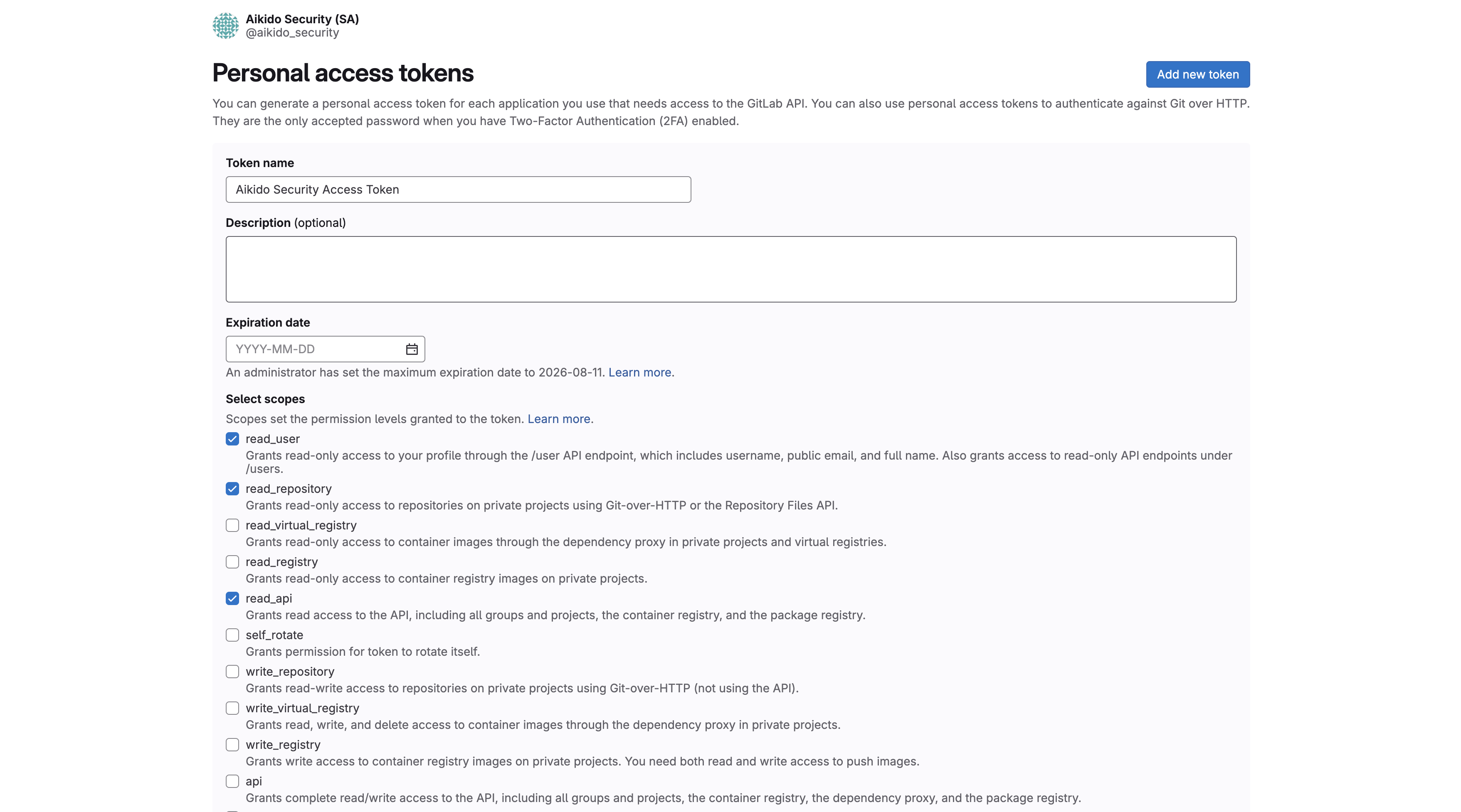
Now that the service account is created, you can create a PAT for it by clicking the three dots and select "**Manage access tokens**"
* Click on "**Add new token**"
* Enter a name for the token, for example: `Aikido Security Access Token`
* Set an expiration date that matches your internal policy. Rotate the token before it expires.
* We need the following scopes to be selected:
* **read\_user**
* **read\_api**
* **read\_repository**
* Click the **Create token** button at the bottom of the form.
* Copy the token being shown on the screen and enter it in the input field.
**Important:** You won’t be able to see the token again after you leave this screen. Copy it before you continue.
Aikido will now check the connection to your GitLab server. If it fails, double-check the server URL and the token.
{% endstep %}
{% step %}
**Complete the installation**
After you click **Next, Connect Group**, select the group you want to start with. You can always connect more groups later.
In the final step, select the repositories you want Aikido to monitor.
{% endstep %}
{% step %}
{% endstep %}
{% endstepper %}
---
# Agent Instructions
This documentation is published with GitBook. GitBook is the documentation platform designed so that both humans and AI agents can read, navigate, and reason over technical content effectively. Learn more at gitbook.com.
## Querying This Documentation
If you need additional information that is not directly available in this page, you can query the documentation by asking a question.
Perform an HTTP GET request on the following URL with the `ask` and `goal` query parameters:
```
GET https://help.aikido.dev/code-scanning/connect-your-source-code/connect-gitlab-self-managed-server-to-aikido.md?ask=&goal=
```
`ask` is the immediate question: it should be specific, self-contained, and written in natural language.
`goal` is what the user is ultimately trying to achieve, the reason they need the answer. Sharing it helps GitBook give you a better, more relevant answer. A goal is most helpful when it describes the outcome the user wants rather than restating the question. For example, with `ask=how do I create an API token`, a goal like `automate deployments from our CI pipeline` lets GitBook tailor the answer to that use case.
The response will contain a direct answer to the question and relevant excerpts and sources from the documentation.
Use this mechanism when the answer is not explicitly present in the current page, you need clarification or additional context, or you want to retrieve related documentation sections.