# How to Scan a Personal GitLab Project

**Table of contents:**

* [Step 1. Create a new group in GitLab](#step-1-create-a-new-group-in-gitlab)
* [Step 2. Transfer your personal projects to the newly created group](#step-2-transfer-your-personal-projects-to-the-newly-created-group)
* [Step 3. Connect the group to Aikido](#step-3-connect-the-group-to-aikido)

## How to scan a personal GitLab project

At this moment, Aikido only allows to scan projects which are linked to a group. Projects linked to your GitLab user are currently not supported.\
​\
If you'd like to enable code scanning on your personal GitLab projects, we recommend you create a personal group and transfer the projects there. To accomplish this, we recommend you follow the steps below.

#### Step 1. Create a new group in GitLab <a href="#step-1-create-a-new-group-in-gitlab" id="step-1-create-a-new-group-in-gitlab"></a>

Login to your GitLab account, navigate to "Groups" in the left-hand side navigation and click on "New group". Follow the steps to create a group.

![GitLab Groups dashboard with options to explore, create, and search for groups.](/files/539FQRm1JyU7ZKAM3ERN)

#### Step 2. Transfer your personal projects to the newly created group <a href="#step-2-transfer-your-personal-projects-to-the-newly-created-group" id="step-2-transfer-your-personal-projects-to-the-newly-created-group"></a>

Now, you can transfer your personal projects to the newly created group. To do this, navigate to the project's detail page and go to it's "General settings", which you can see in the left-hand side navigation. At the bottom you can expand the "Advanced" settings section.
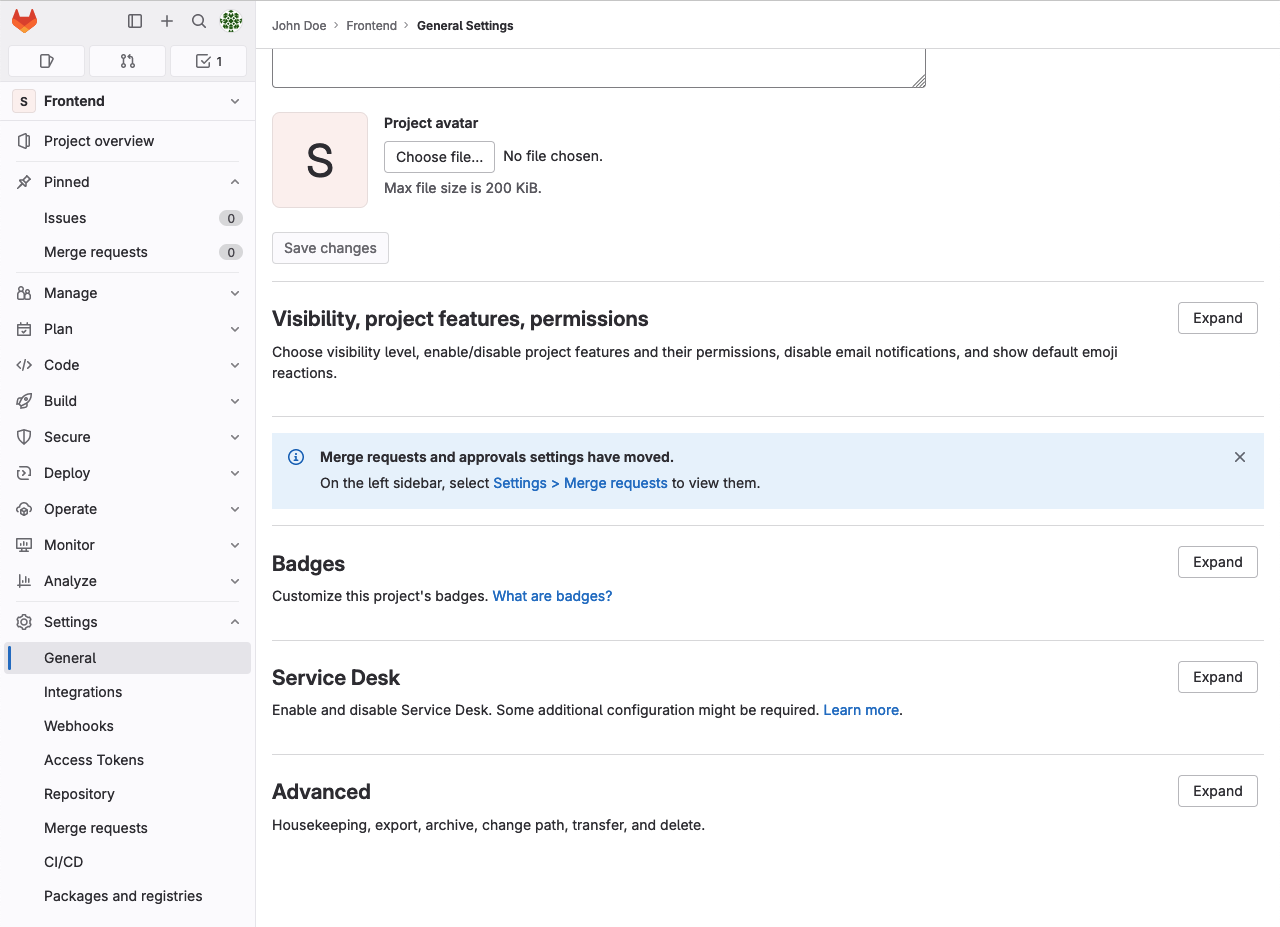
![GitLab project general settings page showing configuration options for visibility, badges, and advanced features.](/files/2760tiNcLW3FvRKi0ApL)

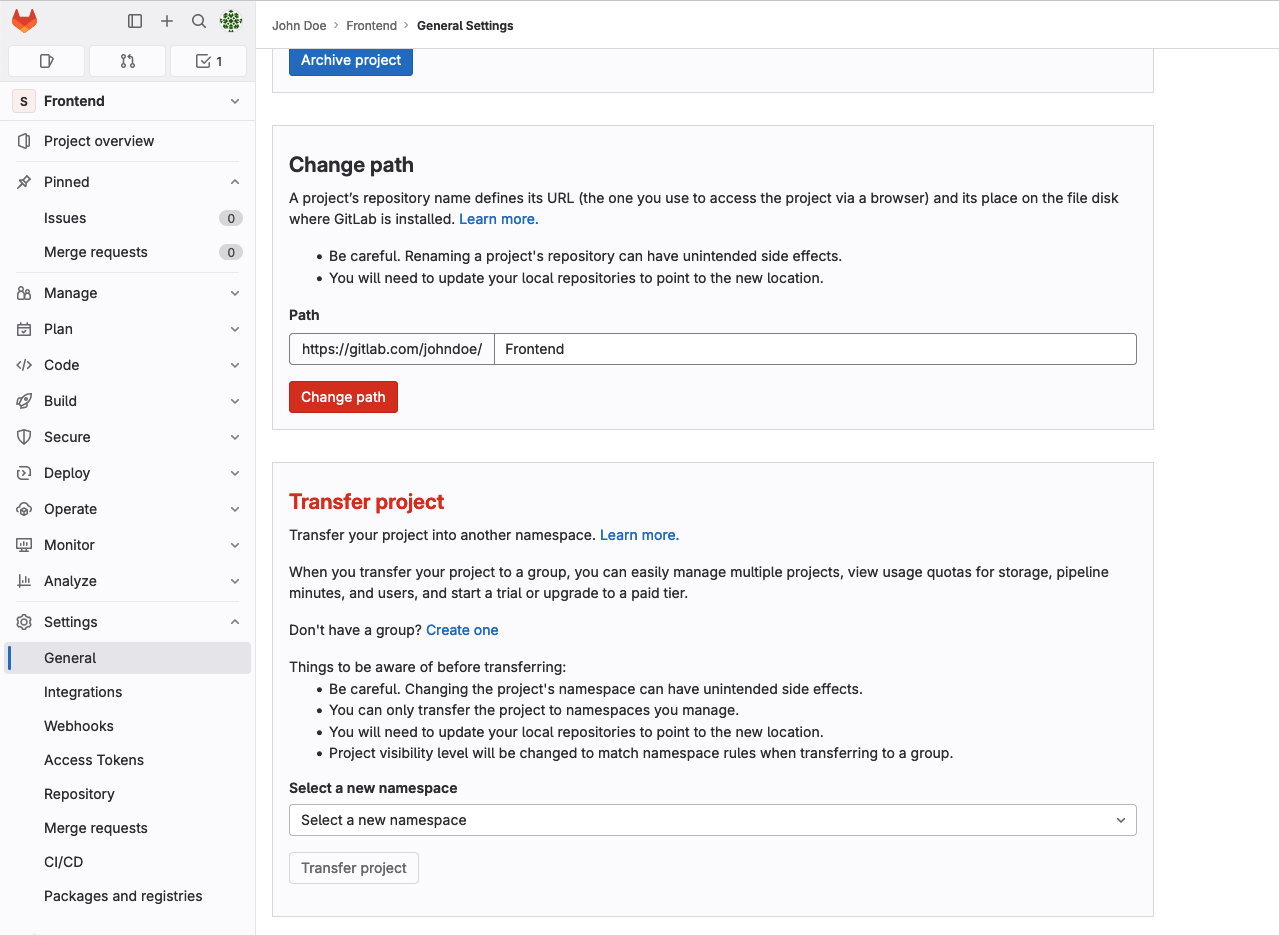
At the bottom of this section, you can transfer this project to a different namespace.\
​

![GitLab project settings for changing repository path and transferring project namespace.](/files/aXt5zficWaqhlWBjRgo4)

#### Step 3. Connect the group to Aikido <a href="#step-3-connect-the-group-to-aikido" id="step-3-connect-the-group-to-aikido"></a>

Now that you transferred your new project to the new namespace aka "group", you can connect Aikido to that group and allow read-only acces to start scanning for vulnerabilities.\
​\
In Aikido, select the Group dropdown picker in the left-hand side navigation, and click on "Add another workspace".
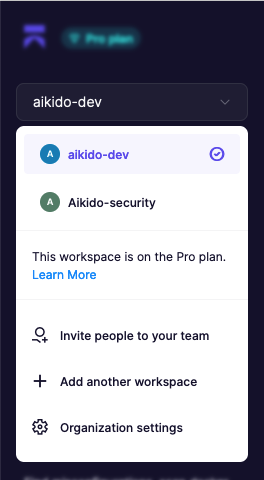
![Workspace menu showing "aikido-dev" on Pro plan with team and settings options.](/files/i94r1bdJB6UBKznpKCen)

You will now go through the flow of connecting your newly created GitLab group to Aikido to grant read-only access to your personal projects.


---

# Agent Instructions: Querying This Documentation

If you need additional information that is not directly available in this page, you can query the documentation dynamically by asking a question.

Perform an HTTP GET request on the current page URL with the `ask` query parameter:

```
GET https://help.aikido.dev/code-scanning/connect-your-source-code/how-to-scan-a-personal-gitlab-project.md?ask=<question>
```

The question should be specific, self-contained, and written in natural language.
The response will contain a direct answer to the question and relevant excerpts and sources from the documentation.

Use this mechanism when the answer is not explicitly present in the current page, you need clarification or additional context, or you want to retrieve related documentation sections.