> For the complete documentation index, see [llms.txt](https://help.aikido.dev/llms.txt). Markdown versions of documentation pages are available by appending `.md` to page URLs; this page is available as [Markdown](https://help.aikido.dev/getting-started/task-management-systems/all-supported-task-trackers/shortcut.md).

# Shortcut

This one-time setup *per workspace* allows everyone in your Aikido organization to create issues directly in Shortcut.

Following use cases are supported :

* **Automated Ticket Creation**: Automatically create and push tickets to specified Shortcut projects for seamless tracking of security issues.
* **Manual Ticket Addition**: Manually add security issue tickets to Shortcut, ensuring targeted attention for critical vulnerabilities.

## Connecting the Aikido App to Shortcut <a href="#connecting-the-aikido-app-to-shortcut" id="connecting-the-aikido-app-to-shortcut"></a>

1. Navigate to [Integration Settings](https://app.aikido.dev/settings/integrations) within the Aikido app.
2. In the 'Task Trackers' section, select 'Shortcut'
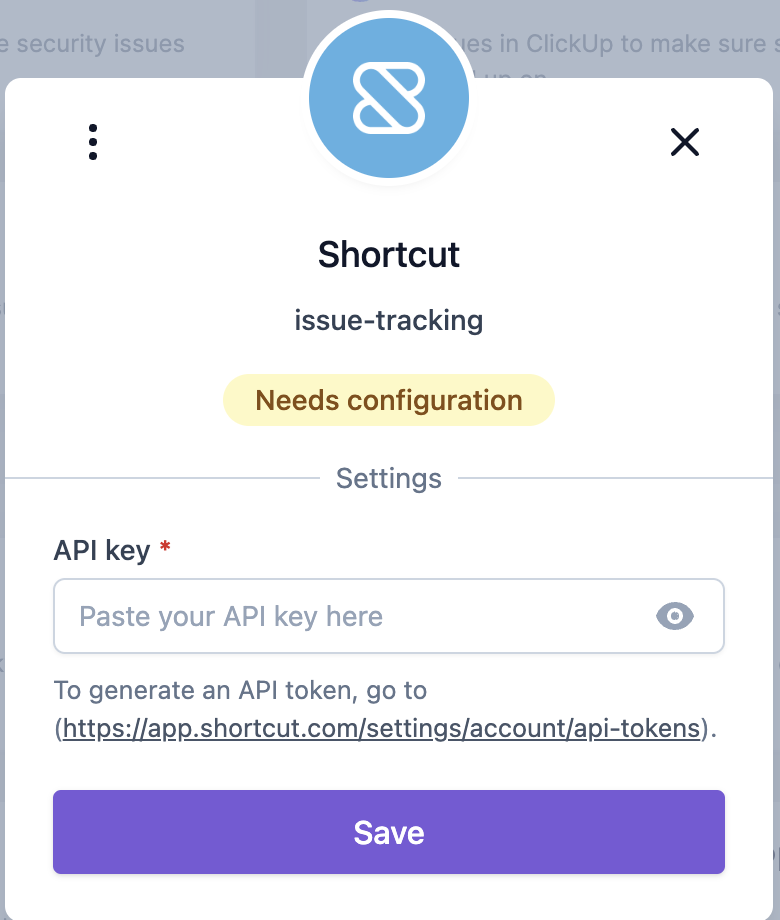
3. A prompt will request authorization for Shortcut.\
   ​

   ![Shortcut issue-tracking setup screen prompting for API key configuration.](/files/0k5kPPVmQ4zg1pDYBg3B)

   ​
4. Login into your Shortcut account
5. Grant Aikido permission to access your Shortcut workspace
6. Once authorized, Aikido is successfully connected to Shortcut, enhancing your task management capabilities 🚀
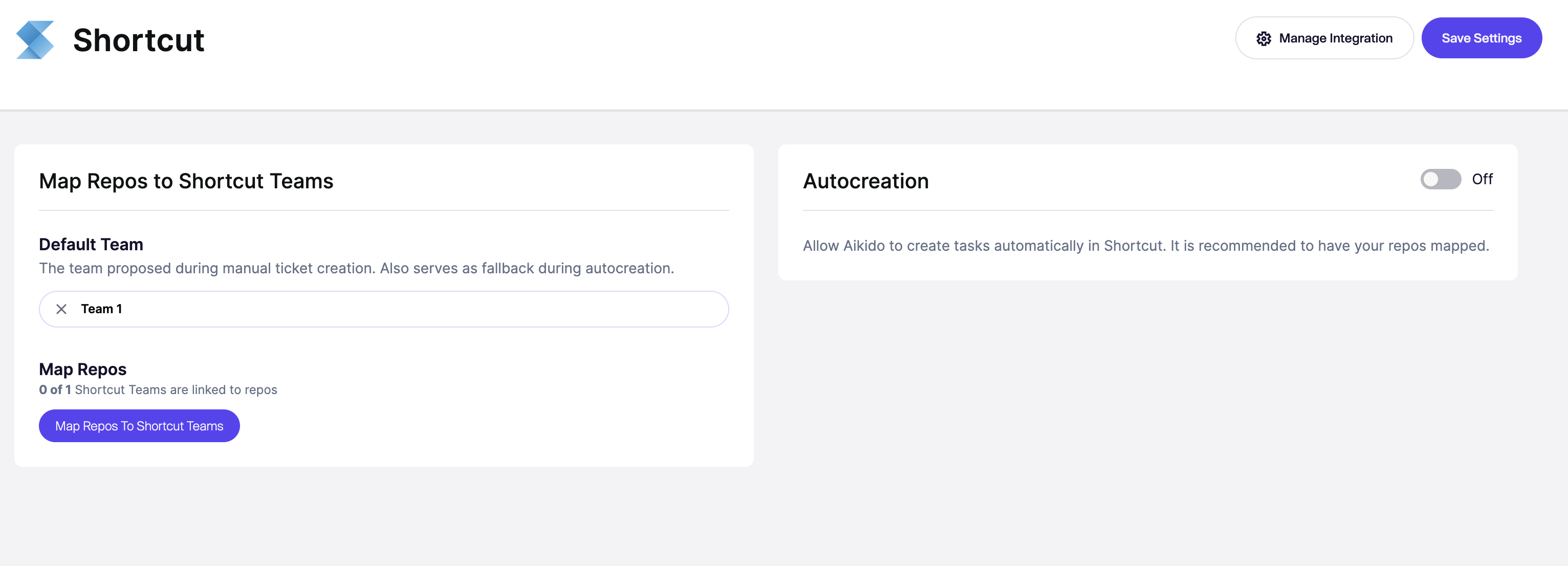
![Map repositories to Shortcut teams and enable or disable task autocreation.](/files/KNzcH11n4hIqRVCT0NIj)

## Options for Task Creation in Shortcut via Aikido <a href="#options-for-task-creation-in-shortcut-via-aikido" id="options-for-task-creation-in-shortcut-via-aikido"></a>

There are two different options to create new tasks from Aikido into Shortcut.

1. Manually create tasks from the Aikido interface
2. Automatically create new tasks via Aikido's auto creation functionality.

## 1. Manual Task Creation <a href="#id-1-manual-task-creation" id="id-1-manual-task-creation"></a>

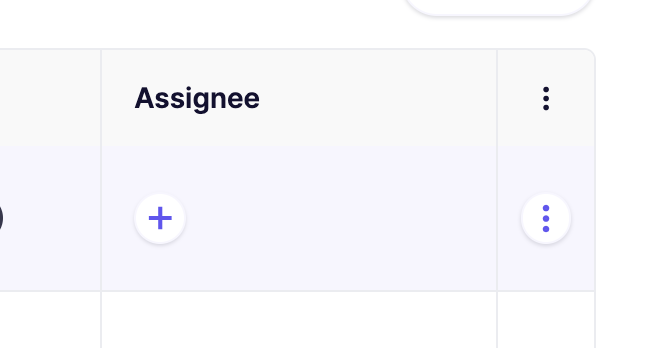
1. Hover over any issue in your feed and click the ***+*** in the **assignee column.**\
   ​

   ![Task table section showing "Assignee" field with add and options buttons.](/files/qHdYxduZ8eHuhsF9A0fa)

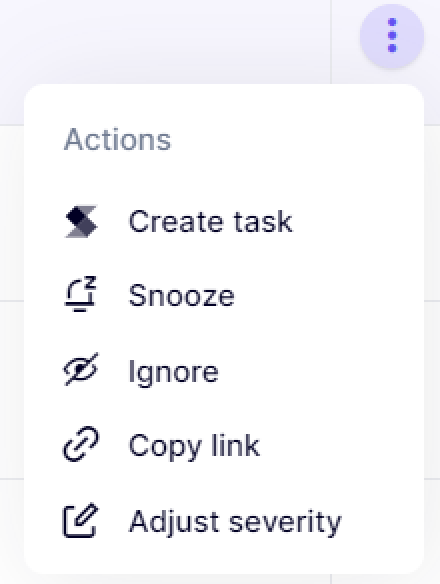
   Alternatively, you can click the triple dots in the last columns to open up the action menu. If you have grouped issues, the triple dot action menu is available on every subissue.\
   ​

   ![Dropdown menu with task management actions: create, snooze, ignore, copy link, adjust severity.](/files/T0zeHQzfCP76s5wAx1Hs)
2. Fill in the required details in the popup modal.\
   ​
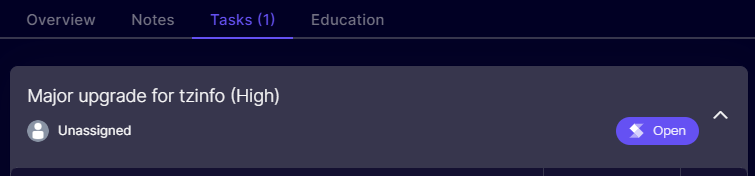
3. The newly created task in ClickUp will be linked in the Aikido Issue Detail under the 'Tasks' tab (sidepanel).
![High-priority tzinfo upgrade task, currently unassigned and open for action.](/files/rpyXzz2BNLZ4zXdyBLrx)

## 2. Automated Task Creation <a href="#id-2-automated-task-creation" id="id-2-automated-task-creation"></a>

{% hint style="info" %}
Aikido will automatically create tasks **every hour in bulk.** There is at the moment no option to trigger this manually.
{% endhint %}

1. Go to the [Shortcut Integration](https://app.aikido.dev/settings/integrations/tasktracker) settings
2. Select '**Change auto creation**'
3. Define the criteria for automatic task creation.

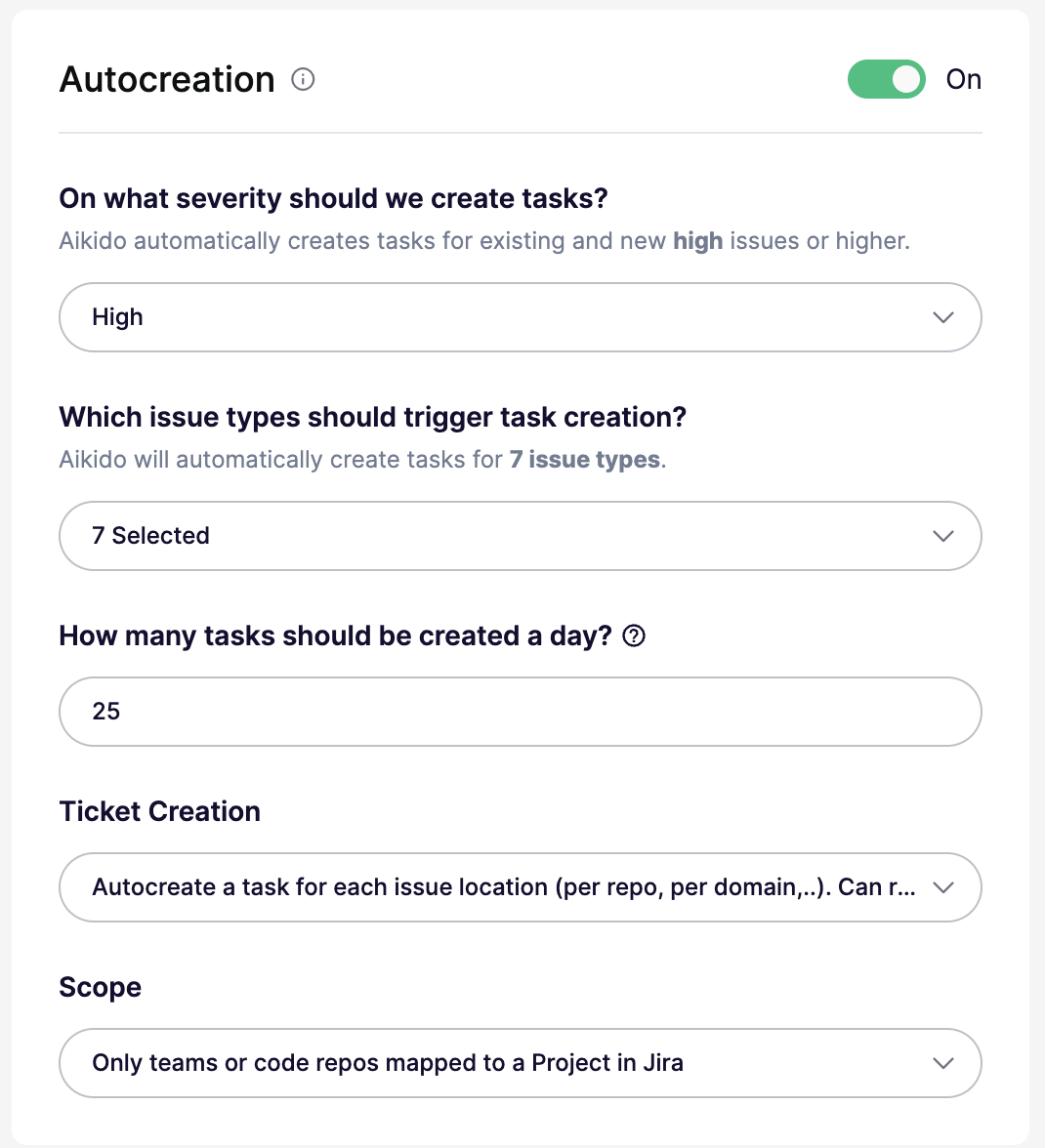
You can configure all of these settings in the autocreation modal:

* **On/Off** — Enable or disable autocreation. When off, the threshold is effectively set to `None`.
* **Severity threshold** — Create tickets for issues at `Critical`, `High`, `Medium`, or `Low` and above. For example, `High` creates tickets for `High` and `Critical`.
* **Issue types** — Create tickets for all issue types, or limit them to specific types like `SCA`, `SAST`, `Secrets`, `Cloud`, `IaC`, `Malware`, or `License`.
* **Daily limit** — Set the maximum number of tickets created per day. The default is `25`. Some plans support higher limits.
* **Ticket creation mode** — Create one ticket per issue group, or create separate tickets per location or scope. Per-location mode can create more tickets.
* **Scope** — Available only in per-location mode. Target all repos or clouds, only mapped repos or teams, or specific repos or clouds with include and exclude lists.
<figure><img src="/files/j8Ks4x8224kIfTgKPXEk" alt=""><figcaption></figcaption></figure>

4. Aikido will then autonomously generate Shortcut tickets based on these settings 🚀

***


---

# Agent Instructions
This documentation is published with GitBook. GitBook is the documentation platform designed so that both humans and AI agents can read, navigate, and reason over technical content effectively. Learn more at gitbook.com.

## Querying This Documentation
If you need additional information that is not directly available in this page, you can query the documentation dynamically by asking a question.

Perform an HTTP GET request on the current page URL with the `ask` query parameter, and the optional `goal` query parameter:

```
GET https://help.aikido.dev/getting-started/task-management-systems/all-supported-task-trackers/shortcut.md?ask=<question>&goal=<endgoal>
```

`ask` is the immediate question: it should be specific, self-contained, and written in natural language.
`goal` is optional and describes the broader end goal you are ultimately trying to accomplish on behalf of the user. GitBook uses it to tailor the answer towards what is most useful for that goal.

The response will contain a direct answer to the question and relevant excerpts and sources from the documentation.

Use this mechanism when the answer is not explicitly present in the current page, you need clarification or additional context, or you want to retrieve related documentation sections.