
Azure DevOps Boards
This one-time setup per workspace allows everyone in your Aikido organization to create issues directly in Azure DevOps Boards.
Following use cases are supported :
- Automated Ticket Creation: Automatically create and push tickets to specified Boards projects for seamless tracking of security issues.
- Manual Ticket Addition: Manually add security issue tickets to Boards, ensuring targeted attention for critical vulnerabilities.
#Connecting the Aikido App to Boards
-
Navigate to Integration Settings within the Aikido app.
-
In the 'Task Trackers' section, select 'Azure DevOps Boards'
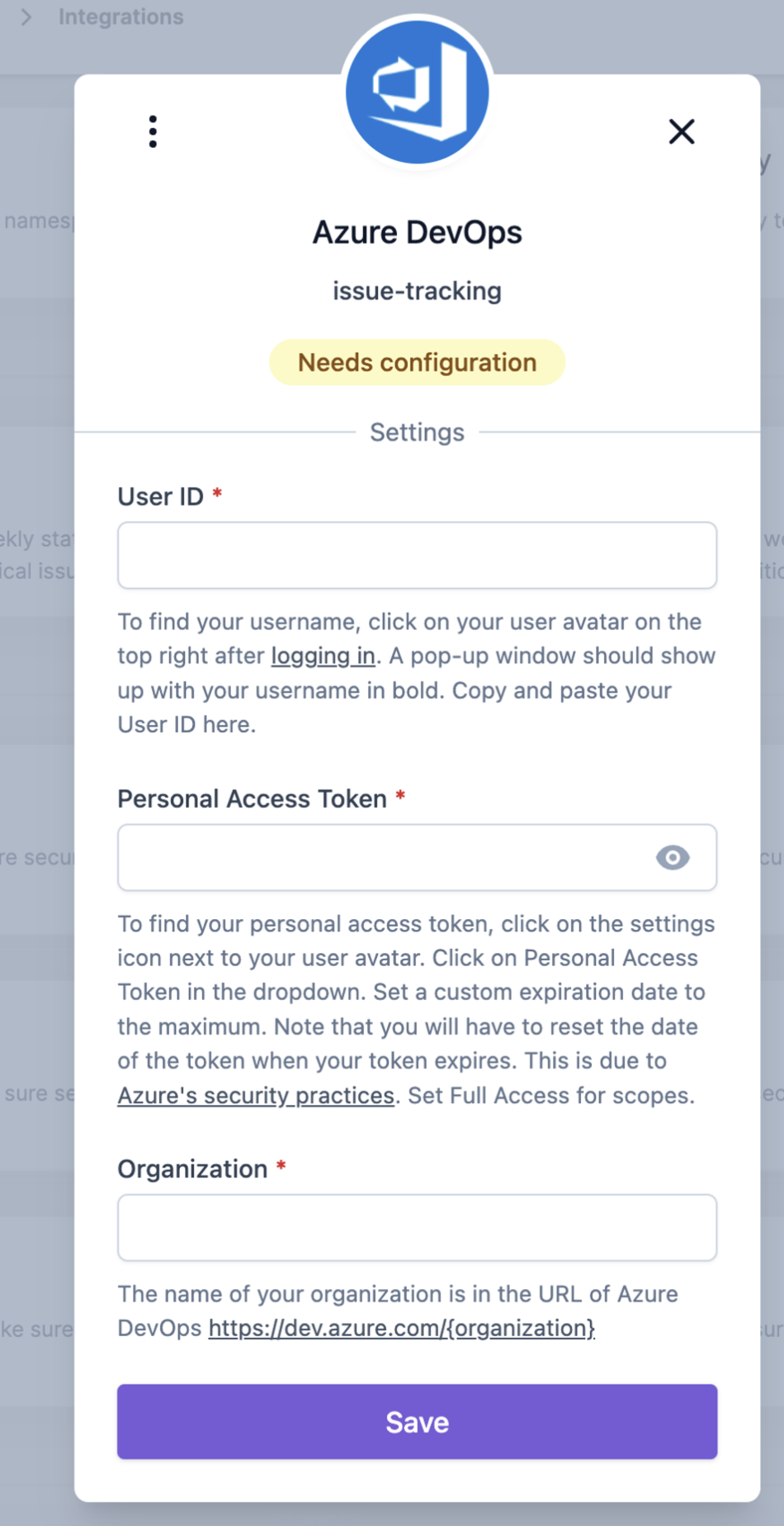
A modal will request some more information to authenticate:- UserID: this is your email
- Access Token: Can be found inside Azure DevOps. As scope, under 'Work Items', you can select 'Read & write'.
- Organisation Name: name of the organisation, can be found in the URL Make sure to include the organisation name ONLY, without the prefix of the url https://...
-
After filling in the credentials correctly, press save and Close the modal.
-
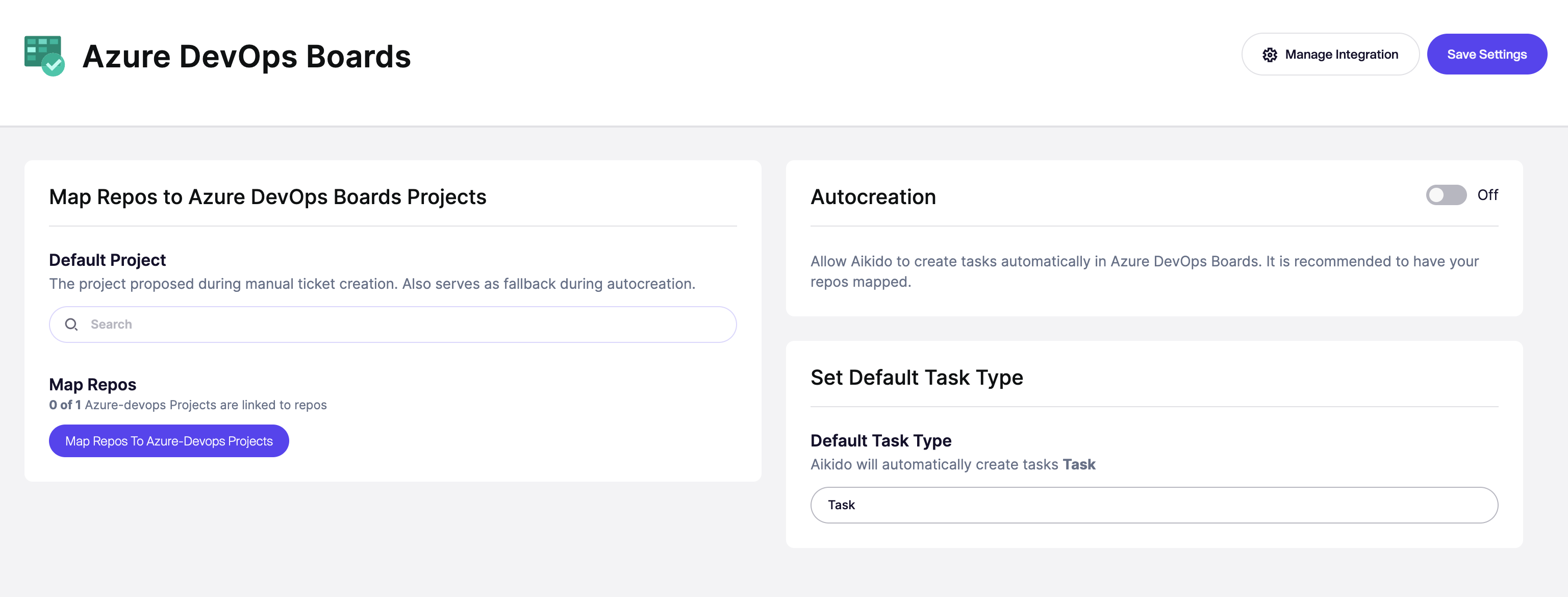
Open the Azure DevOps Boards Integration page to manage the auto creation settings.
#Options for Task Creation in Azure DevOps Boards via Aikido
There are two different options to create new tasks from Aikido into Boards
- Manually create tasks from the Aikido interface
- Automatically create new tasks via Aikido's auto creation functionality.
#1. Manual Task Creation
-
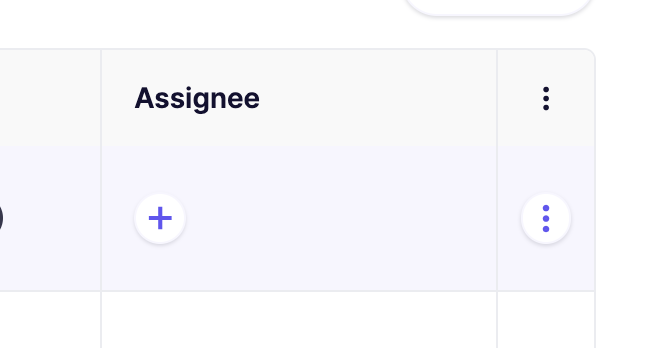
Hover over any issue in your feed and click the + in the assignee column.
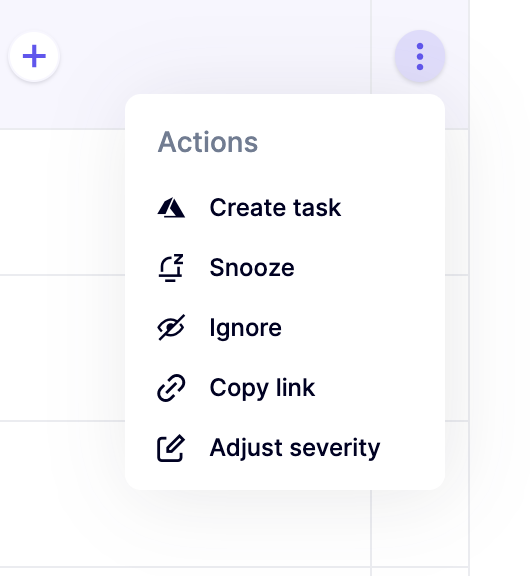
Alternatively, you can click the triple dots in the last columns to open up the action menu. If you have grouped issues, the triple dot action menu is available on every subissue.
-
Fill in the required details in the popup modal.
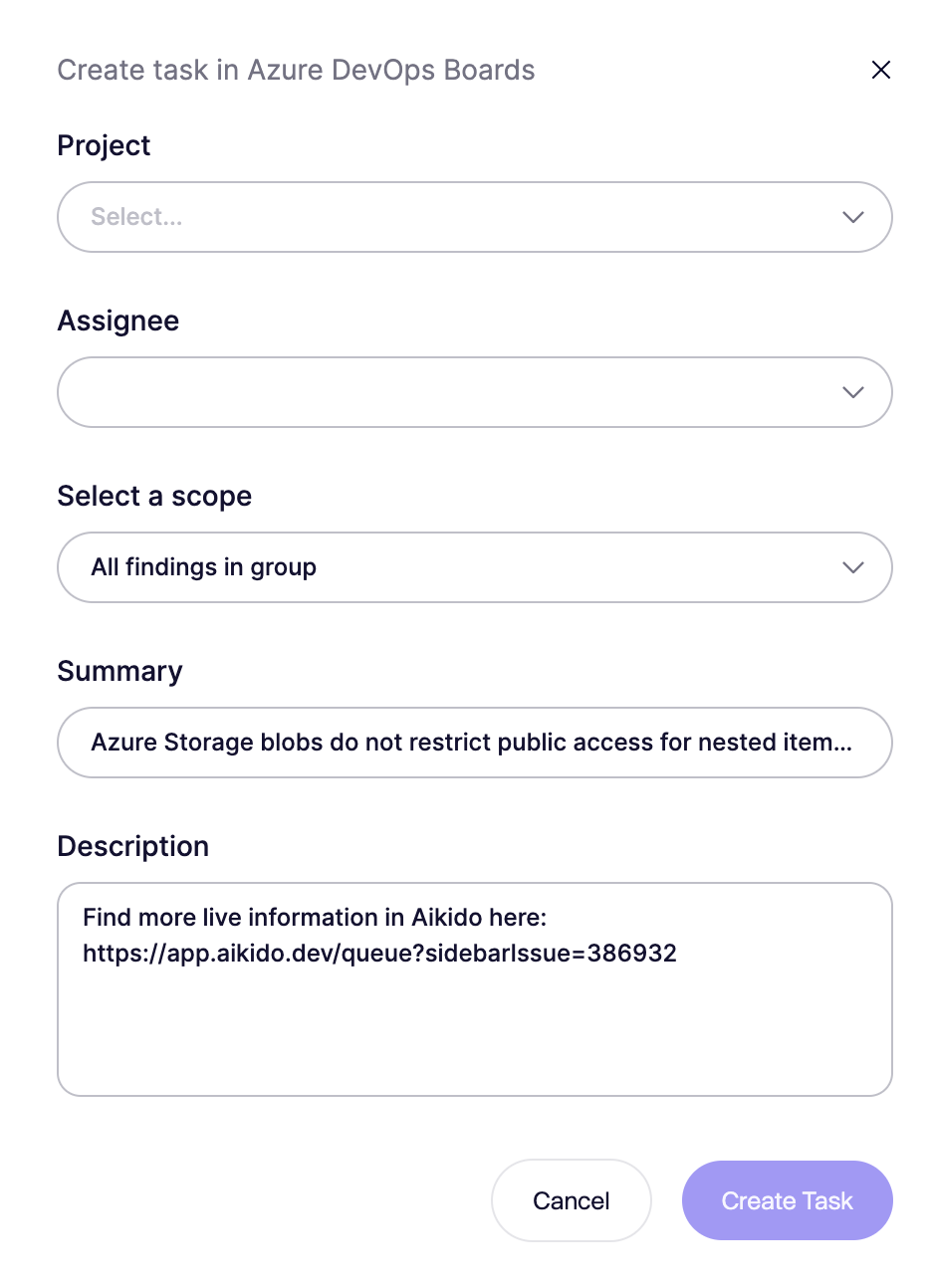
-
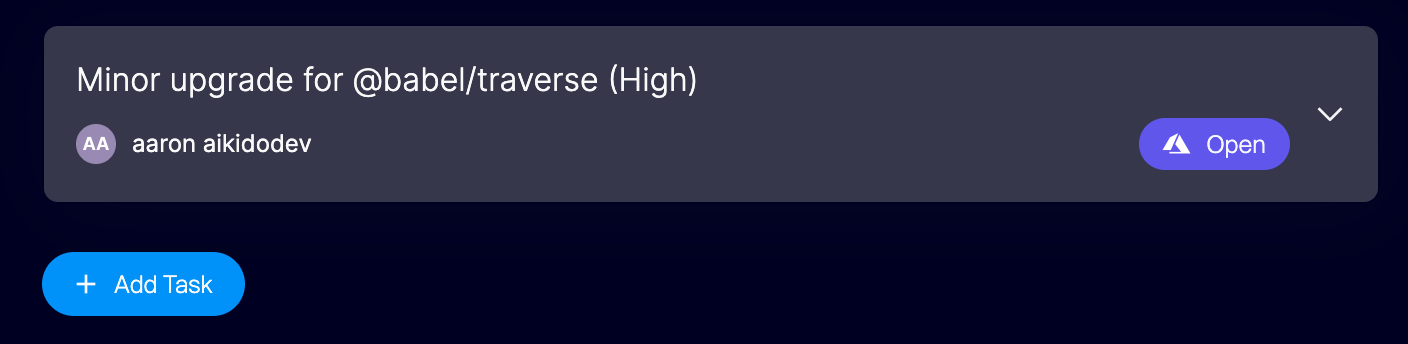
The newly created task in Boards will be linked in the Aikido Issue Detail under the 'Tasks' tab (sidepanel).
#2. Automated Task Creation
Aikido will automatically create tasks every hour in bulk. There is at the moment no option to trigger this manually.
- Go to the Azure DevOps Boards Integration settings page
- Select 'Change auto creation'
- Define the criteria for automatic task creation.
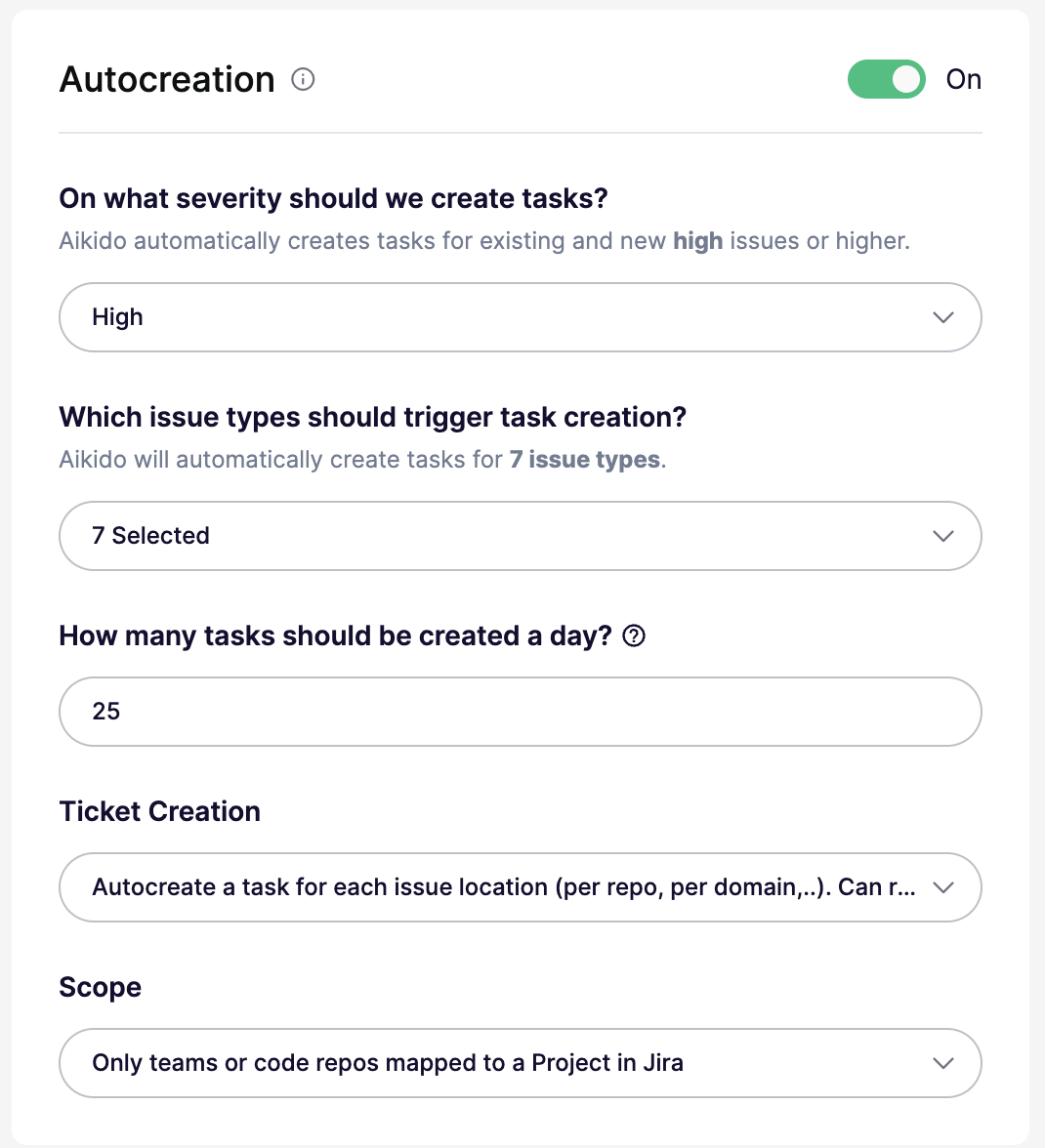
You can configure all of these settings in the autocreation modal:
- On/Off: Enable or disable autocreation. When off, the threshold is effectively set to
None. - Severity threshold: Create tickets for issues at
Critical,High,Medium, orLowand above. For example,Highcreates tickets forHighandCritical. - Issue types: Create tickets for all issue types, or limit them to specific types like
SCA,SAST,Secrets,Cloud,IaC,Malware, orLicense. - Daily limit: Set the maximum number of tickets created per day. The default is
25. Some plans support higher limits. - Ticket creation mode: Create one ticket per issue group, or create separate tickets per location or scope. Per-location mode can create more tickets.
- Scope: Available only in per-location mode. Target all repos or clouds, only mapped repos or teams, or specific repos or clouds with include and exclude lists.
- Aikido will then autonomously generate Boards tickets based on these settings 🚀