
Connect Azure DevOps Self-Managed Server
Aikido allows you to connect your Azure DevOps Self-Managed server instance to secure your code. To connect your Azure DevOps Self-Managed projects to Aikido, use the following procedure.
Note that each Azure Project with one or more repos maps to one Aikido workspace.
Select Microsoft / Office 365 or Google to authenticate
Step 1. To connect your Azure DevOps project, you first need to authenticate via Microsoft / Office 365 or Google to create a user in Aikido. On the signup screen, click on 'Microsoft / Google' to continue.
Depending on your organization's Microsoft Entra settings, you may need IT admin approval to authorize the Aikido application. For more information about the approval process, check Azure docs.
Step 2. Once you are authenticated via Google/Microsoft, select 'Connect Azure' on the page.
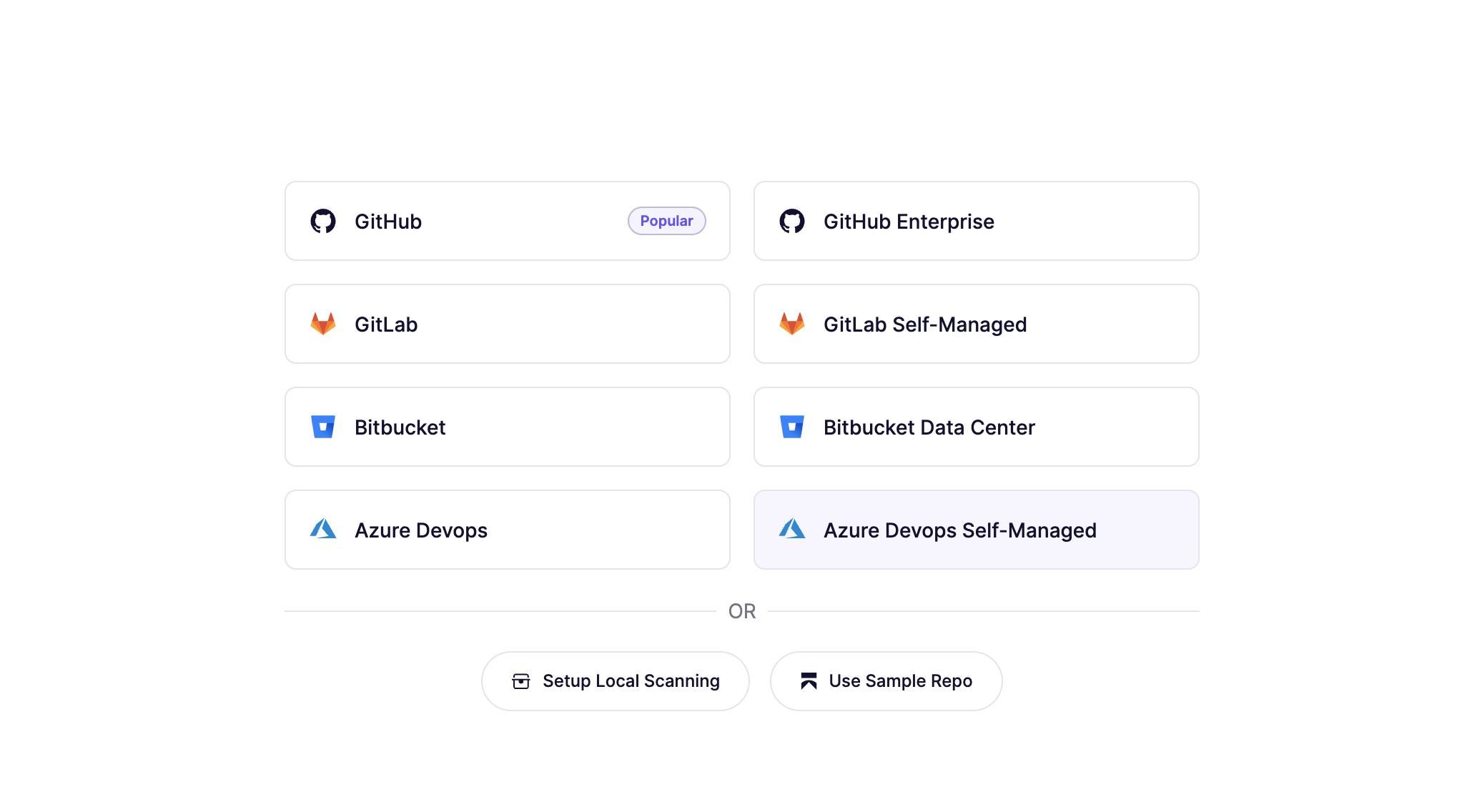
Step 3. Enter the details to connect the Azure Devops project of your choosing. We explain how to obtain the required information in the following section.
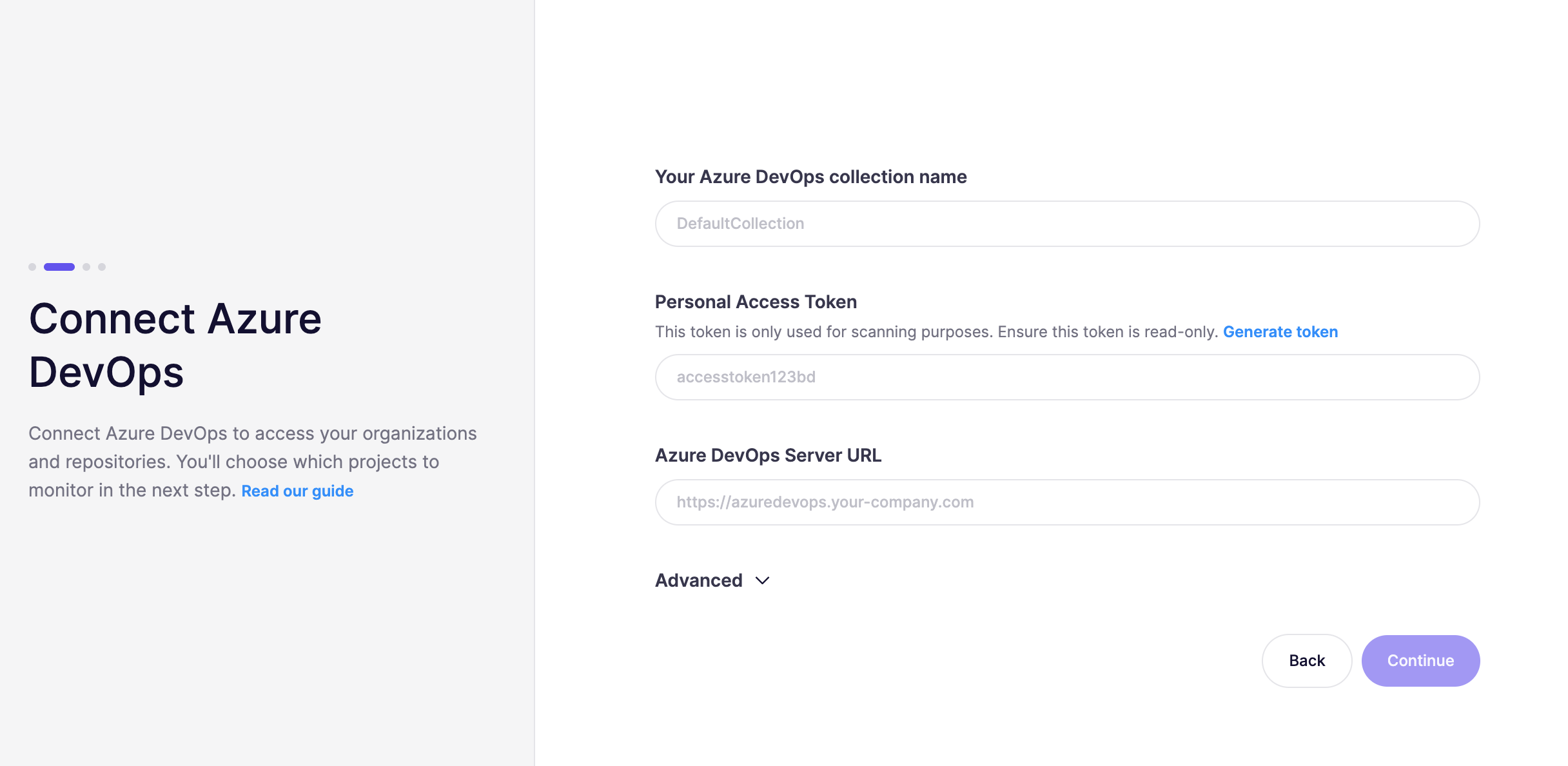
Insert your collection name
Enter the name of the Azure DevOps collection/organization you want to connect. You can find this name by going to your Self-Managed server instance and copying it from the left-side navigation.
Create a Personal Access Token
The token holder must have at least Project Collection Administrator access.
Next up, you need to create a Personal Access Token to give us access to the resources you want.
- Log in to your Azure DevOps Self-Managed instance
- In the upper-right corner, click the user avatar. A dropdown will appear, like the following image:
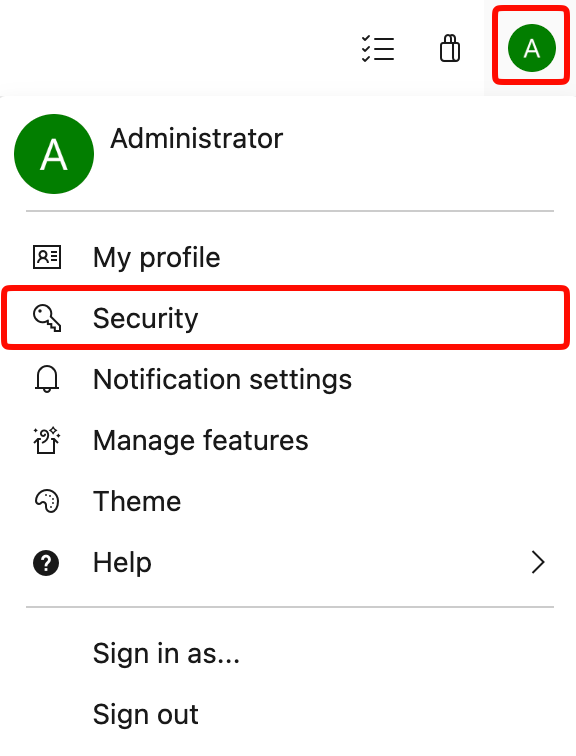
- Select Security in the dropdown.
- Then select on the left Personal Access Token
- Click on the +New Token button in the top right corner
- Enter a name for the token, eg: 'Aikido Security Access Token'
- Make sure to select the same organization/collection as the one you entered in the previous step
- Make sure to select an expiration date in the future, the max should be 1 year.
- Next, we need the following scopes to be selected (click 'show all scopes'):
- Code: Read
- Member Entitlement Management: Read
- Project and Team: Read
- User Profile: Read
- Click the Create button at the bottom.
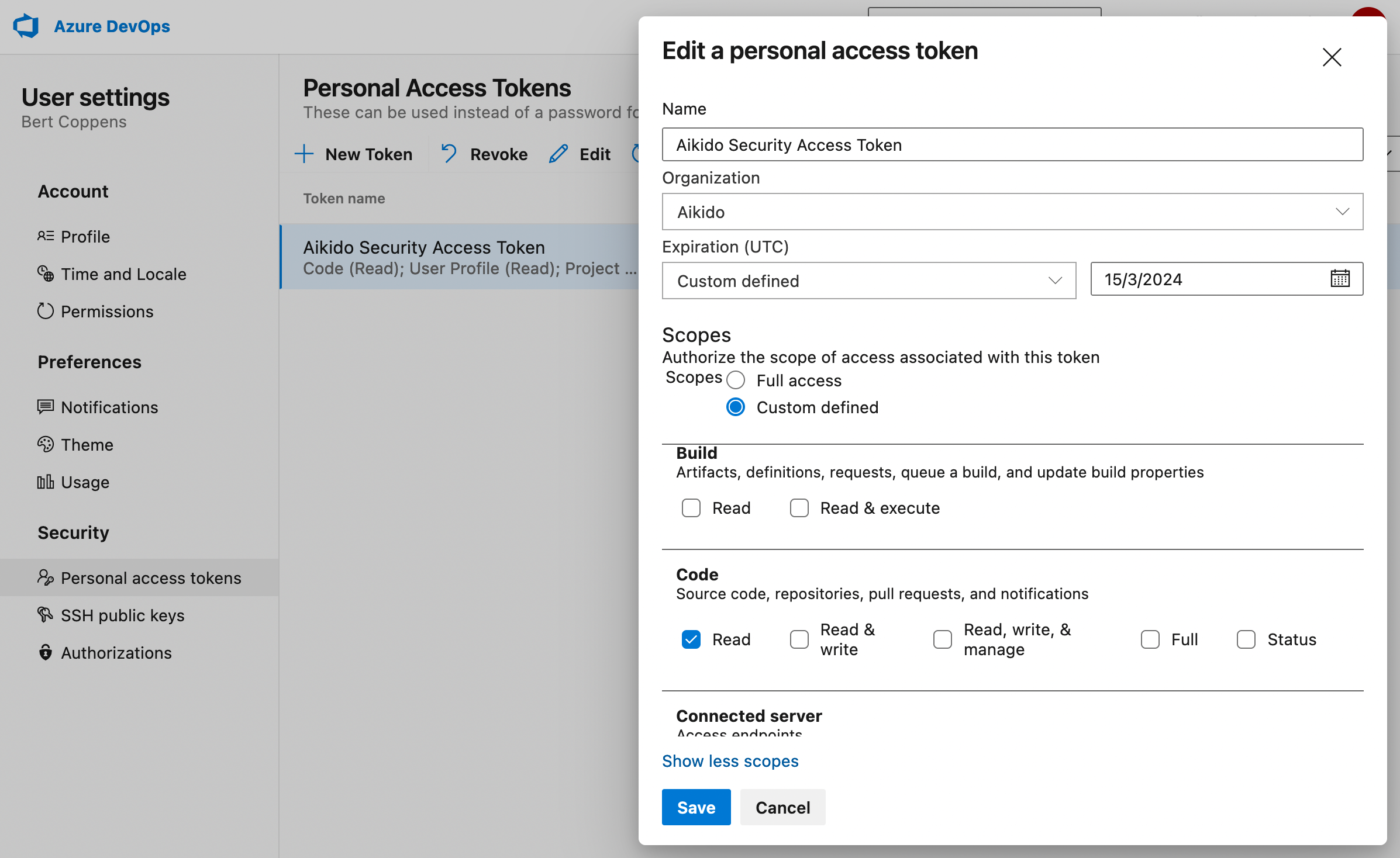
- Copy the token being shown on the following screen and enter it in the input field .
Important: You can't view the token value once you hit continue. Make sure you copy it first.
Aikido now checks the connection to your Azure DevOps instance. If the connection is not successful, make sure to double-check the organization name and personal access token you provided.
Select the project and repos you'd like to secure
On the next screen, you can select which project you'd like to start with. You can always connect more of your projects to Aikido.
In the final step select all the repos you would like us to monitor.
Specific notes on TFVC Repos
Aikido supports the integration of both Git and Team Foundation Version Control (TFVC) repositories.
- For TFVC repositories, Aikido does not perform secret scanning.
- By default, Aikido tries to scan 'All Branches' for TFVC repos. This might result in slow scanning speed. We recommend selecting the actual branch to scan. This can be changed by clicking the branch label on the repo detail page.
