
Microsoft Teams Notifications
Connecting Aikido to Microsoft Teams
Please note that only Aikido admin users can link a new Microsoft Team to your Aikido workspace.
If you are using the OLD version of the Microsoft Teams Integration, please delete all alerts before setting up the new version. You can setup the new version by removing the integration and then following the steps below.
App requires application-level permissions; access is limited to the Microsoft it's installed in, not the whole org.
Follow these steps to connect Aikido to Microsoft Teams:
Step 0. Uninstall the MS Teams Integration v1
In case you are still running the old MS Teams integration, first uninstall this one from the Aikido UI!
Step 1. Install the Aikido app in Microsoft Teams
- Open the Aikido app in the Microsoft Teams app store and click "Add to a Team".
- Select a channel for initial installation. You can configure alerts for all public channels of the selected Team later.
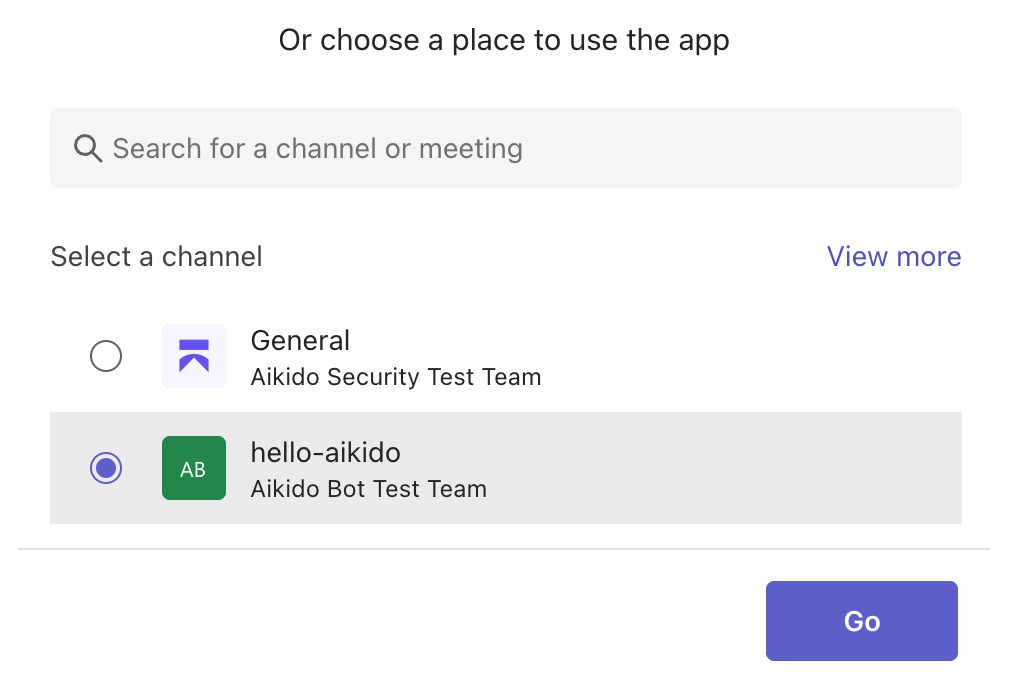
Select the team to which the messages should be sent.
You can find more information on how to install an app on Microsoft Teams in this Microsoft support article.
Step 2. Link the Microsoft Team to an Aikido workspace
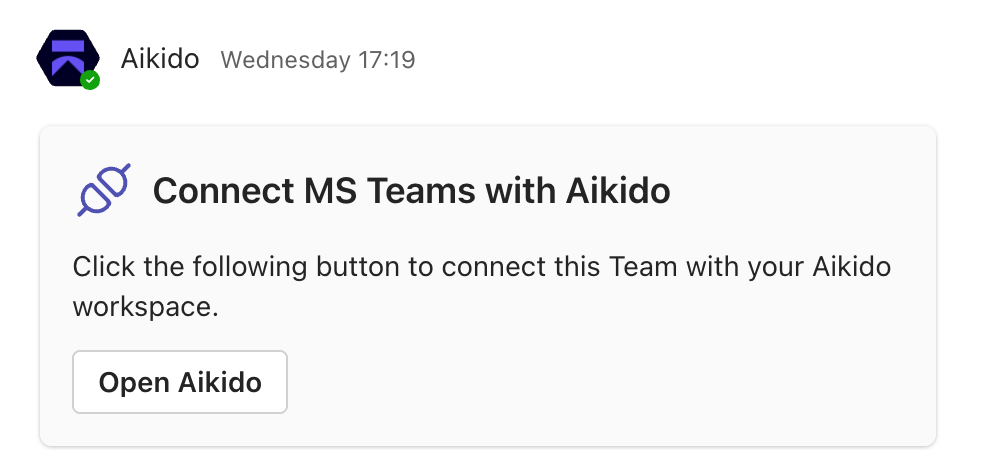
- The Aikido bot will send a message to the selected Microsoft Team channel. Click "Open Aikido" and log in.
- Complete the app setup by confirming the installation in the modal.
Step 3. Configure the alerts you'd like to receive
Due to limitation on Microsoft side, some public channels may not be discovered automatically. You can add them manually by selecting "Public channel missing..." in the channel selection options.
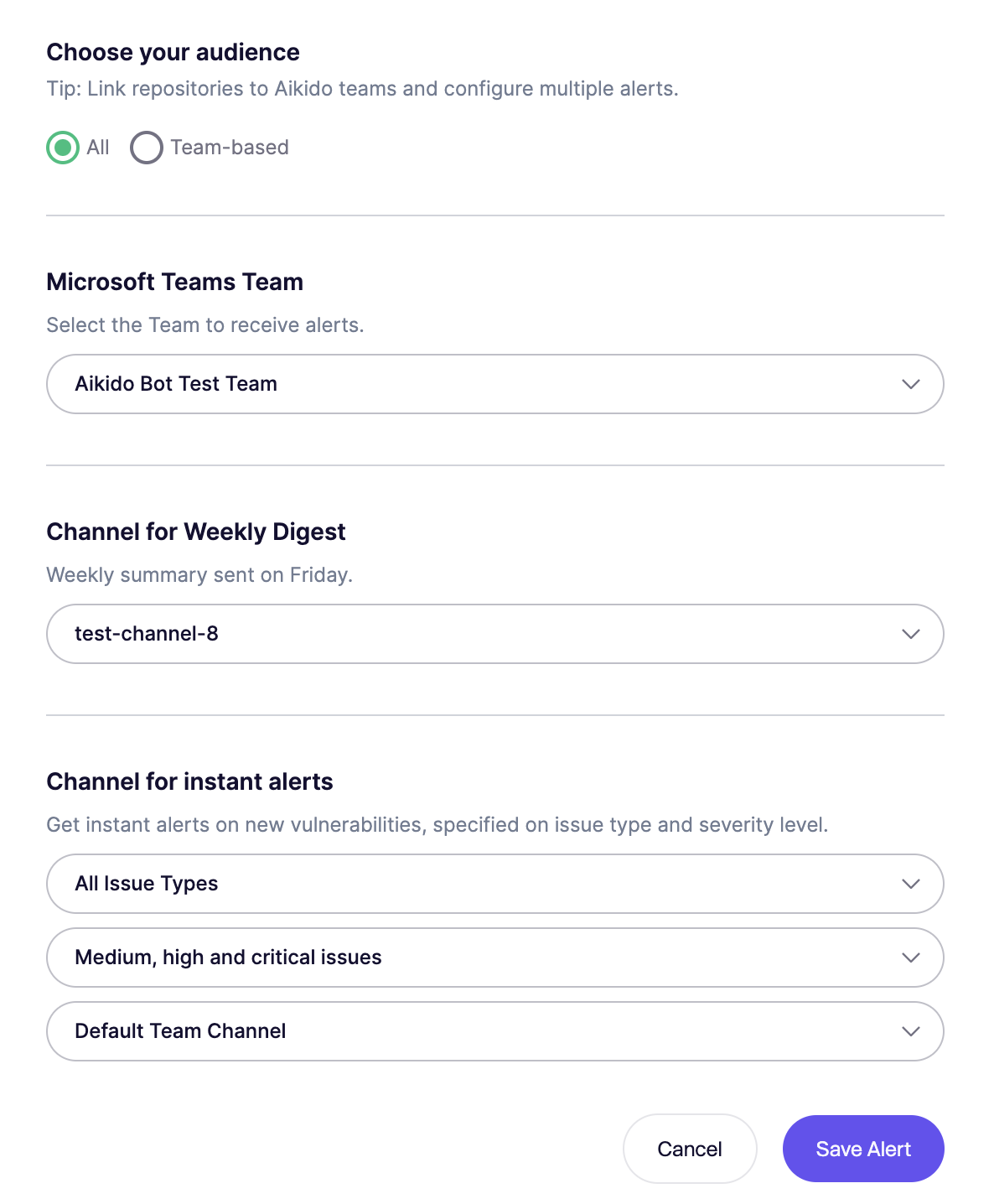
Once the connection to Microsoft Teams was successful, you can start adding alerts.
- Choose whether you want to send global or team-based notifications
- Choose for which severity types
- Choose for which issue types
Unlinking Aikido and Microsoft Teams
- Open the Microsoft Teams app and right click on the team where the Aikido bot is installed.
- Click Manage team and select the Apps tab.
- Search for the Aikido app in the list of installed apps, click on the three dots next to it, and select Remove.
- Confirm the removal in the pop-up dialog. All settings for this team will be deleted automatically.
FAQ
Can I link multiple Teams to one Aikido Workspace?
Yes, this is possible. Just follow the same steps again.
Is it possible to link multiple Aikido Workspaces to one Microsoft Team?
To link additional workspaces to the same Microsoft Team, click the button "Link another workspace" in the confirmation message sent by Aikido to your selected Teams channel. You will find theses message inside the Microsoft channel where you first installed the Aikido App. Please do not try to install the app multiple times.
How can I receive alerts in a private channel?
This is not easily possible due to restrictions imposed by Microsoft. We recommend creating a private Team with a public channel instead. But we describe a workaround on this page.
I don't receive the "Connect to Aikido" chat message
Please ensure that no moderation settings are configured for the selected channel that prevent bots from sending messages. Uninstall the app and try the process again using a different channel. If this does not help, please contact the Aikido support team.
Can I use the app in the Government Community Cloud (GCC)?
This is currently not possible. Please contact us to let us know that you would like to use our Teams app in a GCC environment.